![enginehire logo thin dark 1.0.png]](https://learn.enginehire.io/hs-fs/hubfs/enginehire%20logo%20thin%20dark%201.0.png?height=40&name=enginehire%20logo%20thin%20dark%201.0.png)
Let's get started 🚀
How to find the Sent On date for a reference check
Step 1: Log in to your agent dashboard and click Candidates in the navigation bar.

Step 2: Click the candidate whose references you want to check.
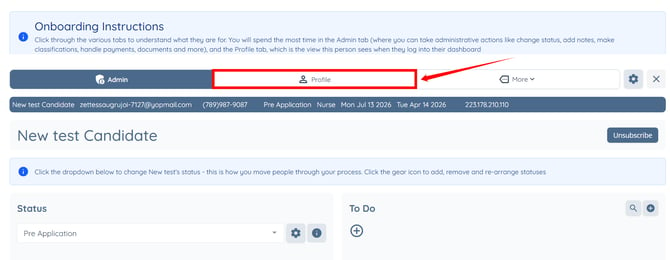
Step 3: Click the Profile tab.
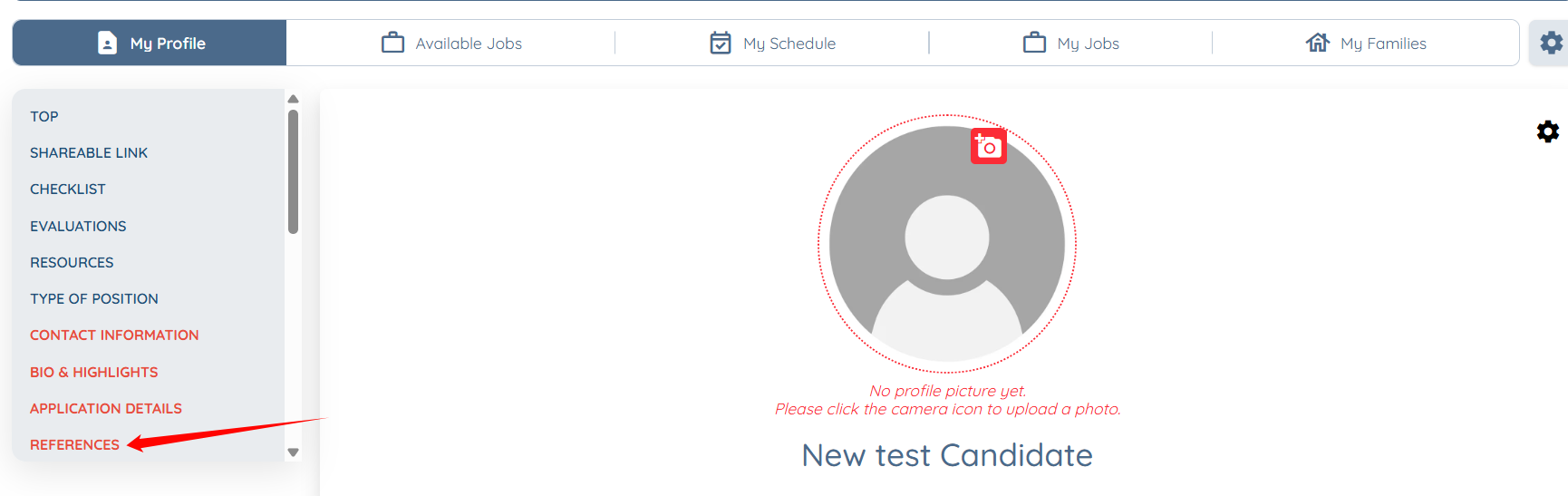
Step 4: Click References in the left-hand navigation bar. If your agency collects references through a work history or employment section, open that section instead.
Step 5: Find the reference you're looking for. The Sent On date appears on the reference's row, right after its status.

The date shows up the same way for reference checks sent by email and by SMS, so references you only contacted by text message are just as easy to track.
Send a reference check by email or SMS
To send a reference check yourself, click the arrow next to the reference to open its details, then click Send Email or Send SMS. Once the form goes out, the Sent On date appears on the reference's row and stays there after the reference check is approved.
Texting a reference requires an SMS phone number for your agency and a phone number saved on the reference. See Configure SMS Phone Number to Enable Messaging if you haven't set one up yet, and How to send a reference check form through SMS for a walkthrough. For more on reviewing responses, see How to Use Candidate Reference Checks.