![enginehire logo thin dark 1.0.png]](https://learn.enginehire.io/hs-fs/hubfs/enginehire%20logo%20thin%20dark%201.0.png?height=40&name=enginehire%20logo%20thin%20dark%201.0.png)
For demonstration purposes, this article uses the Clients table to show how to search for fields in Advanced Search. However, the same process applies to the Candidates table as well.
Let’s get started 🚀
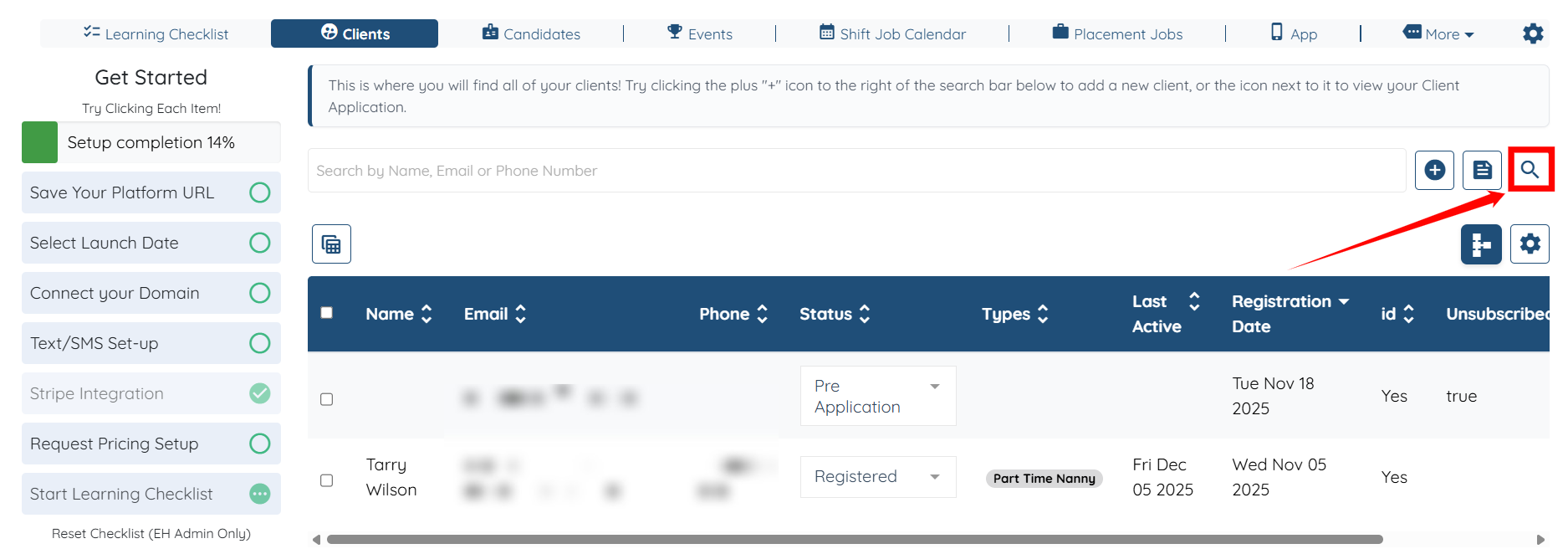
Step 1: Log in to your agent dashboard, under the Clients, click the Search and Filter Tools icon as shown in the screenshot below.
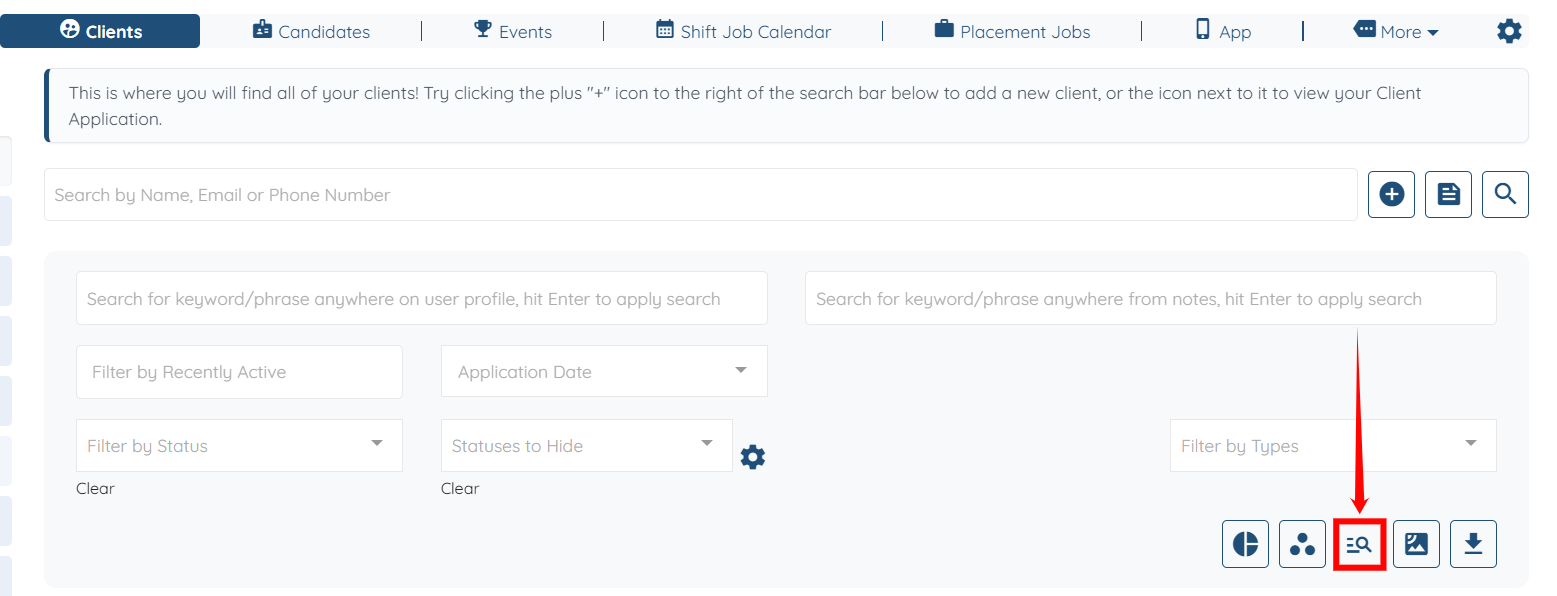
Step 2: Click the Advance Search button.
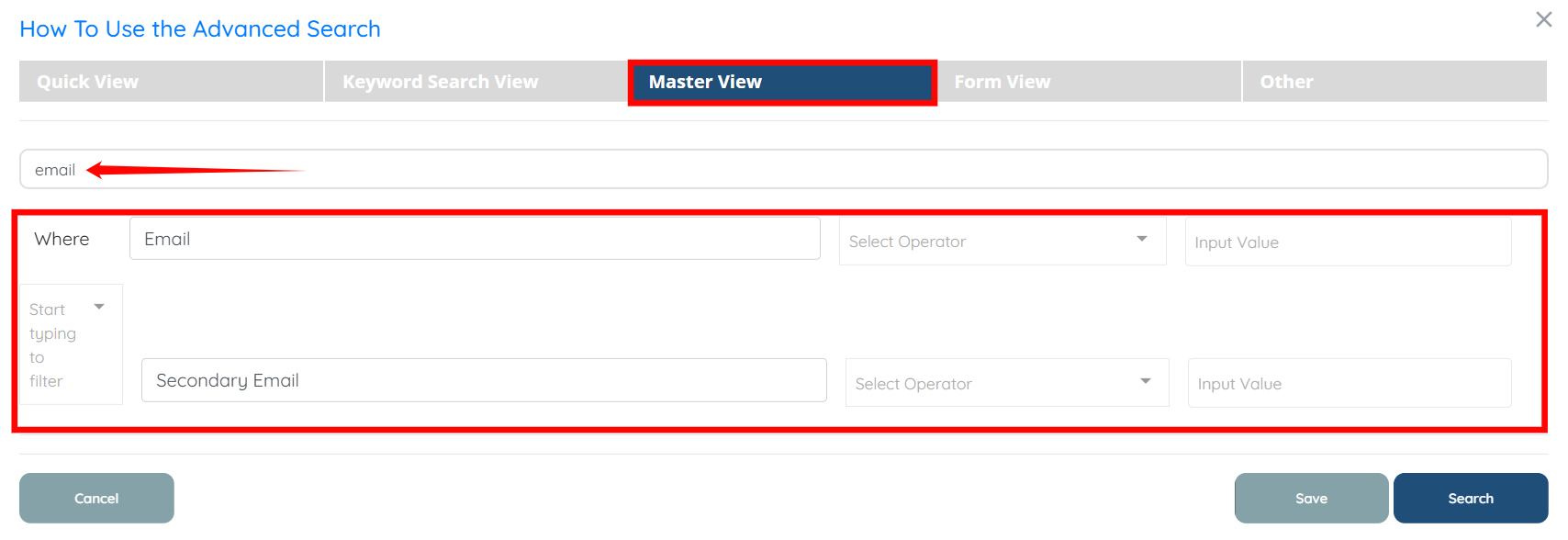
Step 3: Under the Master View, search for the specific field you are looking for in the search bar, and it will appear just below the search bar. For example, Email.
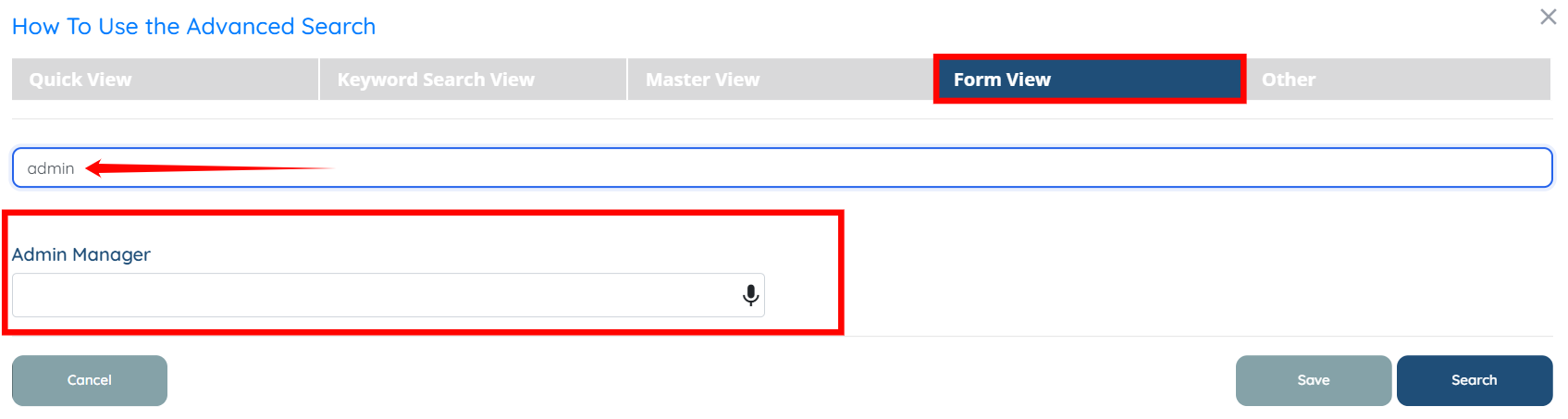
Step 4: In the same way, you can also search for the specific field you are looking for in the search bar, and it will appear just below the search bar. For example, Admin Manager.