![enginehire logo thin dark 1.0.png]](https://learn.enginehire.io/hs-fs/hubfs/enginehire%20logo%20thin%20dark%201.0.png?height=40&name=enginehire%20logo%20thin%20dark%201.0.png)
Let’s get started 🚀
Review Reference Check Forms
Access a candidate's profile to view the reference check forms submitted by their references and review the provided information.
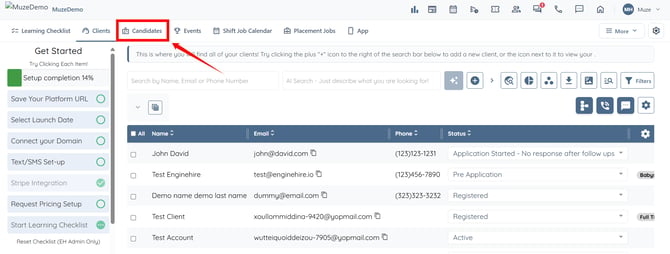
Step 1: Log in to your agent dashboard and click Candidates in the top navigation bar.
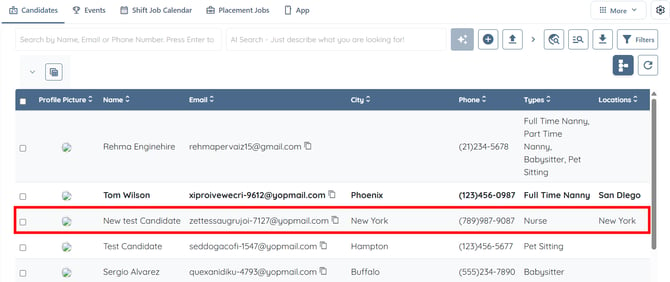
Step 2: Click the candidate whose reference checks you want to review.
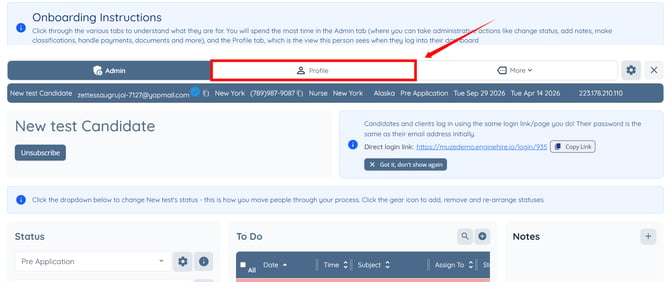
Step 3: Click the Profile tab to navigate to the candidate profile.
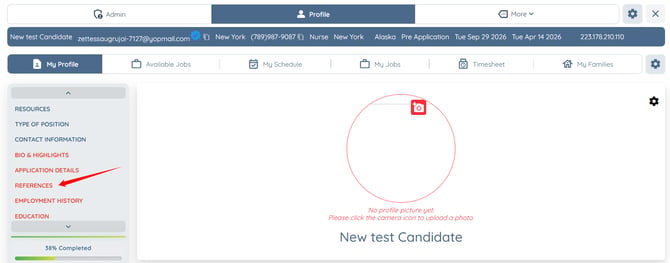
Step 4: Click the References option in the left-hand side navigation bar.
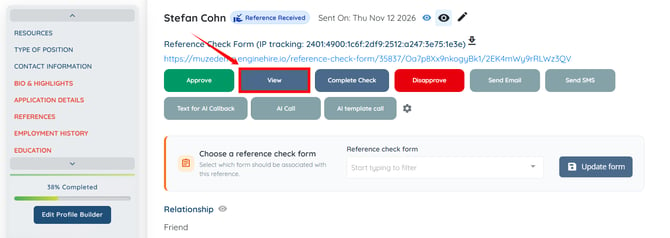
Step 5: Select the reference check that you want to review, then click the View button.
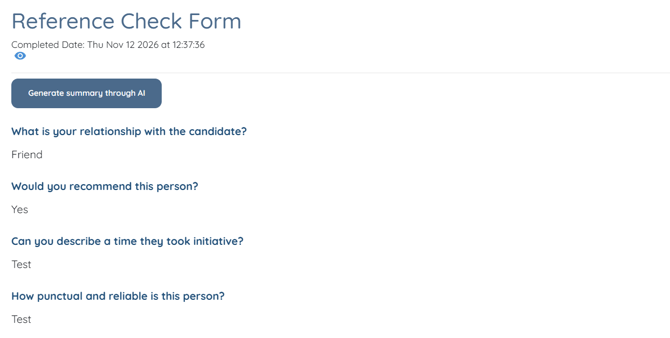
The reference check form submitted by the reference will be displayed.
Approve Reference Checks
After reviewing a reference check form, you can approve the reference check by following these steps.
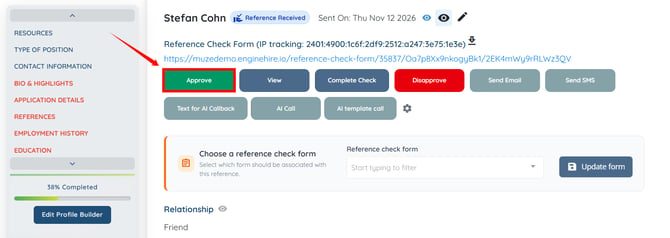
Select the reference check you want to approve, then click the Approve button.
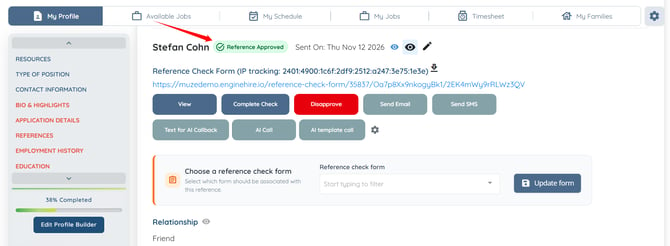
The reference status will be updated to Reference Approved.
You can also disapprove reference checks. For more information, refer to the Disapprove Reference Checks and Notify Candidates article.
Link Reference Check Forms
Follow these steps to associate a reference check form with the appropriate reference.
Step 1: Select the reference to which you want to link a reference check form.
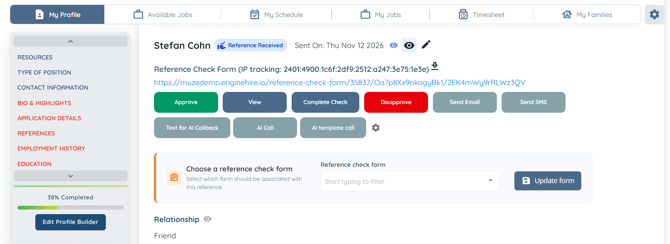
Step 2: Select the form you want to associate with the reference from the Reference check form dropdown.
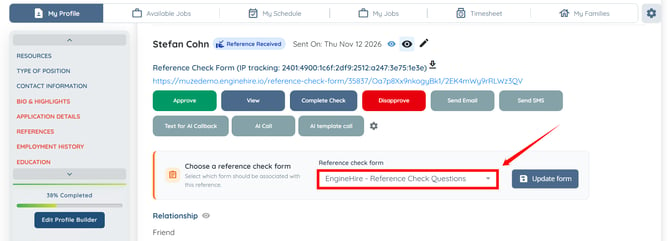
The selected reference check form will be linked to the reference.