![enginehire logo thin dark 1.0.png]](https://learn.enginehire.io/hs-fs/hubfs/enginehire%20logo%20thin%20dark%201.0.png?height=40&name=enginehire%20logo%20thin%20dark%201.0.png)
Let’s get started 🚀
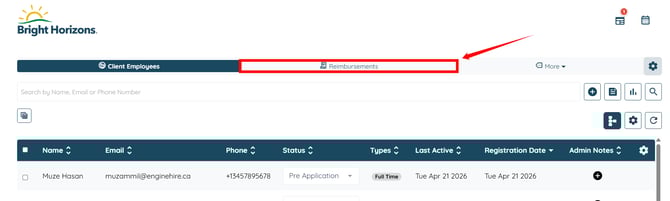
Step 1: Log in to your agent dashboard and click Reimbursements in the navigation bar.
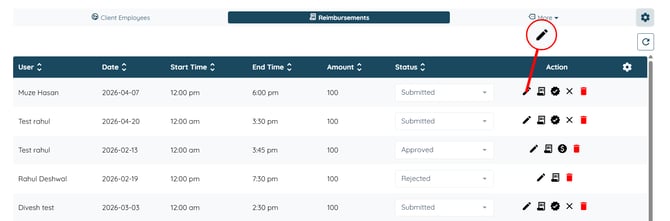
Step 2: Click the pencil icon corresponding to the reimbursement request you want to review.
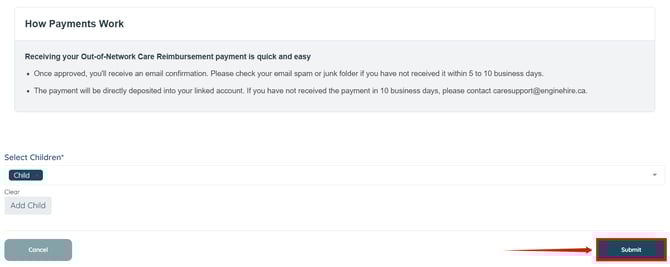
Step 3: You can edit the reimbursement details to update or correct any information in the request, and then click the Submit button.
Review Reimbursement Requests
Review submitted reimbursement requests and update details if needed.Step 1: Log in to your agent dashboard and click Reimbursements in the navigation bar.
Step 2: Click the pencil icon corresponding to the reimbursement request you want to review.
Step 3: You can edit the reimbursement details to update or correct any information in the request, and then click the Submit button.
Approve or Reject Request
Approve or reject reimbursement requests based on the review.Approve a Request
Step 1: Click the tick icon next to the request you want to approve.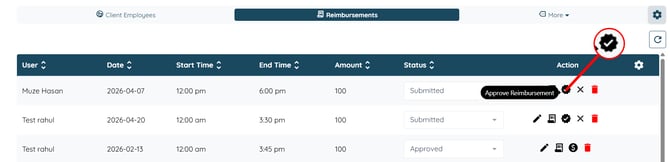
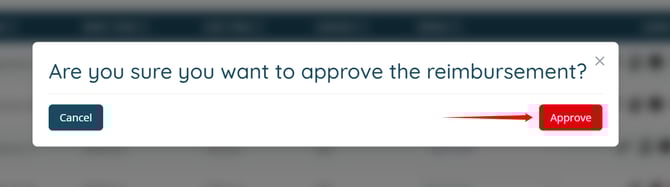
Step 2: Click the Approve button to confirm.
Once you approve the request, the system automatically updates its status to Approved.
Reject a Request
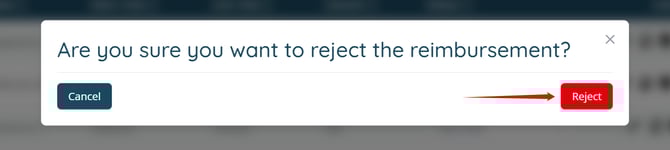
Step 1: Click the cross icon next to the request you want to decline.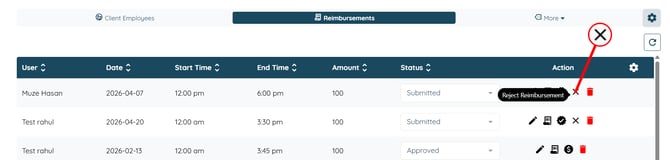
Step 2: Click the Reject button to confirm.
Once you reject the request, the system automatically updates its status to Rejected.