![enginehire logo thin dark 1.0.png]](https://learn.enginehire.io/hs-fs/hubfs/enginehire%20logo%20thin%20dark%201.0.png?height=40&name=enginehire%20logo%20thin%20dark%201.0.png)
This article uses the Candidate Profile to demonstrate how to configure profile visibility restrictions based on admin access levels. The same configuration options and steps apply to Client Profiles as well.
Restrict Individual Field
Use this option when you want to hide specific fields from admins based on their access level.
Let’s get started 🚀
Step 1: Log in to your agent dashboard and click More > Application & Profile Builder, as shown in the screenshot below. 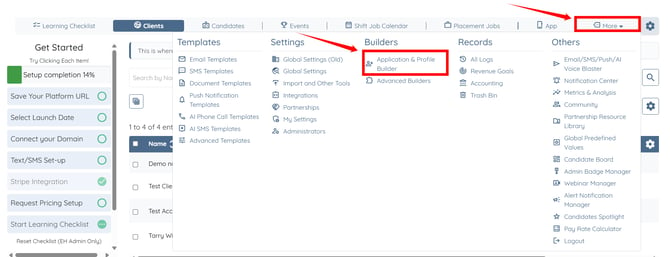
Step 2: Click the Filter by type box to open the dropdown list.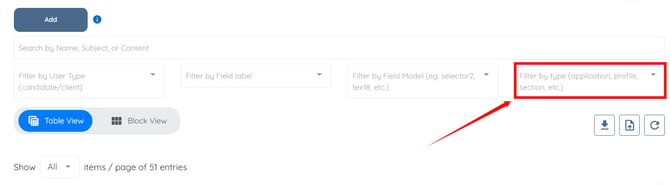
Step 3: Select the Profile option from the dropdown list.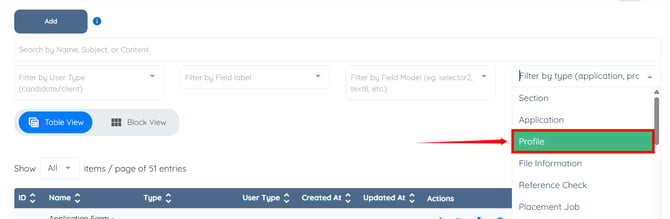
Step 4: Click the pencil icon under the Actions column next to the Candidate Profile. 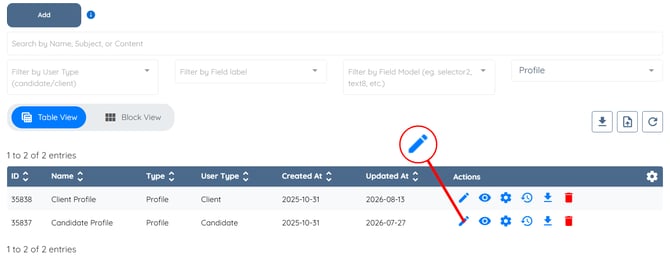
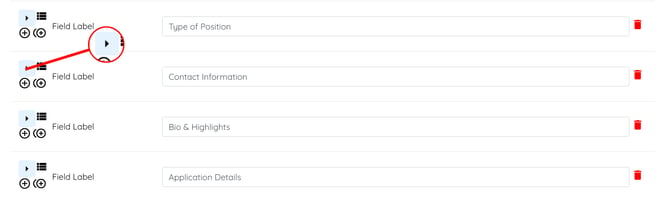
Step 5: Click the arrow button of the field to expand its details.
This should be the field where you selected Section as the field type to embed a section in the profile.
Step 6: Click the Edit Section Builder button to navigate to the section embedded in this field.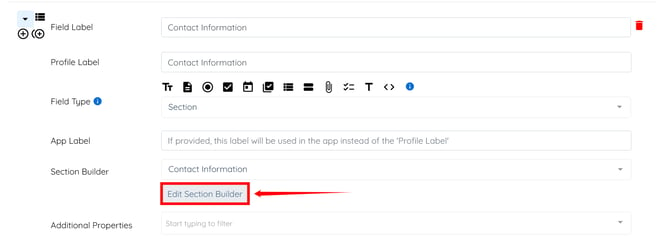
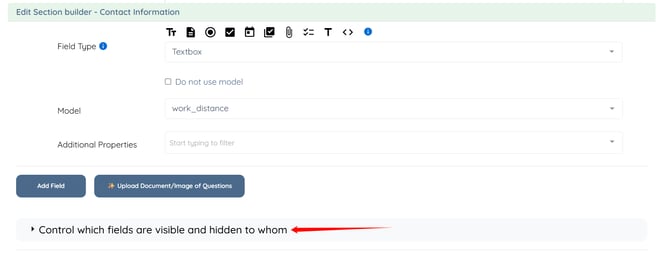
Step 7: Scroll to the bottom and click Control which fields are visible and hidden to whom option to expand it.
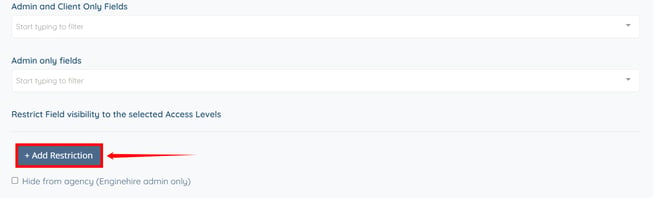
Step 8: Click the Add Restriction button.
Step 9: Select the field you want to hide from the Hide this field dropdown list. 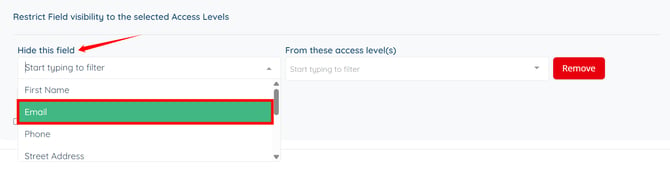
Step 10: Select the admin access level from which you want to hide the selected field. 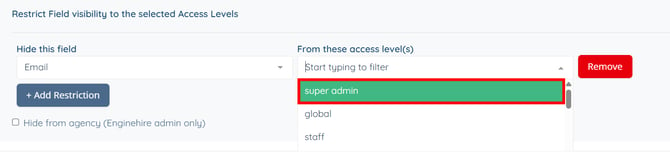
Step 11: Click the Save button.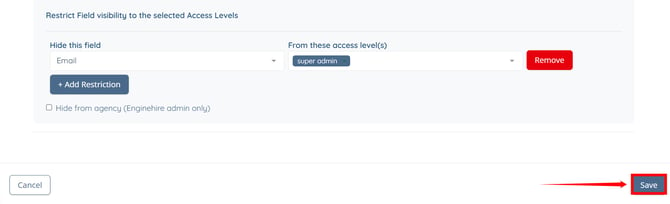
The selected field will be hidden from admins at the specified access level.
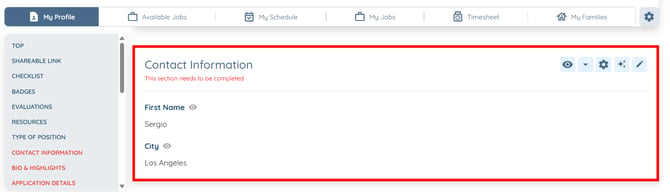
Restrict Entire Section
Use this option when you want to restrict an entire profile section based on admin access level.
Step 1: Follow the same Steps 1–6 from the Restrict Individual Field section above.
Step 2: Click the Edit Settings button.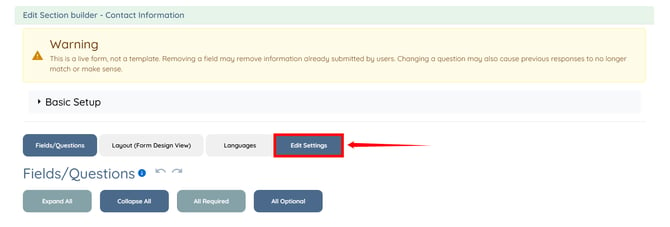
Step 3: Click the box under Restrict Section to These Access Levels Only to open the dropdown list. 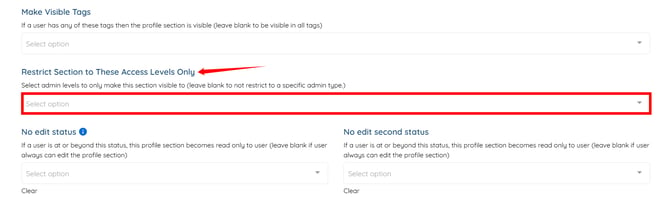
Step 4: Select the admin access level for which you want to make the section visible. 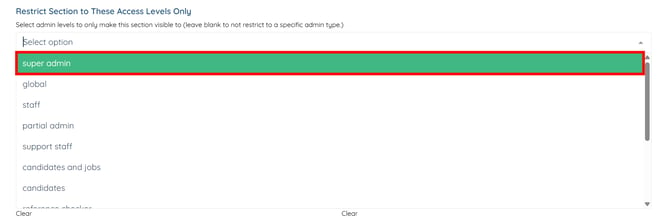
Step 5: Click the Save button.

The section will only be visible to admins with the selected access level.