![enginehire logo thin dark 1.0.png]](https://learn.enginehire.io/hs-fs/hubfs/enginehire%20logo%20thin%20dark%201.0.png?height=40&name=enginehire%20logo%20thin%20dark%201.0.png)
If your booking form includes a document to sign, such as a waiver or service agreement, you can choose who has to sign it when a booking is placed. For example, you can require clients to sign every time they book while letting admins skip the document when they create a booking on a client's behalf.
Setup has two parts: add a Sign Document field to your booking form, then choose which roles must sign it in Global Settings.
Add a Sign Document Field to Your Booking FormBefore you start, make sure the document clients need to sign is saved in More > Document Templates.
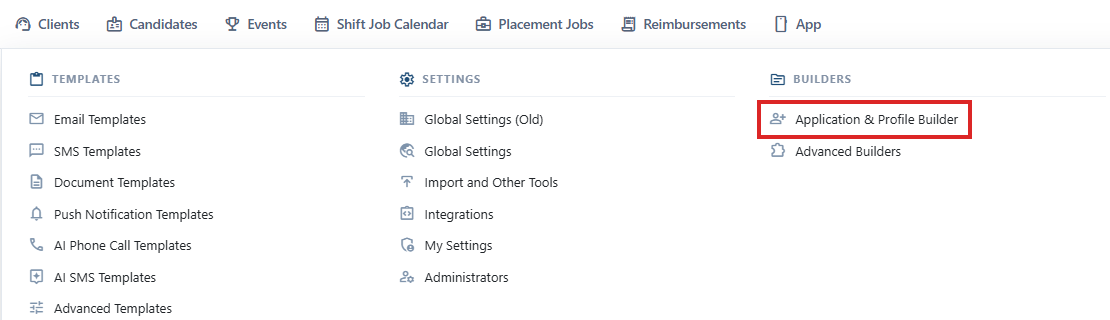
1. Click More and select Application & Profile Builder.
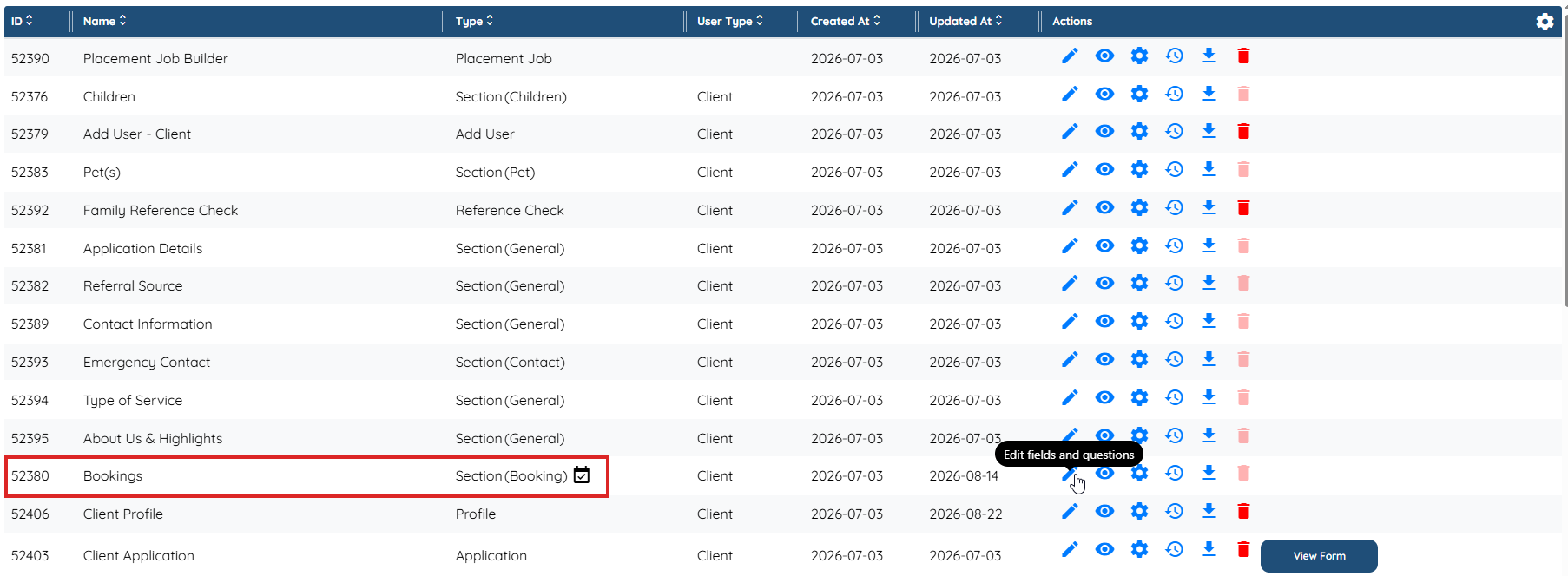
2. Find your booking form in the list. Its Type is Section (Booking). Click the Pencil icon in the Actions column to edit its fields and questions.
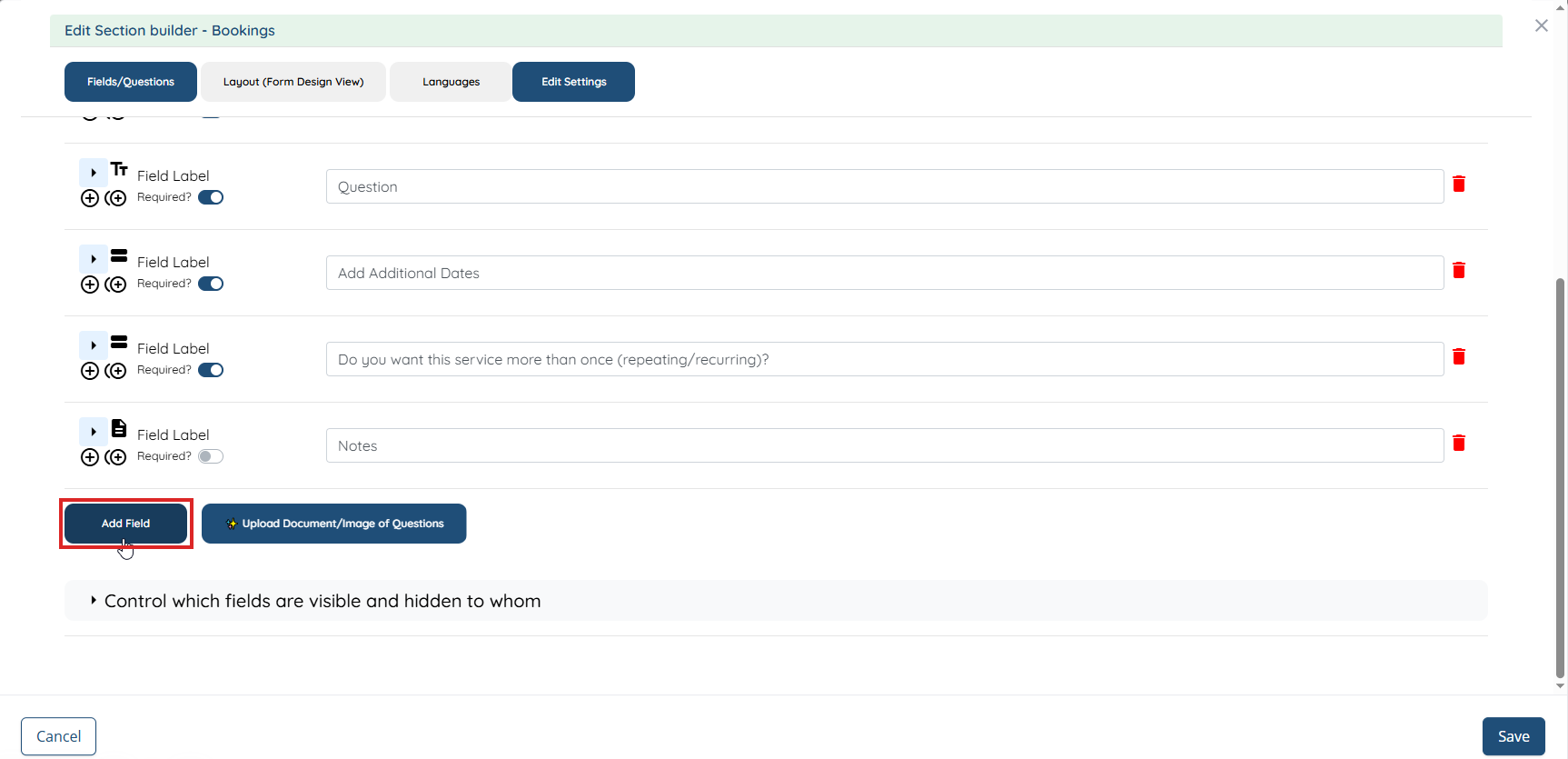
3. On the Fields/Questions tab, scroll to the bottom of the field list and click Add Field.
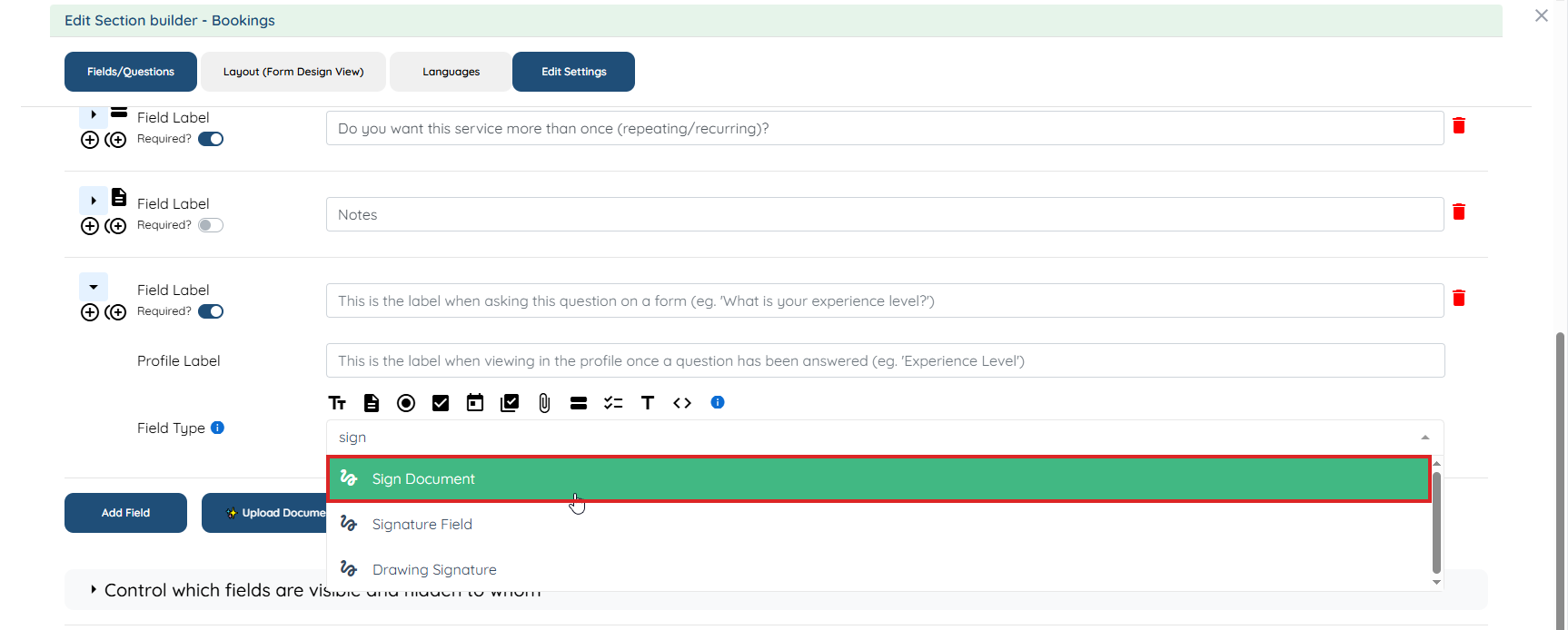
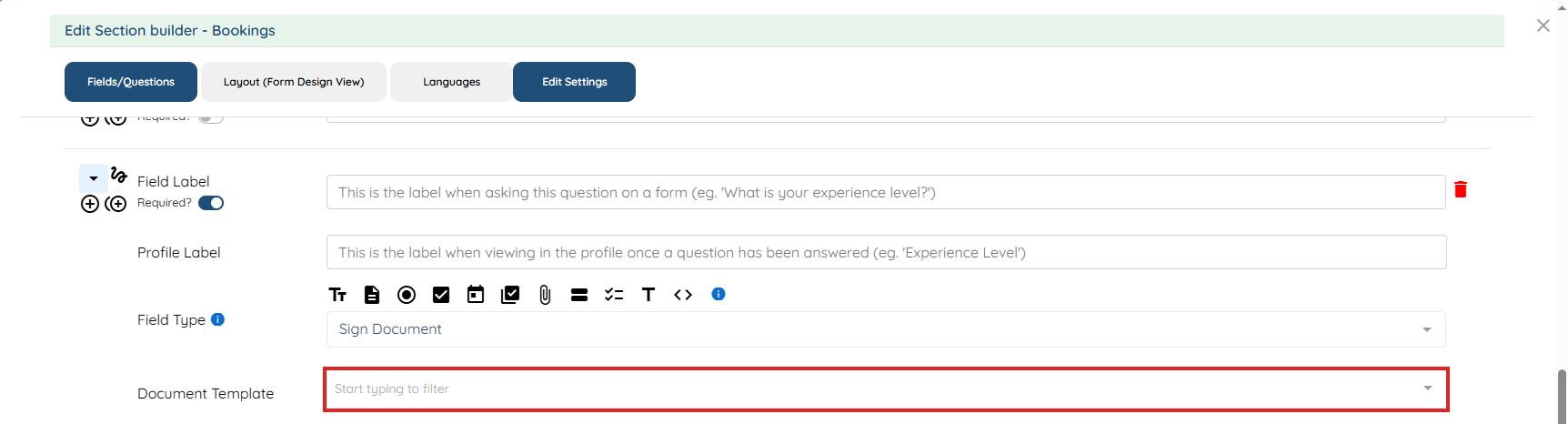
4. In the new field, enter a Field Label, such as the name of your waiver. In Field Type, type "sign" and select Sign Document.
5. In Document Template, select the document clients need to sign. Leave Additional Properties empty.
6. Click Save at the bottom of the builder.
Don't add a Show Condition to the Sign Document field, and don't limit it to admins. The setting in the next section controls who has to sign, so extra visibility rules on the field can stop it from working as expected.
For more on the booking builder, see Edit a Booking Form.
Choose Who Must Sign Documents When Booking1. Click More and select Global Settings.
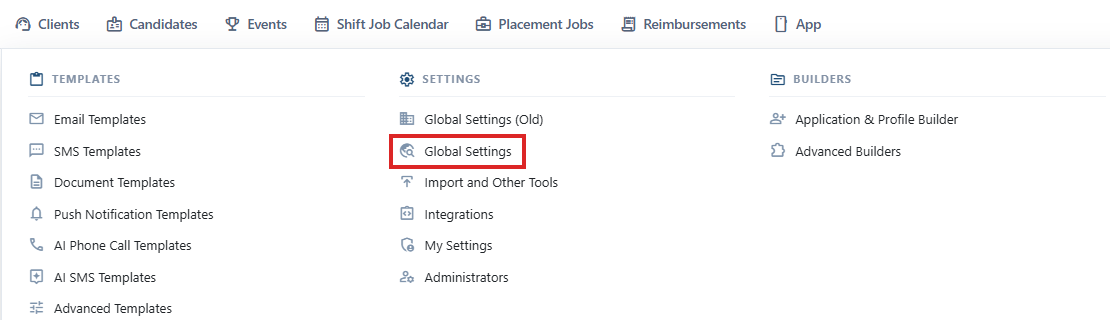
2. In the search bar, type "Require the signing documents." The setting appears under Jobs > Job Booking Dialog.
3. In Require the signing documents on the booking form when the booking is placed by, select the roles that must sign: Client, Admin, or both.
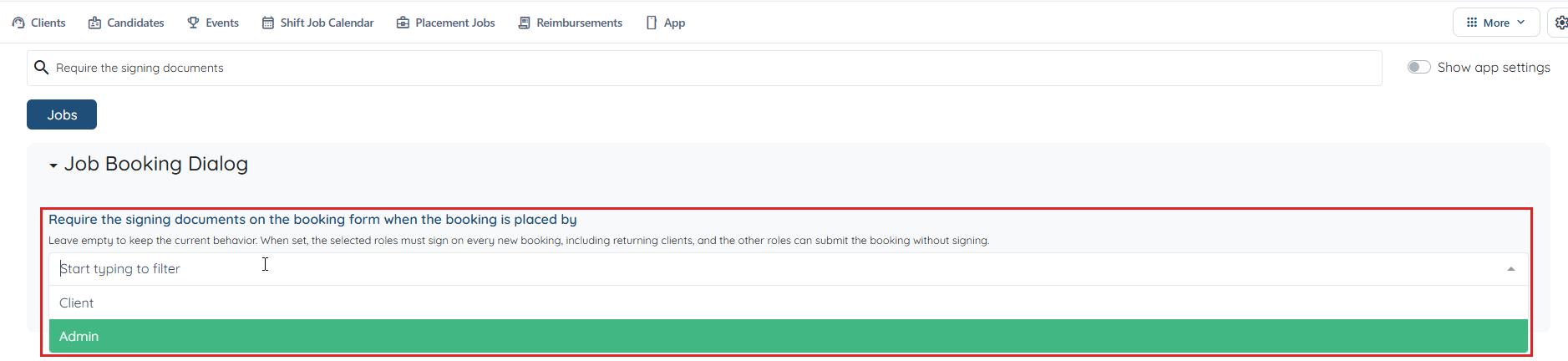
4. Refresh your browser.
Refresh your browser after every change to this setting. The new rule applies only after the page reloads.
How the Signing Requirement Works for Clients and Admins
If you leave the setting empty, nothing changes: both clients and admins see the document on the booking form and must sign it. Agencies that never change this setting keep their current behavior.
When you select one or more roles, those roles must sign the document on every new booking, and any role you don't select can submit the booking without signing. A role that must sign can't submit the booking until the document is signed. Once it is signed, the booking is created and the signed document is attached to it.
The most common setup is to select only Client. Clients then sign on every new booking, including returning clients and bookings created by duplicating a previous one, while admins who create a booking on a client's behalf don't see the document and can submit right away. Select both Client and Admin if admins must also sign before submitting a booking for a client.
Editing an existing booking never asks for a new signature. Any signatures already collected for that booking are kept.
If this doesn't answer your questions you can always contact us by clicking here