![enginehire logo thin dark 1.0.png]](https://learn.enginehire.io/hs-fs/hubfs/enginehire%20logo%20thin%20dark%201.0.png?height=40&name=enginehire%20logo%20thin%20dark%201.0.png)
Let’s get started 🚀
The reference check form contains the questions that will be sent to a candidate’s references, while the reference section in the candidate profile allows candidates to provide reference details such as name and email. Once submitted, the selected reference check form is sent to those references.
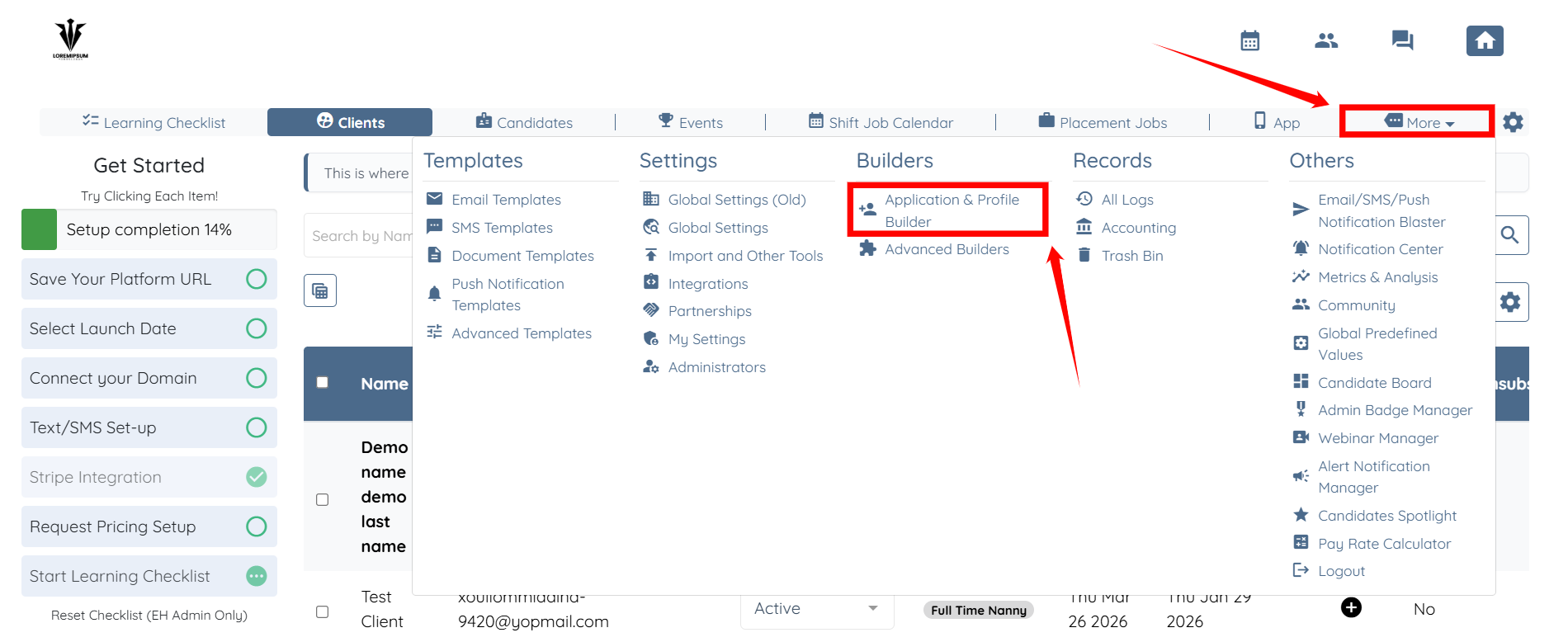
Step 1: Log in to your agent dashboard and click More > Application & Profile Builder as shown in the screenshot below.
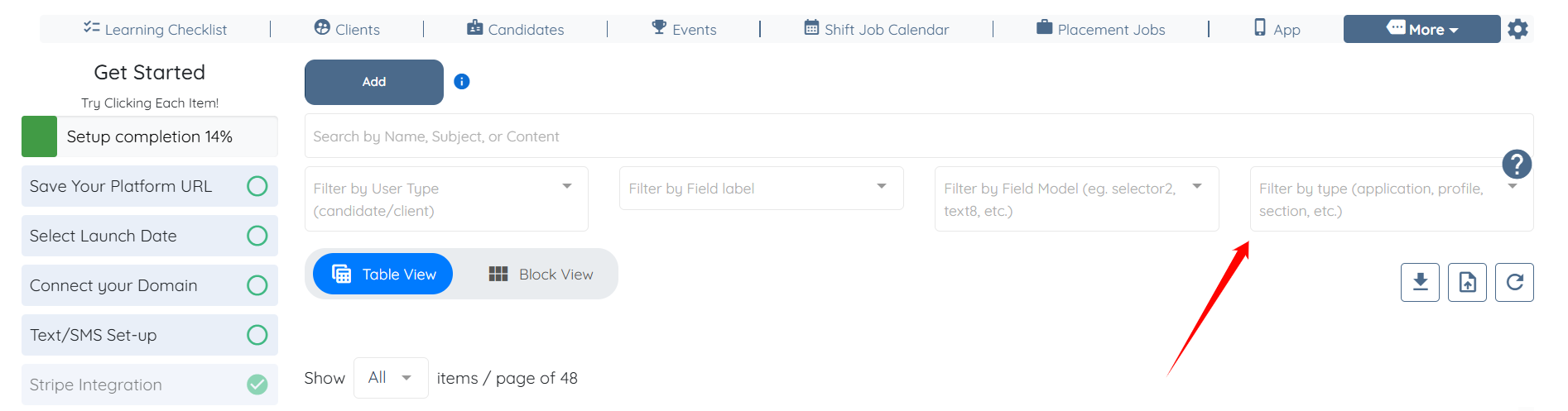
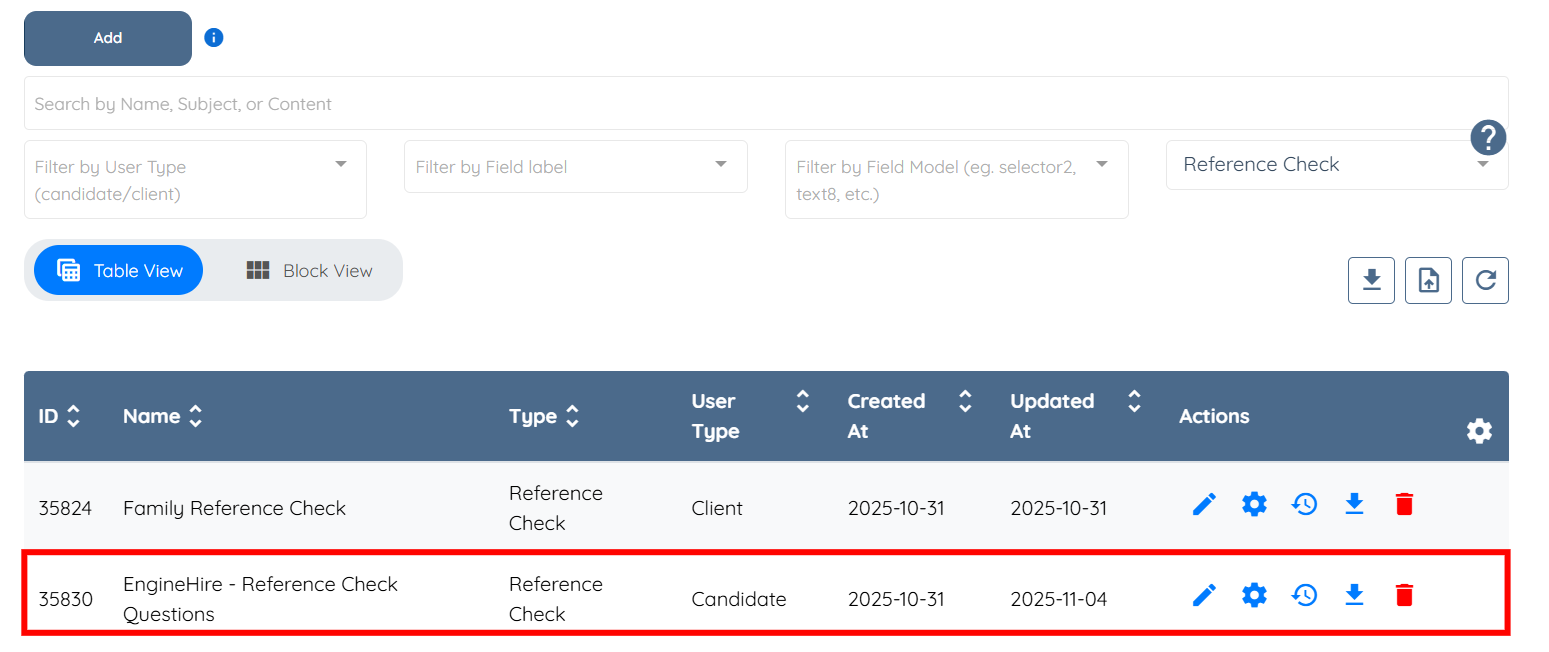
Step 2: Click the Filter by type box on the right hand side.
Step 3: Select the Reference Check option from the dropdown list.
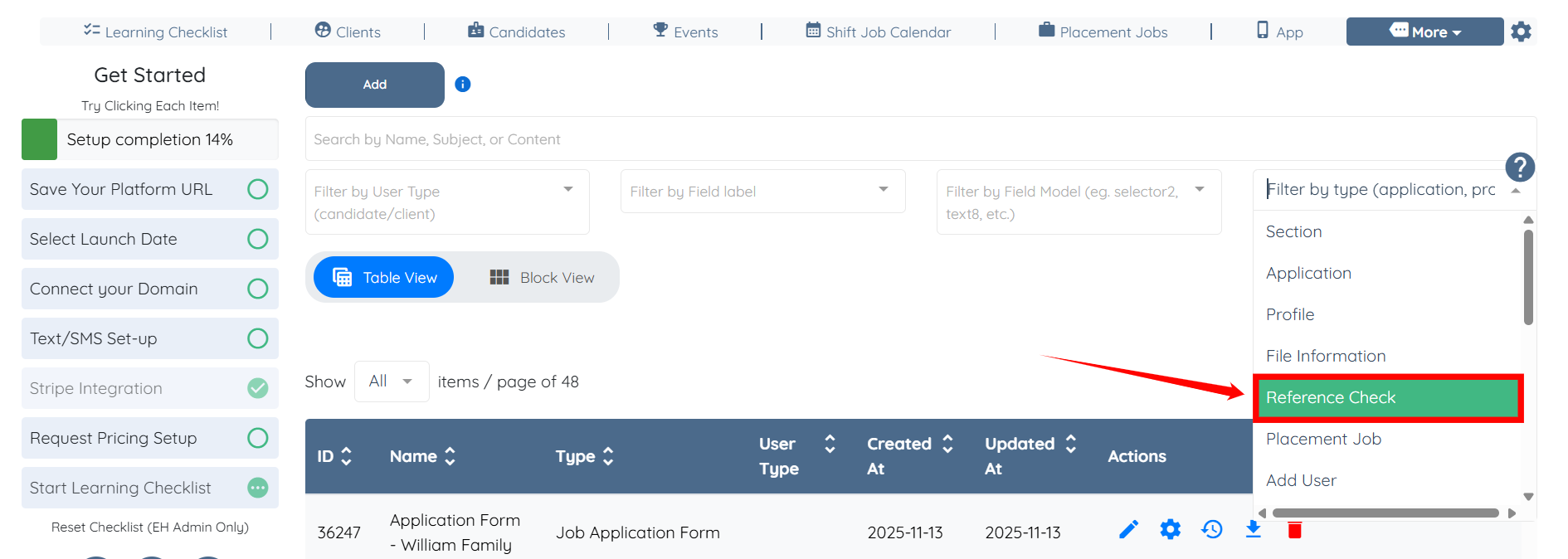
This displays the reference check form, which contains the questions that will be sent to the candidate’s references.
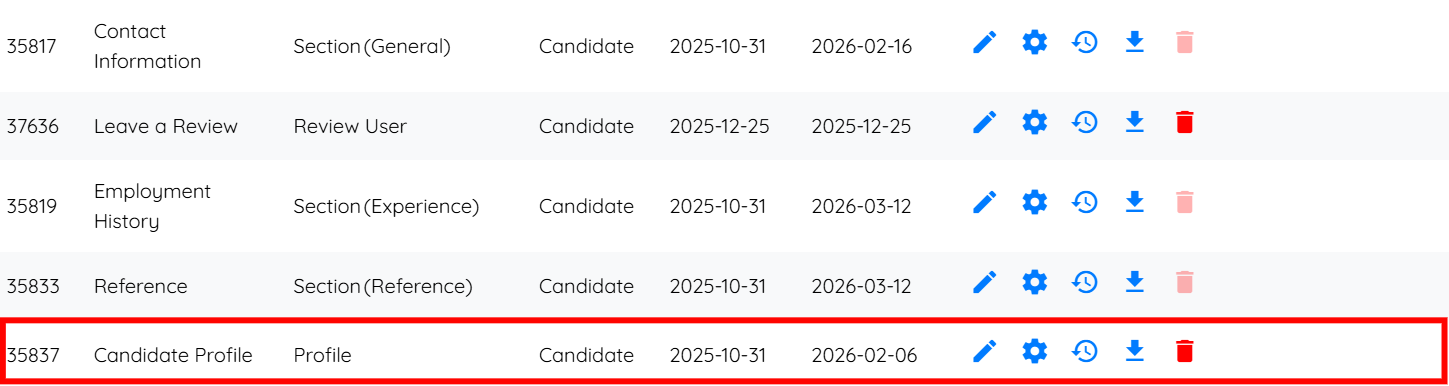
Step 4: Locate the Section(Reference) of Candidate type from the list.
This section is added to the candidate profile and is used by candidates to enter reference details.

Step 5: Locate the Candidate Profile and click on it to open it.
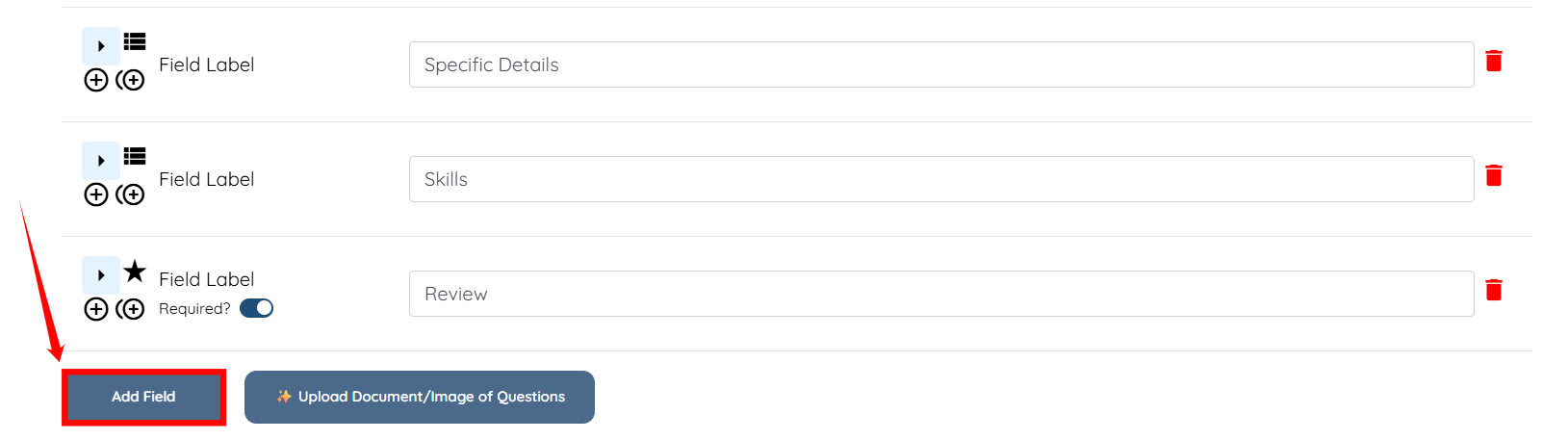
Step 6: Scroll down and click the Add Field button.
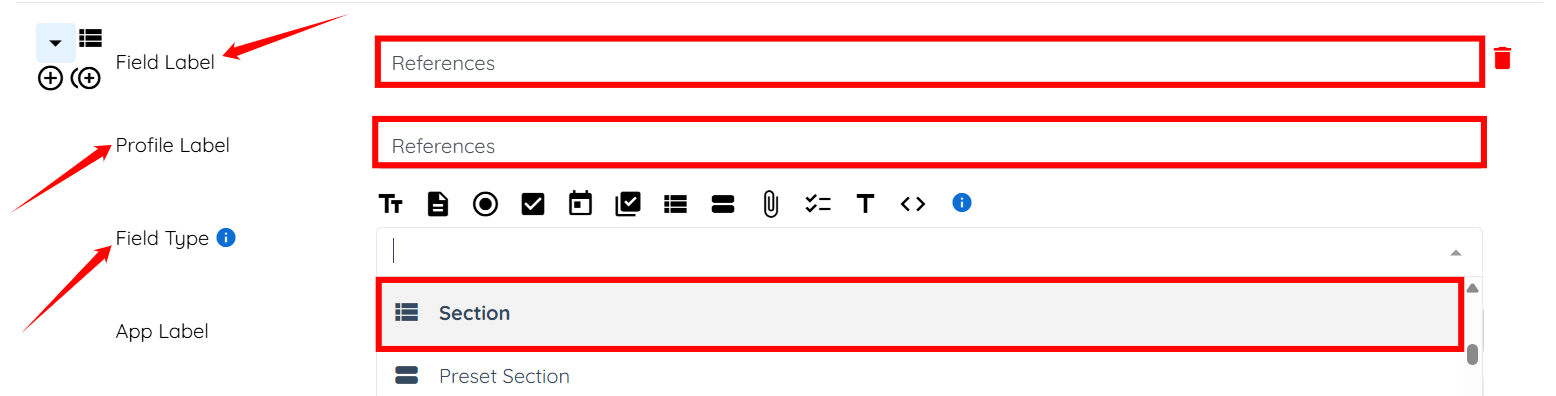
Step 7: Enter the Field Label and the Profile Label, then select Section as the Field Type.
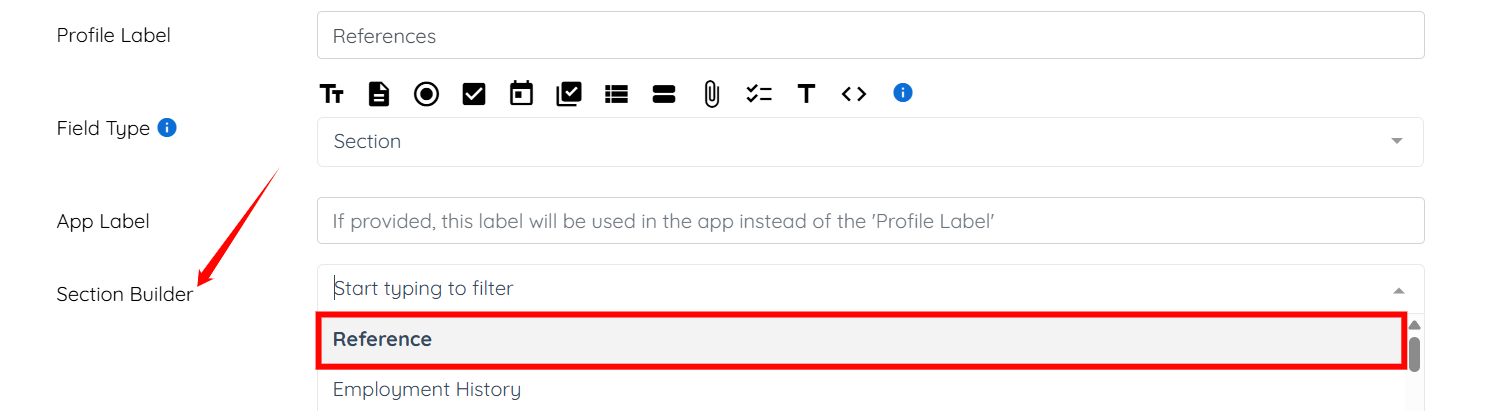
Step 8: Select the Reference section from the dropdown list in the Section Builder field.
To create a reference section, refer to the Add a Reference Section section below.
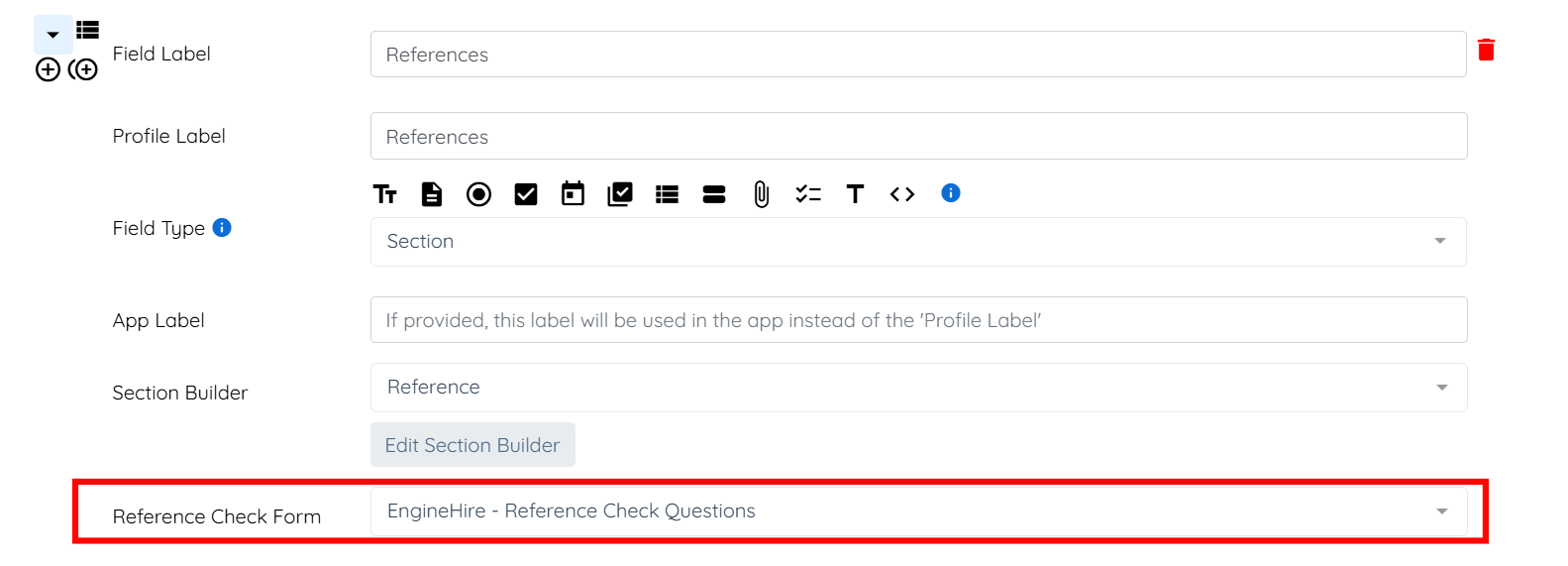
Step 9: Select the reference check form that contains the questions to be sent to the candidate’s references.
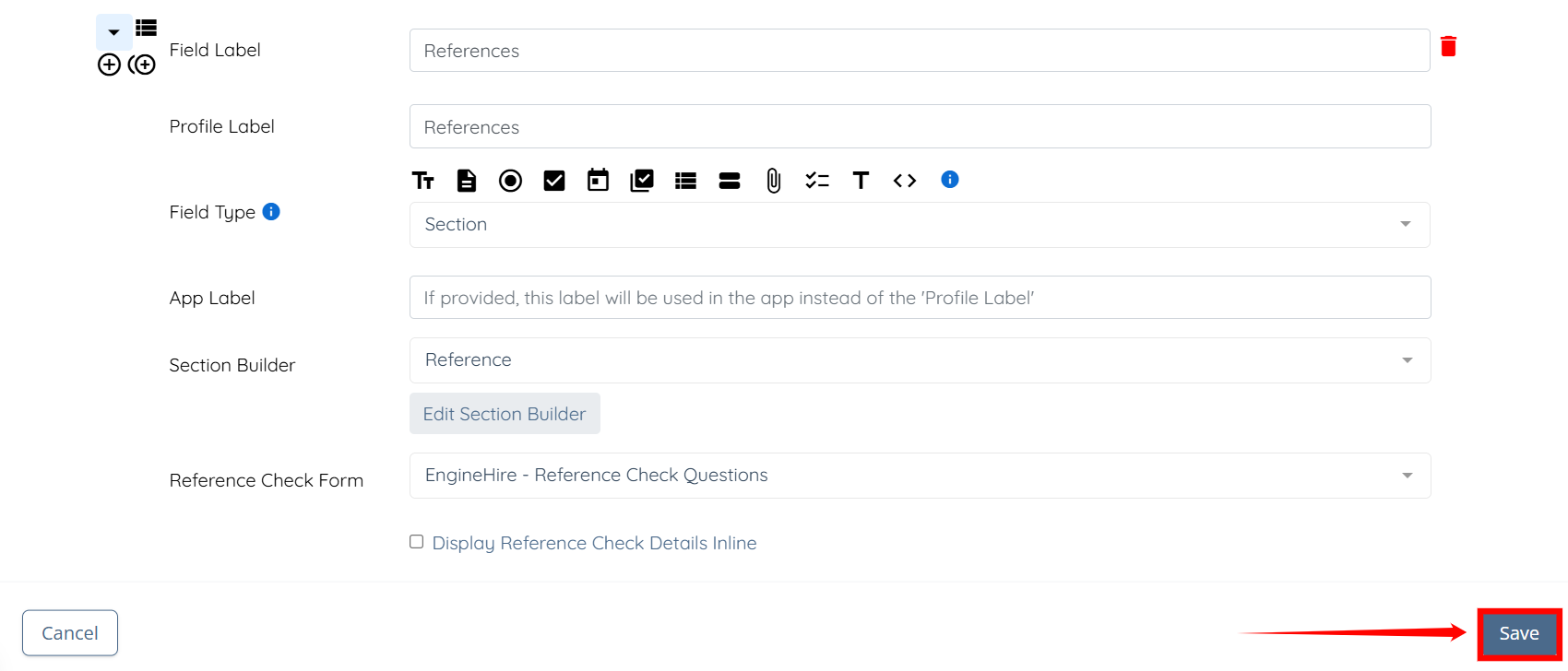
Step 10: Click the Save button to proceed.
Candidates can now enter reference details in their profile, and the selected reference check form will be sent to those references for completion.
Add a Reference Section
If a reference section is not already available, you can create one to allow candidates to provide reference details in their profile.
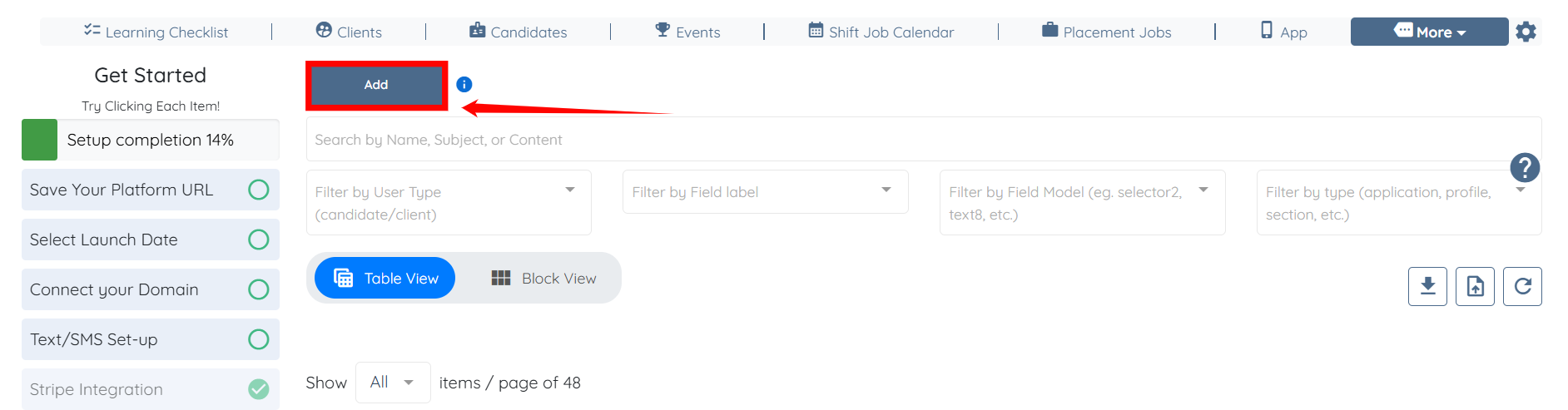
Step 1: In the Application & Profile Builder page, click the Add button.
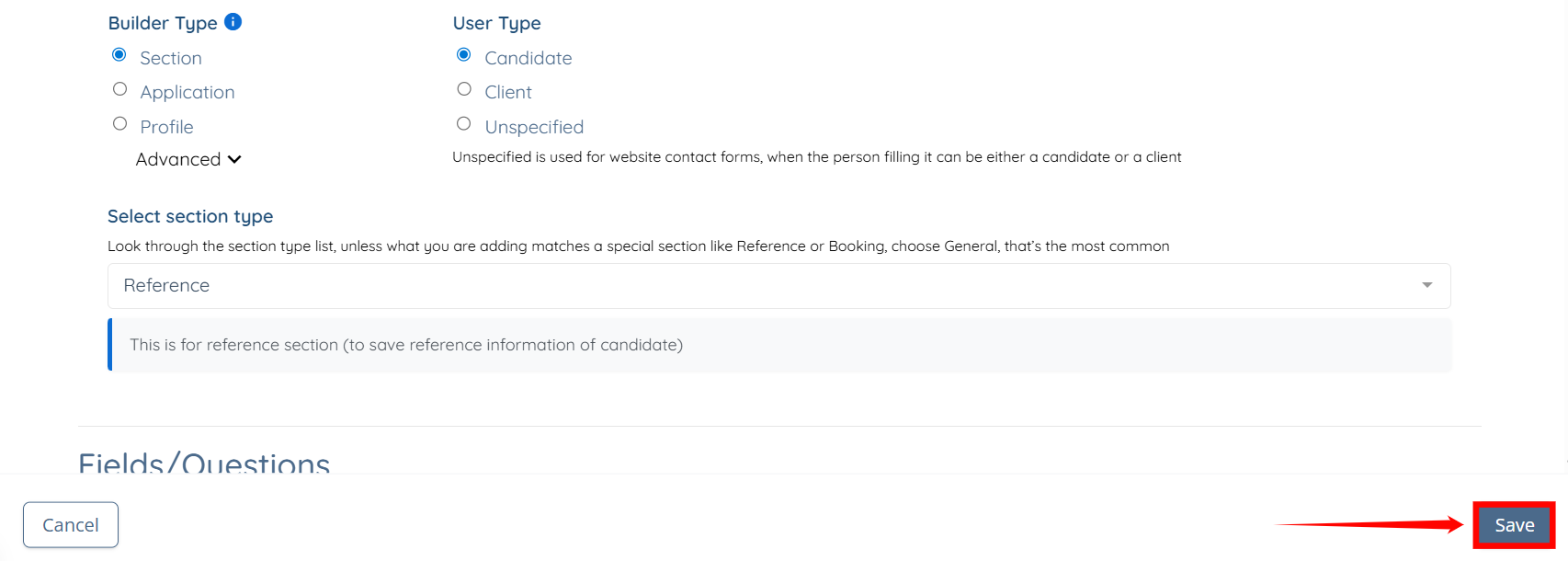
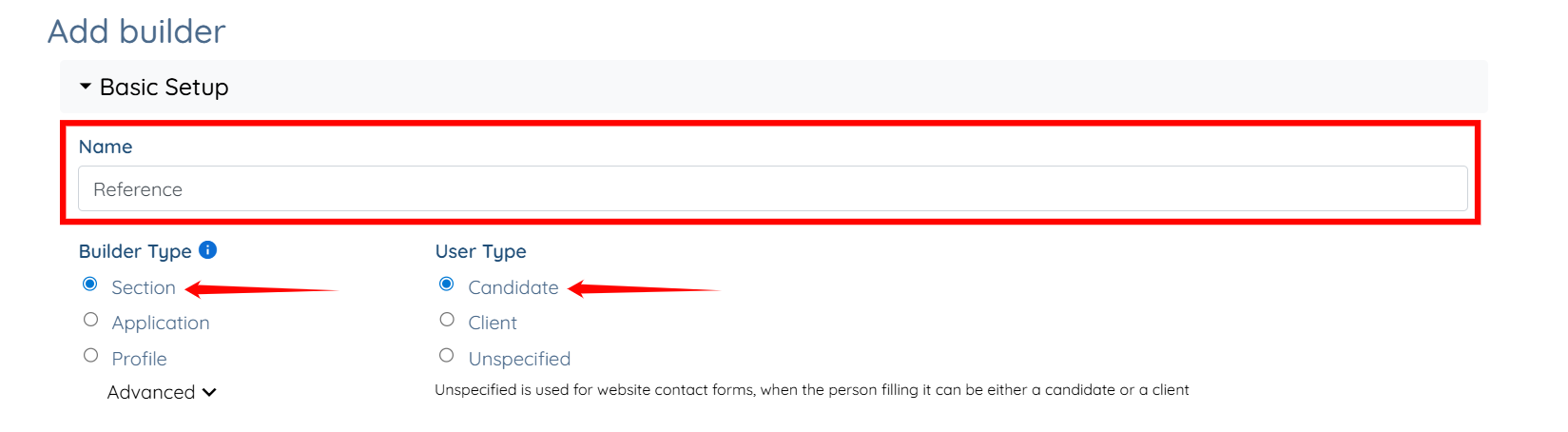
Step 2: Enter a name for your reference section, select Section as the builder type, and select Candidate as the User Type.
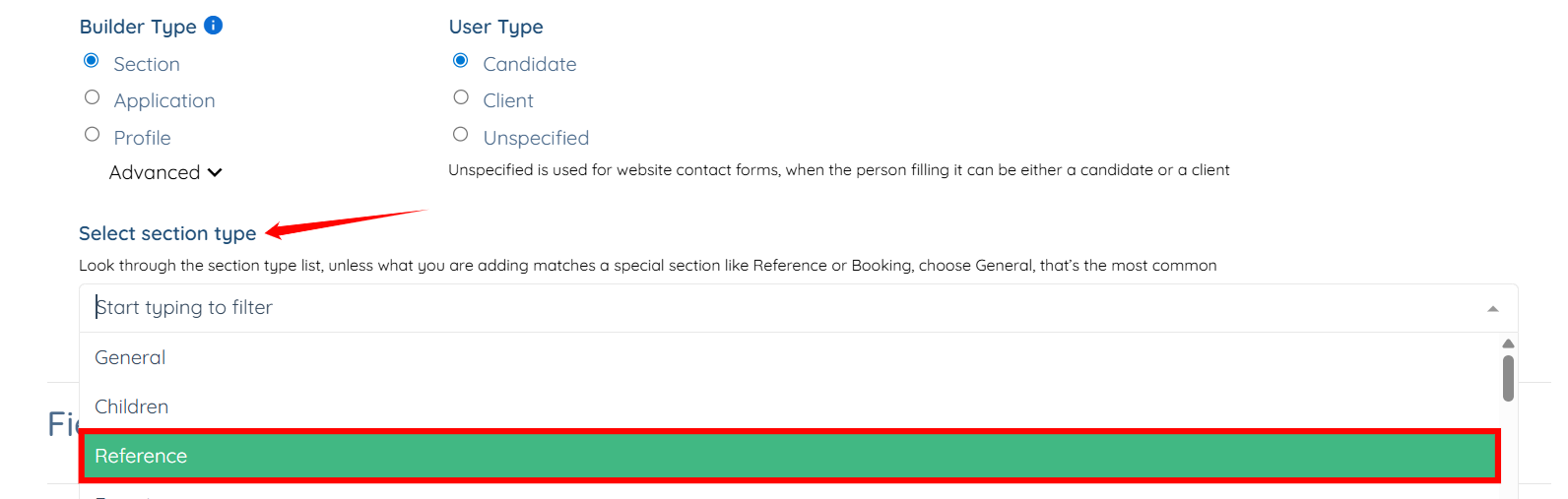
Step 3: Select Reference option from the dropdown list in the Select section type field.
Step 4: Click the Save button to proceed.