![enginehire logo thin dark 1.0.png]](https://learn.enginehire.io/hs-fs/hubfs/enginehire%20logo%20thin%20dark%201.0.png?height=40&name=enginehire%20logo%20thin%20dark%201.0.png)
Let’s get started 🚀
Step 1: Log in to your agent dashboard and click More > Application & Profile Builder, as shown in the screenshot below. 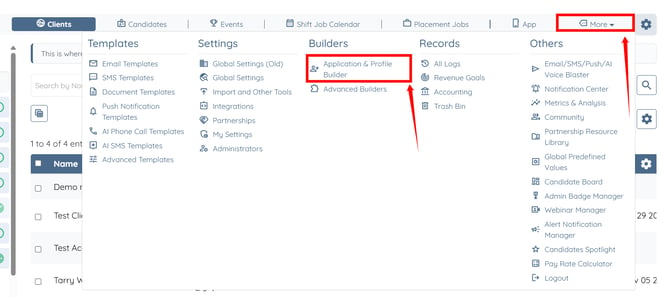
Step 2: Click the Filter by type box to open the dropdown list. 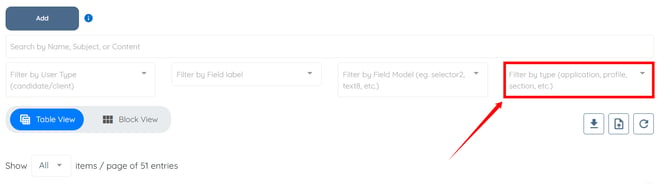
Step 3: Select the Application option from the dropdown list. 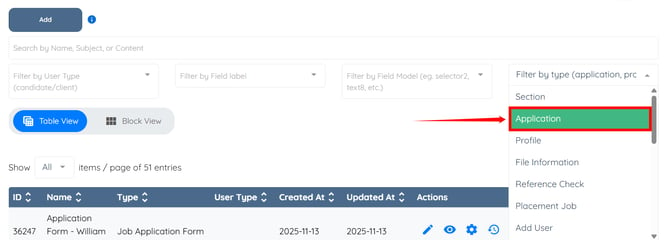
Step 4: Click the gear icon under the Actions column next to the application builder for which you want to update the messages. 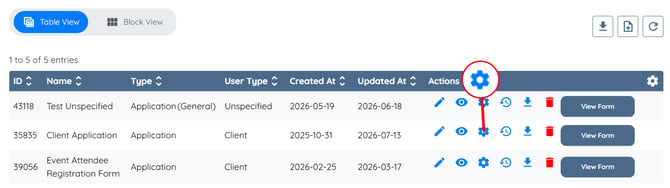
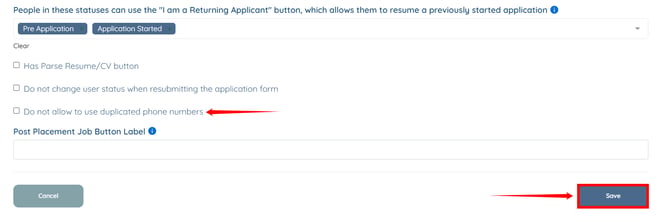
Step 5: Scroll to the bottom and enable the Do not allow to use duplicated phone numbers checkbox. Then, click the Save button to confirm the changes.
If you want to customize the warning message displayed when a candidate or client tries to create an account using a phone number that is already associated with another account, refer to the Customize Application Warning and Rejection Messages article.