![enginehire logo thin dark 1.0.png]](https://learn.enginehire.io/hs-fs/hubfs/enginehire%20logo%20thin%20dark%201.0.png?height=40&name=enginehire%20logo%20thin%20dark%201.0.png)
Let’s get started 🚀
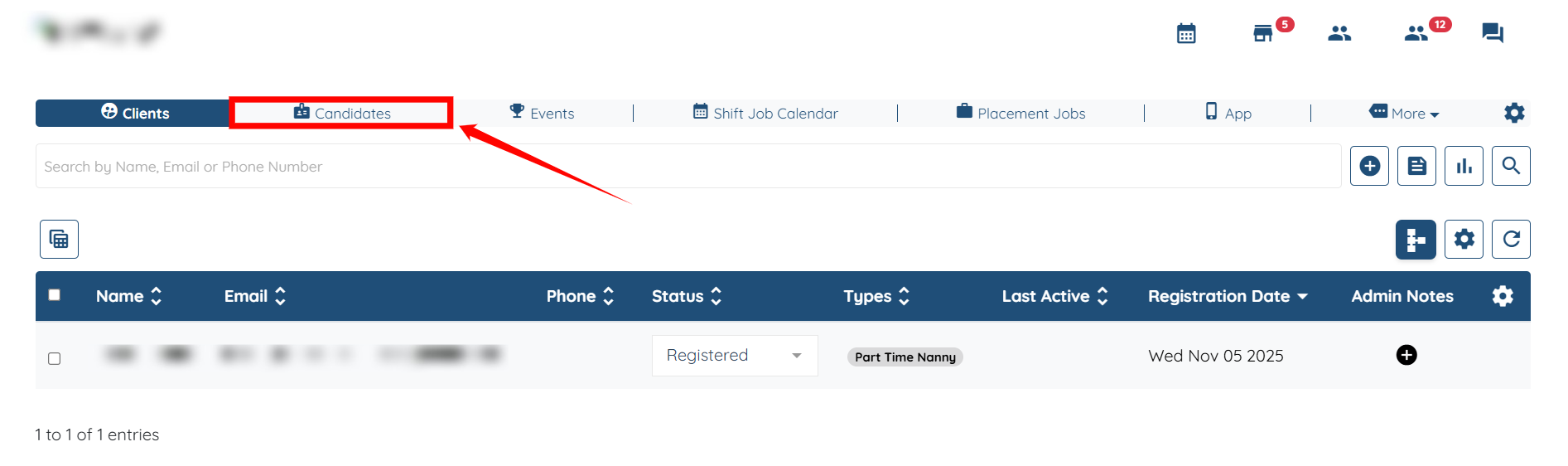
Step 1: Log in to your agent dashboard, and then navigate to Candidates using the top navigation bar.
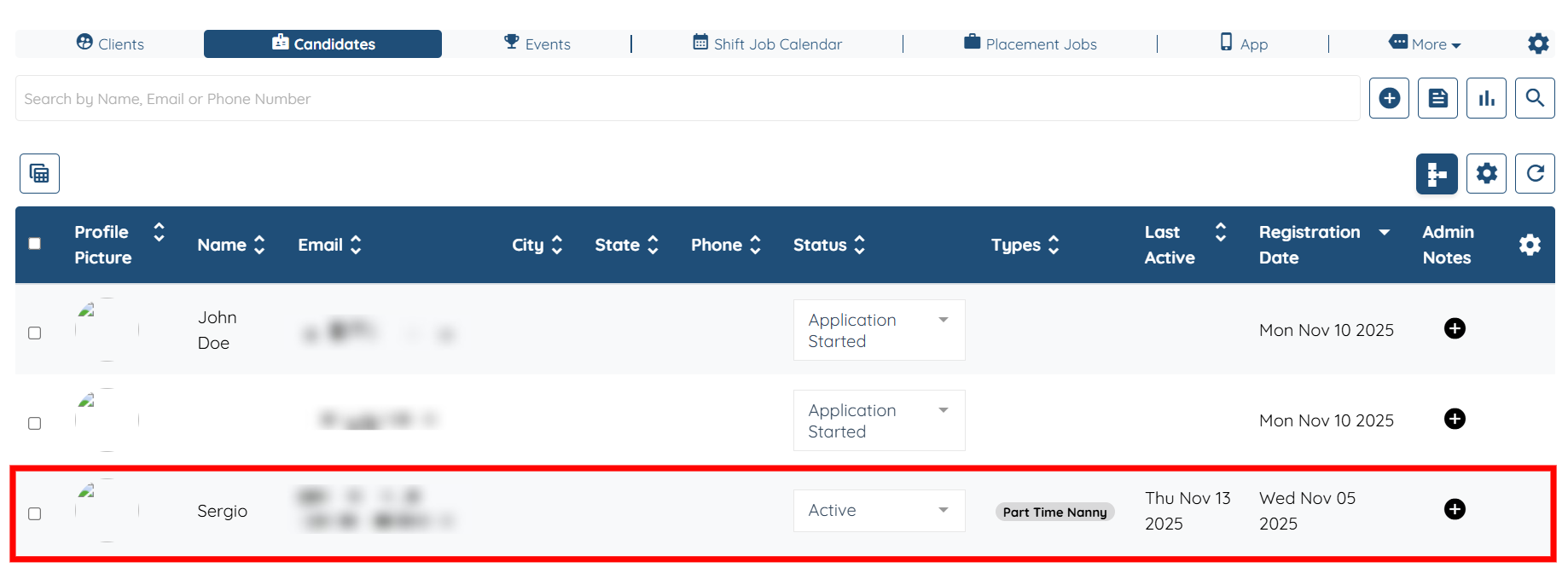
Step 2: Choose the candidate for whom you want to set the weekly hour limit.
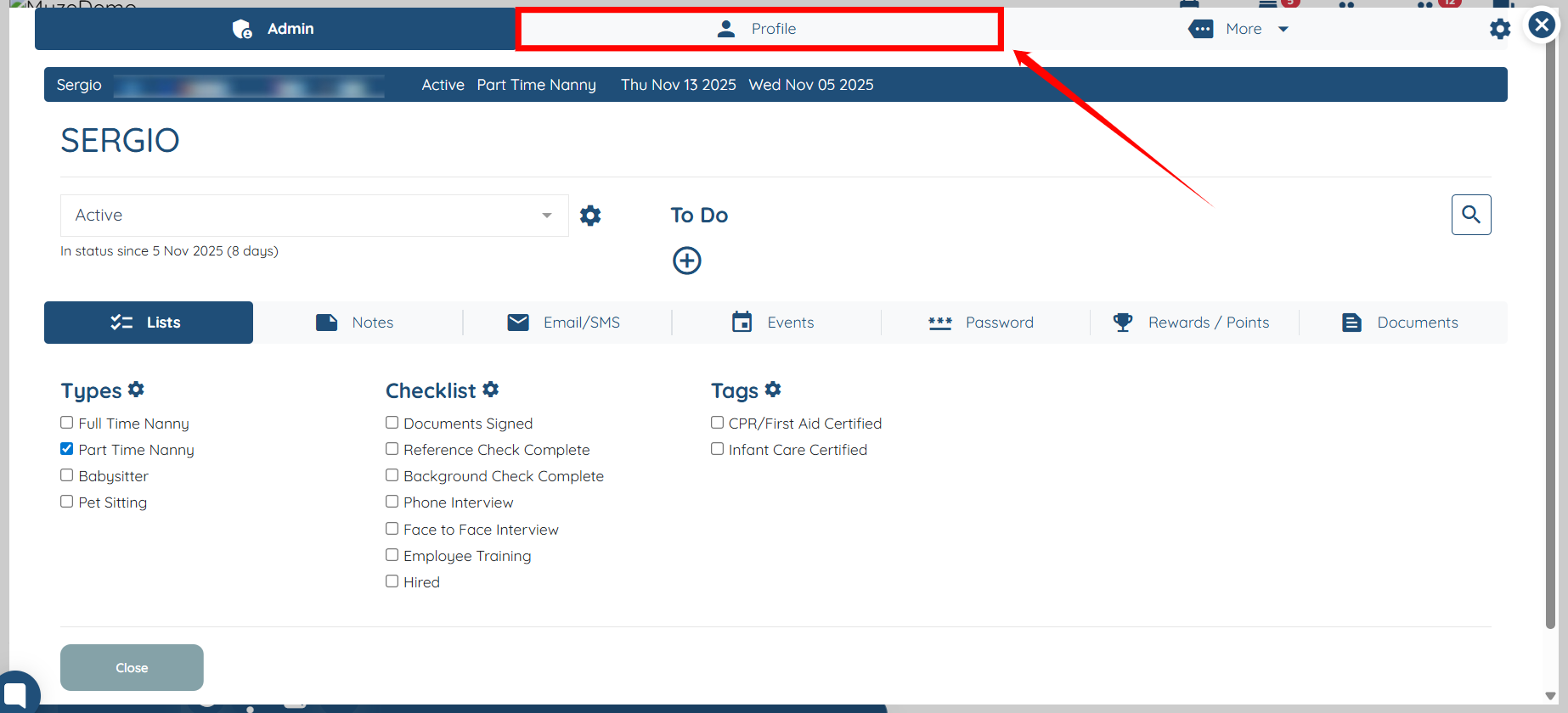
Step 3: Click the Profile Tab to open the chosen candidate’s profile.
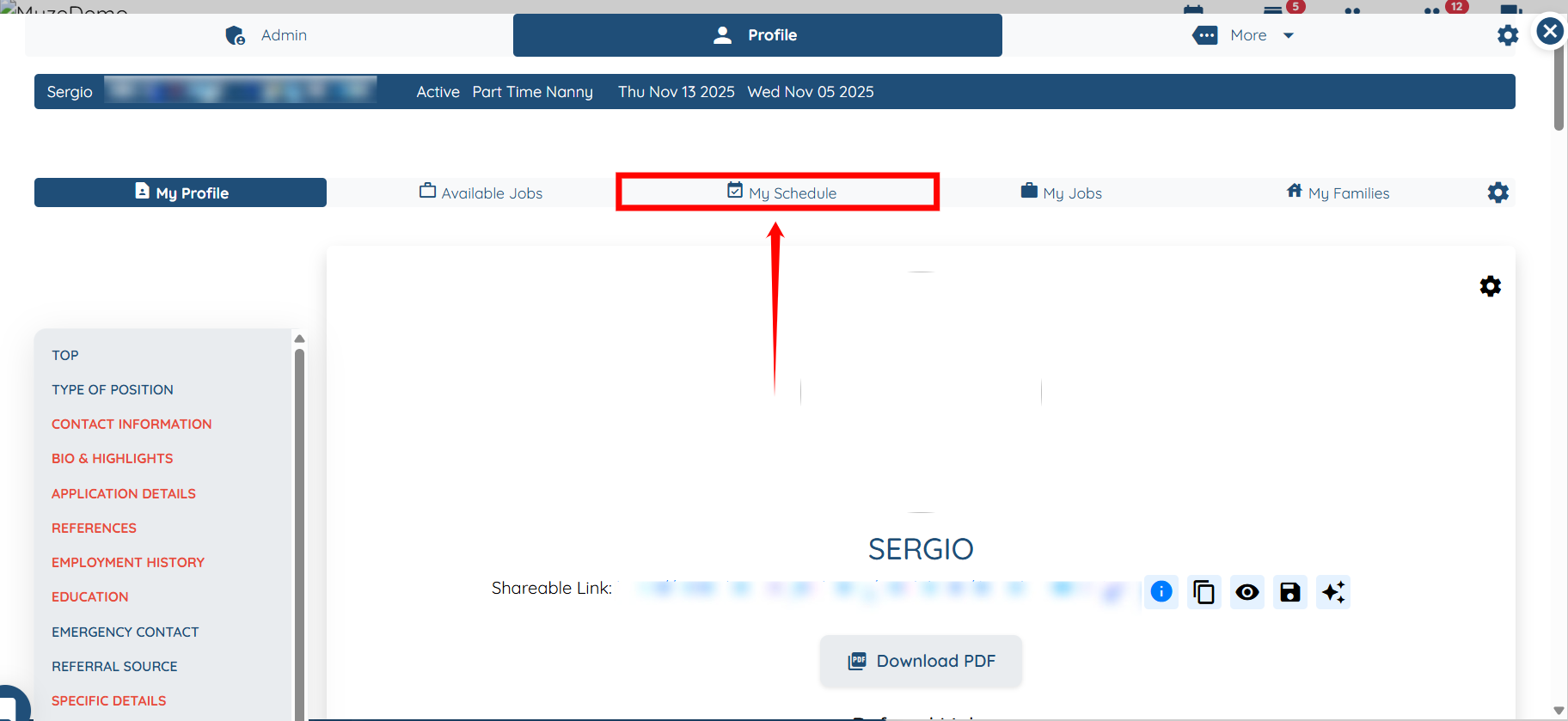
Step 4: Click the My Schedule tab in the list of tabs.
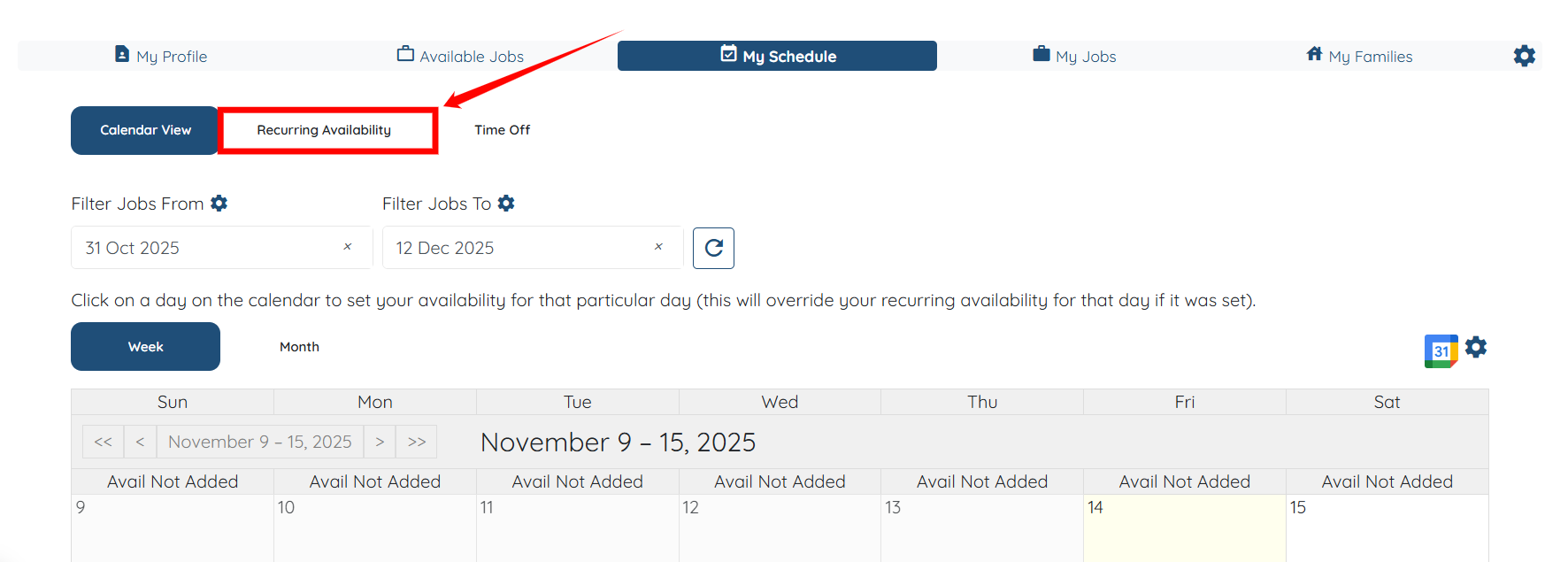
Step 5: Select the Recurring Availability option to continue.
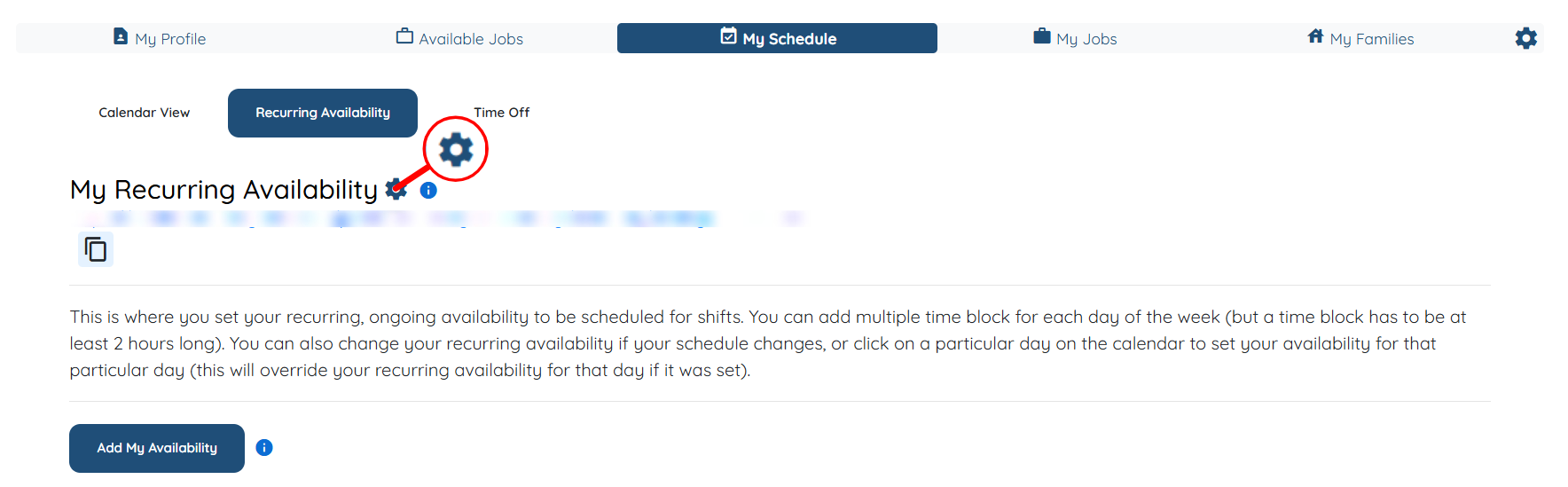
Step 6: Click the Gear icon next to My Recurring Availability.
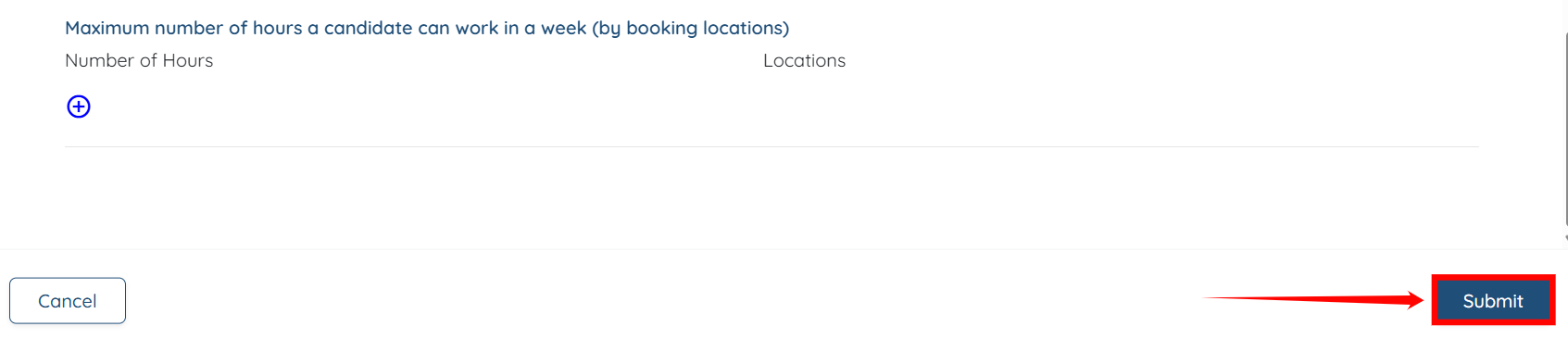
Step 7: Scroll down to the option labeled “Maximum number of hours a candidate can work in a week.” Then enter the number of hours you want the candidate to work per week.

Step 8: Scroll down and click the Submit button to confirm the changes.