---
title: Post a Placement Job
description: "There are two ways you can post a Placement Job: directly from the Client Profile OR from the Placement Jobs section of your dashboard."
---
[Skip to content](https://learn.enginehire.io/en/knowledge/post-a-placement-job#main-content)
English
Show submenu for translations
[Contact us](https://learn.enginehire.io/en/knowledge/kb-tickets/new?hsLang=en) [Customer portal](https://learn.enginehire.io/tickets-view?hsLang=en)
![enginehire logo thin dark 1.0.png\]](https://learn.enginehire.io/hs-fs/hubfs/enginehire%20logo%20thin%20dark%201.0.png?height=40&name=enginehire%20logo%20thin%20dark%201.0.png)
- Home
- Products
- Pricing
- Blog
- Company
Open main navigation
Close main navigation
- Home
- Products
- Pricing
- Blog
- Company
- English
Show submenu for translations
- [Contact us](https://learn.enginehire.io/en/knowledge/kb-tickets/new)
- [Customer portal](https://learn.enginehire.io/tickets-view)
- Go to main page
Go to main page
Hello! You can find guides on how to do everything in Enginehire here. If you can't find what you are looking for or anything feels out of date, please contact us!
- There are no suggestions because the search field is empty.
1. [Enginehire Help Center](https://learn.enginehire.io/en/knowledge?hsLang=en)
2. [Jobs](https://learn.enginehire.io/en/knowledge/jobs?hsLang=en)
# Post a Placement Job
## Post a placement job to create a new long-term or permanent position for candidates to apply to. You can add a placement job in two ways: directly from the Client Profile or from the Placement Jobs section in your dashboard.
Let’s get started 🚀
### **Post from Client Profile**
Create a placement job directly from the client’s profile. Follow the steps below to add a new placement job for a specific client.
**Step 1**: Log in to your agent dashboard, navigate to the **Clients** tab, and click on any client to open its details.

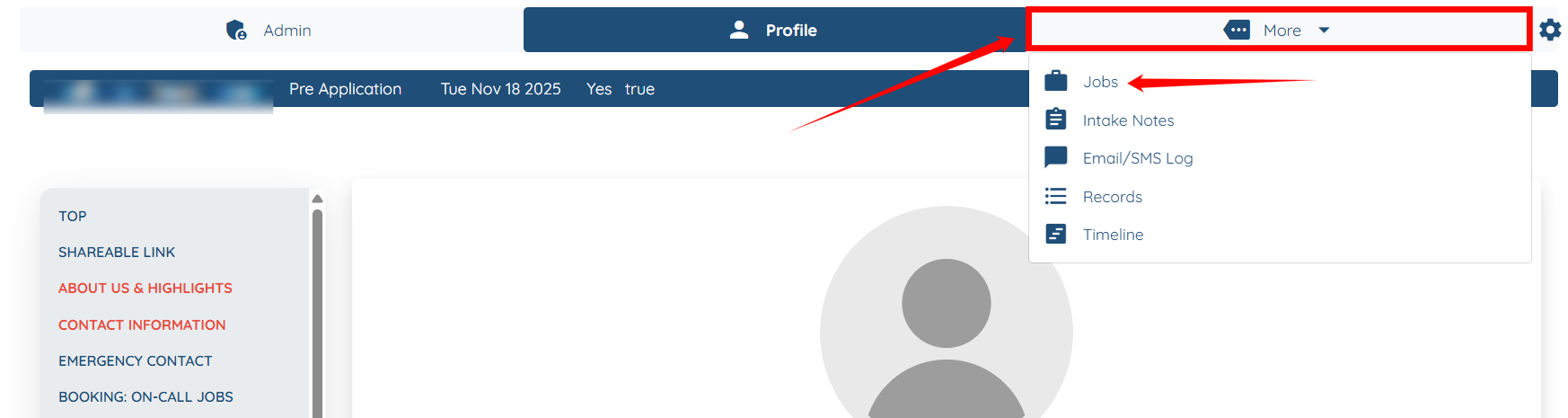
**Step 2**: Click **More \> Jobs** as shown in the screenshot below.
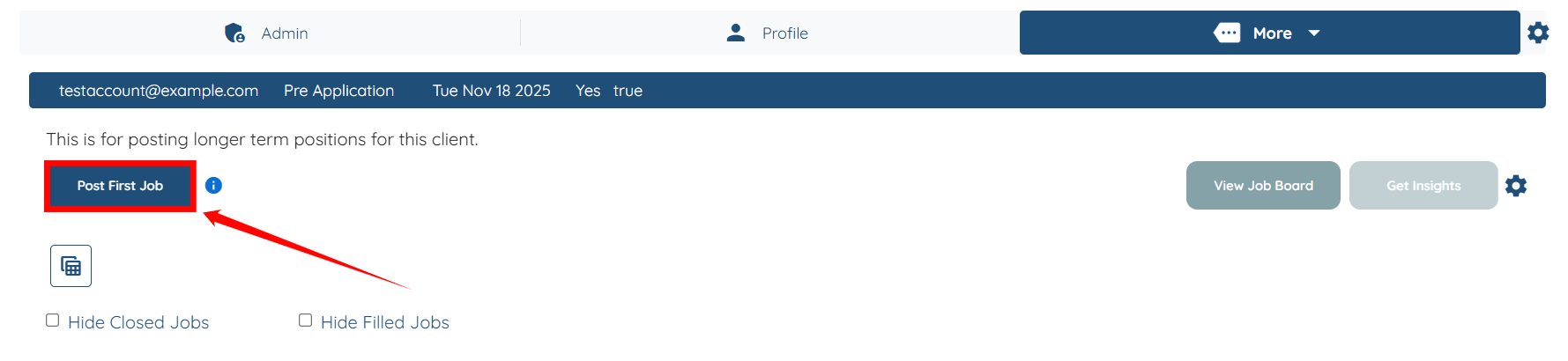
**Step 3**: Click the **Post First Job** button to begin creating the job.
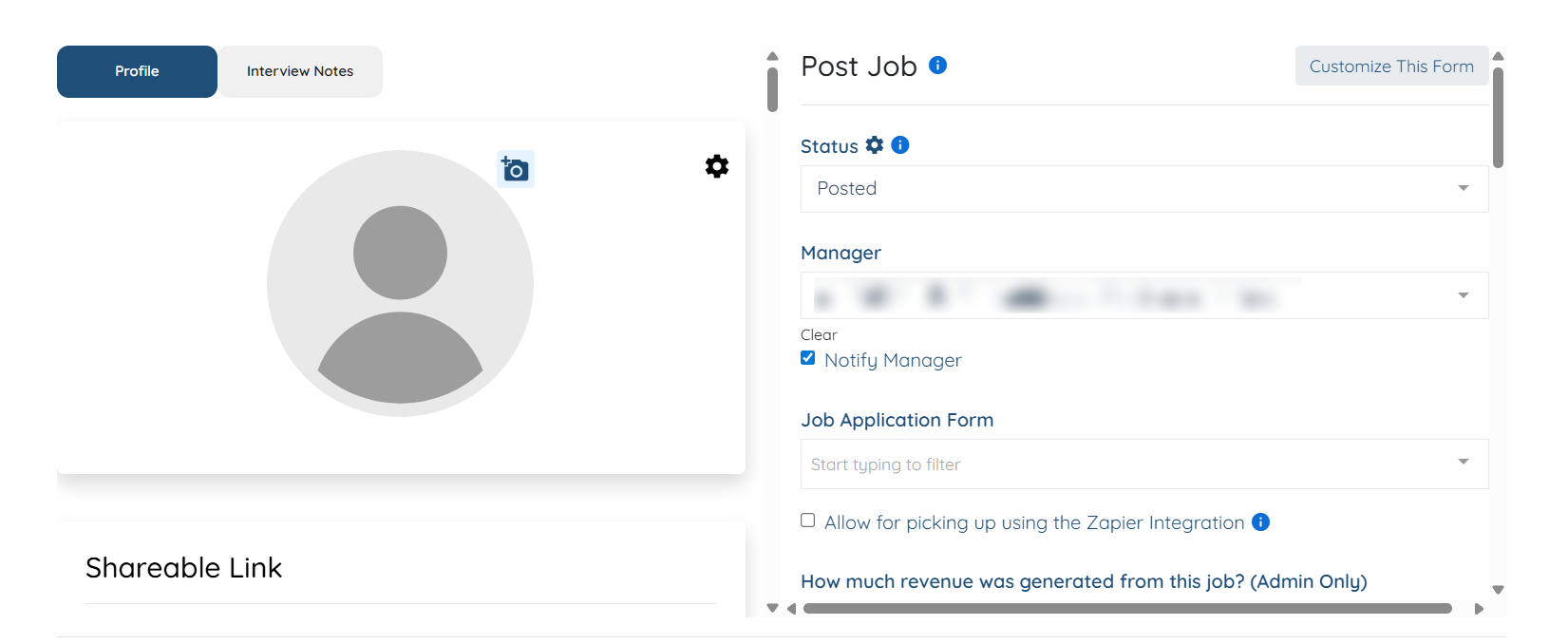
**Step 4**: Enter all necessary details for the job you want to post.
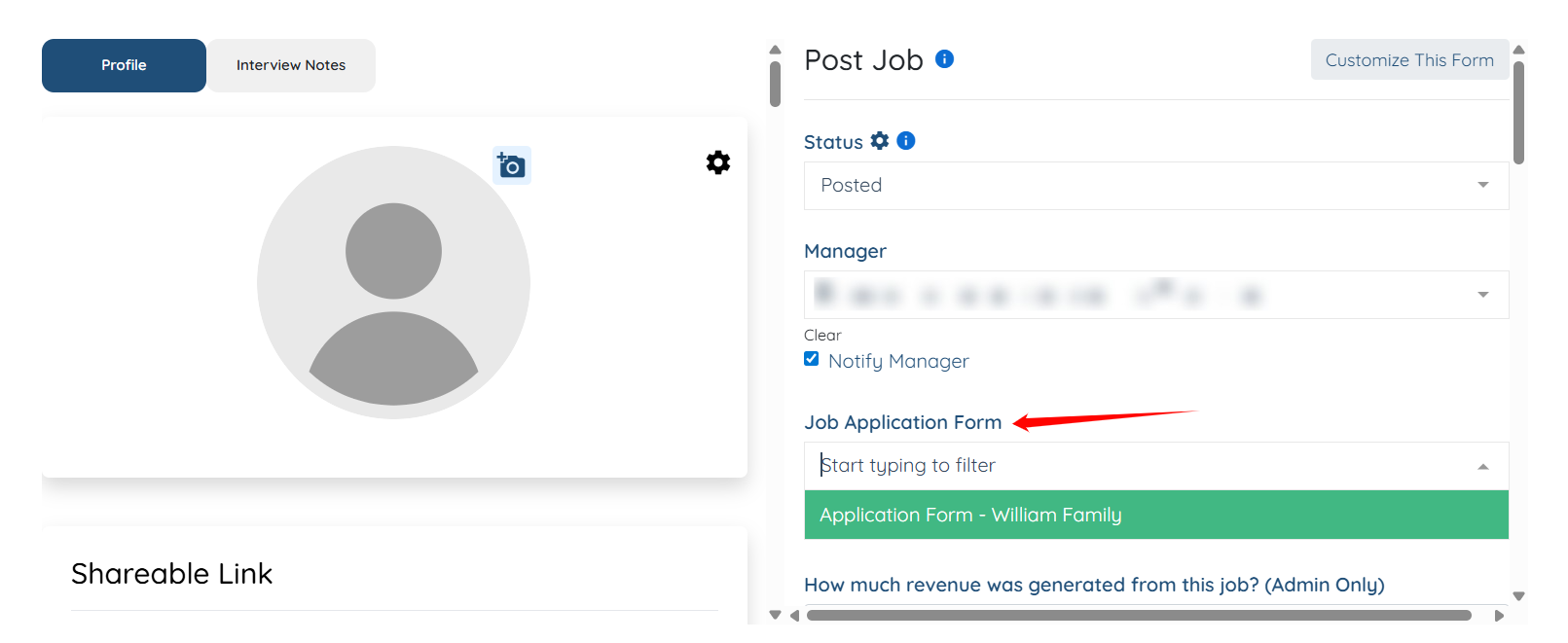
Did you know you can create custom job application forms for each individual placement job? This allows you to tailor the questions that the candidate answers when they select **I'm Interested**.
This feature is perfect for clients who have very specific needs and requirements that they're looking for in a nanny.
Once the form is created, select the form from the **Job Application Form** dropdown menu within your Placement Job form as seen below.
[Click here](https://learn.enginehire.io/en/knowledge/how-to-create-job-specific-application-questions-when-candidates-apply-to-a-placement-job?hsLang=en) to learn how to create a custom Job Application Form.
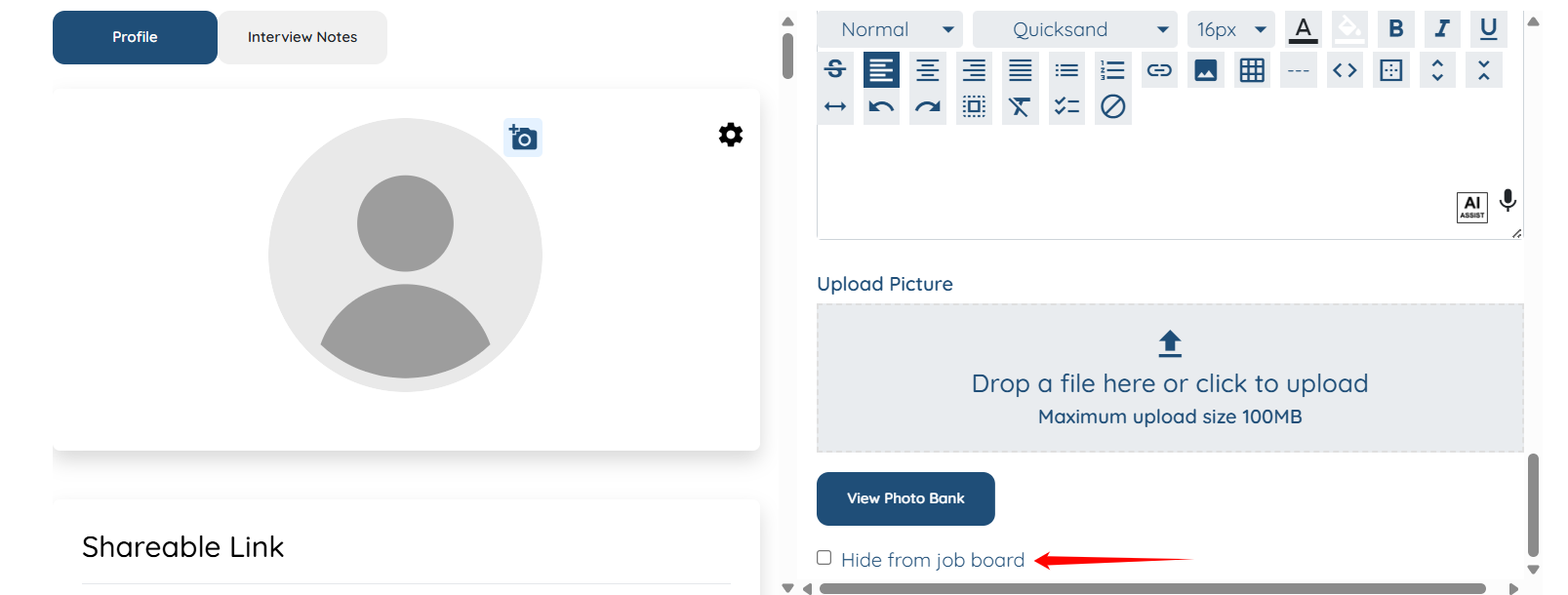
**Step 5**: (Optional) Check the **Hide from job board** checkbox when you are creating a job post to replace the current candidate, so that the system hides this job post.
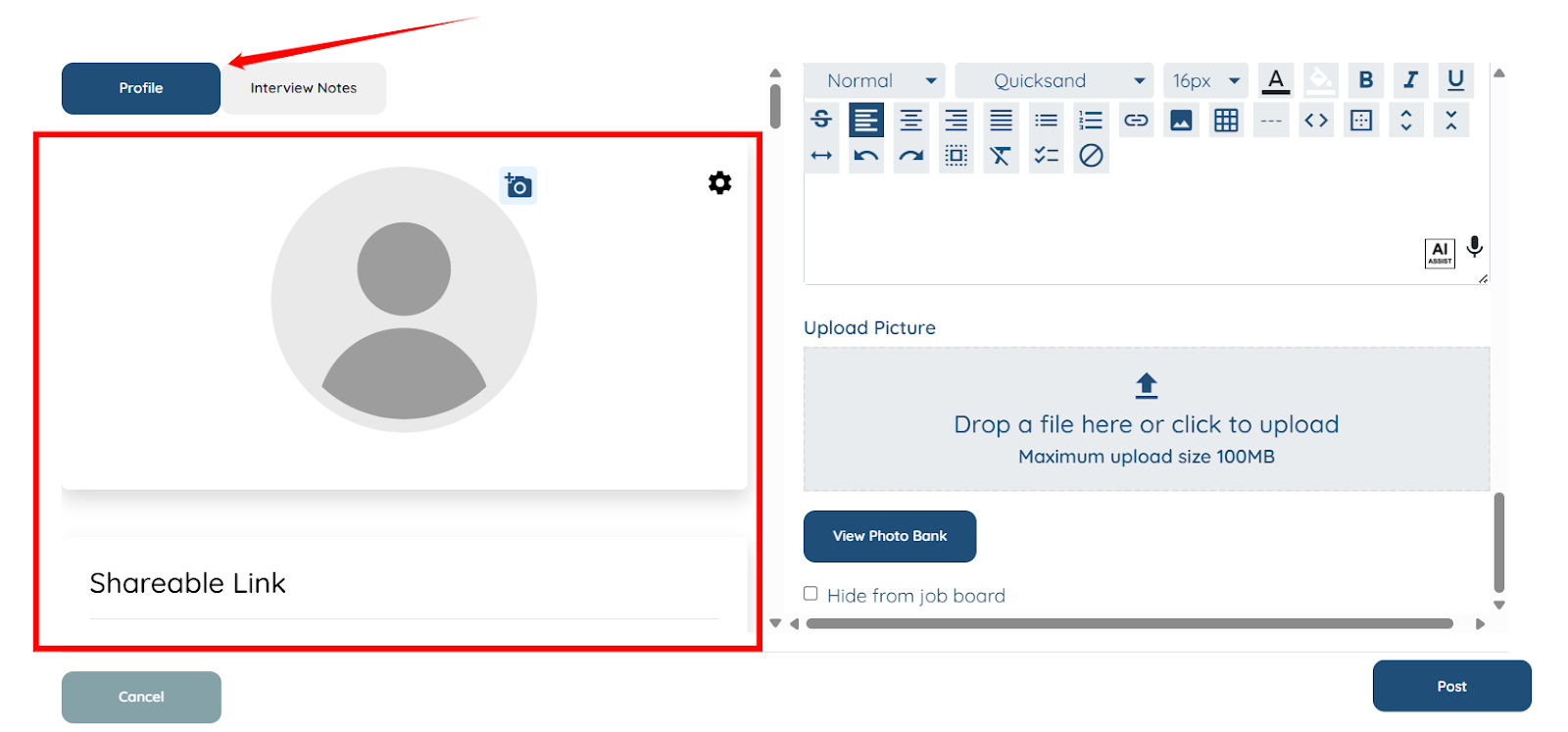
You can also take a look at the client profile to cross-check any information whenever needed.
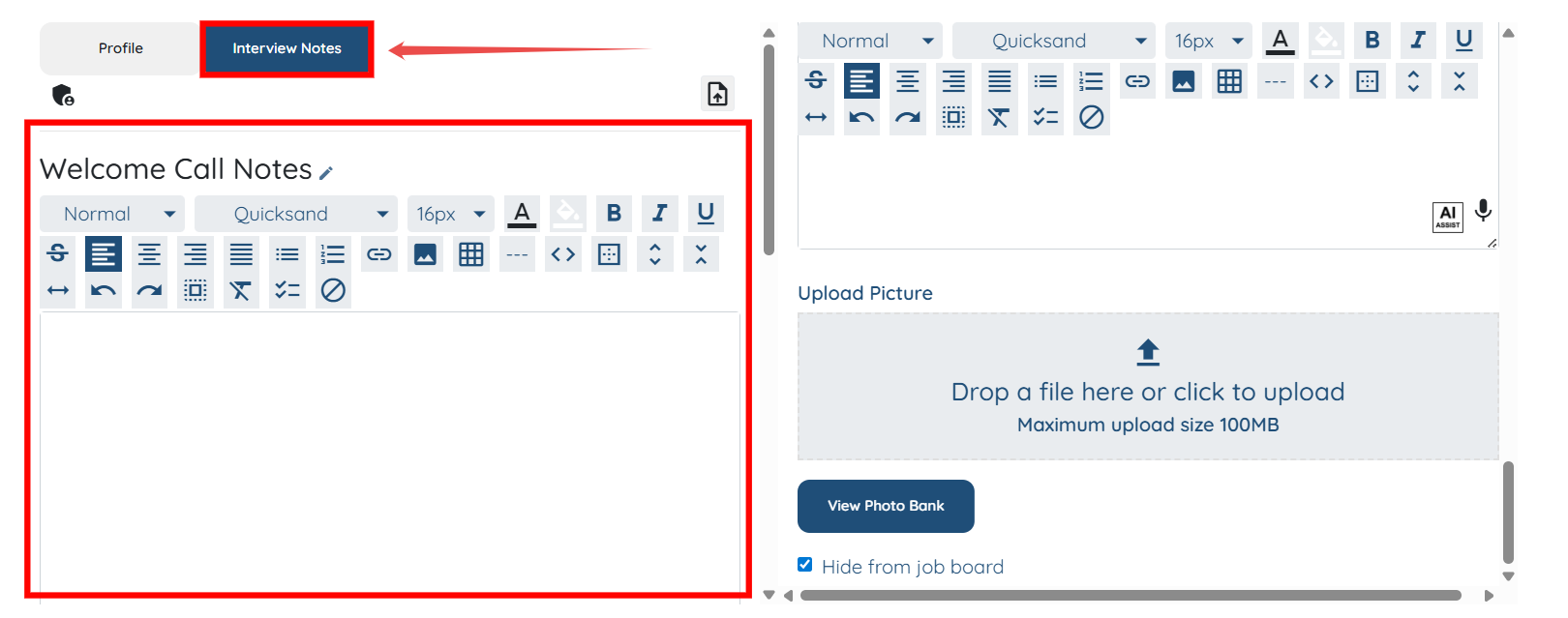
You can also add and update the interview notes as needed.
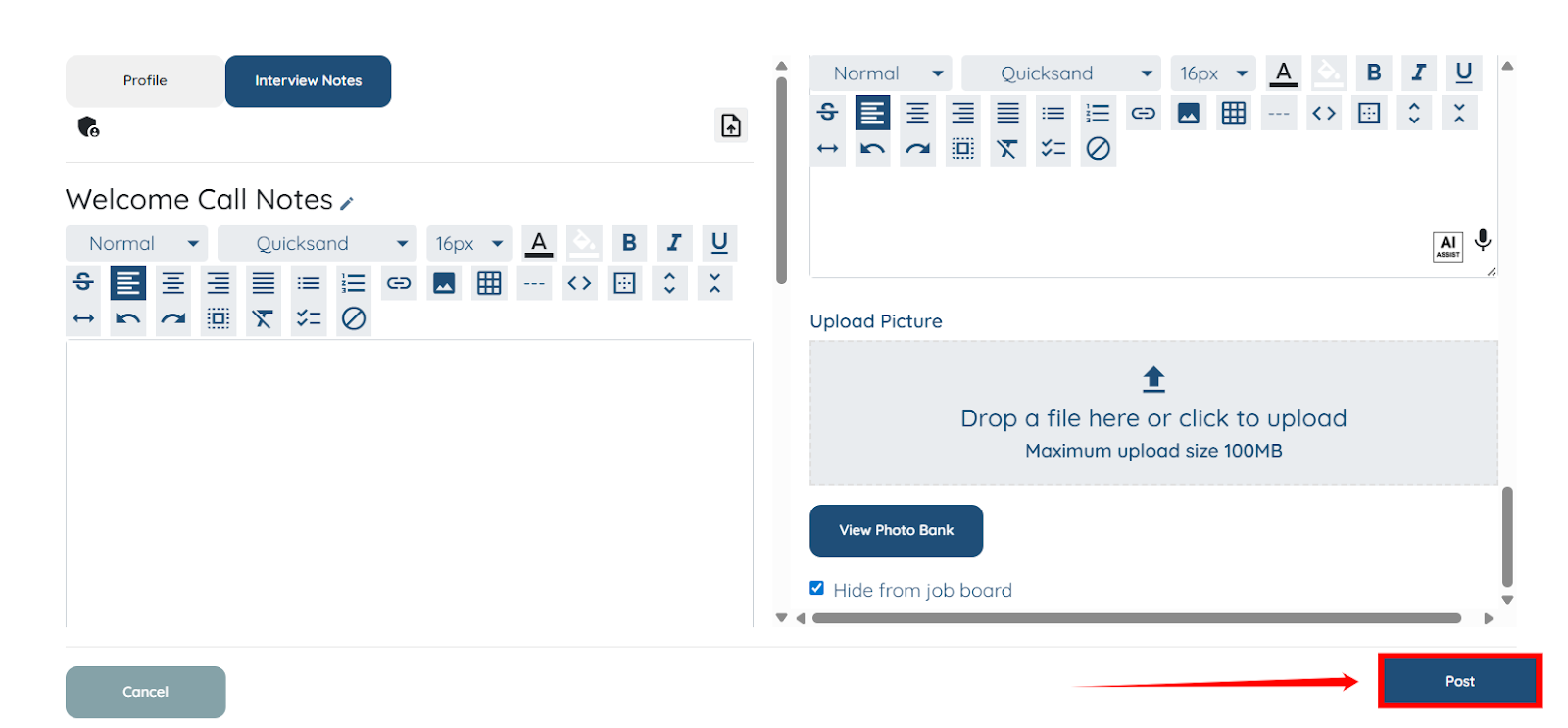
**Step 6**: Once you fill out all the details, click the **Post** button to create the job post.
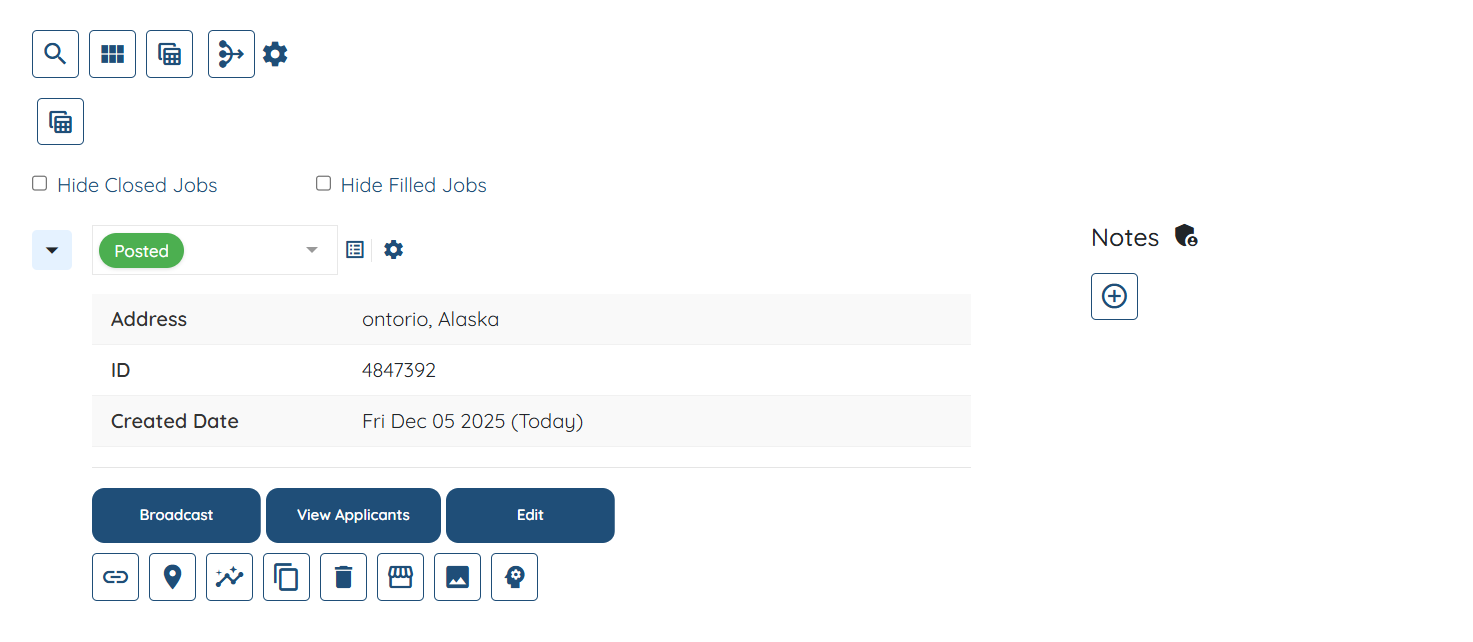
The job post will be created successfully.
### **Post from Placement Jobs Section**
Add a placement job from the Placement Jobs area in your dashboard. Follow the steps below to post a new placement job using this section.
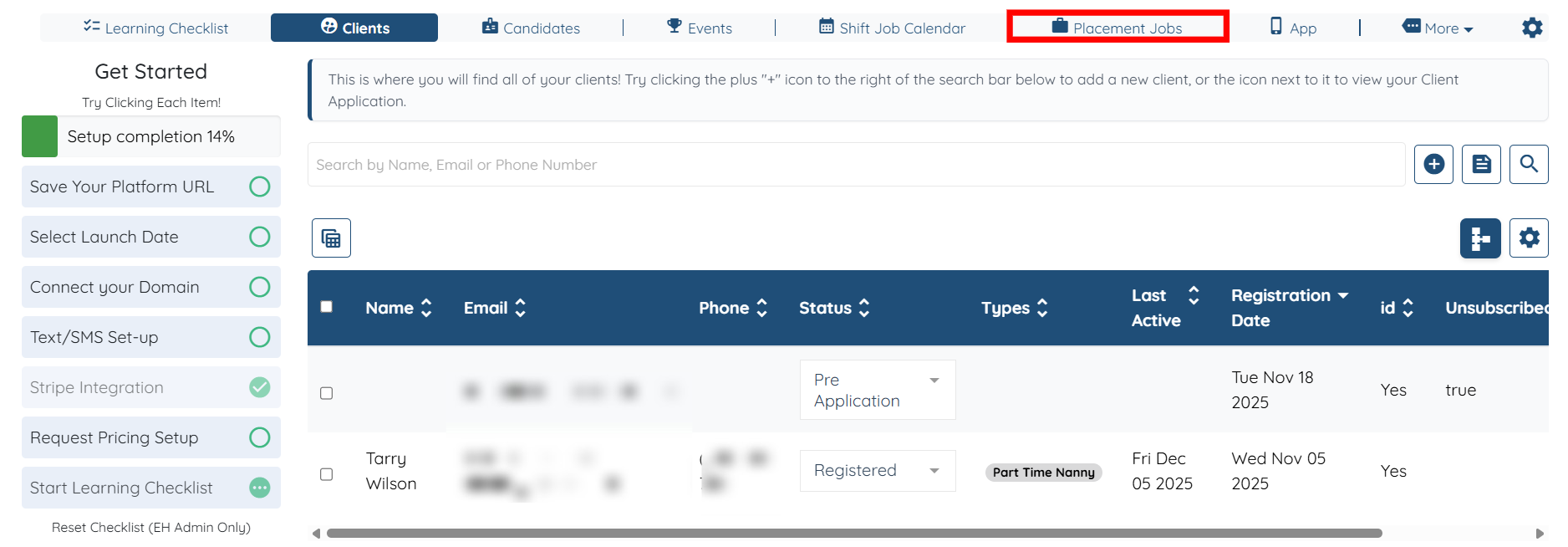
**Step 1**: On your agent dashboard, click the **Placement Jobs** from the top navigation bar.
**Step 2**: Click the **Post Job** button to begin creating the job.

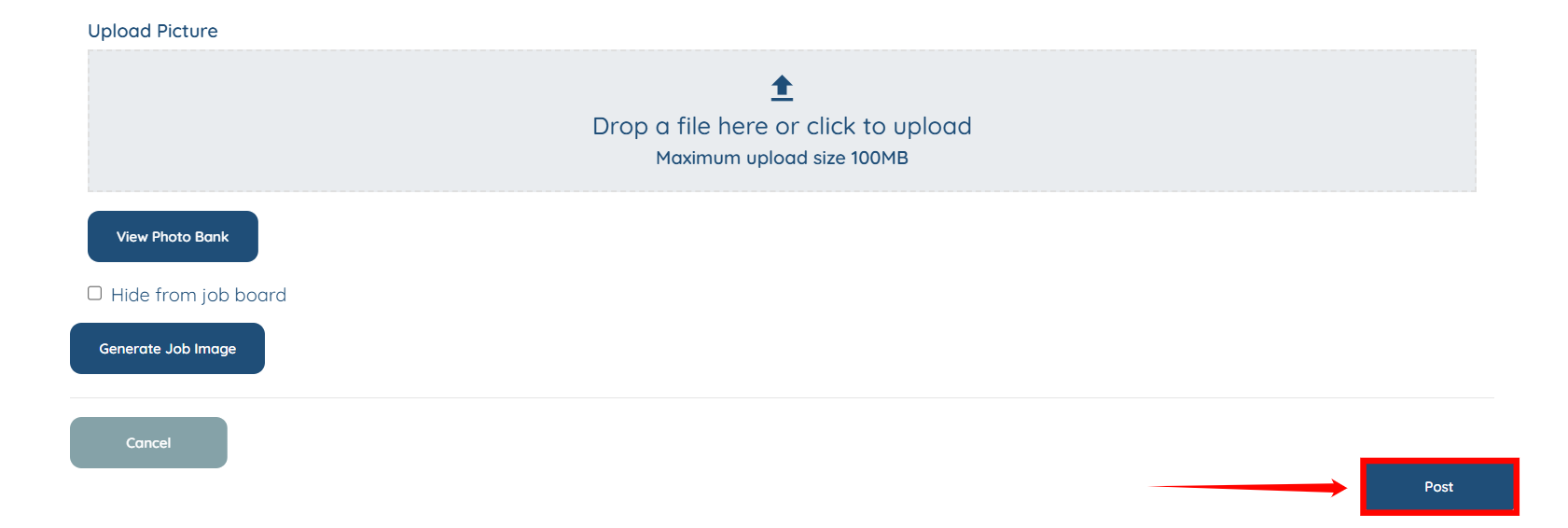
**Step 3**: Fill out all the necessary details related to the job post, and then click the **Post** button to publish the job.
[If this doesn't answer your questions you can always contact us by clicking here](https://share.hsforms.com/1yIx2IRKyQQaVcMJW8kLbJg39wil)
- [Onboarding](https://learn.enginehire.io/en/knowledge/onboarding?hsLang=en)
- [Application Forms & Profiles](https://learn.enginehire.io/en/knowledge/application-forms-profiles?hsLang=en)
- [Templates & Communication](https://learn.enginehire.io/en/knowledge/templates-communication?hsLang=en#main-content)
- [Documents](https://learn.enginehire.io/en/knowledge/templates-communication?hsLang=en#documents)
- [Jobs](https://learn.enginehire.io/en/knowledge/jobs?hsLang=en)
- [Payments](https://learn.enginehire.io/en/knowledge/payments?hsLang=en)
- [Integrations](https://learn.enginehire.io/en/knowledge/integrations?hsLang=en)
- [App](https://learn.enginehire.io/en/knowledge/app?hsLang=en)
- [For Candidates & Clients](https://learn.enginehire.io/en/knowledge/for-candidates-clients?hsLang=en)
- [Backup Care](https://learn.enginehire.io/en/knowledge/backup-care?hsLang=en#main-content)
- [Instant Book](https://learn.enginehire.io/en/knowledge/backup-care?hsLang=en#instant-book)
- [Data Import & Export](https://learn.enginehire.io/en/knowledge/data-import-export?hsLang=en)
- [Reporting & Logs](https://learn.enginehire.io/en/knowledge/reporting-logs?hsLang=en)
- [Error](https://learn.enginehire.io/en/knowledge/error?hsLang=en#main-content)
- [Authentication](https://learn.enginehire.io/en/knowledge/error?hsLang=en#authentication)
- [Settings](https://learn.enginehire.io/en/knowledge/settings?hsLang=en)
- [Domain](https://learn.enginehire.io/en/knowledge/domain?hsLang=en)
- [Webinars and Training](https://learn.enginehire.io/en/knowledge/webinars-and-training?hsLang=en)
- [Ways to Grow and Make More Money](https://learn.enginehire.io/en/knowledge/ways-to-grow-and-make-more-money?hsLang=en)
- [Placements](https://learn.enginehire.io/en/knowledge/placements?hsLang=en#main-content)
- [Job Board](https://learn.enginehire.io/en/knowledge/placements?hsLang=en#job-board)
- [Enginehire Team Internal Videos](https://learn.enginehire.io/en/knowledge/enginehire-team-internal-videos?hsLang=en#main-content)
- [Settings](https://learn.enginehire.io/en/knowledge/enginehire-team-internal-videos?hsLang=en#settings)
- [AI](https://learn.enginehire.io/en/knowledge/ai?hsLang=en)
- Home
- Products
- Pricing
- Blog
- Company
[](https://enginehire.io)
Enginehire Help Center
Copyright © 2026, Enginehire Inc.