![enginehire logo thin dark 1.0.png]](https://learn.enginehire.io/hs-fs/hubfs/enginehire%20logo%20thin%20dark%201.0.png?height=40&name=enginehire%20logo%20thin%20dark%201.0.png)
Let’s get started 🚀
Select the Client Types
Choose the client types that should receive notifications when a shift job remains unfilled.
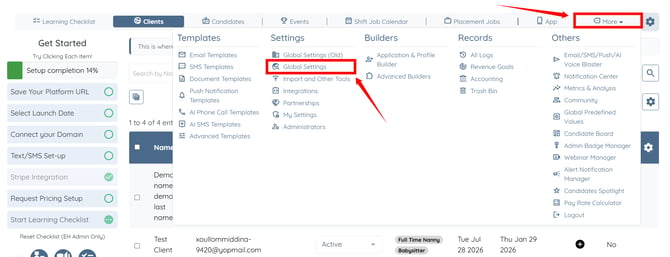
Step 1: Log in to your agent dashboard and click on More > Global Settings as shown in the screenshot below.
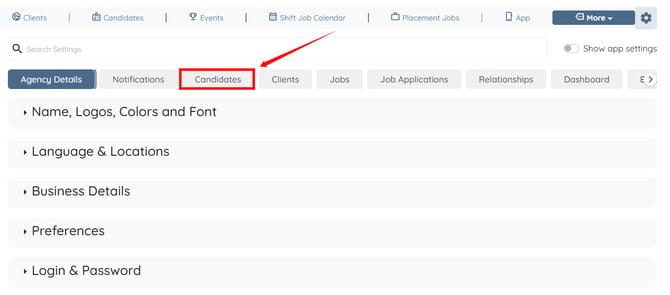
Step 2: Click the Candidates tab from the available tabs.
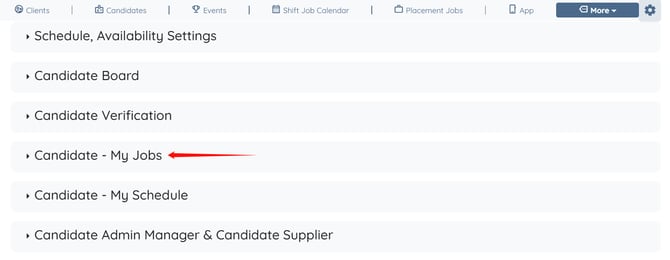
Step 3: Click the Candidate - My Jobs option to expand and view its details.
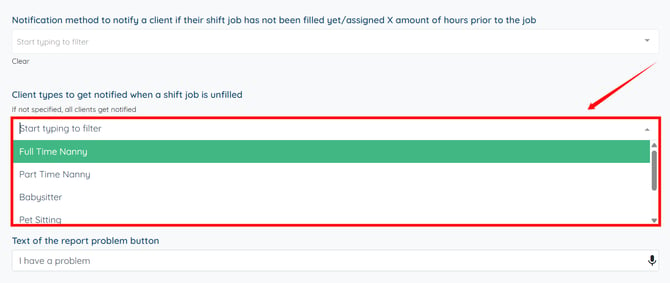
Step 4: Locate the Client types to get notified when a shift job is unfilled setting.
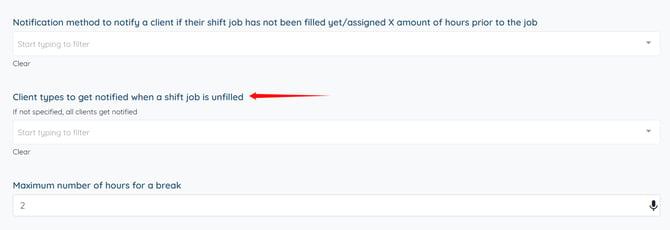
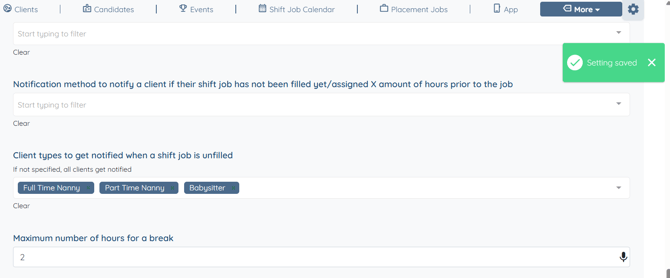
Step 5: Select the client types that should receive notifications when a shift job remains unfilled.
If no client types are selected, the notification will be sent to all clients.
The settings will be saved automatically.
Configure the Email Template
Create an email template for the unfilled shift job reminder so the configured client types receive a customized notification when the reminder is triggered.
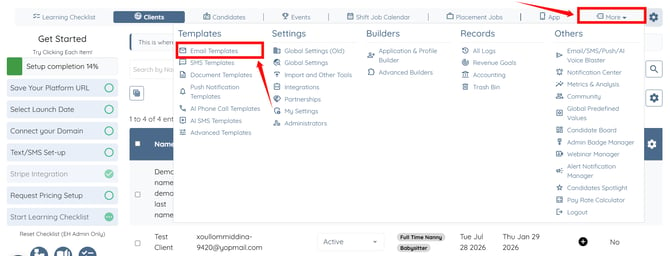
Step 1: On your agent dashboard, click More > Email Templates as shown in the screenshot below.
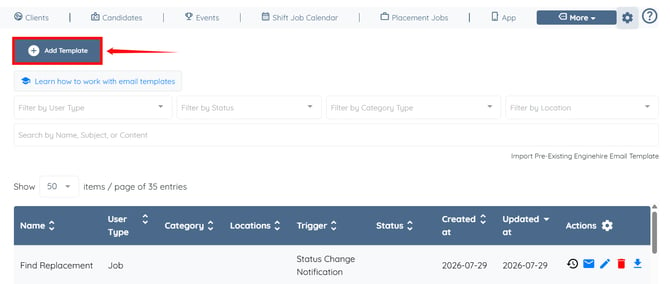
Step 2: Click the Add Template button.
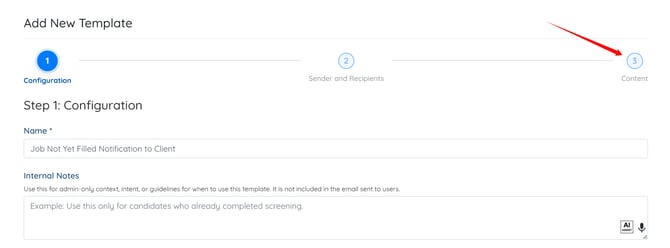
Step 3: Enter a name for your email template.
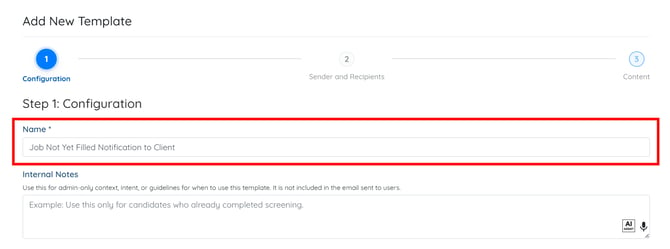
Step 4: Enter internal notes for the template if you want to.
You can also refine and improve existing email content. To know more, refer to the Improve Email Content Using AI article.
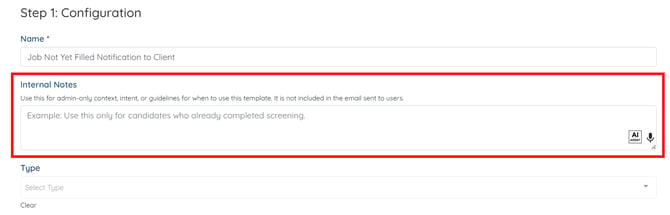
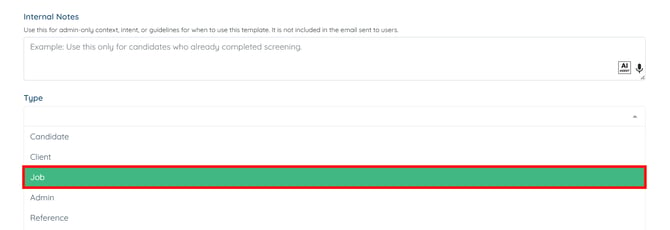
Step 5: Select the Job option from the drop down list in the Type field.
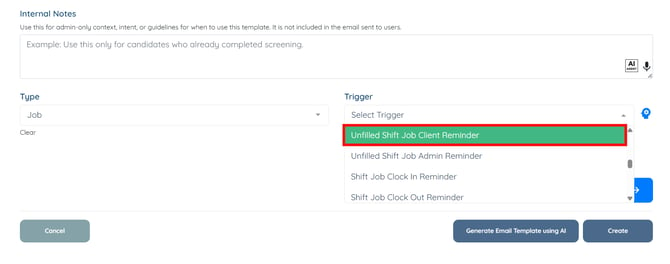
Step 6: Select Unfilled Shift Job Client Reminder as the trigger from the dropdown list.
Step 7: Click the Content button to jump to the email subject and body.
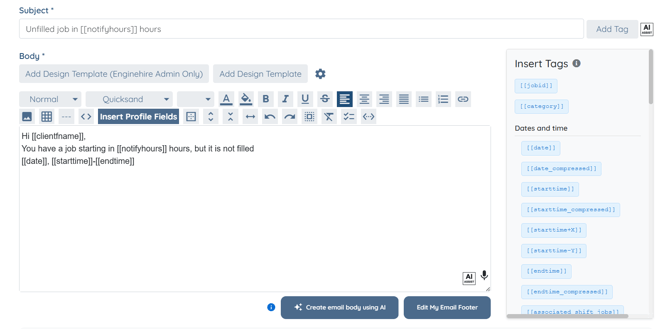
Step 8: Customize the email body as required.
Step 9: Click the Create button to proceed.
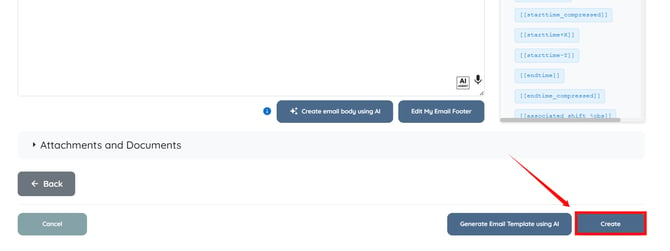
The email template will be created successfully. Notification emails will be sent automatically to the configured client types whenever the Unfilled Shift Job Client Reminder trigger is activated.