![enginehire logo thin dark 1.0.png]](https://learn.enginehire.io/hs-fs/hubfs/enginehire%20logo%20thin%20dark%201.0.png?height=40&name=enginehire%20logo%20thin%20dark%201.0.png)
When you allow clients to submit their own placement jobs, Enginehire can email your admin team the moment a job is posted. The default version of that email is brief. By building a custom template on the Placement Job Created Admin Notification trigger, you can include every field the family filled out, so your team sees the full job details right in the email without opening the dashboard.
Creating this template replaces the default admin notification, so once it's saved, admins receive your custom version automatically.
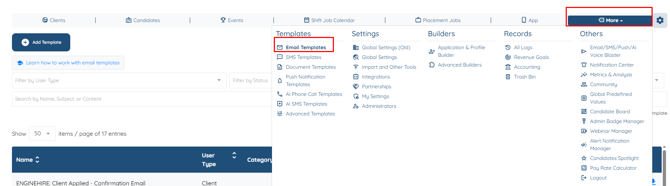
Create the Placement Job Created Admin Notification template- From the top navigation, select More → Templates, then Email Templates.
- Select Add Template.
- On Step 1: Configuration, enter a Name — for example, Placement Job Created Admin Notification.
- Set Type to Job.
- Set Trigger to Placement Job Created Admin Notification. This tells Enginehire to send the email each time a placement job is created.
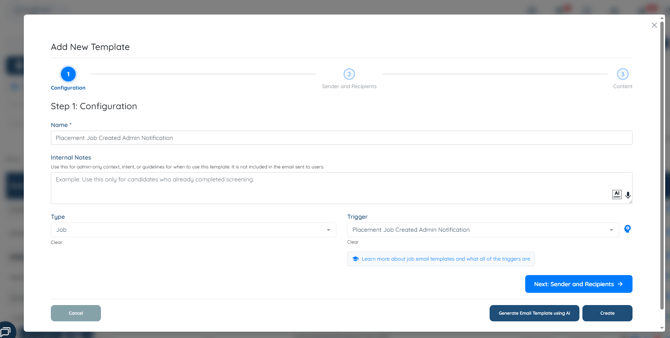
- Continue to Step 2: Sender and Recipients.
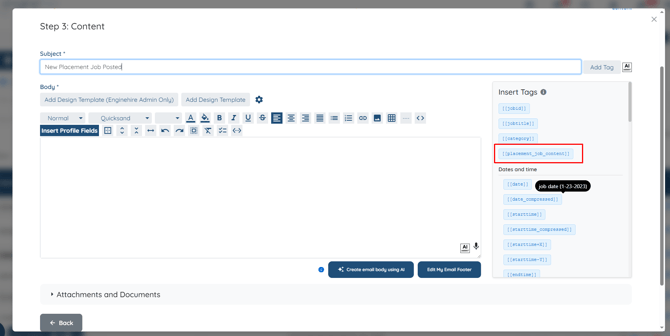
- On Step 3: Content, add a Subject. A clear subject such as New Placement Job Posted helps your team spot it quickly.
- Build the Body of the email and insert your tags (see the next section).
- Select Create to save.
The tag that does the work is [[placement_job_content]]. When the email sends, it expands into all the placement job details the client filled out, so you don't have to add each field one at a time. Place it in the body wherever you want the full job summary to appear.
To add it, open the Insert Tags panel, select [[placement_job_content]] to copy it, then paste it into the body.
Add other placement job details
If you'd like specific fields called out at the top of the email in addition to the full summary, the Insert Tags panel offers individual tags. Job details include [[jobid]], [[jobtitle]], and [[category]]. Dates and times include [[date]], [[starttime]], and [[endtime]]. Location fields include [[address]], [[city]], [[state_province]], and [[country]]. Each tag copies to your clipboard when you select it — paste it into the body where you'd like it to appear.