![enginehire logo thin dark 1.0.png]](https://learn.enginehire.io/hs-fs/hubfs/enginehire%20logo%20thin%20dark%201.0.png?height=40&name=enginehire%20logo%20thin%20dark%201.0.png)
For demonstration purposes, this article uses candidate profiles to showcase handwritten note mapping. However, you can use the same feature to map handwritten notes to client profile fields as well.
Let’s get started 🚀
Step 1: Log in to your agent dashboard, and click Candidates in the navigation bar.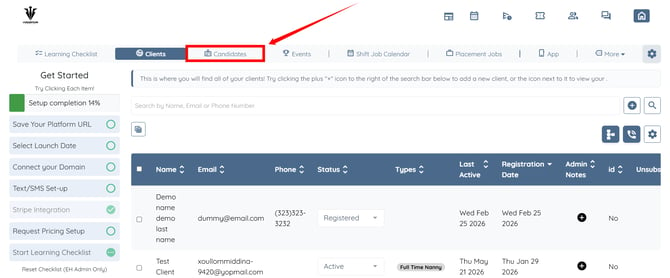
Step 2: Click any candidate for whom you want to map fields from handwritten notes. 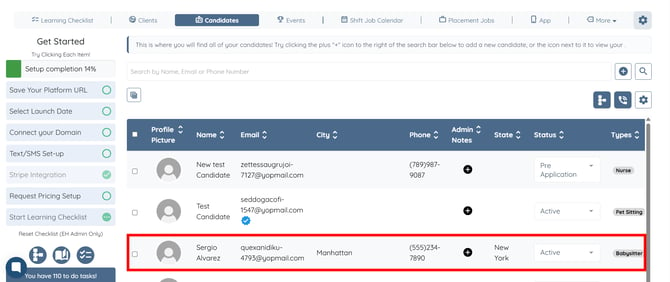
Step 3: Click More > Interview as shown in the screenshot below.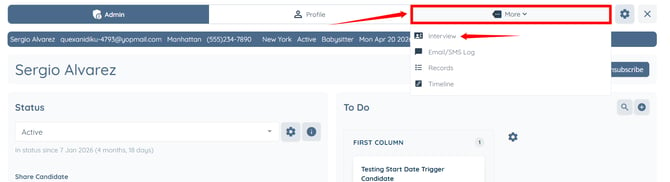
Step 4: Click the Digitise Notes button.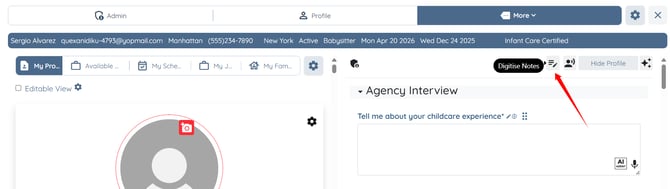
Step 5: Select the section(s) to automatically populate fields based on the image you upload. 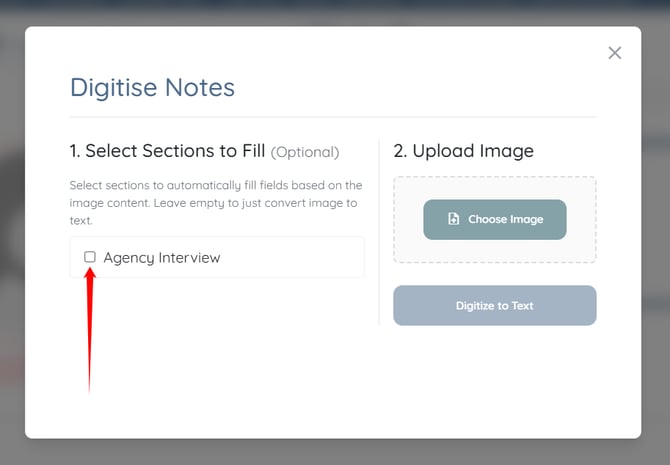
Step 6: Click the Choose Image button and select the image from which you want to map the fields for the selected section(s). 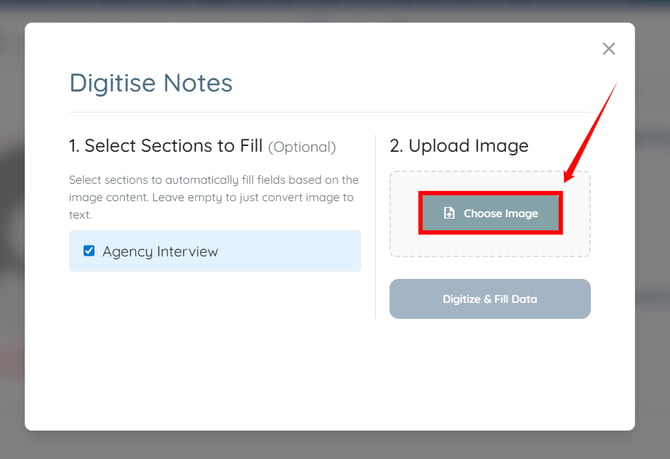
Step 7: Click the Digitize & Fill Data button.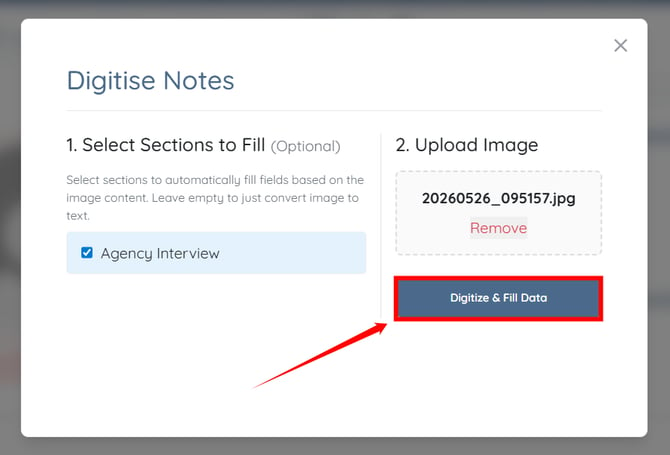
The fields in the selected section(s) will be mapped successfully from the uploaded handwritten notes image.