![enginehire logo thin dark 1.0.png]](https://learn.enginehire.io/hs-fs/hubfs/enginehire%20logo%20thin%20dark%201.0.png?height=40&name=enginehire%20logo%20thin%20dark%201.0.png)
For demonstration purposes, this article uses a candidate profile as an example. Follow the same steps to manually add a client profile.
Let’s get started 🚀
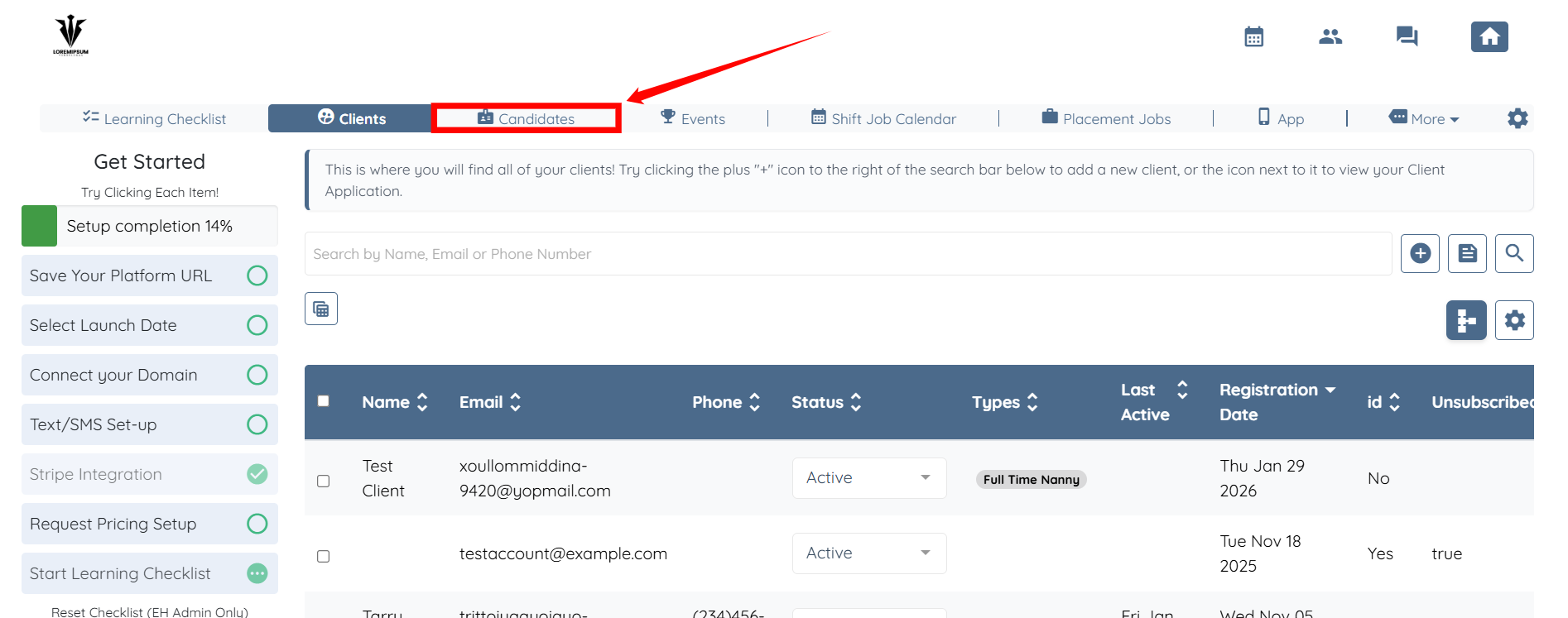
Step 1: Log in to your agent dashboard, then click Candidates in the navigation bar.
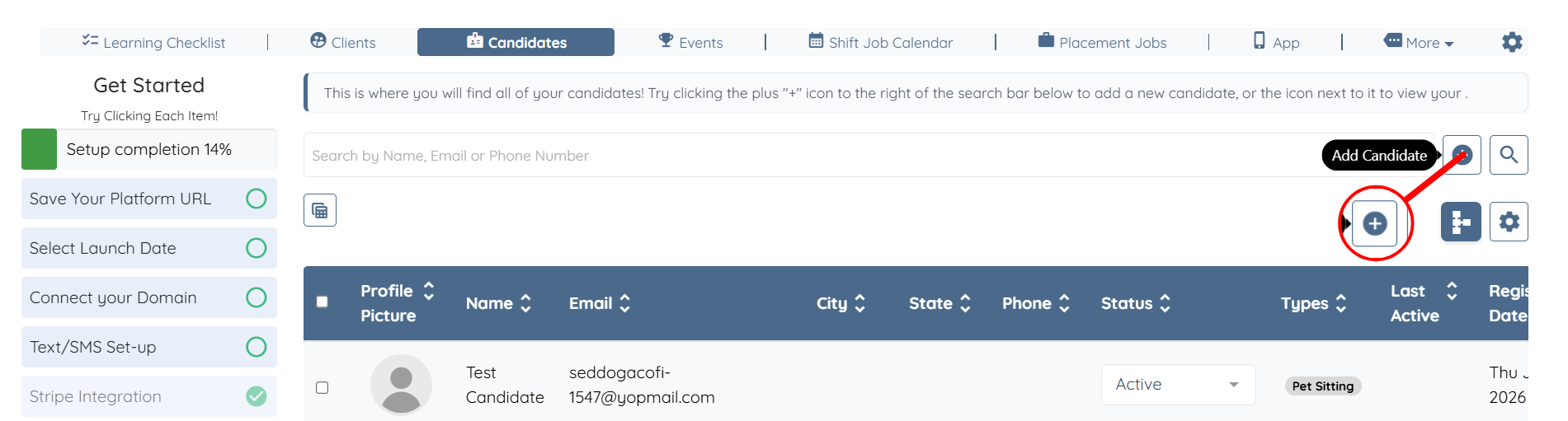
Step 2: Click the + icon to add a new candidate.
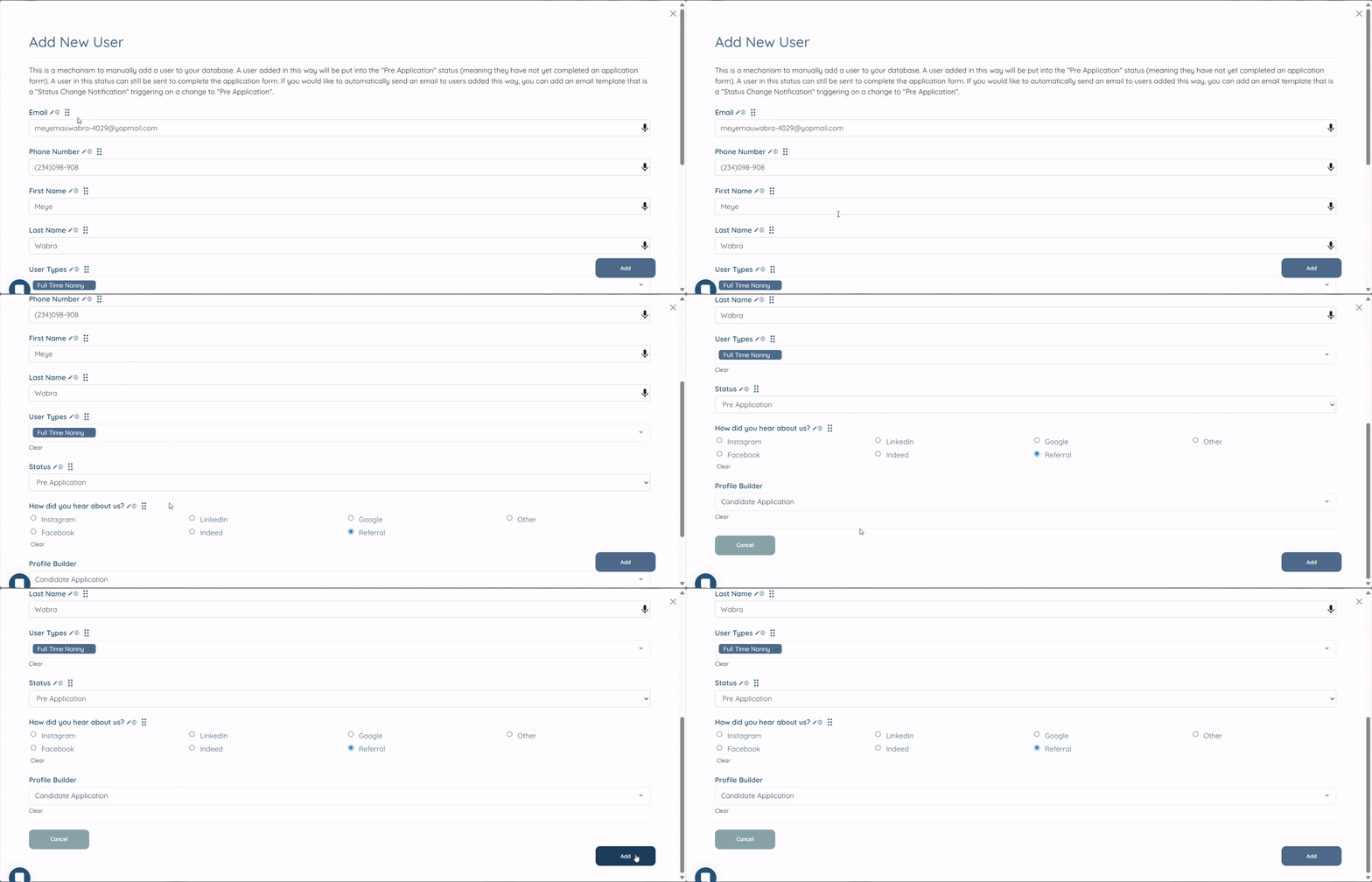
Step 3: Enter all the required details, then click the Add button.
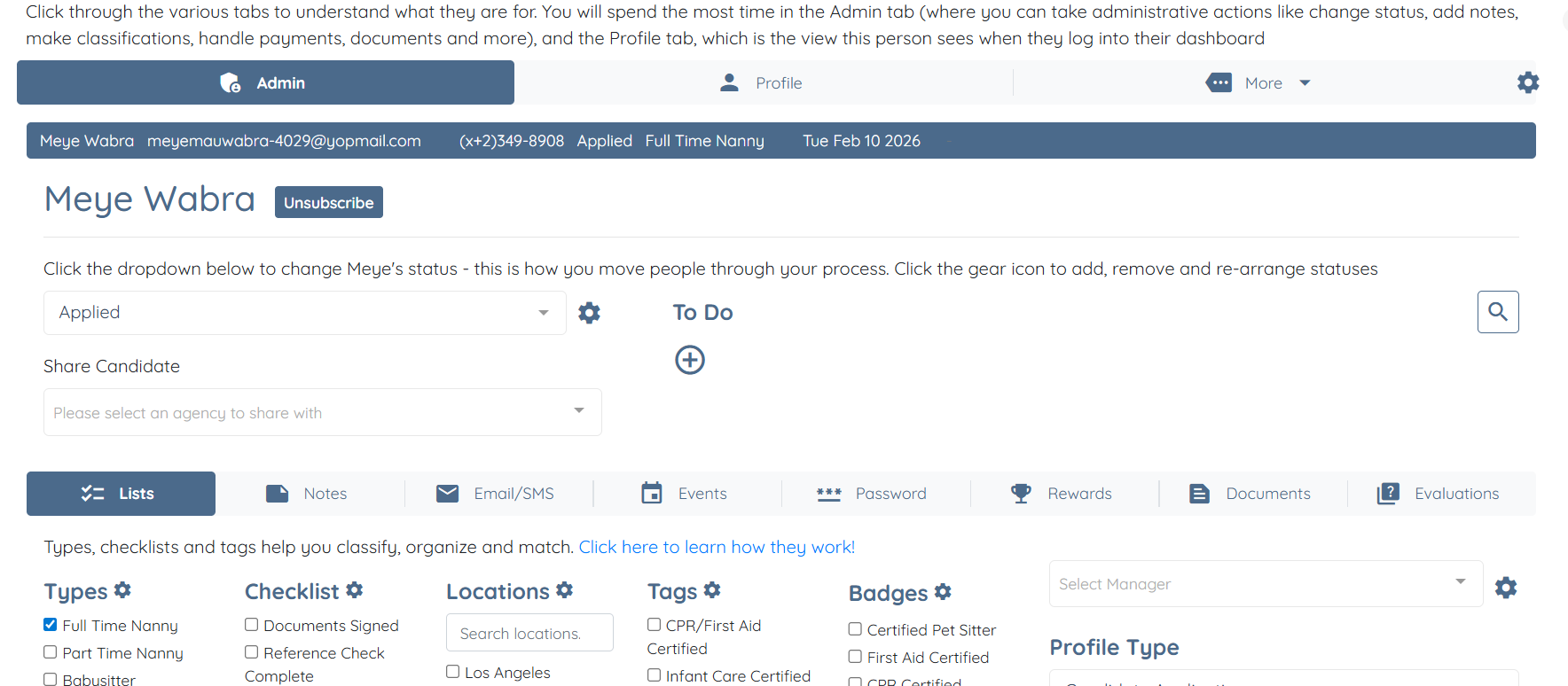
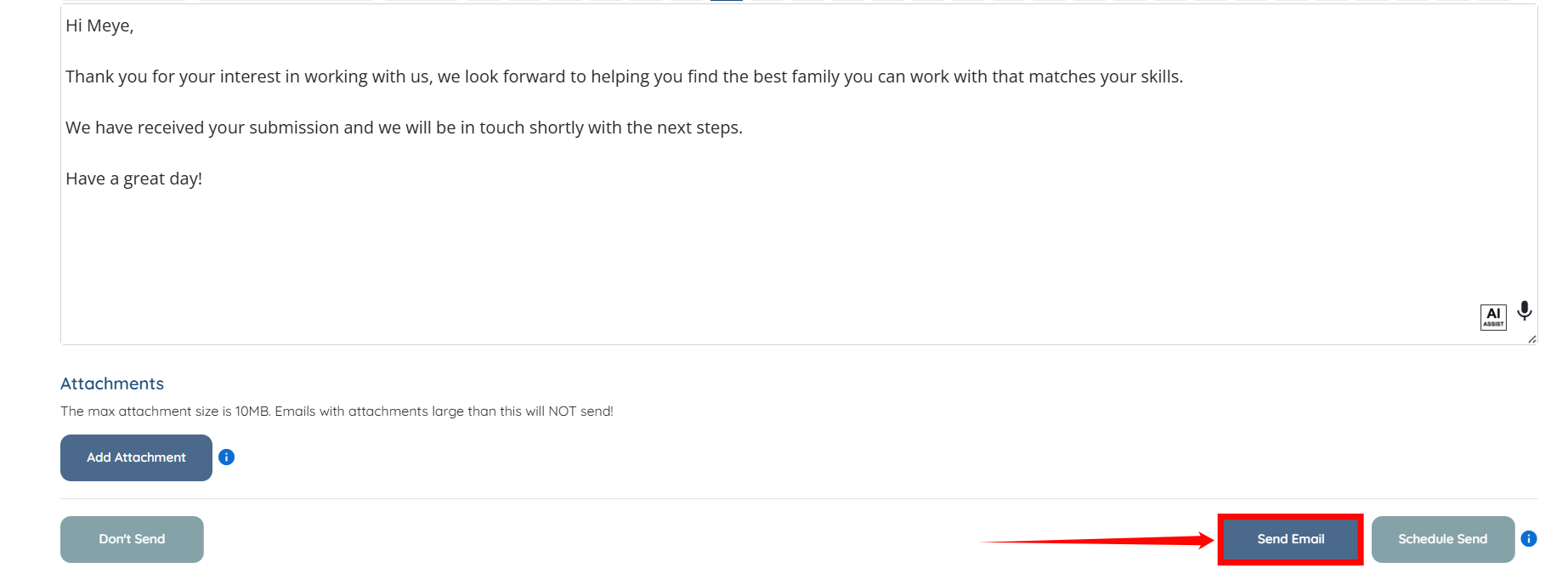
Step 4: Click the Send Email button to send an email to the new candidate.
The new candidate will be added successfully, and they can log into their profile and complete their information.