![enginehire logo thin dark 1.0.png]](https://learn.enginehire.io/hs-fs/hubfs/enginehire%20logo%20thin%20dark%201.0.png?height=40&name=enginehire%20logo%20thin%20dark%201.0.png)
Let’s get started 🚀
Step 1: Log in to the dashboard, then go to the Candidates section.
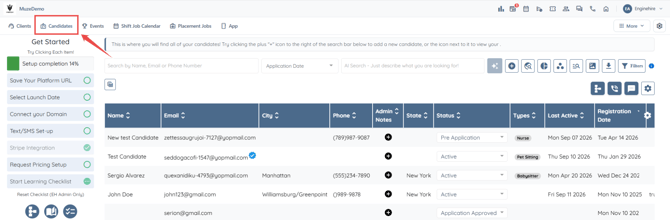
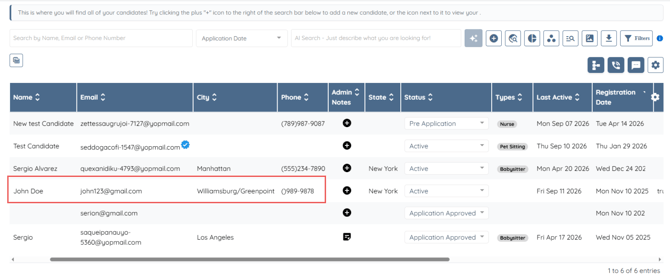
Step 2: Navigate to the specific candidate profile you wish to view.
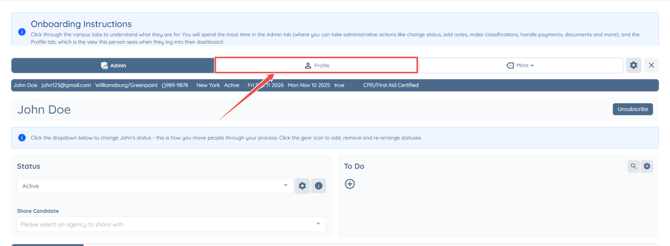
Step 3: By default, the system opens the profile in the Admin tab. Navigate to the Profile tab.
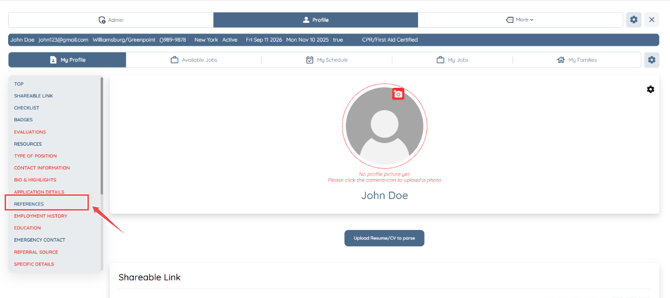
Step 4: In the candidate’s Profile tab, find the Reference Section and click it.
Step 5: Admins can manage the visibility of individual reference checks within the Reference section by using the eye icon located on the right side of each entry.
This lets admins hide specific reference checks from clients without hiding the entire section.
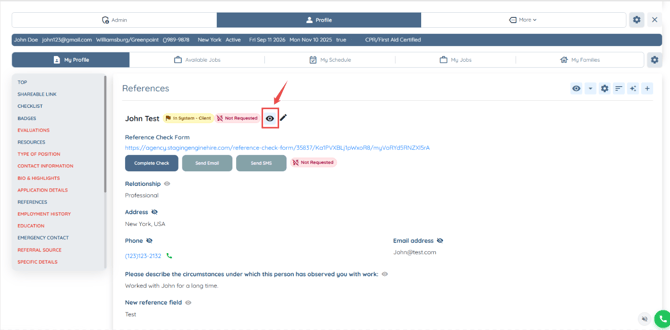
Step 6: Clicking the eye icon hides the selected reference check from the client view, which darkens its display as illustrated in the screenshot below.
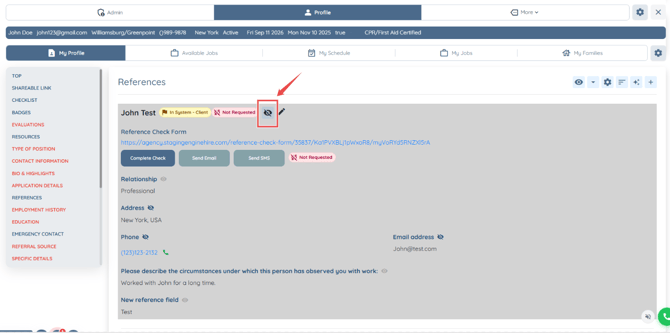
Step 7: Alternatively, you can hide a reference from the client by selecting the edit icon located directly beside the eye icon.
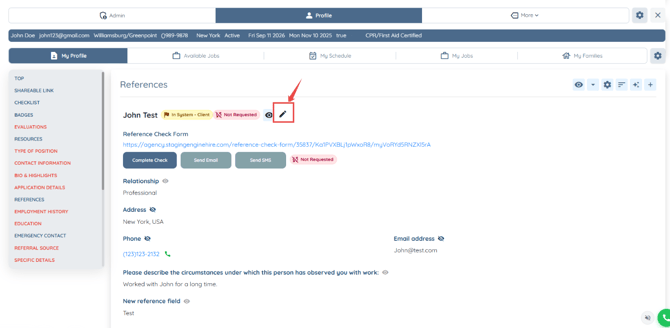
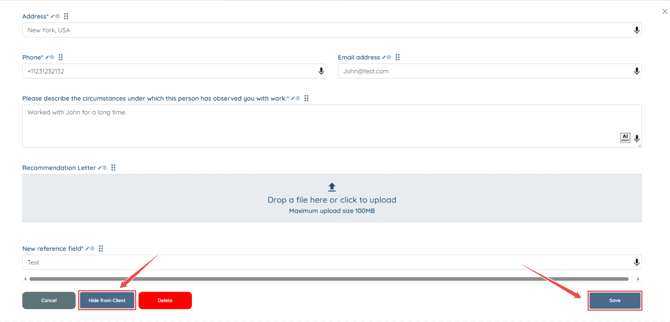
Step 8: Selecting the edit icon opens the reference form. Scroll to the bottom and click the “Hide from client” button, then save the form to conceal the reference from client view.
Step 9: To confirm the changes without leaving the page, select the “shareable link” option on the left side.
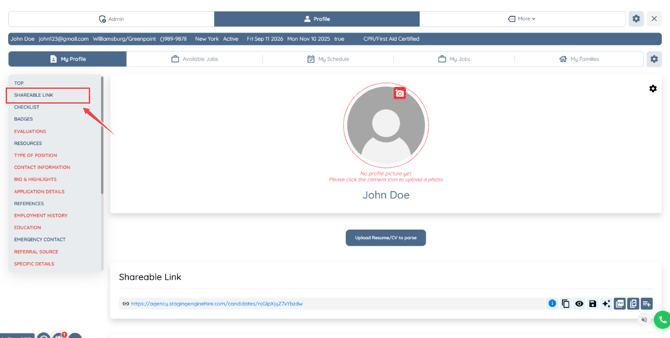
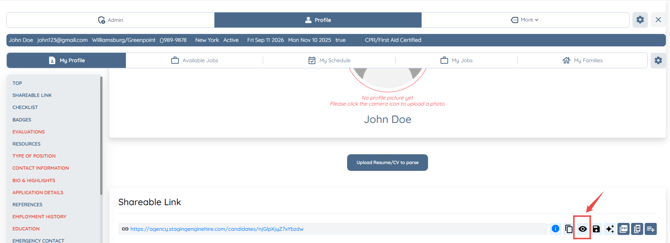
Step 10: Select the eye icon to preview how the profile appears to external viewers.
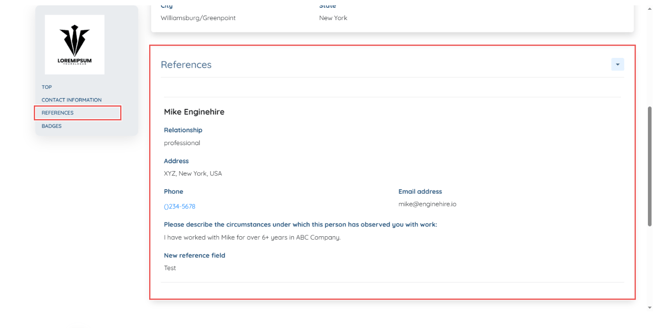
You are all set! As displayed below, the reference set as hidden remains concealed from public view, whereas only the reference marked as visible to clients is shown.
If you need any further assistance, feel free to contact our support team by clicking here: https://share.hsforms.com/1yIx2IRKyQQaVcMJW8kLbJg39wil