![enginehire logo thin dark 1.0.png]](https://learn.enginehire.io/hs-fs/hubfs/enginehire%20logo%20thin%20dark%201.0.png?height=40&name=enginehire%20logo%20thin%20dark%201.0.png)
A Contact Us form gives visitors to your website a simple way to reach you. In Enginehire, you build it as an application form with the Unspecified user type, which is designed for website contact forms where the person filling it out could be either a candidate or a client. Once it's saved, you can link to it or embed it on your site.
Create the Contact Us form
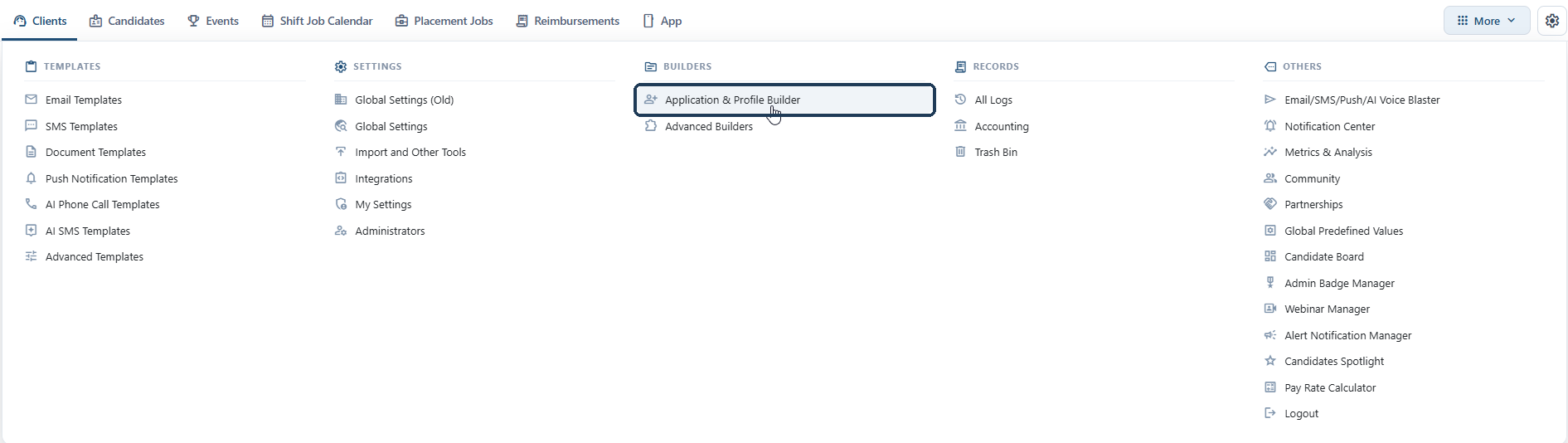
Open the More menu in the top navigation bar and select Application & Profile Builder from the Builders column.
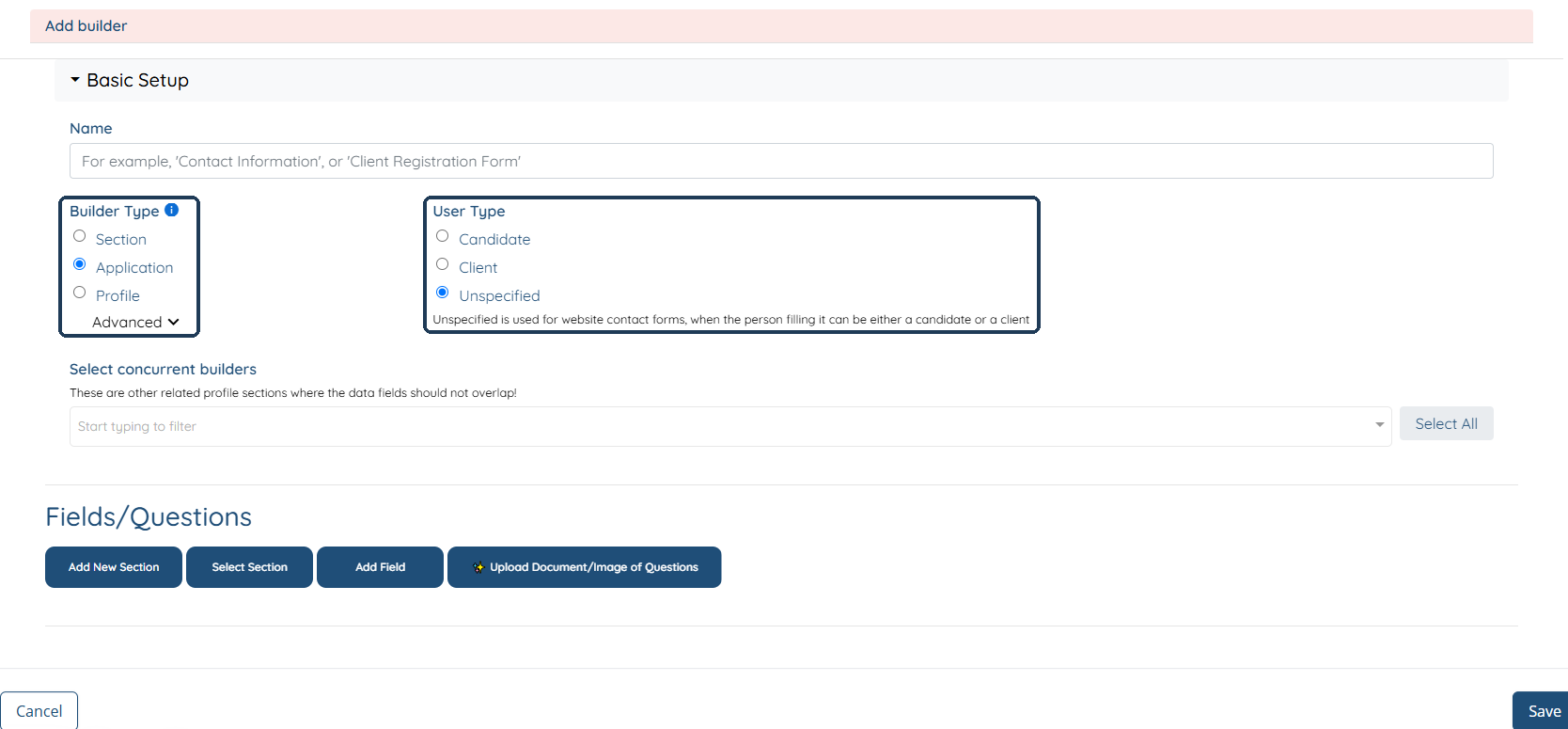
Click Add to open the Add builder window. Under Basic Setup, give the form a clear name such as Contact Us, then set the Builder Type to Application and the User Type to Unspecified.
 Add your contact form questions
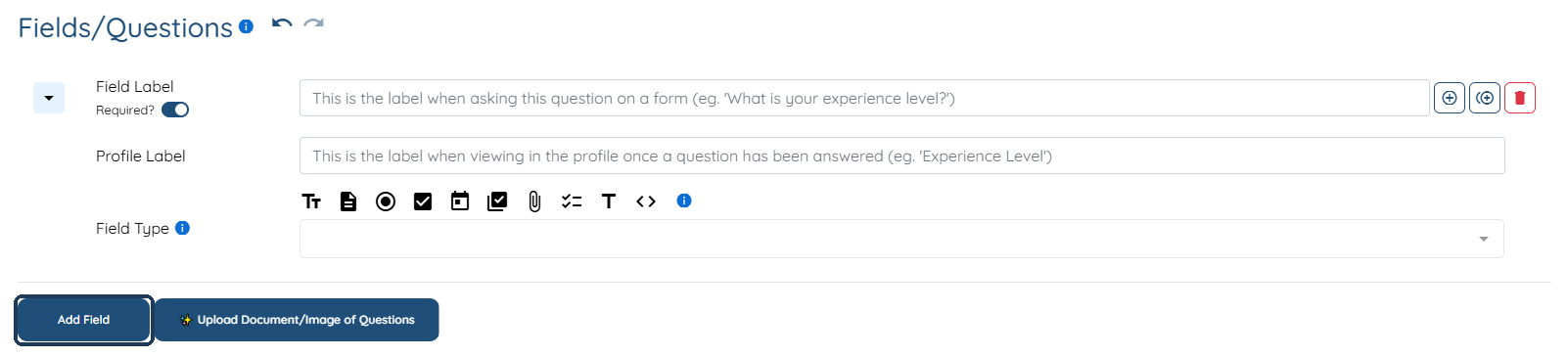
Scroll down to Fields/Questions and click Add Field. Each question has a Field Label, which is the question as it appears on the form, and a Profile Label, which is how the answer is labeled when you view it in a profile afterward. Turn on the Required? toggle for any question people must answer before they can submit, such as their name and email. You can learn more in Set Application Questions as Required or Optional.
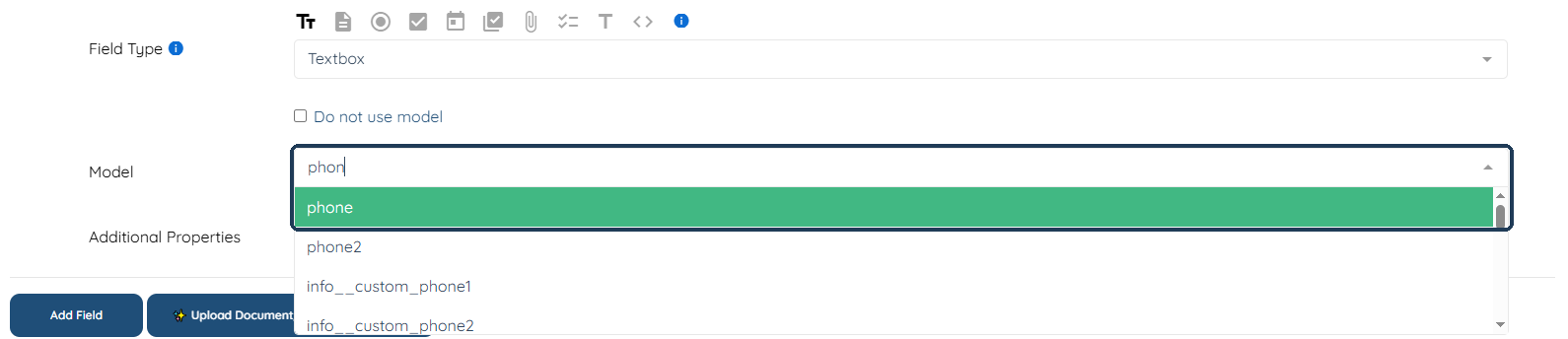
Next, choose a Field Type using the icons or the dropdown. Textbox works well for short answers like a name, email, or phone number, while Textarea gives people room to write a longer message. Then, under Model, start typing to find the matching model, for example email for the email question or phone for the phone number.
Click Add Field again for each question you want to include. A typical contact form asks for First Name, Last Name, Email, Phone, and a Message. When your questions are in place, click Save.
Want to ask something beyond the basics, such as a dropdown for the reason someone is reaching out? See All Field Types Explained to pick the right field type.
Get your contact form link
Your new form now appears in the Application & Profile Builder list as an Application with the Unspecified user type. Click View Form on its row to open the live form. The address in your browser's address bar is your contact form link.
Add the contact form to your website
You can link to the form from a button or menu item on your site, or embed it directly on a page. For step-by-step instructions for Squarespace, WordPress, and Wix, see Embed or Link Applications to Your Website.
To display the answers from your contact form in the admin panel of candidate and client profiles, follow Show Unspecified Sections in Candidate and Client Profiles.
Still have questions? Contact us here and we'll help you get it set up.