![enginehire logo thin dark 1.0.png]](https://learn.enginehire.io/hs-fs/hubfs/enginehire%20logo%20thin%20dark%201.0.png?height=40&name=enginehire%20logo%20thin%20dark%201.0.png)
The job-based notification center keeps a running history of activity on your jobs in one place. When something happens to a job, such as being created, assigned, unassigned, or moved to a new status, a notification is added to the center. This lets you see what changed, when it changed, and who was involved without opening each job. You can filter notifications by type, focus on the ones you haven't read, and mark everything as read once you're caught up.
The notification center is turned off by default. Once you enable it in Global Settings, a bell icon appears in the top navigation bar, and that's where you open your notifications.
How to enable the job-based notification center
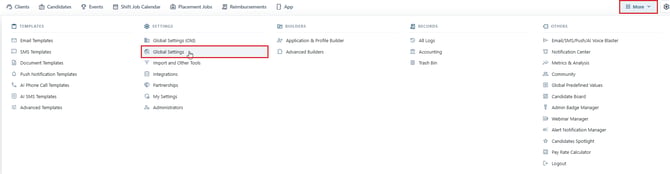
Step 1. Click More in the top right of your dashboard, then select Global Settings under Settings.
Step 2. Open the Notifications tab.

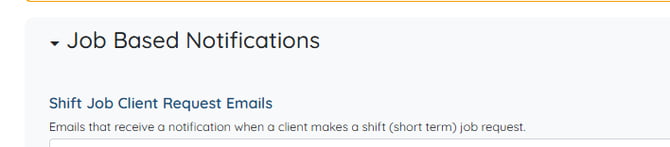
Step 3. Scroll to the Job Based Notifications section and expand it if it's collapsed.
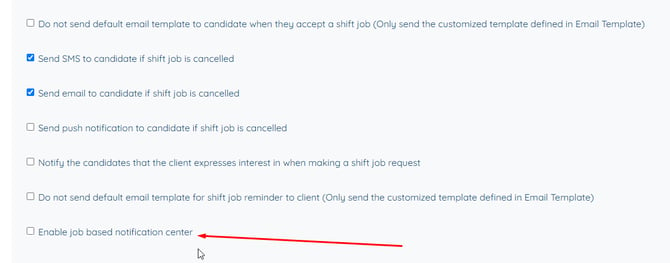
Step 4. Scroll to the bottom of the section and select the Enable job based notification center checkbox.
The bell icon now appears in the top navigation bar. A red badge on the bell shows how many unread notifications you have.

How to open your job notifications
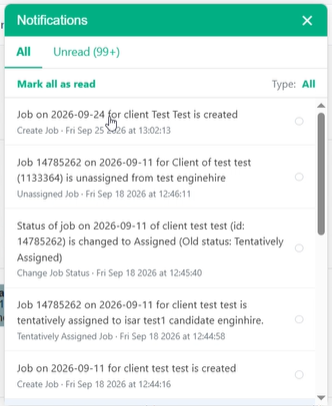
Click the bell icon in the top navigation bar. The Notifications panel opens with your most recent notifications at the top. To close it, click the X in the top right corner of the panel.
How to read a job notification
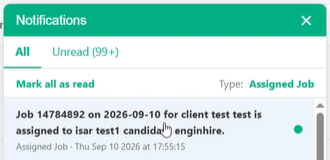
Each notification describes what happened to a job in plain language, with details such as the job ID, the job date, the client, and the candidate when one is involved. For example, a notification might read "Job 14784892 on 2026-09-10 for client Jane Smith is assigned to Alex Lee." Below the description, you'll see the notification type and the date and time it was recorded, such as "Assigned Job · Thu Sep 10 2026 at 17:55:15."
Unread notifications are highlighted and marked with a green dot on the right. Notifications you've already read show an empty circle instead.
How to filter job notifications by type
To see only one kind of activity, click the current selection next to Type in the top right of the panel. It shows All by default. A dropdown opens with a search box and the list of notification types, such as Accepted Job, Assigned Job, Cancel Job, Change Job Status, and In Progress Job. Type in the search box to find a type quickly, or scroll through the list, then click the type you want.
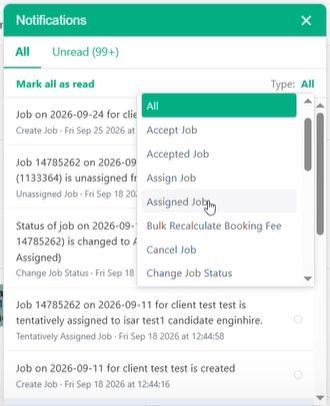
The panel updates to show only notifications of that type, and the type you picked appears next to Type so you can always tell which filter is active. To see every notification again, open the dropdown and select All.
How to view unread notifications and mark them as read
The panel has two tabs. All shows every notification, and Unread shows only the ones you haven't read yet, along with a count. When you're caught up, click Mark all as read to mark every notification as read.