![enginehire logo thin dark 1.0.png]](https://learn.enginehire.io/hs-fs/hubfs/enginehire%20logo%20thin%20dark%201.0.png?height=40&name=enginehire%20logo%20thin%20dark%201.0.png)
Let’s get started 🚀
Step 1: Log in to your agent dashboard and click More > Email Templates as shown in the screenshot below.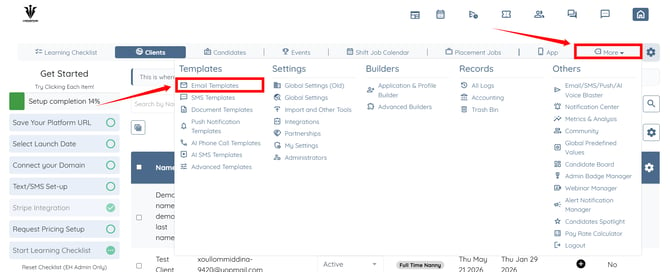
Step 2: Click the Add Template button.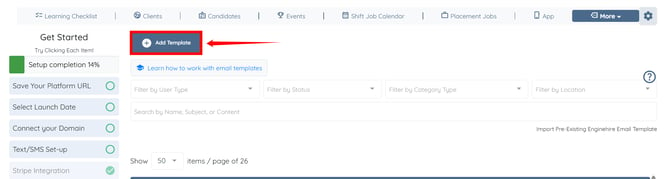
Step 3: Enter a name for the email template.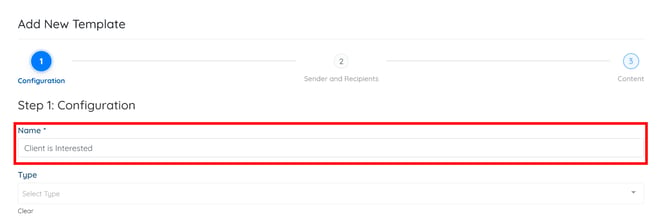
Step 4: Select the Candidate option from the dropdown list in the Type field.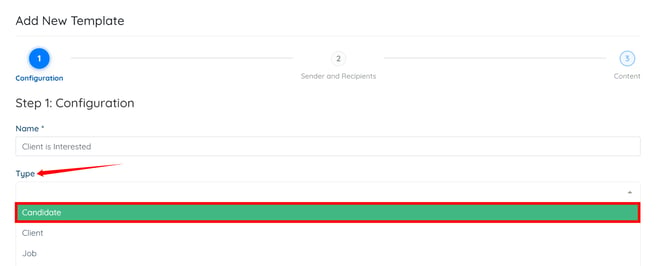
Step 5: Select the Client Mark Interested option from the dropdown list in the Trigger field.
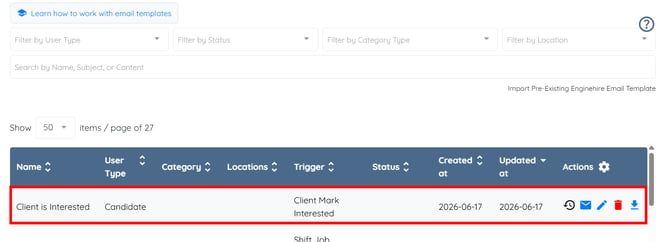
This trigger is used to notify candidates when a client shows interest in a candidate
by selecting the "I am interested" button.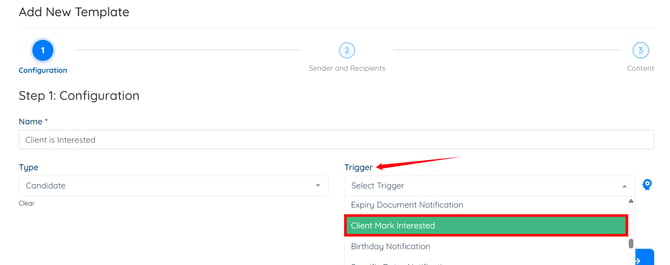
Step 6: Click the Content button to navigate to the email template content section. 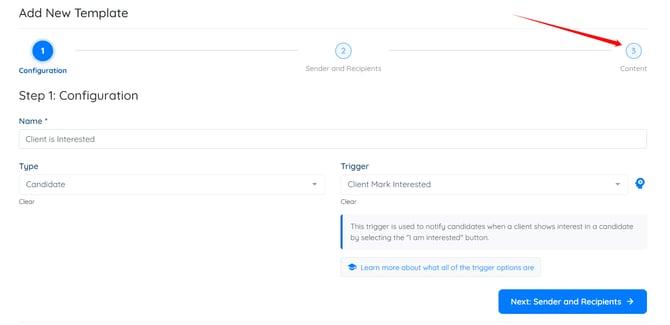
The Subject and Body fields will include tags for the client's first and last name, allowing the client's name to be displayed automatically when the email is sent. 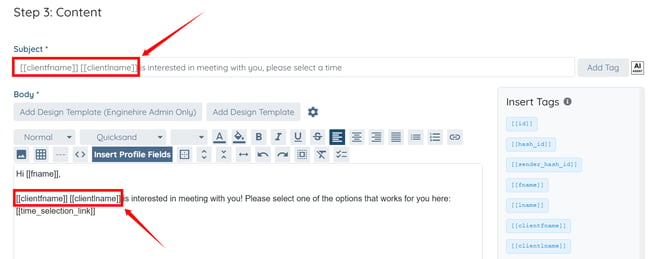
Step 7: Click the Create button.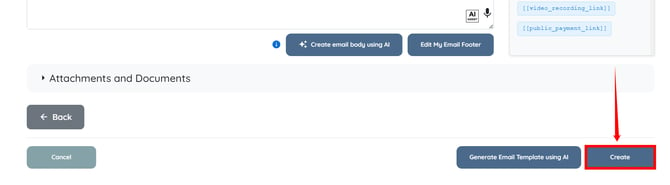
The email template will be created successfully and will include the client's name when candidate interest emails are sent.