![enginehire logo thin dark 1.0.png]](https://learn.enginehire.io/hs-fs/hubfs/enginehire%20logo%20thin%20dark%201.0.png?height=40&name=enginehire%20logo%20thin%20dark%201.0.png)
Locations let you organize users and data by area. Once a location exists, you can link ZIP codes to it so users and data are associated with the correct location based on their ZIP code, and you can make it selectable on your application forms. This article covers adding a location, linking ZIP codes, importing locations and ZIP codes in bulk from a CSV file, and showing locations on an application.
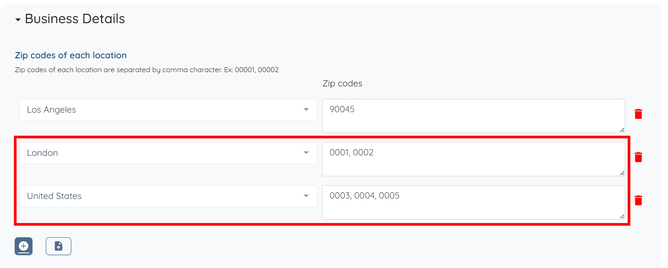
Note: Location and ZIP code settings are now under Languages & Locations. If you are used to finding them under Business Details, that is no longer where they live.
Let's get started 🚀
Where to find location and ZIP code settings
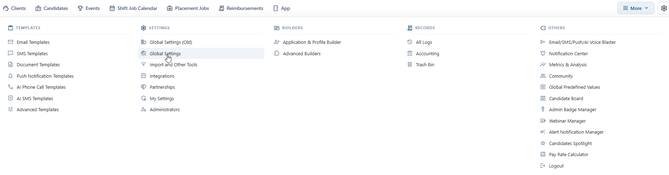
Step 1: Log in to your agent dashboard and click More > Global Settings.
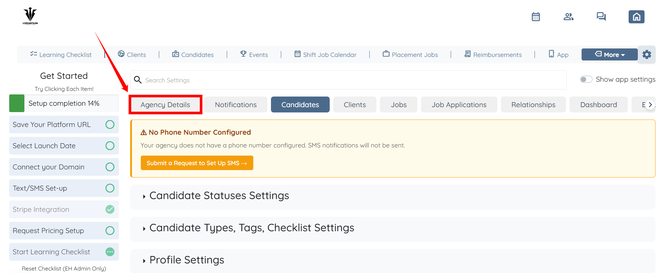
Step 2: Click the Agency Details tab.
Step 3: Click Languages & Locations to expand it.
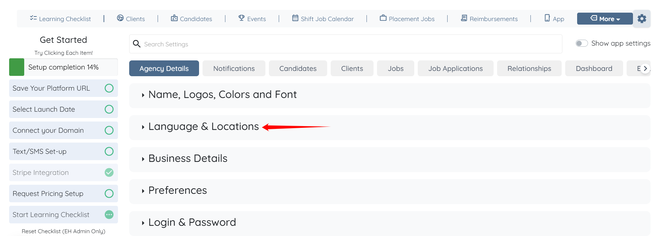
Every task in the sections below starts from this panel.
How to add a new location
Step 1: In the Languages & Locations panel, click the + button.
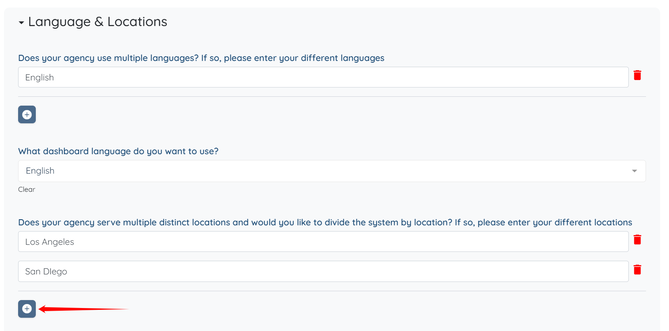
Step 2: Enter the name of the new location. The system saves it automatically.
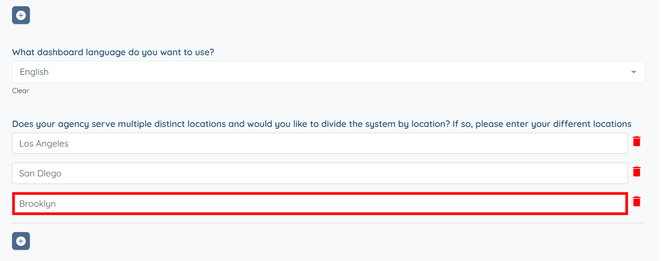
How to link ZIP codes to a location
Linking ZIP codes to a location makes sure users and data are associated with the correct location based on their ZIP code. The location has to exist before you can link ZIP codes to it, so add it first if you haven't already.
Step 1: In the Languages & Locations panel, select the location from the dropdown list.
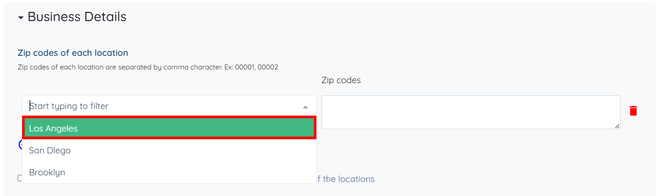
Step 2: Enter the ZIP codes for that location. To add more than one, separate them with commas, for example 00001, 00002. The system saves your changes automatically.
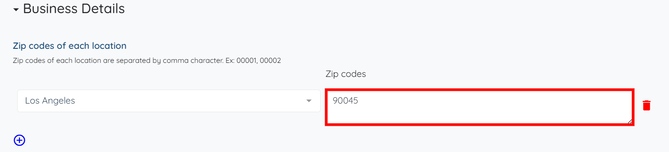
How to import locations and ZIP codes in bulk
If you have many locations or long lists of ZIP codes, importing a CSV file is faster than entering them one by one and keeps your location data consistent.
Prepare your CSV file
Your CSV file needs two columns. The first column holds the location name, and the second holds the ZIP codes for that location as a comma-separated list, with one row per location. For example:
| Downtown | 00001, 00002, 00003 |
| North County | 00010, 00011 |
If you build the file in Excel or Google Sheets, put all of a location's ZIP codes in a single cell. When you save or download the sheet as a CSV, the app wraps that cell in quotes so the commas stay inside it.
Import the file
Step 1: In the Languages & Locations panel, click the Import button and select your CSV file.
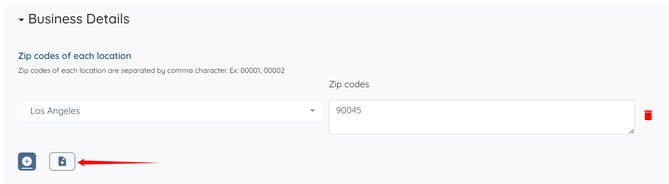
The locations and ZIP codes from your file are added to your agency's configuration.
How to show locations on your application forms
Adding locations to an application lets users select the right location when they complete the form.
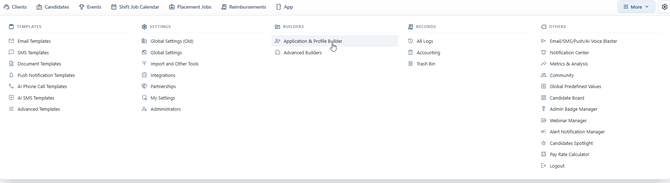
Step 1: On your agent dashboard, click More > Application & Profile Builder.
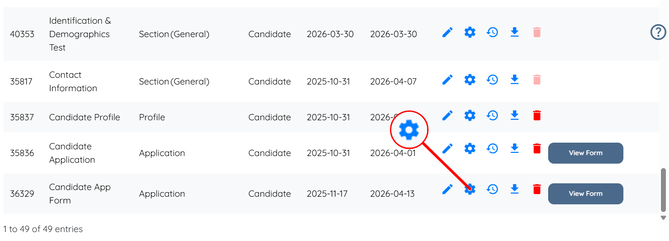
Step 2: Click the Gear icon next to the application where you want to show locations.
Step 3: Scroll down to the Select locations field and click the box below it to open the dropdown list.
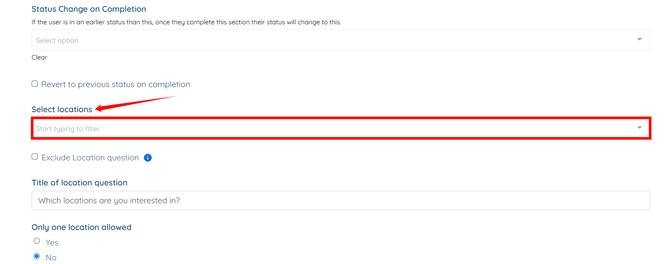
Step 4: Select the location you want to add to the application.

You can add more than one location if needed.

Step 5 (optional): Select the Exclude Location Question checkbox to move the location question from the top of your application. To learn more, see Exclude the Location Question from the Application Builder.

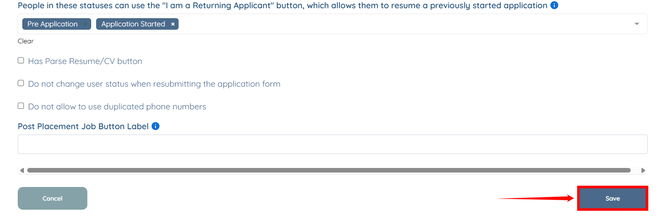
Step 6: Scroll down and click Save.
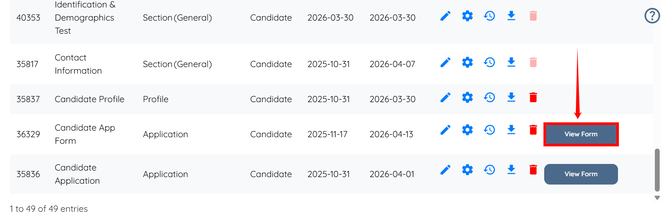
Step 7: Click View Form next to your application to confirm the locations appear.
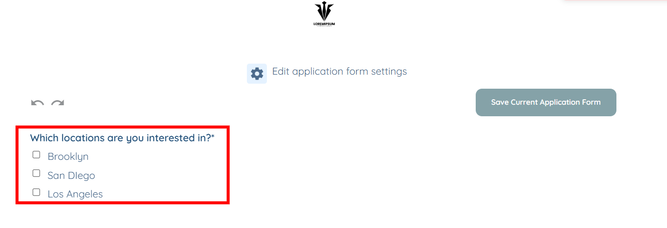
The locations you selected are now available on the application.
Related articles
Add a New Section to Profile or Application
If this doesn't answer your questions you can always contact us by clicking here.