![enginehire logo thin dark 1.0.png]](https://learn.enginehire.io/hs-fs/hubfs/enginehire%20logo%20thin%20dark%201.0.png?height=40&name=enginehire%20logo%20thin%20dark%201.0.png)
If you receive candidate availability as a list of dates and times, for example an export from another scheduling system, you can import the whole file at once instead of entering each day on each candidate's calendar. Every row in the file becomes an availability slot on that date in the candidate's My Schedule calendar.
Date-wise imports use the same Import Availability button as weekly (recurring) availability imports. You choose which kind of import you want after you select the file. This button was previously called Import Weekly Availability.
Prepare your availability file
The file must be a CSV. Each row is one availability slot, and the file needs four pieces of information for every row: the candidate's name (or email), the date, the start time and the end time. Your columns can have any names, because you match each column to the right field during the import. Columns you don't need, such as a region or status column, can stay in the file and be ignored.
A few things make the import go smoothly:
- Use the same name or email the candidate has in Enginehire, so each row can be matched to the right person.
- Put the start time and the end time in separate columns.
- Use one date format throughout the file. You'll tell Enginehire what that format is during the import.
- If your file also lists shifts or requests, include a column that marks each row's type, so only the rows marked available are imported.
Here's an example of a file that's ready to import:
| Caregiver | Date | Start Time | End Time | Type |
|---|---|---|---|---|
| Jane Smith | 10/5/2026 | 8:00 PM | 12:00 AM | available |
| Jane Smith | 10/7/2026 | 9:00 AM | 1:00 PM | available |
| Alex Rivera | 10/6/2026 | 6:00 PM | 10:00 PM | available |
| Alex Rivera | 10/8/2026 | 7:00 AM | 3:00 PM | shift |
If the Type column is matched during the import, the last row is skipped because it's a shift, not availability. Overnight slots, like 8:00 PM to 12:00 AM in the first row, are handled automatically.
How to import date-wise availability
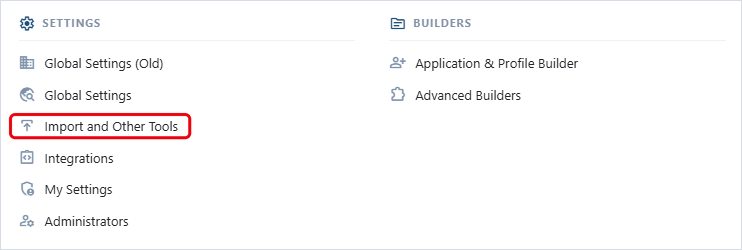
Step 1: Click More at the top right of your dashboard and, under Settings, select Import and Other Tools.
Step 2: Scroll down to the Candidates section. Under Data Import, click Import Availability and select your CSV file.

Step 3: The Import Availability window opens. Under Availability Type, select Date-Wise. Date-Wise adds the availability to specific dates on the calendar, while Weekly sets recurring availability, the same way the import worked before.
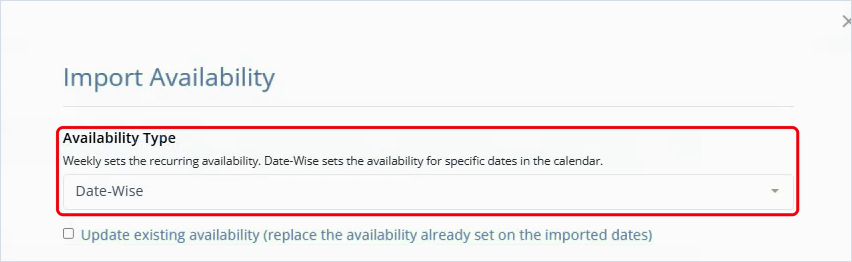
Check Update existing availability if your file should replace availability that's already set on the dates you're importing. If you leave it unchecked, rows for availability that's already set are skipped, and they're counted as skipped when the import finishes.
You can leave ID Field blank. It's only for agencies that match people using a special ID from their old system. When you match by name or email, as in this article, you use the column matching in the next step instead.
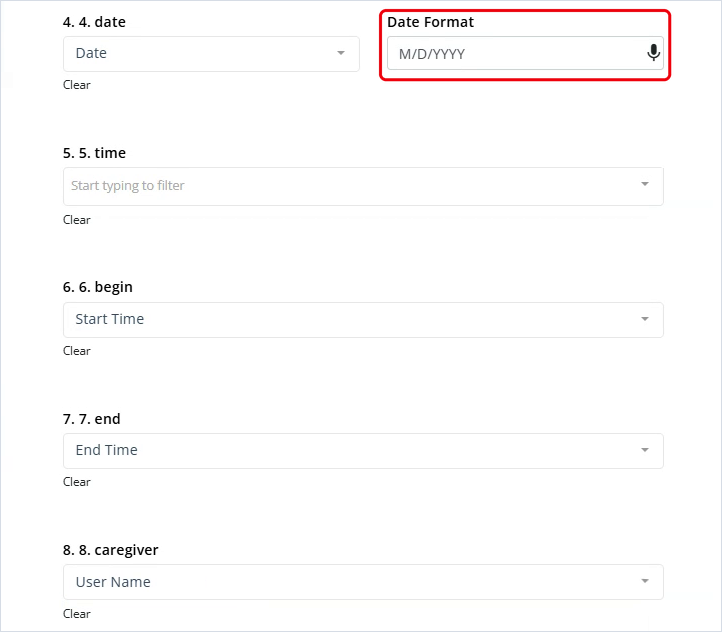
Step 4: Below these options, each column header from your file is listed with a dropdown. Use the dropdowns to tell Enginehire what each column contains:
- Match the column with the candidate's name to User Name, or a column of email addresses to User Email.
- Match the date column to Date. A Date Format box appears next to it. Type the format your file uses, such as M/D/YYYY for dates like 10/5/2026.
- Match the start time column to Start Time and the end time column to End Time.
- Leave any column you don't need empty.
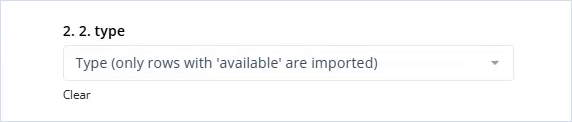
If your file has a type column, match it to Type (only rows with 'available' are imported) so that only availability rows are imported and rows such as shifts or requests are skipped.
Step 5: Click Import at the bottom of the window.
Check the import results
When the import finishes, a message tells you how many availabilities were imported and how many rows weren't, sorted by reason:
- Skipped (availability already set or repeated in the file): the availability was already on the calendar, or the same row appears more than once in the file.
- Not matched to a candidate: the name or email didn't match a candidate in Enginehire. Check the spelling against the candidate's profile.
- With invalid date or time: the date or time couldn't be read. Check that the Date Format you entered matches the dates in the file.
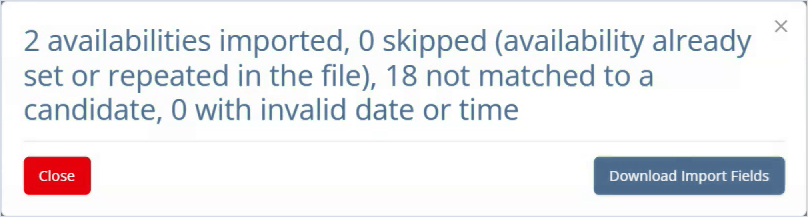
Click Close. To bring in rows that weren't imported, fix them in your file and import it again.
See the imported availability on the candidate's calendar
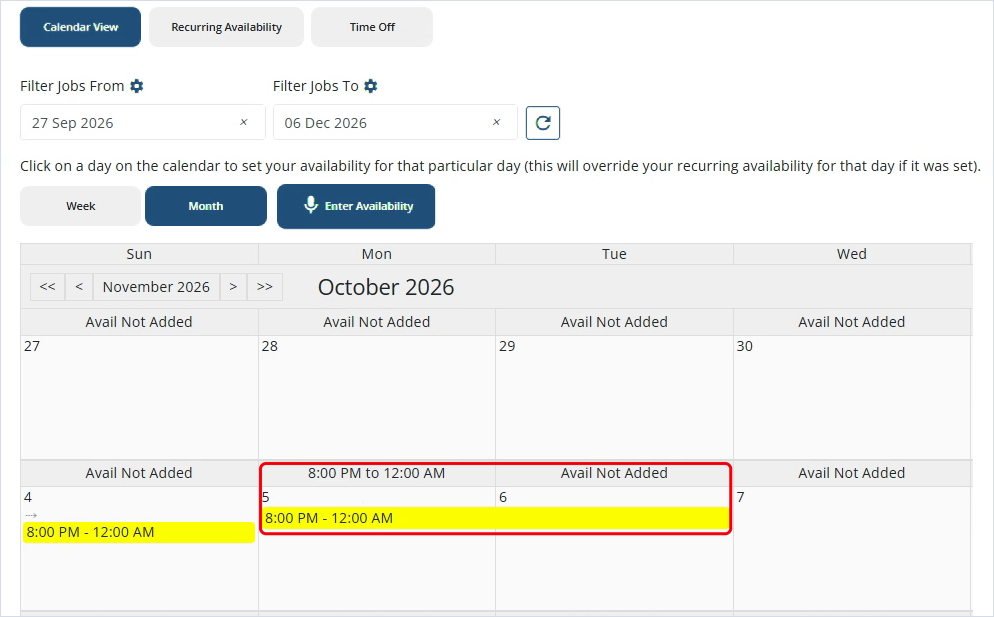
Open the candidate from your candidates list, click Profile, go to My Schedule, and make sure Calendar View is selected. Each imported slot shows on its date, with the time above that day. An overnight slot, such as 8:00 PM to 12:00 AM, runs into the next day on the calendar. If the calendar was already open during the import, refresh the page to see the new entries.
Related articles
For Candidates Enter in Schedule Availability
Enter Your Availability Using Voice
What are all import options for clients and candidates?