![enginehire logo thin dark 1.0.png]](https://learn.enginehire.io/hs-fs/hubfs/enginehire%20logo%20thin%20dark%201.0.png?height=40&name=enginehire%20logo%20thin%20dark%201.0.png)
Let’s get started 🚀
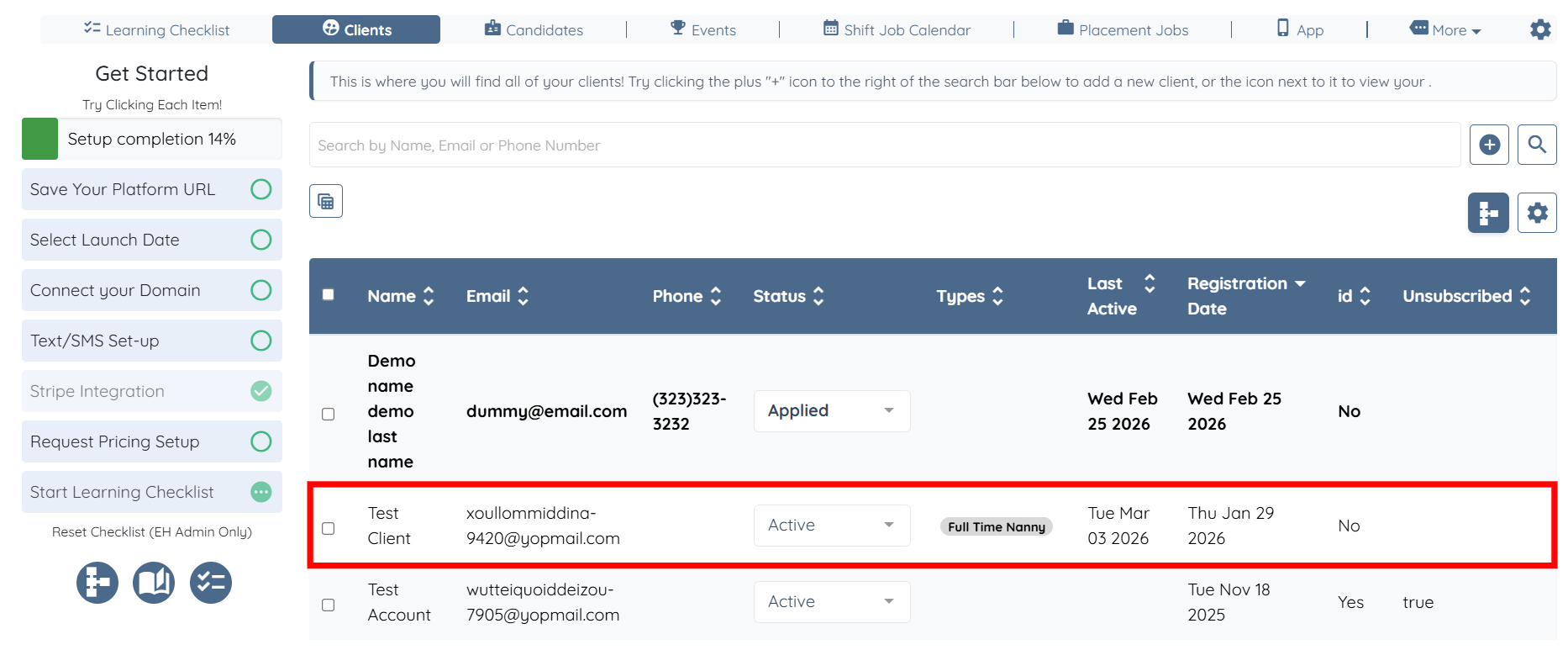
Step 1: Log in to your agent dashboard and click on any client from the list.
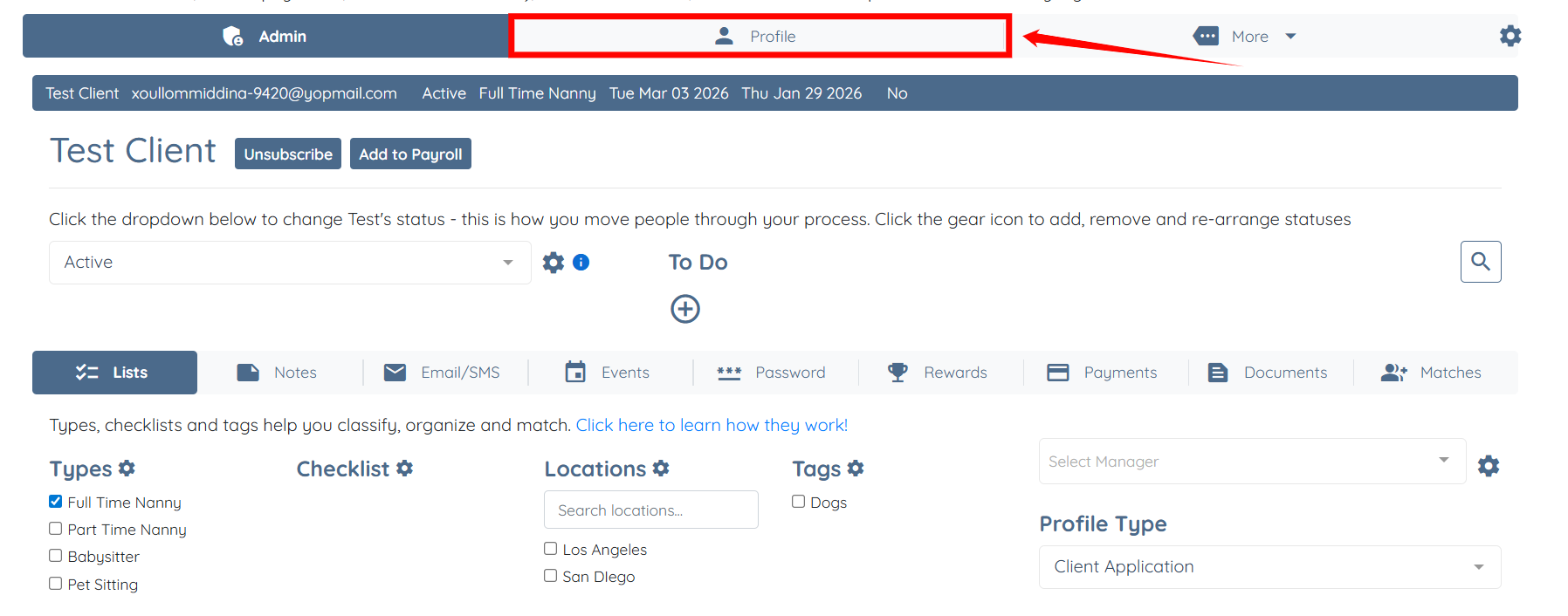
Step 2: Click the Profile tab to go to the client profile.
Step 3: Scroll down and click the Gear icon located next to the Contact Information heading.
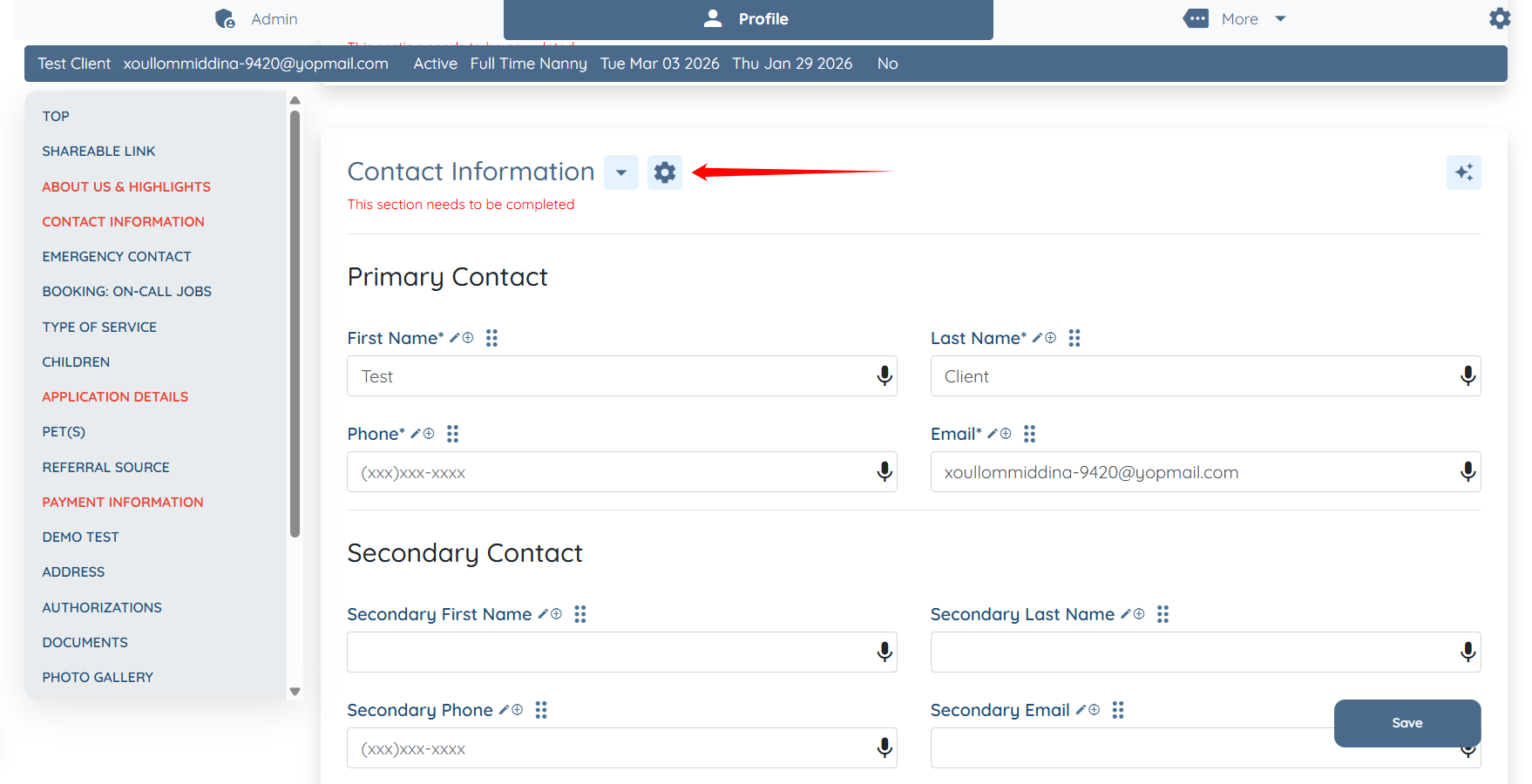
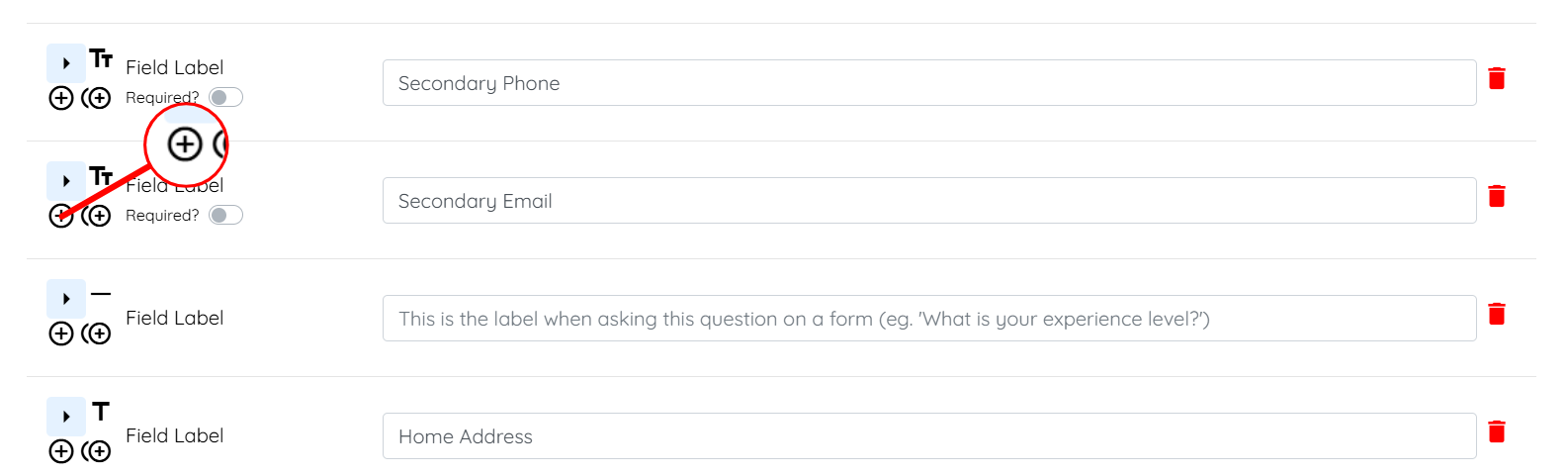
Step 4: Scroll down to the Secondary Email field and click the + icon to add a new field.
Step 5: Enter the Field Label and Profile Label for your field.
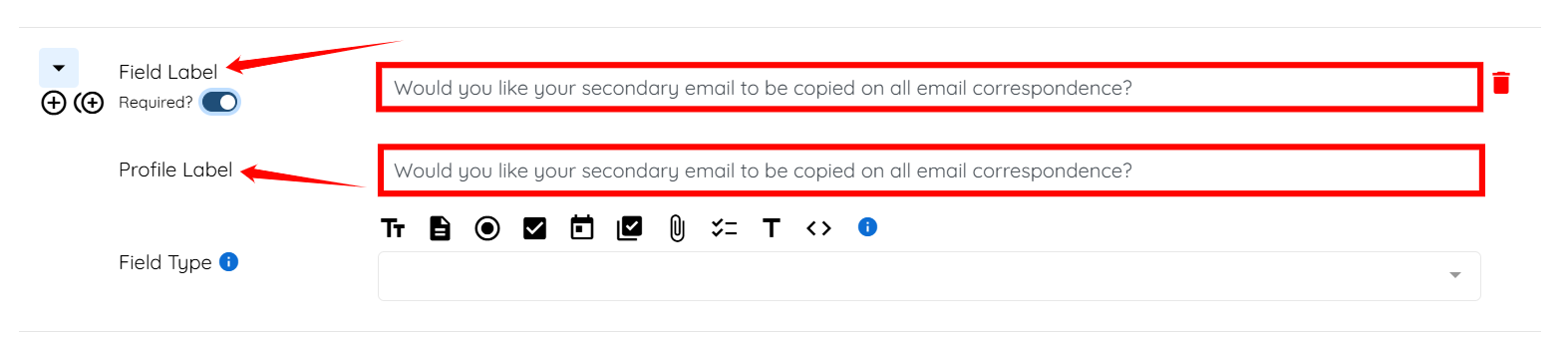
Step 6: Set the Required? toggle to Off.

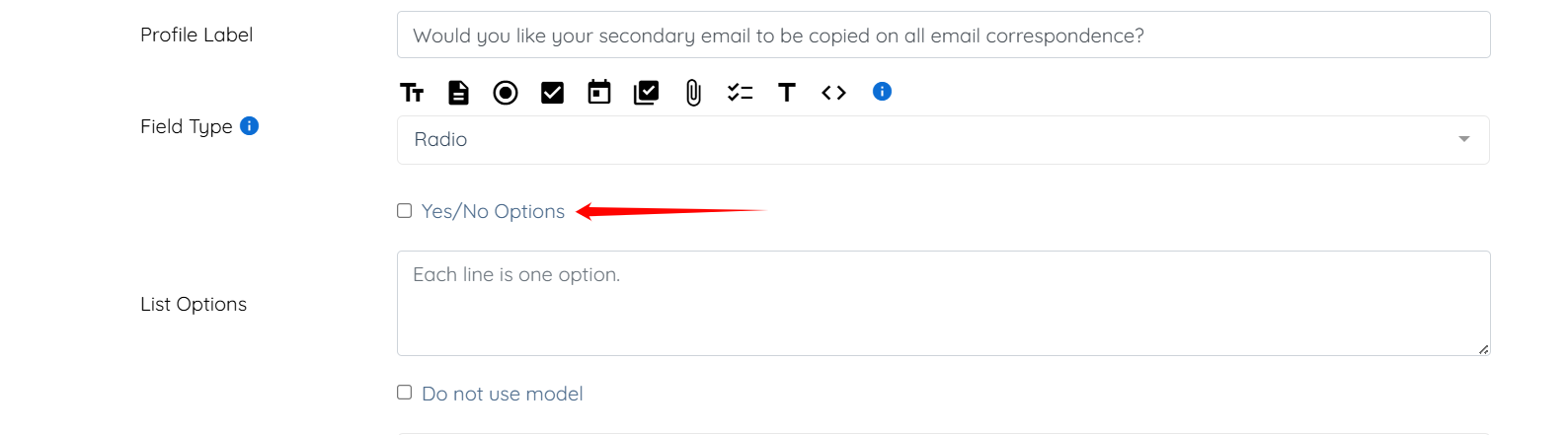
Step 7: Select the radio button as the Field Type.

Step 8: Check the Yes/No Options checkbox.
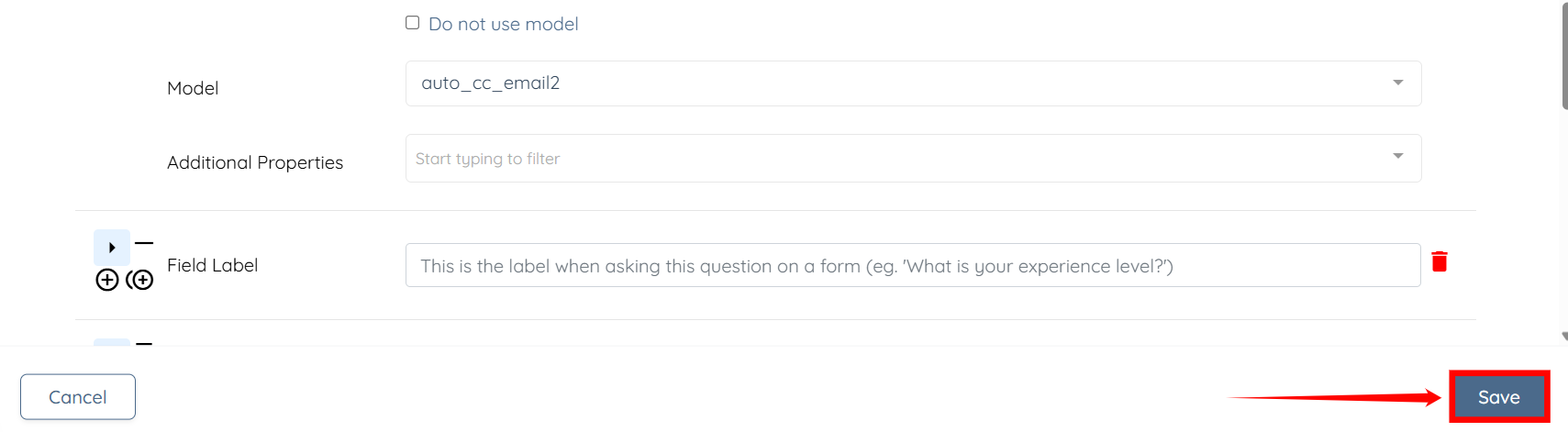
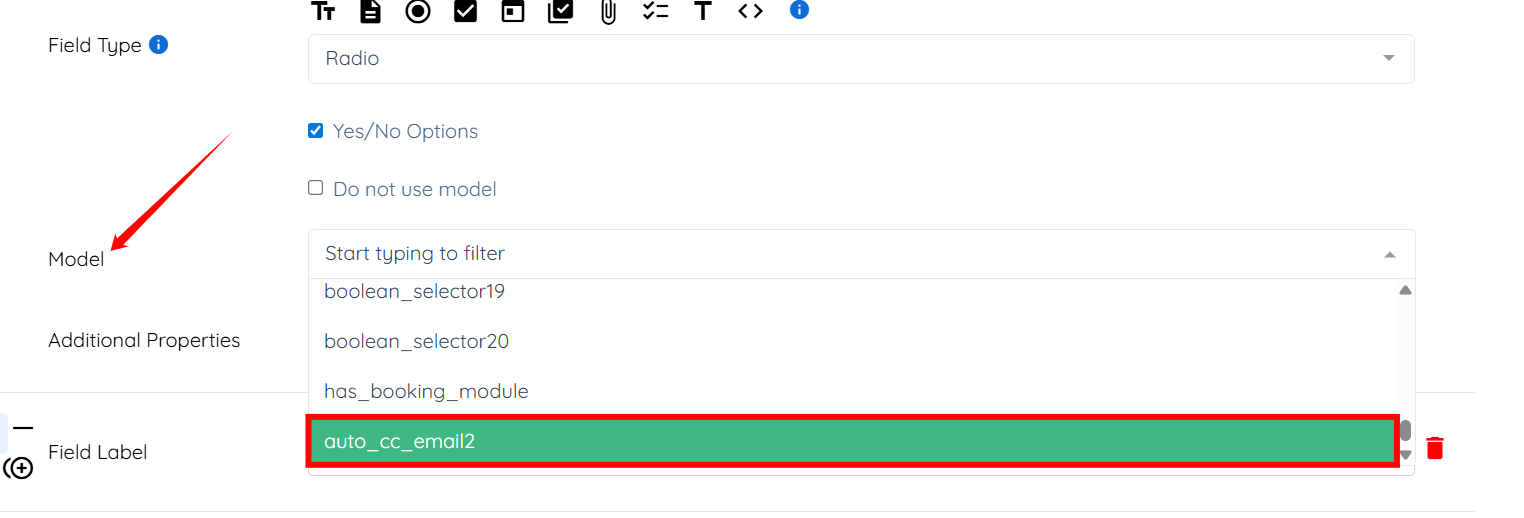
Step 9: Select the auto_cc_email2 option as the model from the dropdown list.
Step 10: Click the Save button to confirm the changes.