![enginehire logo thin dark 1.0.png]](https://learn.enginehire.io/hs-fs/hubfs/enginehire%20logo%20thin%20dark%201.0.png?height=40&name=enginehire%20logo%20thin%20dark%201.0.png)
If your clients pay you outside Enginehire, for example by check, bank transfer, or through another payment processor, you can hide the Stripe payment option on their invoices. The client then sees the invoice without the section that asks for card or ACH details. You choose this on each invoice in the Advanced Invoice Manager.
How to hide the Stripe payment option on an invoice
Go to Clients and open the client's profile. On the Admin tab, click Payments, and then click Advance Invoice to open the Advanced Invoice Manager. Click the + button to create a new invoice, or click the pencil icon in the Actions column to edit an invoice you already created.

In the invoice form, check Hide Stripe payment option from Invoice, and then click Submit.
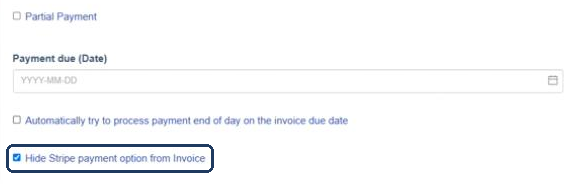
The setting applies to the invoice you're working on, so check the box on each invoice you want to send without the Stripe payment option. Leave it unchecked when you want the client to be able to pay through Stripe.
What your client sees on the invoice
When the box is unchecked, the invoice page includes a payment section titled Please enter your payment information to pay for the invoice, where the client can pay by ACH or card through Stripe. When the box is checked, that section doesn't appear on the invoice.
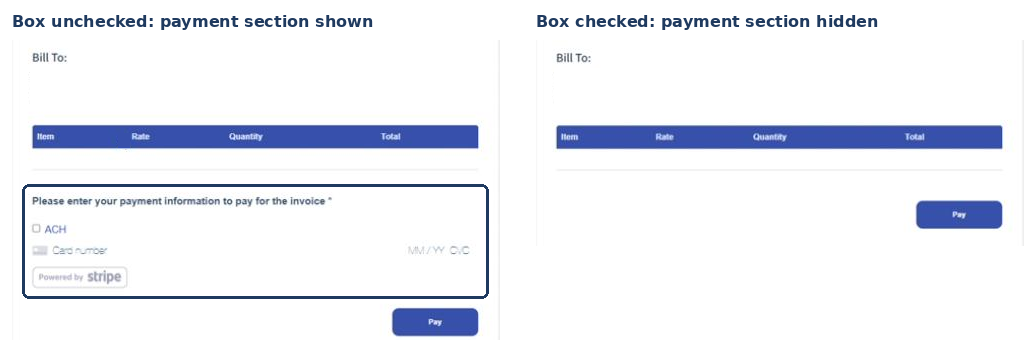
To show the Stripe payment option again, edit the invoice, uncheck Hide Stripe payment option from Invoice, and click Submit.
Related articles
How to use the advanced invoice manager
Integrate Stripe with the Enginehire Dashboard