![enginehire logo thin dark 1.0.png]](https://learn.enginehire.io/hs-fs/hubfs/enginehire%20logo%20thin%20dark%201.0.png?height=40&name=enginehire%20logo%20thin%20dark%201.0.png)
When Send Submission summary to applicant is turned on for an application form, Enginehire emails the applicant a copy of their answers right after they submit. That summary is convenient for applicants, but it can also carry sensitive information, such as a Social Security number, date of birth, or banking details, into an inbox you don't control.
You can keep specific questions out of that email with the Exclude from Summary Email property. The question stays on the application form, the applicant still answers it, and the answer is still saved to their profile. It simply won't be listed in the summary email.
Why "Is Private" doesn't hide a field from the summary email
Many agencies mark sensitive questions as Is Private and expect that to keep them out of emails. Is Private controls something different: it hides the question when you share a candidate's or client's profile, with optional exceptions for certain relationship statuses or assigned candidates. It does not change what appears in the submission summary email.
Tip: A question can have both properties. For a field like SSN, keep Is Private so it stays hidden on shared profiles, and add Exclude from Summary Email so it stays out of the applicant's summary.
How to exclude a field from the submission summary email
1. Open the Application and Profile Builder
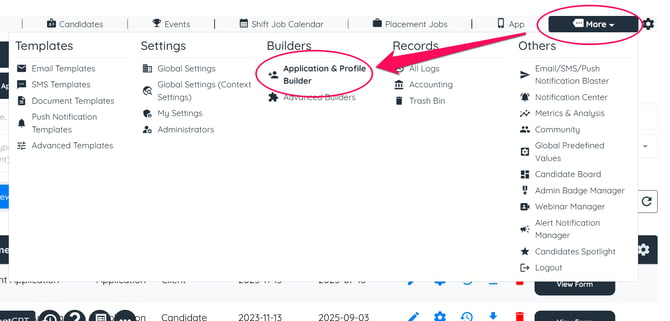
Go to More → Application and Profile Builder.
2. Open the application form
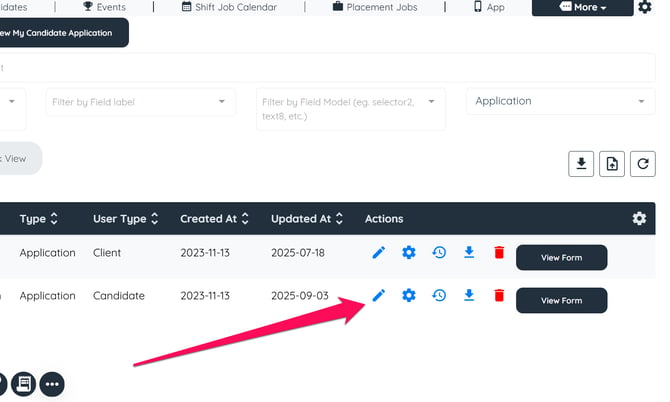
Find the application form that collects the sensitive information and click its pencil icon to edit it.
3. Find the question
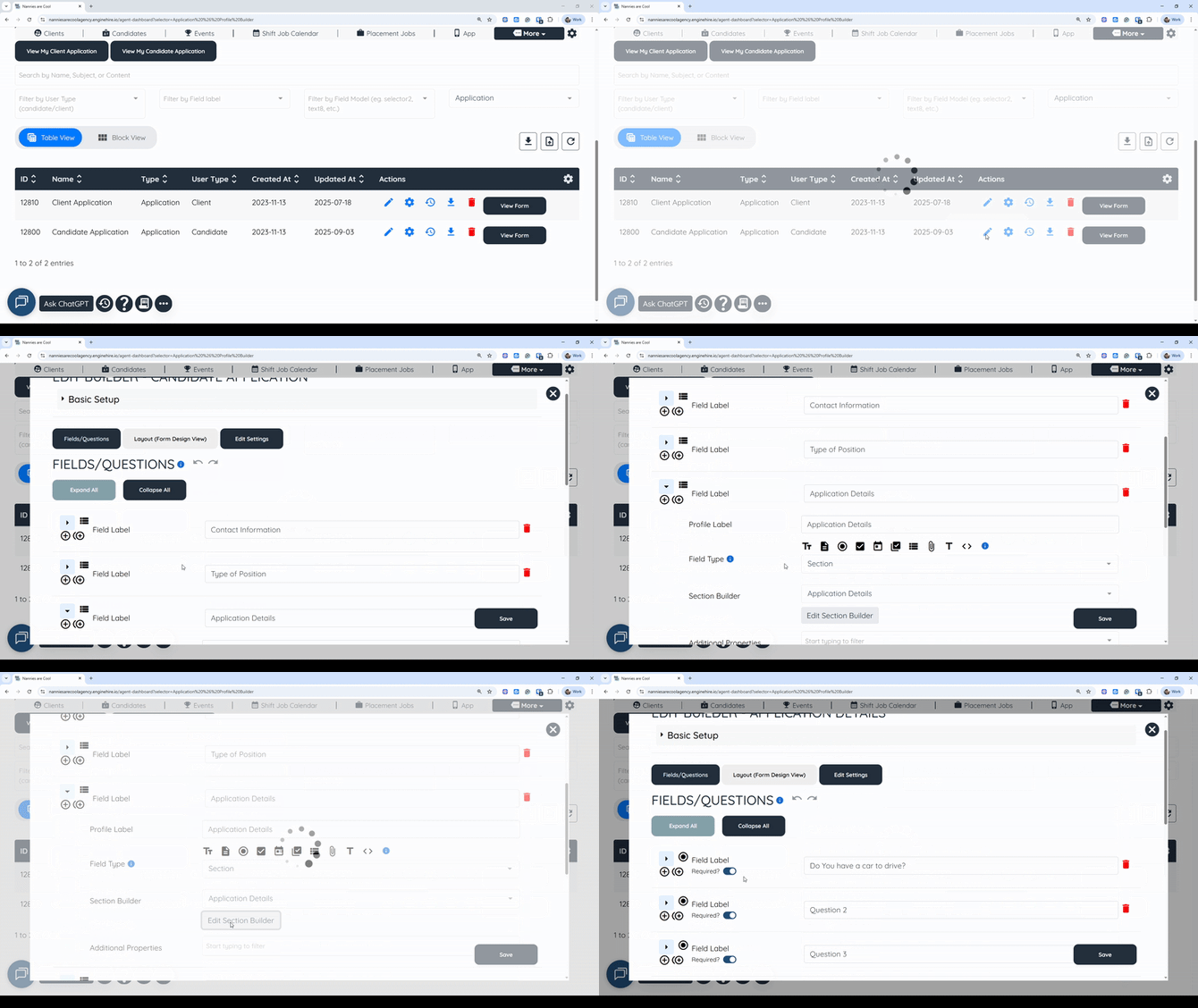
Locate the section that contains the question, click Edit Section Builder, and find the question you want to leave out of the summary, for example your SSN field.
4. Add the Exclude from Summary Email property
Click into the question's Additional Properties field, start typing exclude, and select Exclude from summary email. Any properties already applied to the question, such as Is Private, stay in place.
5. Save and repeat for other sensitive questions
Save your changes. Repeat steps 3 and 4 for every question you want to keep out of the summary email, such as date of birth, driver's license number, or bank account details.
Related articles
-
Understanding additional properties for fields in the form builder
-
How to turn on/off the form submission summary email for applicants
If this doesn't answer your questions you can always contact us by clicking here.