![enginehire logo thin dark 1.0.png]](https://learn.enginehire.io/hs-fs/hubfs/enginehire%20logo%20thin%20dark%201.0.png?height=40&name=enginehire%20logo%20thin%20dark%201.0.png)
Let’s get started 🚀
Step 1: Log in to your agent dashboard and open the client profile for which you want to configure candidate visibility in the My Matches section. 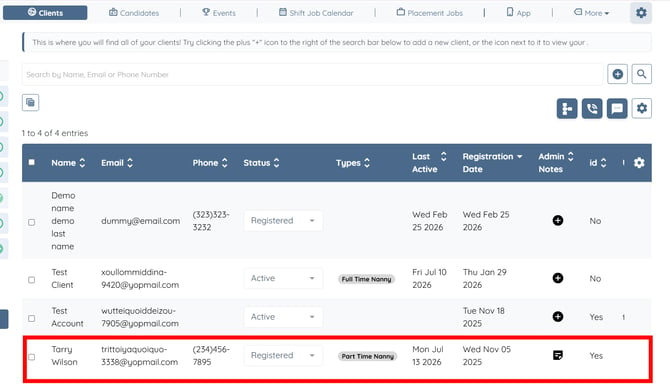
Step 2: Click the Matches tab from the available tabs.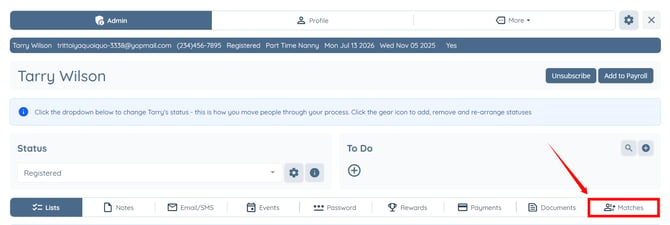
Step 3: Click the link under the Assigned Candidates heading to open the client's My Candidates section. 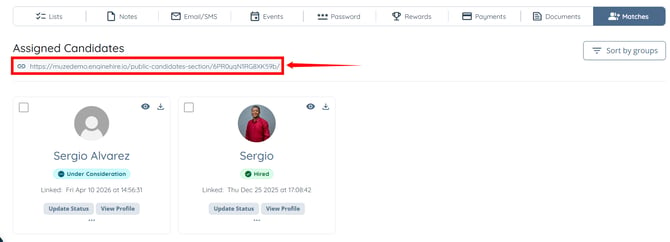
Step 4: Click the gear icon as shown in the screenshot below.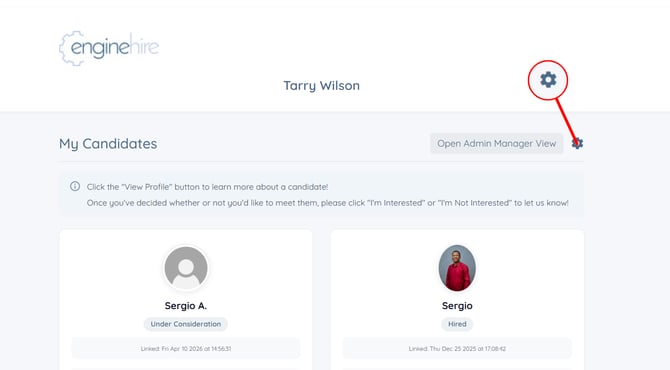
Step 5: Scroll to the bottom and enable the Show 'Hide by Status' dropdown in Matches section checkbox. 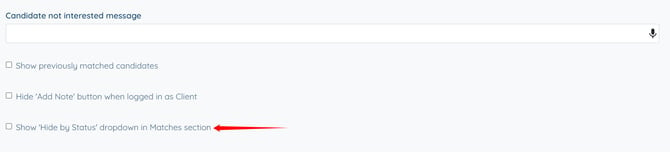
The settings will be saved automatically.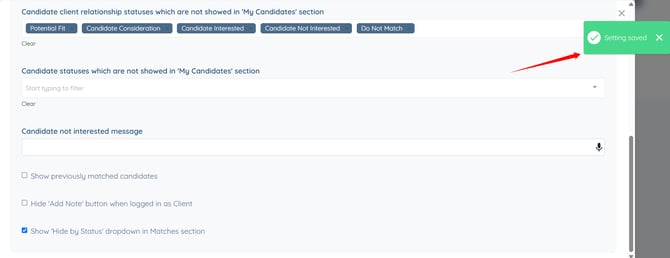
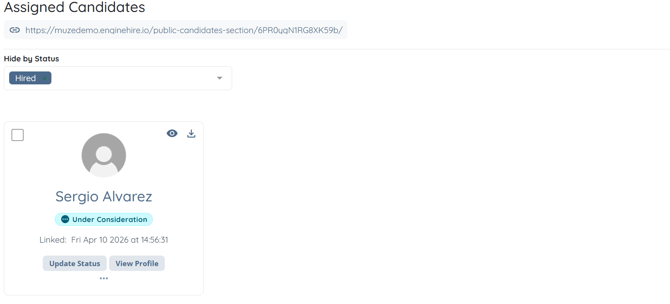
Step 6: Refresh the page. A Hide by Status field will appear. Click the box under it to open the dropdown list.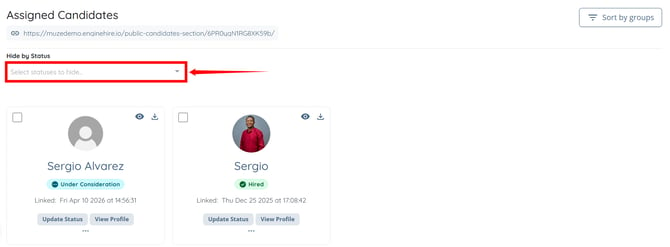
Step 7: Select the status from the dropdown list for which you want to hide the assigned candidates.
For demonstration purposes, we are selecting the Hired status. 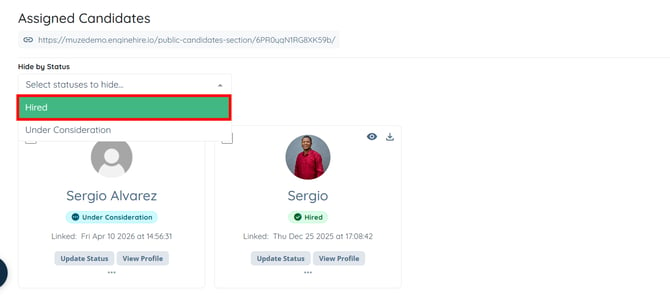
Assigned candidates with the selected status will be hidden from the client's My Matches section, while candidates with all other statuses will remain visible.