![enginehire logo thin dark 1.0.png]](https://learn.enginehire.io/hs-fs/hubfs/enginehire%20logo%20thin%20dark%201.0.png?height=40&name=enginehire%20logo%20thin%20dark%201.0.png)
Let’s get started 🚀
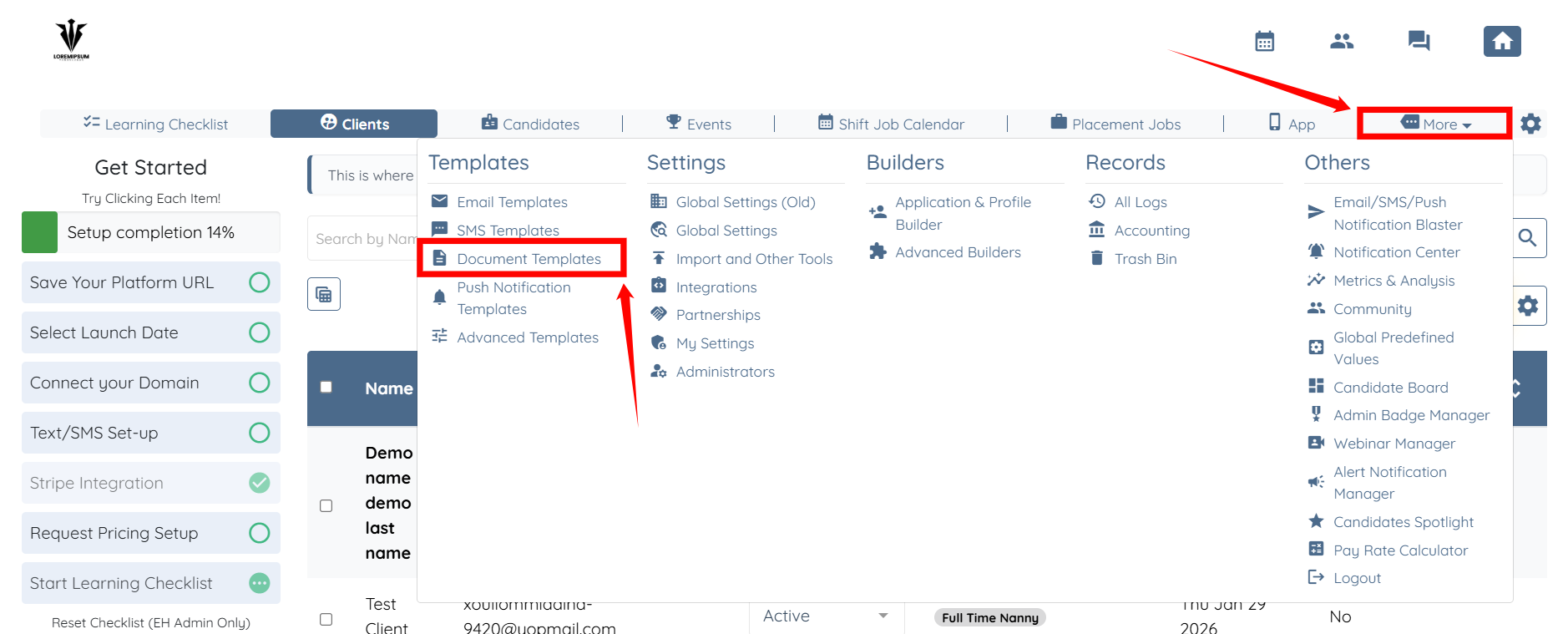
Step 1: Log in to your agent dashboard, and click More > Document Templates as shown in the screenshot below.
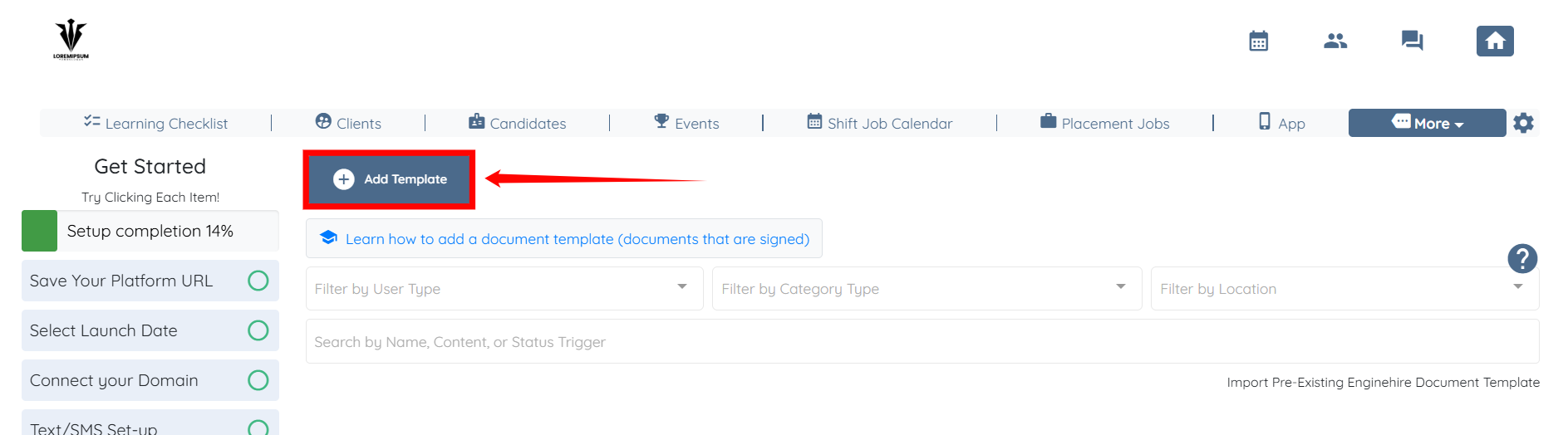
Step 2: Click the Add Template button.
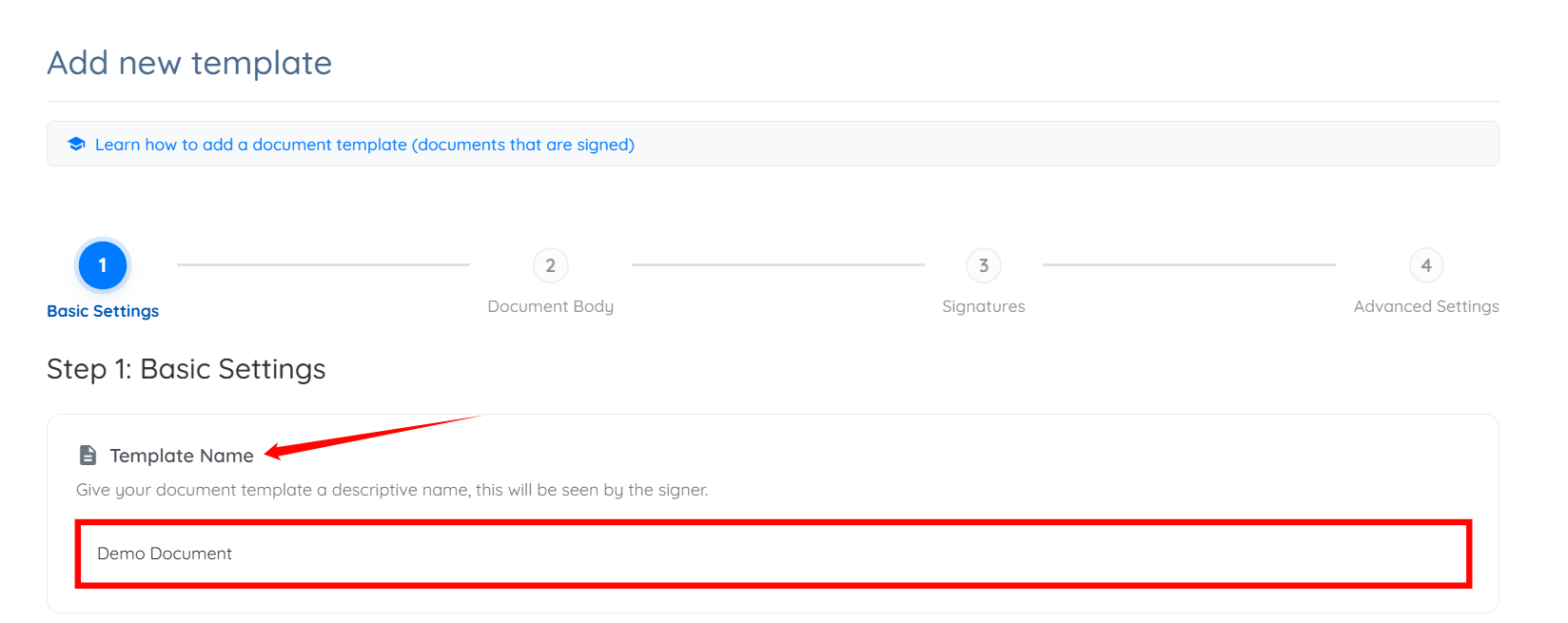
Step 3: Enter a name for your template.
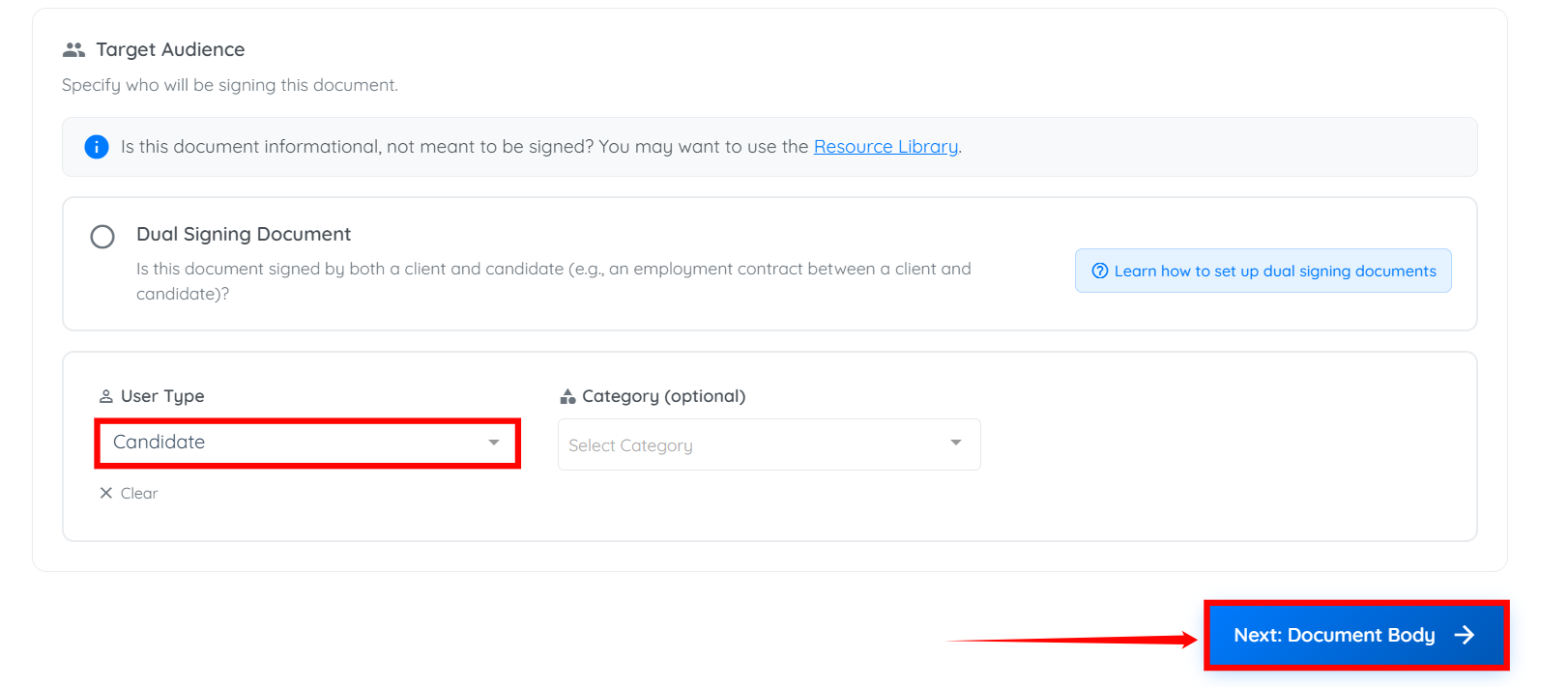
Step 4: Select the User Type as required and then click on Next: Document Body button to continue.
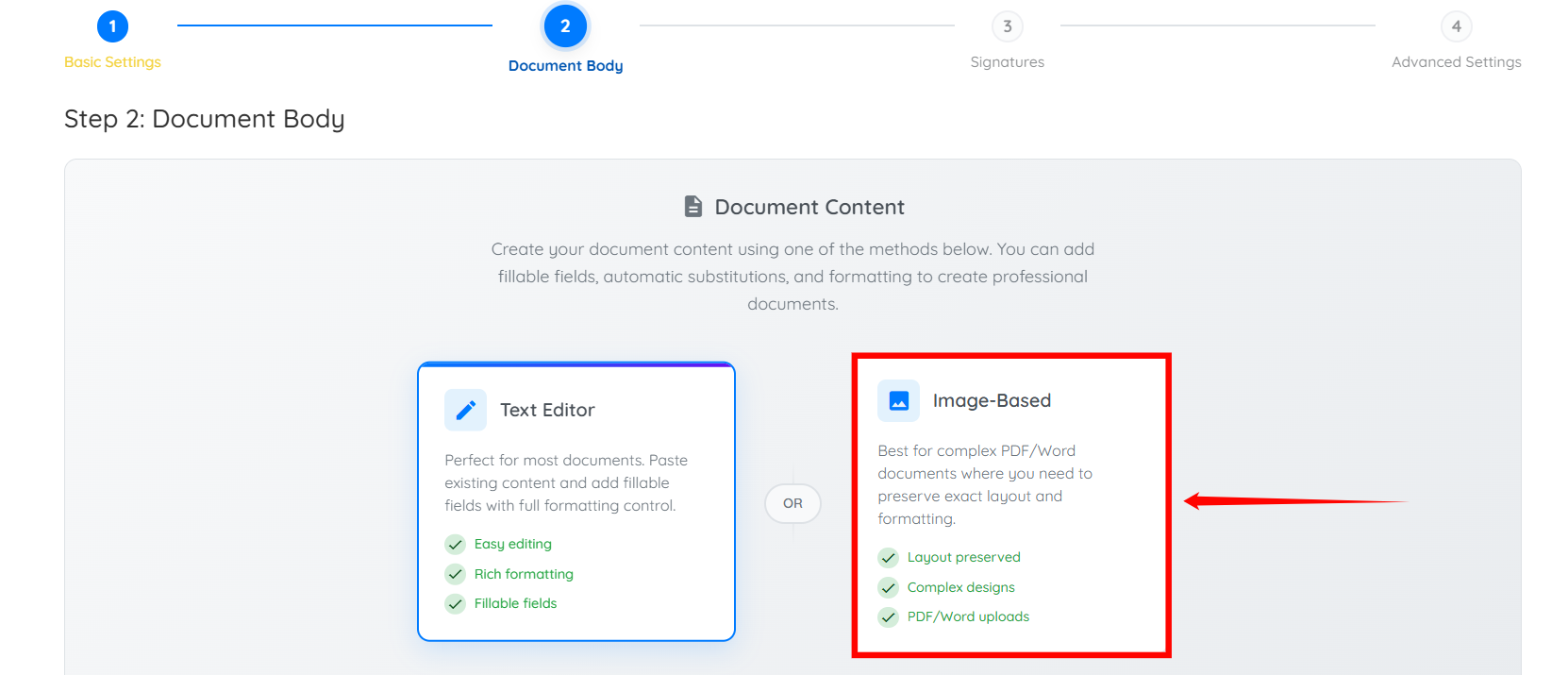
Step 5: Select the Image-Based option.
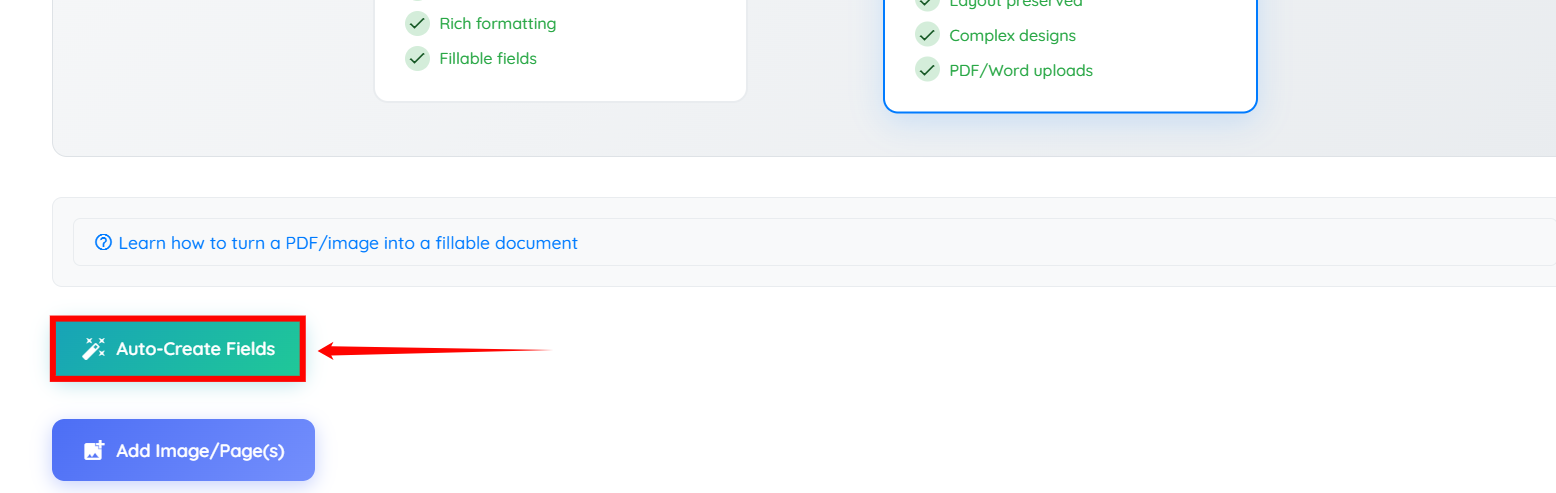
Step 6: Scroll down and click on Auto-Create Fields button.
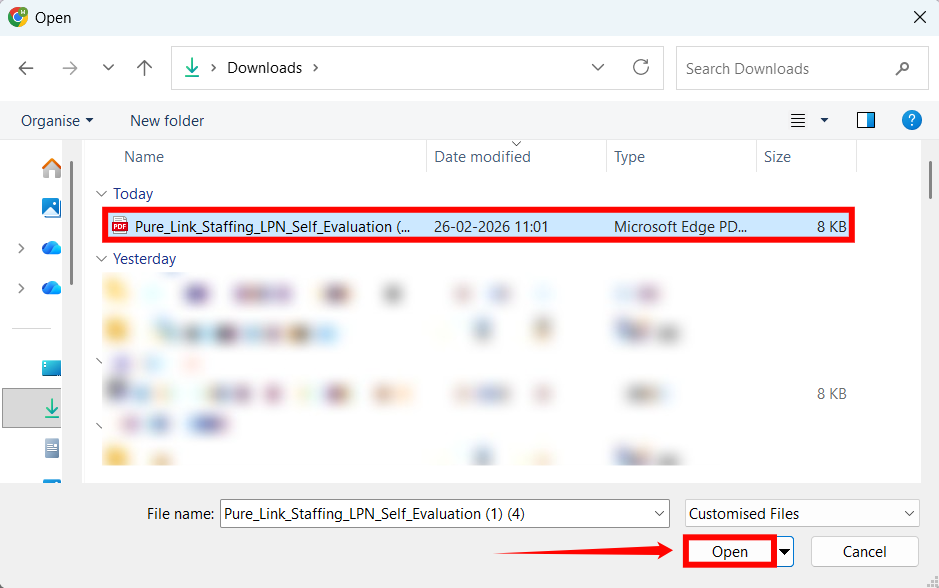
Step 7: Select the document you want to use and click on Open button.
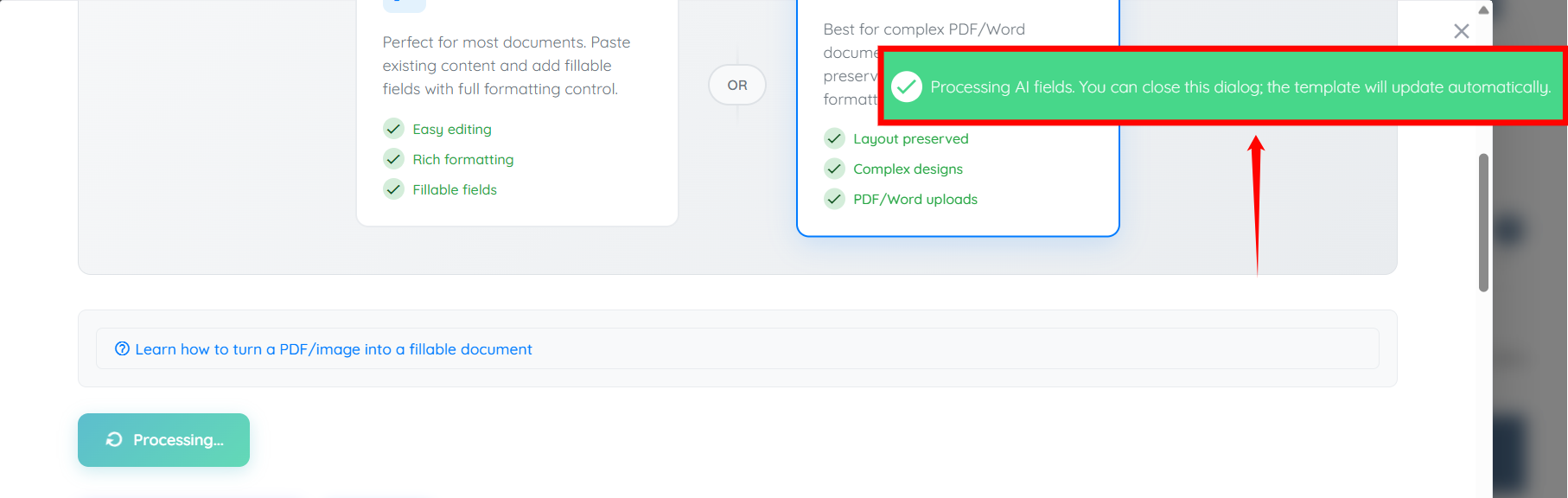
The processing of AI fields will begin. It will take some time.
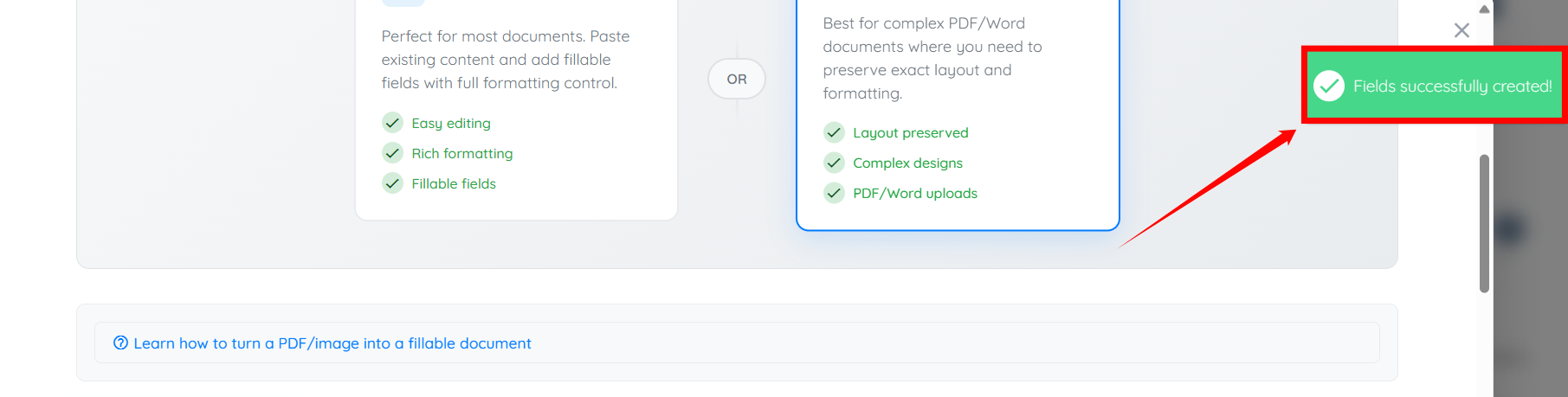
After successful creation of fields, you will receive “Fields successfully created!“ message.
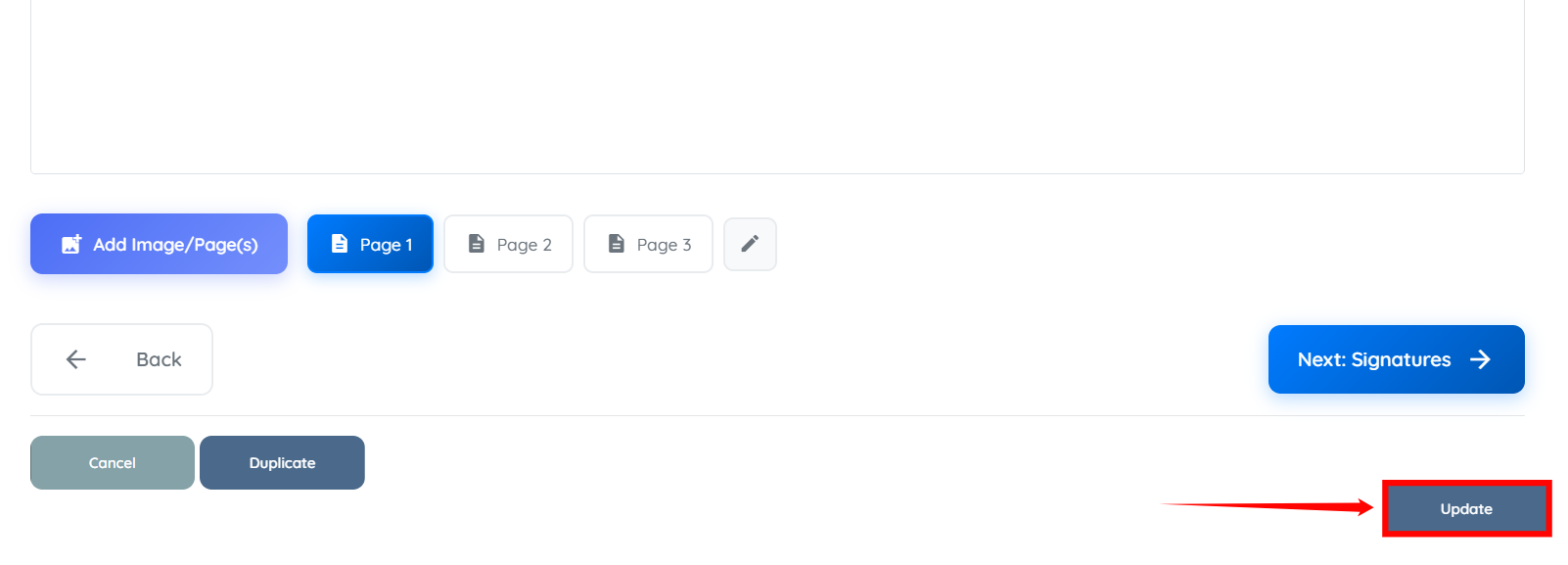
Step 8: Scroll down and click on Update button.
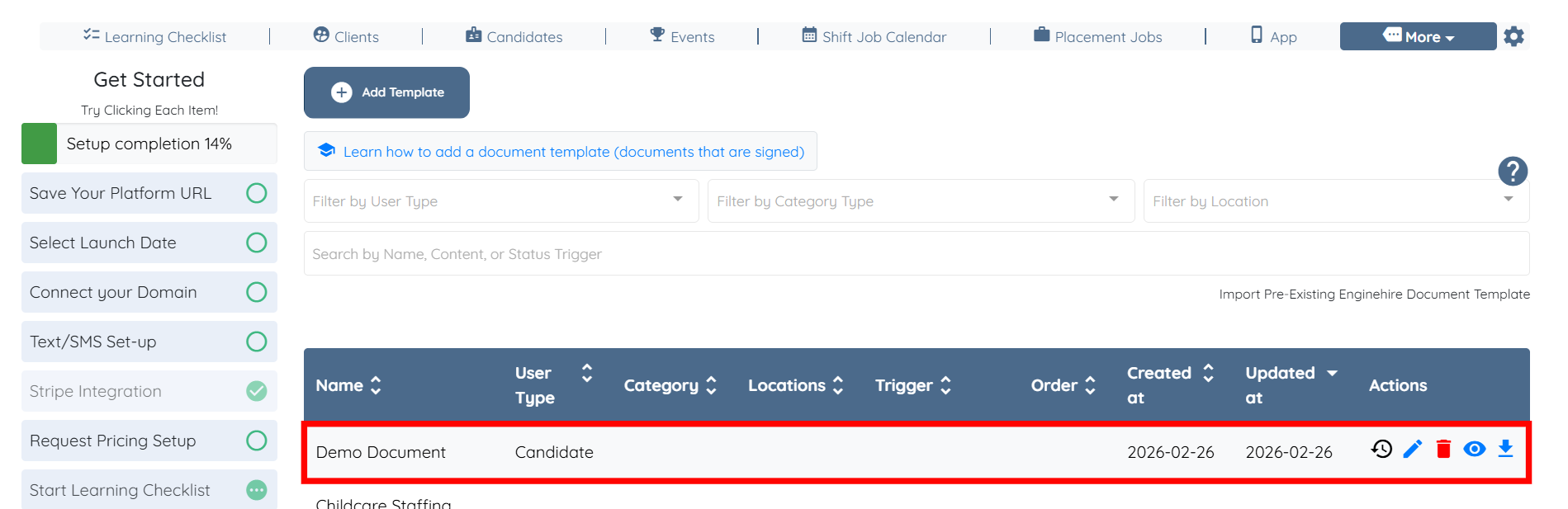
The template will be successfully created and updated in the list.
Add Document to any Candidate Side
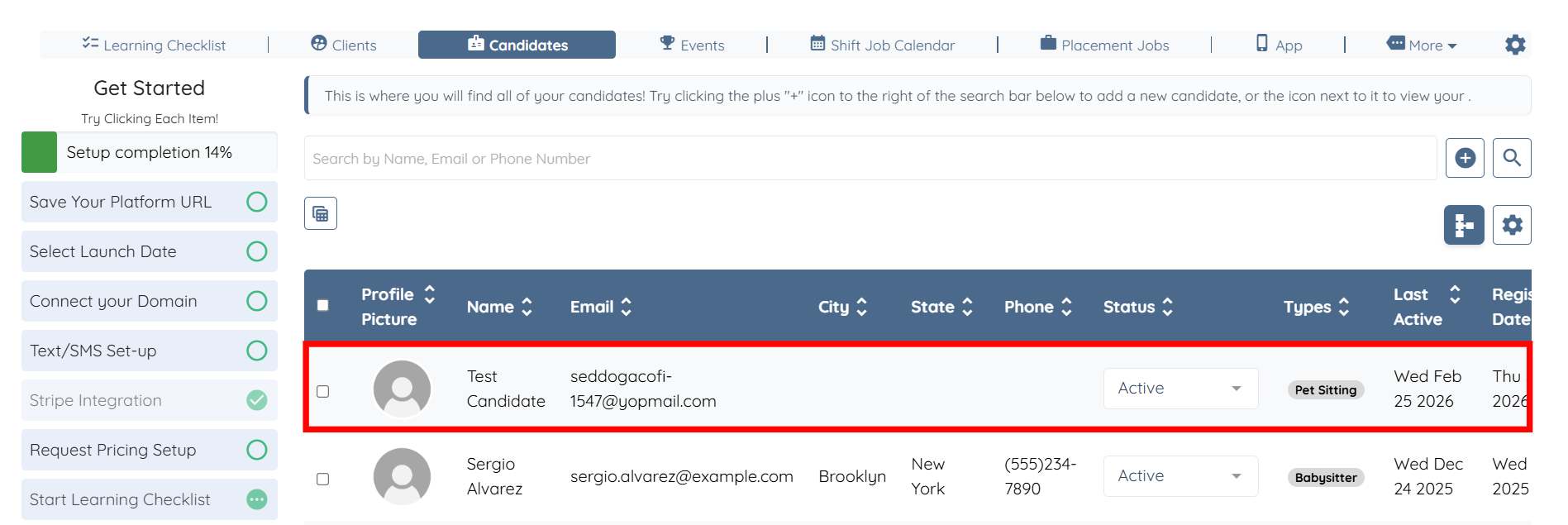
Step 1: On your agent dashboard, click on any of the candidate in the list where you want to add the created document template.
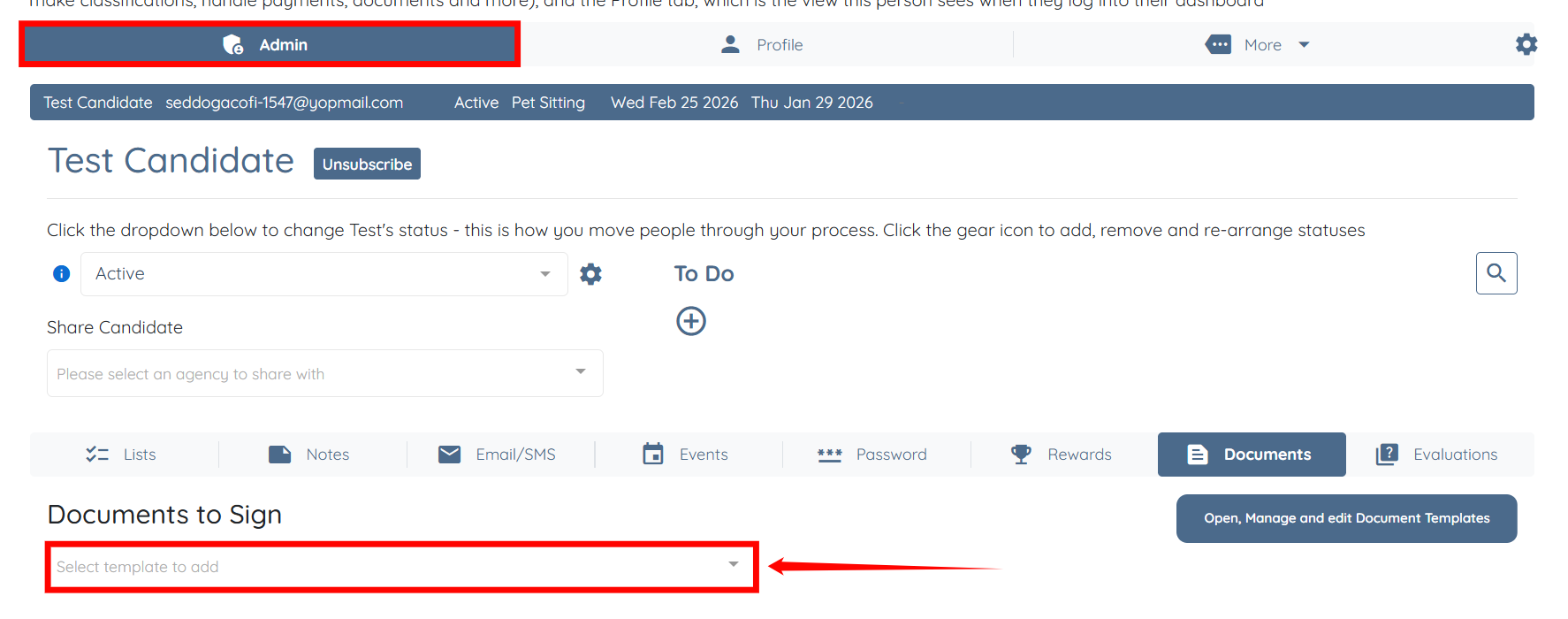
Step 2: Under the Admin tab, click the box under the Documents to Sign heading to add the newly created document template.
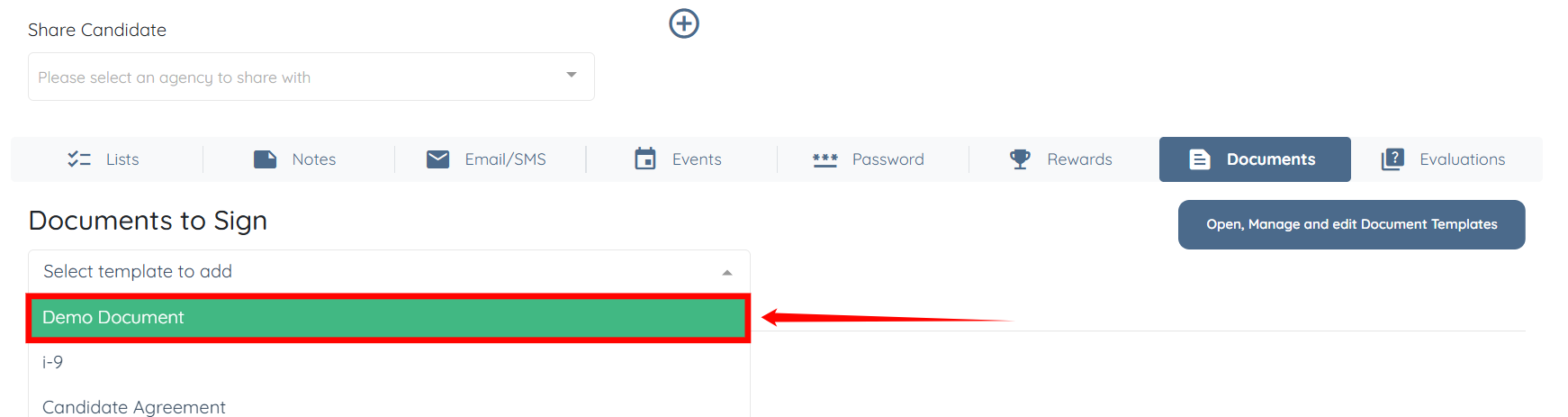
Step 3: Select the document template you want to add. In our case, it is “Demo Document“.
Step 4: Then, click the + Add button to add the template.

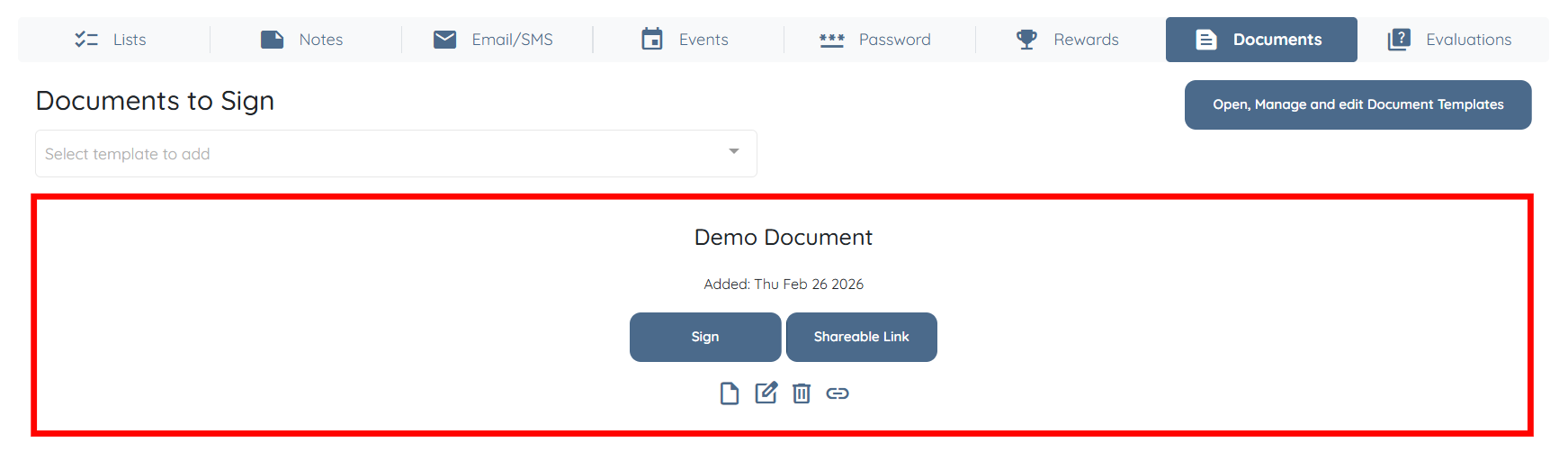
The document template will be added successfully.