![enginehire logo thin dark 1.0.png]](https://learn.enginehire.io/hs-fs/hubfs/enginehire%20logo%20thin%20dark%201.0.png?height=40&name=enginehire%20logo%20thin%20dark%201.0.png)
Let’s get started 🚀
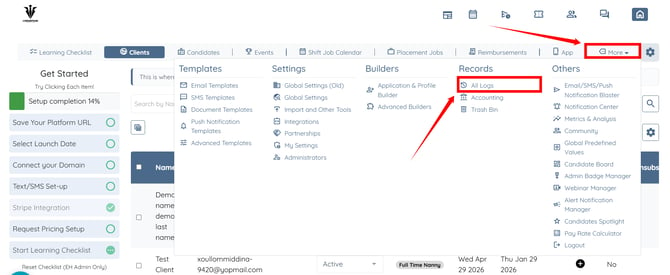
Step 1: Log in to your agent dashboard and click More > All Logs as shown in the screenshot below.
Step 2: Click the References option.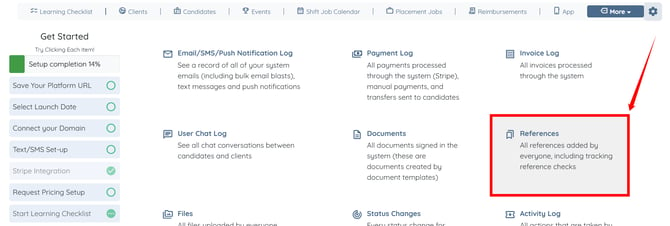
Step 3: Click the Gear icon at the top-right corner of the References table to open the reference dashboard settings. 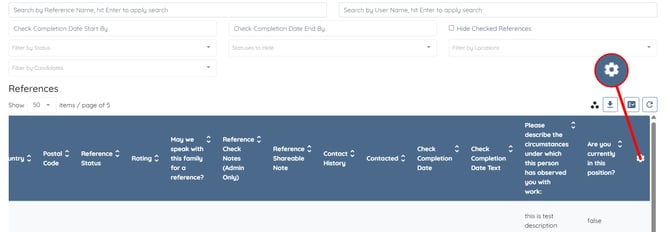
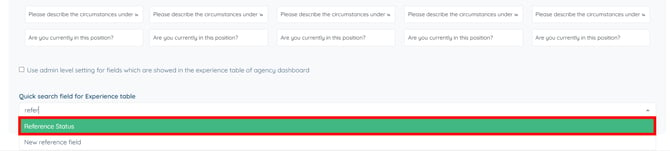
Step 4: Scroll to the bottom and click the box under the Quick search field in the Reference table setting to open the dropdown list. 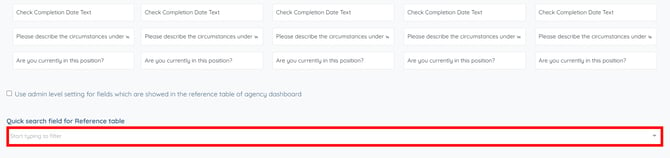
Step 5: Select the custom field you want to use to filter the reference logs. The settings will be saved automatically.

The selected field appears under the References heading for use.
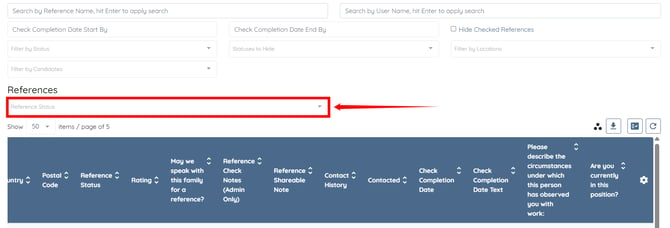
Step 6: Click on the displayed field to use it to filter the reference logs accordingly.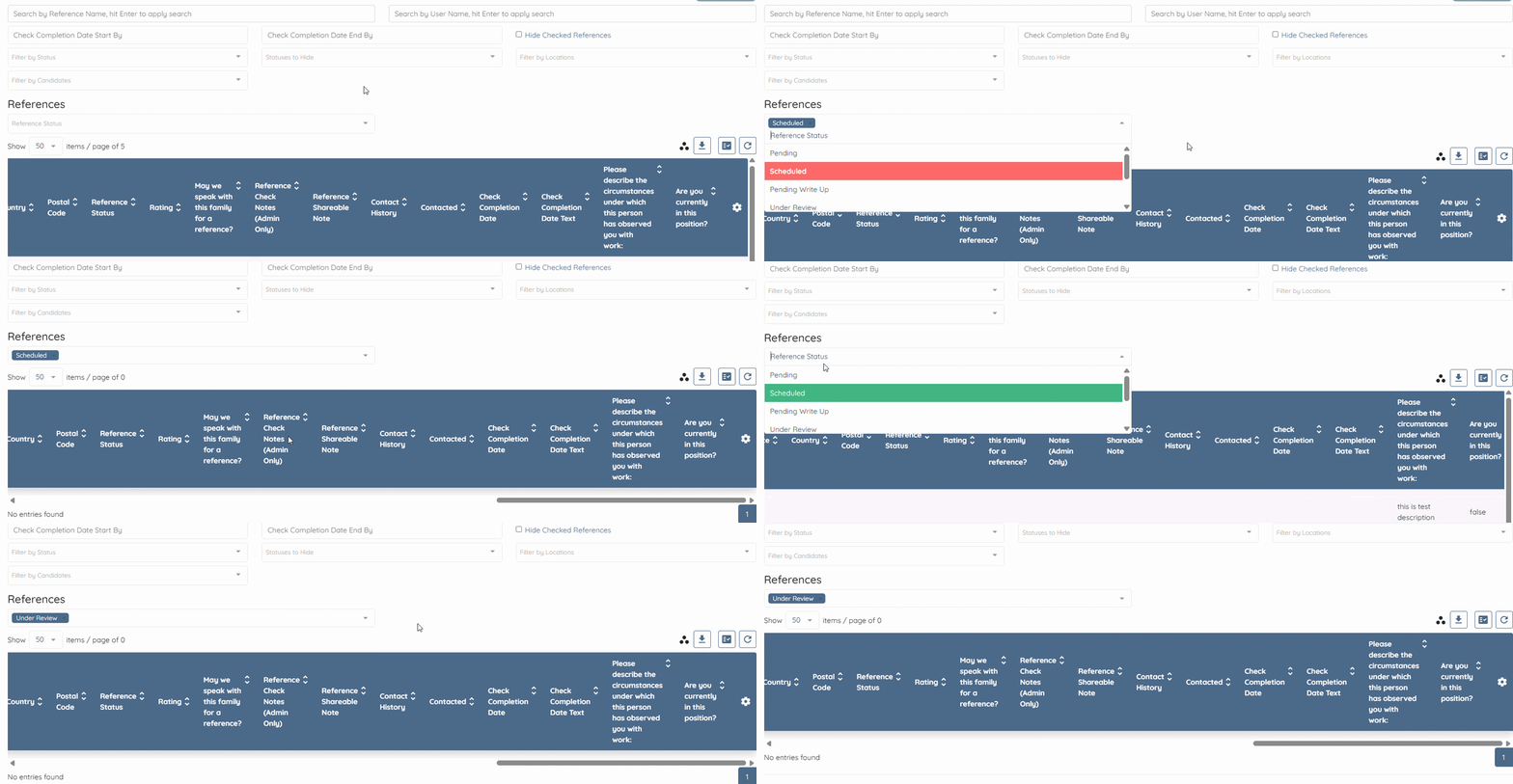
Similarly, enable a custom field under Quick search field for Experiences table and use it to filter the experience logs.