---
title: Export Shift Job Data to a Spreadsheet
description: Export shift job data to a customizable spreadsheet for payroll, accounting, and reporting with selected columns, date ranges, and headers.
---
[Skip to content](https://learn.enginehire.io/en/knowledge/export-shift-job-data-to-a-spreadsheet#main-content)
English
Show submenu for translations
[Contact us](https://learn.enginehire.io/en/knowledge/kb-tickets/new?hsLang=en) [Customer portal](https://learn.enginehire.io/tickets-view?hsLang=en)
![enginehire logo thin dark 1.0.png\]](https://learn.enginehire.io/hs-fs/hubfs/enginehire%20logo%20thin%20dark%201.0.png?height=40&name=enginehire%20logo%20thin%20dark%201.0.png)
- Home
- Products
- Pricing
- Blog
- Company
Open main navigation
Close main navigation
- Home
- Products
- Pricing
- Blog
- Company
- English
Show submenu for translations
- [Contact us](https://learn.enginehire.io/en/knowledge/kb-tickets/new)
- [Customer portal](https://learn.enginehire.io/tickets-view)
- Go to main page
Go to main page
Hello! You can find guides on how to do everything in Enginehire here. If you can't find what you are looking for or anything feels out of date, please contact us!
- There are no suggestions because the search field is empty.
1. [Enginehire Help Center](https://learn.enginehire.io/en/knowledge?hsLang=en)
2. [Data Import & Export](https://learn.enginehire.io/en/knowledge/data-import-export?hsLang=en)
# Export Shift Job Data to a Spreadsheet
## Export shift job data to a spreadsheet so you can easily use it for accounting, payroll, or reporting purposes. By selecting your date range, choosing the columns you want to include, and customizing the column headers, you can generate a spreadsheet that contains exactly the data you need.
Let’s get started 🚀
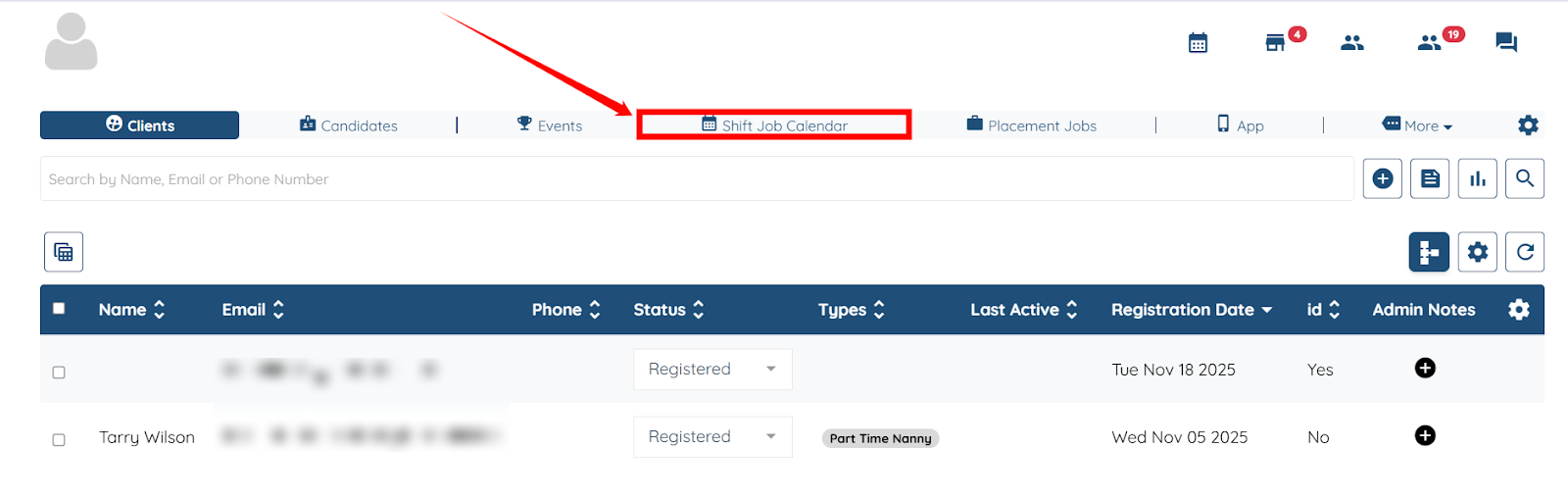
**Step 1**: Log in to your agent dashboard, and click the **Shift Job Calendar** in the top navigation bar.
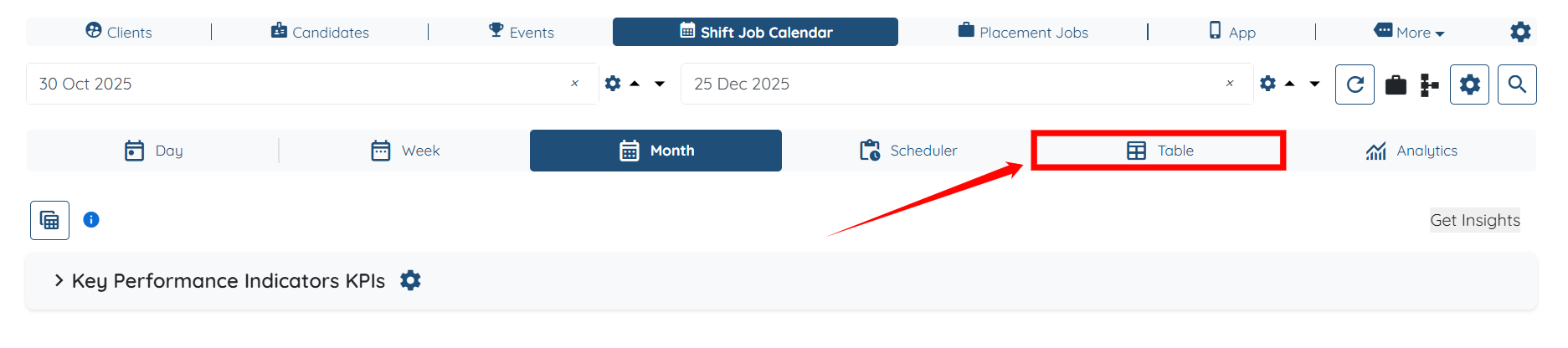
**Step 2**: Click the **Table** tab from the list of all available tabs.
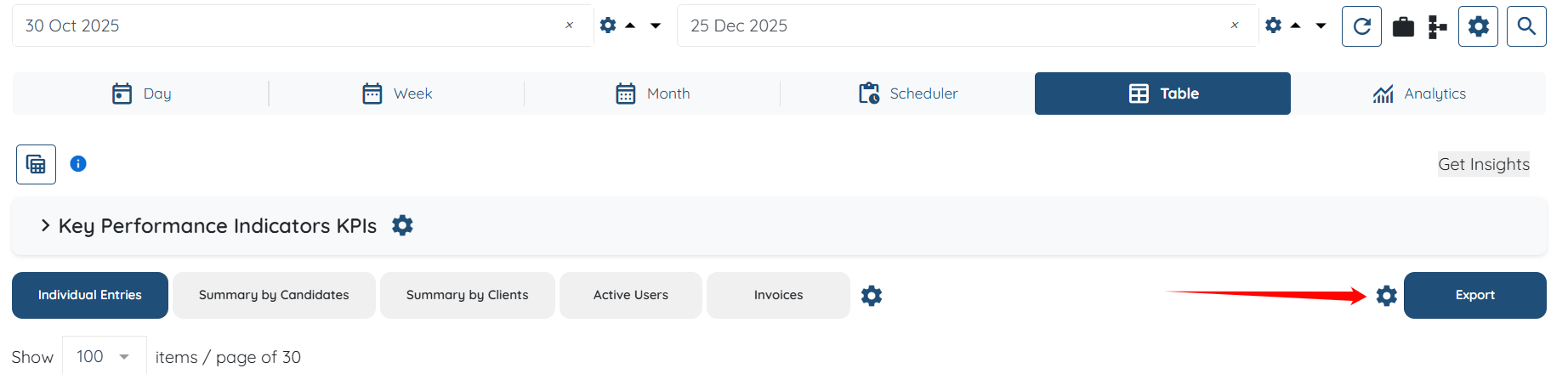
**Step 3**: Click the **Gear** icon located before the **Export** button, as shown in the screenshot below.
**Step 4**: Click the **Select Fields on Job CSV Export** option, and then select the fields you want to export to your spreadsheet from the dropdown.
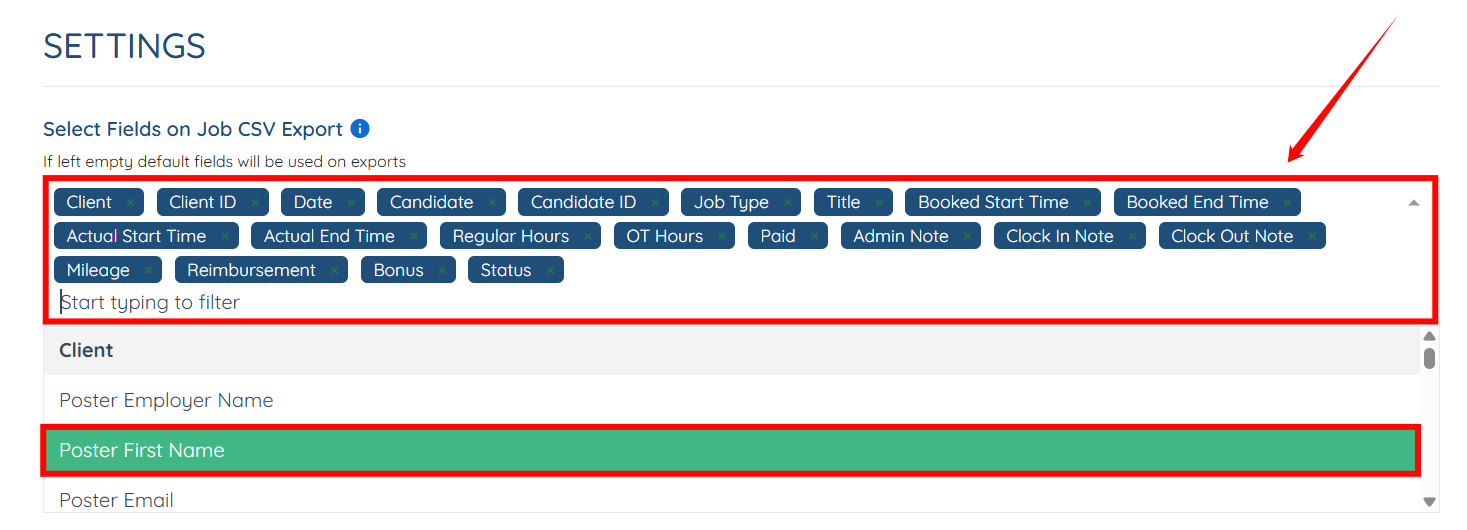
You can also remove the field if you do not need it by hovering over it and clicking the cross icon.

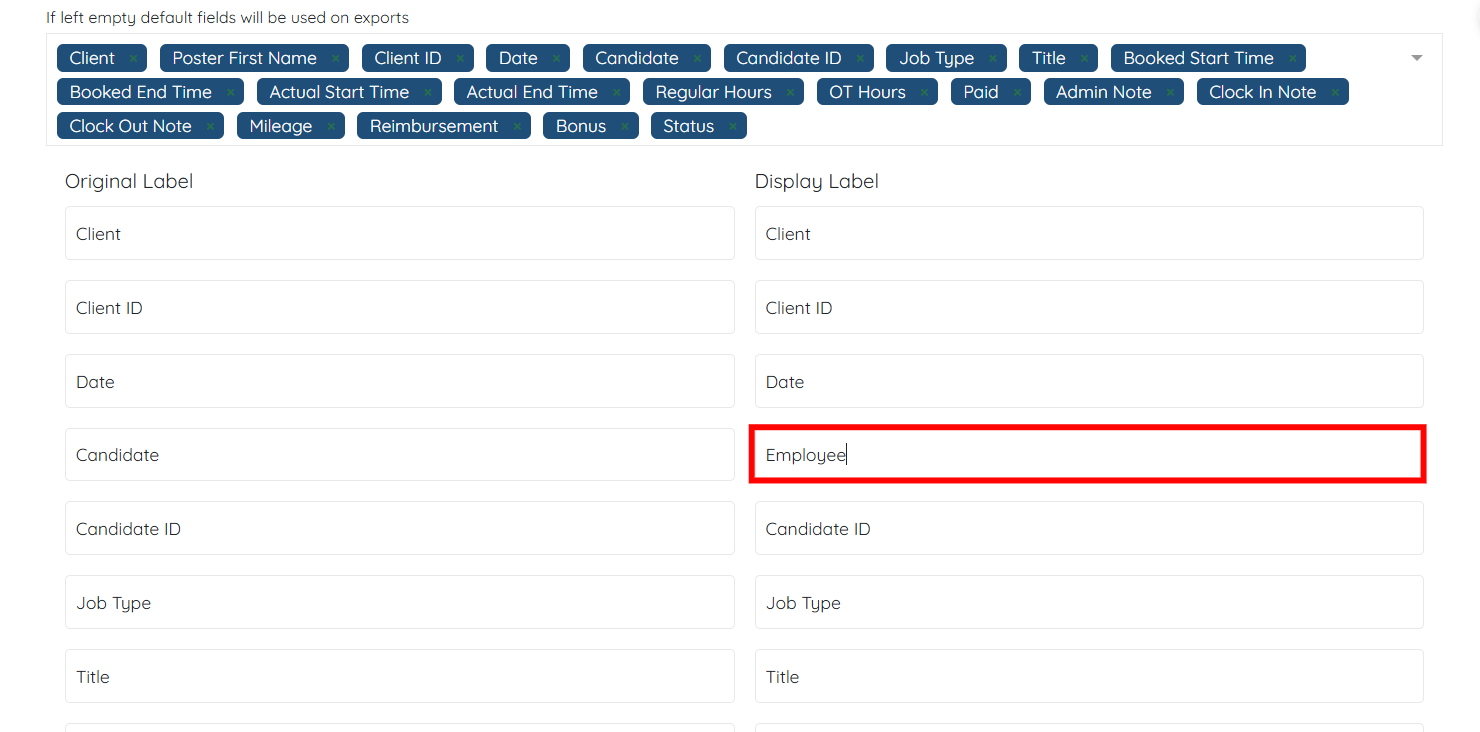
**Step 5**: (Optional) You can also change the **Display Label** name of the field by clicking on it and entering the new name as required.
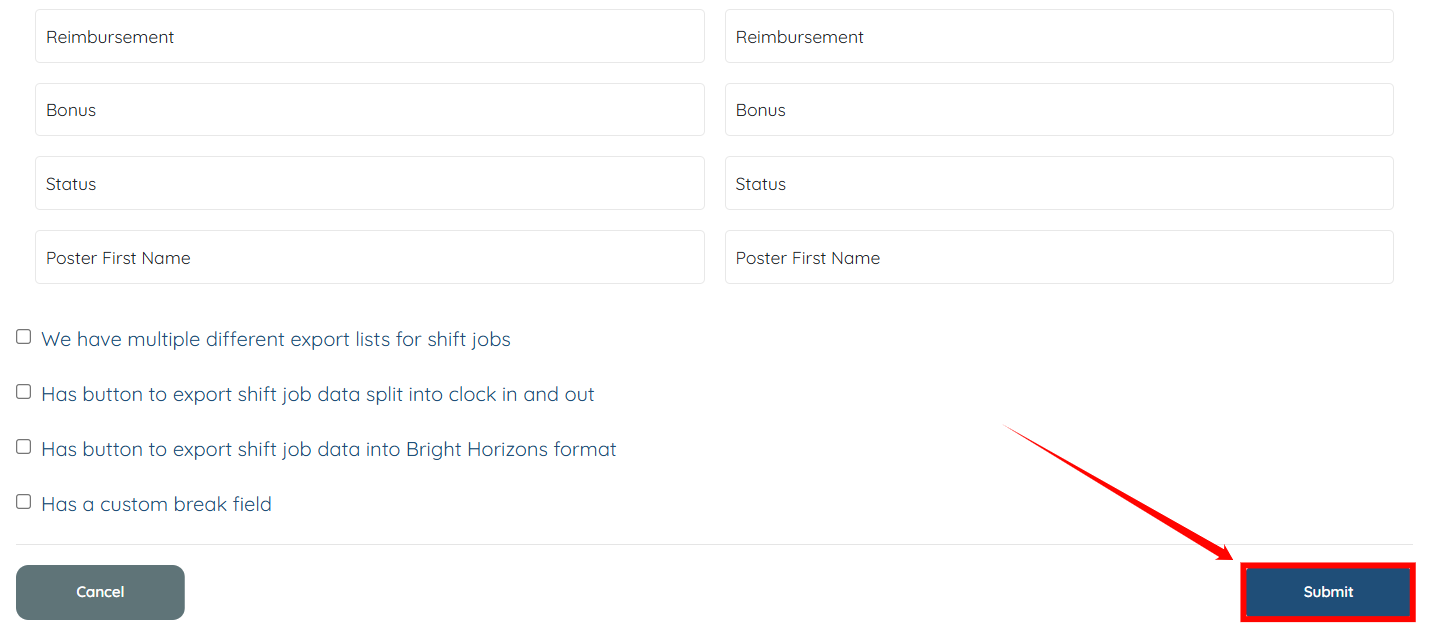
**Step 6**: Scroll down and click the **Submit** button to proceed.
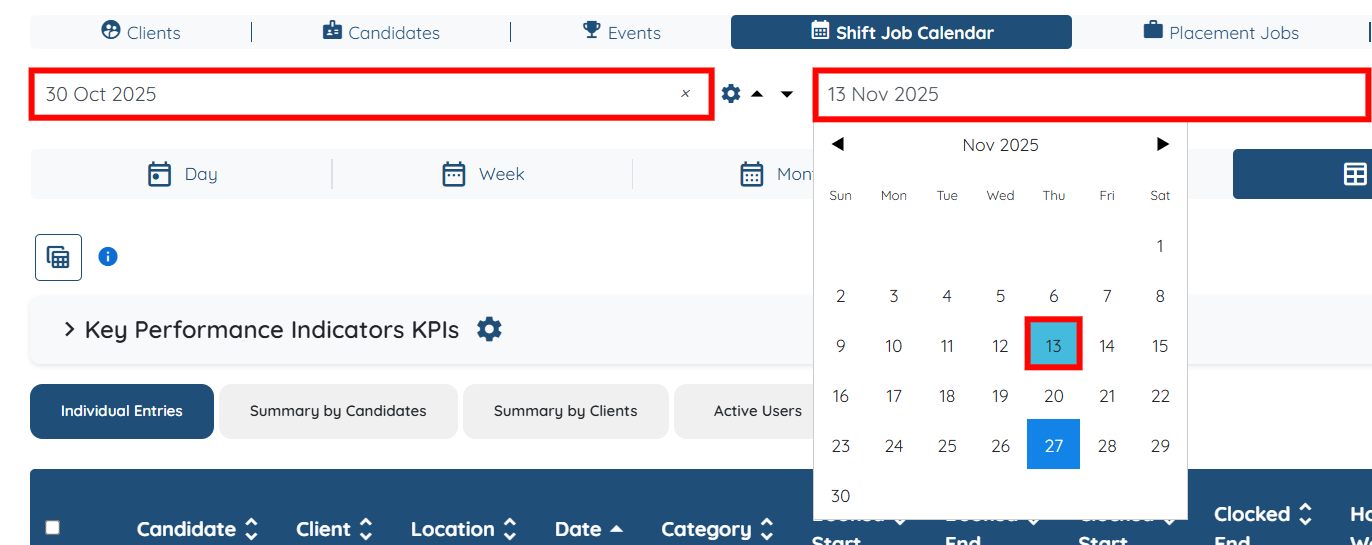
**Step 7**: Select the date range in which you want to export the data.
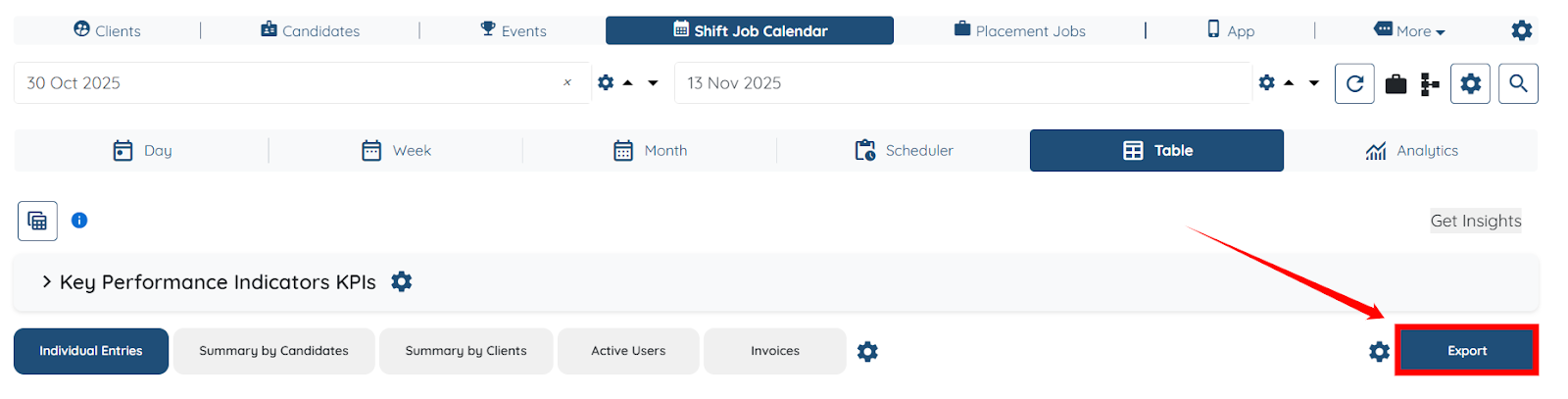
**Step 8**: Click the **Export** button to export the data as a CSV file.
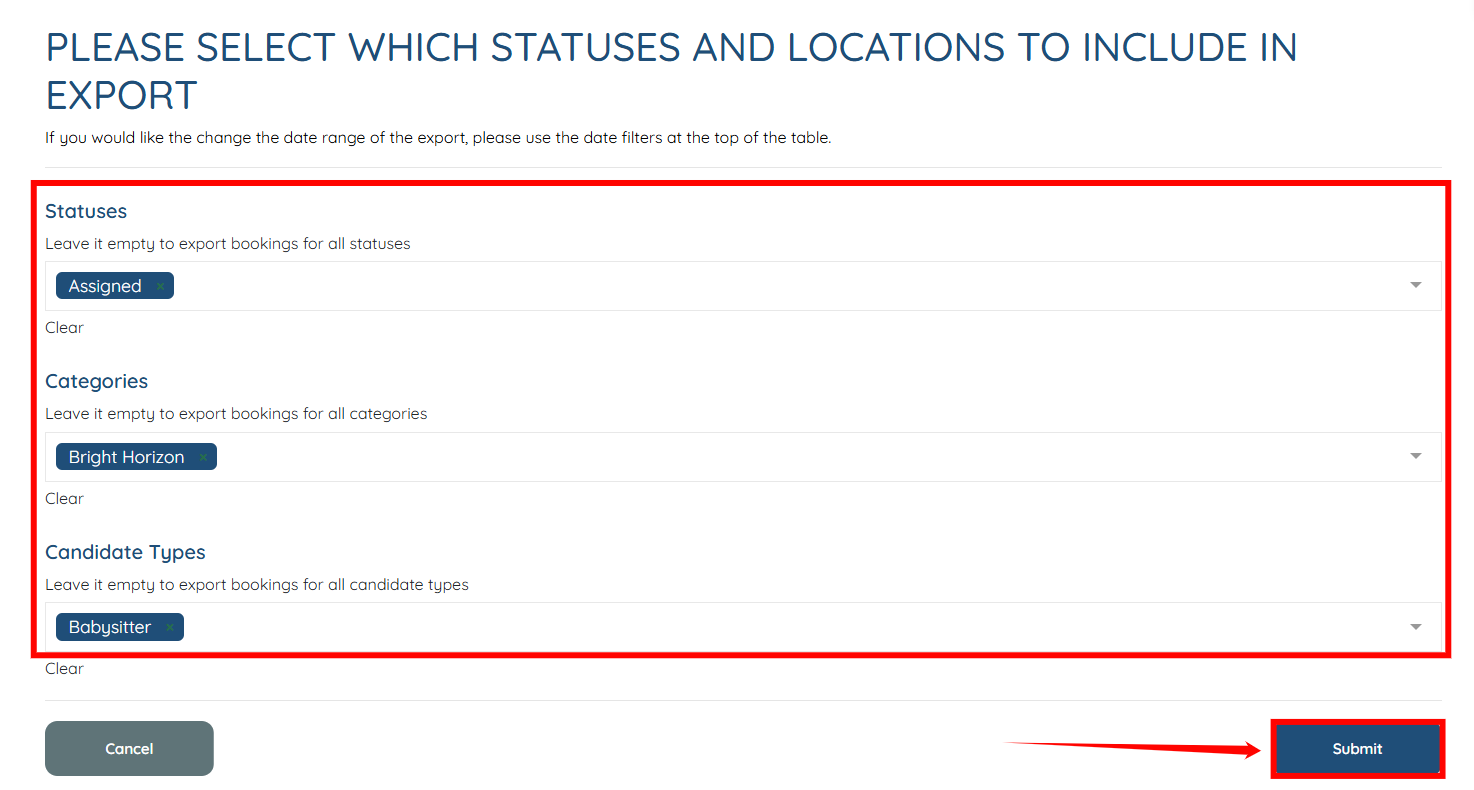
**Step 9**: Select the **Statuses**, **Categories**, **Candidate Types** you want to export in the CSV file, and then click the **Submit** button.
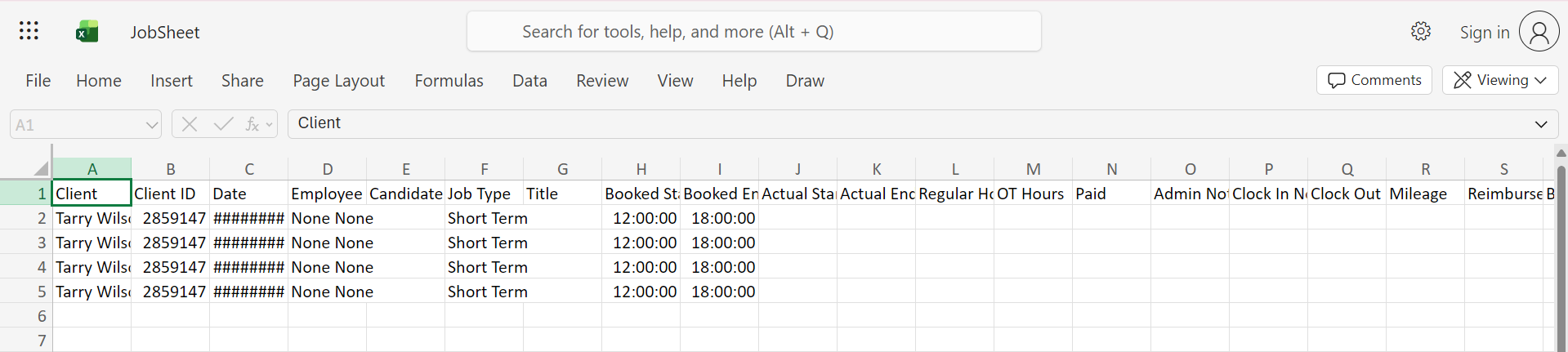
The CSV file will be exported successfully.
[If this video doesn't answer your questions you can always contact us by clicking here](https://share.hsforms.com/1yIx2IRKyQQaVcMJW8kLbJg39wil)
- [Onboarding](https://learn.enginehire.io/en/knowledge/onboarding?hsLang=en)
- [Application Forms & Profiles](https://learn.enginehire.io/en/knowledge/application-forms-profiles?hsLang=en)
- [Templates & Communication](https://learn.enginehire.io/en/knowledge/templates-communication?hsLang=en#main-content)
- [Documents](https://learn.enginehire.io/en/knowledge/templates-communication?hsLang=en#documents)
- [Jobs](https://learn.enginehire.io/en/knowledge/jobs?hsLang=en)
- [Payments](https://learn.enginehire.io/en/knowledge/payments?hsLang=en)
- [Integrations](https://learn.enginehire.io/en/knowledge/integrations?hsLang=en)
- [App](https://learn.enginehire.io/en/knowledge/app?hsLang=en)
- [For Candidates & Clients](https://learn.enginehire.io/en/knowledge/for-candidates-clients?hsLang=en)
- [Backup Care](https://learn.enginehire.io/en/knowledge/backup-care?hsLang=en#main-content)
- [Instant Book](https://learn.enginehire.io/en/knowledge/backup-care?hsLang=en#instant-book)
- [Data Import & Export](https://learn.enginehire.io/en/knowledge/data-import-export?hsLang=en)
- [Reporting & Logs](https://learn.enginehire.io/en/knowledge/reporting-logs?hsLang=en)
- [Error](https://learn.enginehire.io/en/knowledge/error?hsLang=en#main-content)
- [Authentication](https://learn.enginehire.io/en/knowledge/error?hsLang=en#authentication)
- [Settings](https://learn.enginehire.io/en/knowledge/settings?hsLang=en)
- [Domain](https://learn.enginehire.io/en/knowledge/domain?hsLang=en)
- [Webinars and Training](https://learn.enginehire.io/en/knowledge/webinars-and-training?hsLang=en)
- [Ways to Grow and Make More Money](https://learn.enginehire.io/en/knowledge/ways-to-grow-and-make-more-money?hsLang=en)
- [Placements](https://learn.enginehire.io/en/knowledge/placements?hsLang=en#main-content)
- [Job Board](https://learn.enginehire.io/en/knowledge/placements?hsLang=en#job-board)
- [Enginehire Team Internal Videos](https://learn.enginehire.io/en/knowledge/enginehire-team-internal-videos?hsLang=en#main-content)
- [Settings](https://learn.enginehire.io/en/knowledge/enginehire-team-internal-videos?hsLang=en#settings)
- [AI](https://learn.enginehire.io/en/knowledge/ai?hsLang=en)
- Home
- Products
- Pricing
- Blog
- Company
[](https://enginehire.io)
Enginehire Help Center
Copyright © 2026, Enginehire Inc.