![enginehire logo thin dark 1.0.png]](https://learn.enginehire.io/hs-fs/hubfs/enginehire%20logo%20thin%20dark%201.0.png?height=40&name=enginehire%20logo%20thin%20dark%201.0.png)
If you need a spreadsheet of every signed document or uploaded file in your agency, along with who it belongs to and when it was created, you can download that directly from the Documents and Files logs. This is useful for audits, migrations to another system, or reconciling your records outside of Enginehire.
Each log has two export buttons. Export All Documents and Export All Files download the documents or files themselves. Export Documents Table and Export Files Table download the table data as a spreadsheet (CSV), not the documents or files.
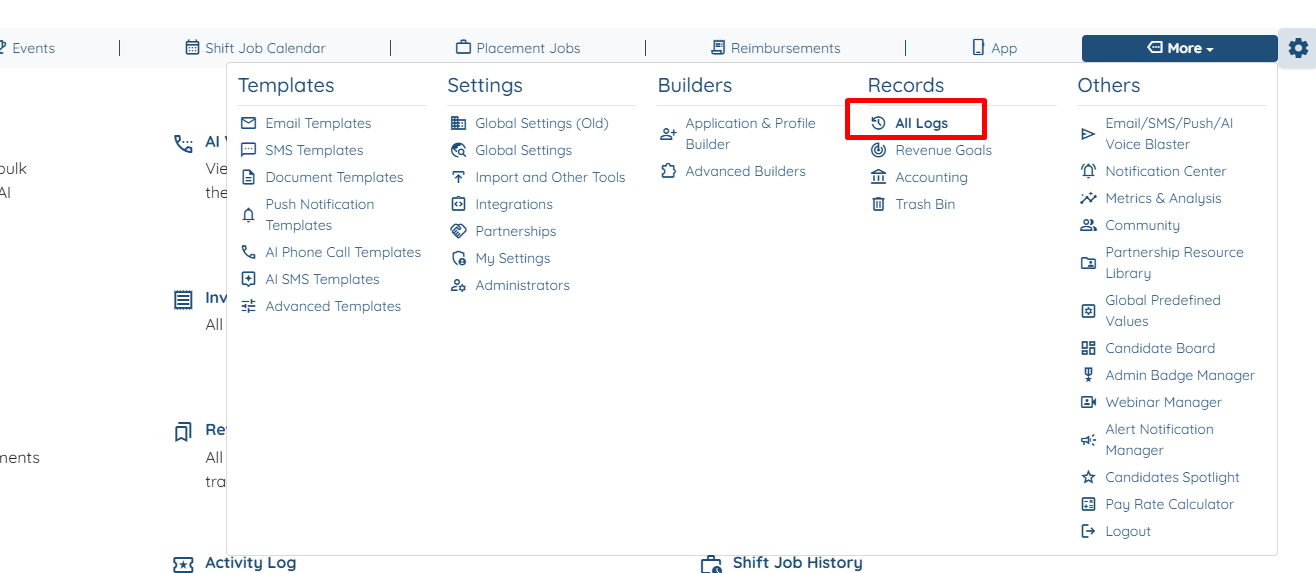
Where to find the Documents log and Files log
From your admin dashboard, open the More menu in the top navigation and choose Logs. Two entries on the Logs page are relevant here:
Documents shows all documents signed in the system. These are the documents created from your document templates, such as agreements, offer letters, and checklists.
Files shows all files uploaded by anyone, such as licenses, certifications, resumes, and profile pictures, including their expiration information.
How to export the Documents table
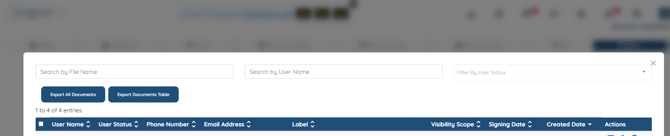
Open Documents from the Logs page. At the top of the table, next to Export All Documents, click Export Documents Table. A file named Documents Table.csv downloads to your computer.
The spreadsheet contains one row per document with the same columns you see in the table: User Name, User Status, Phone Number, Email Address, Label, Visibility Scope, Signing Date, and Created Date.
How to export the Files table
Open Files from the Logs page. Next to Export All Files, click Export Files Table. A file named Files Table.csv downloads to your computer.
The spreadsheet contains one row per file with the columns from the table: Uploaded By, User Name, User Status, Phone Number, Email Address, Label, Expiration Date, File Name, Date Uploaded, and Visibility Scope.

Opening and working with the exported spreadsheet
The download is a CSV file, which opens in Excel, Google Sheets, or Numbers. If you open it in Excel and see phone numbers displayed in scientific notation (for example, 9.23E+10), that is Excel's default display for long numbers. The full number is still in the cell. Format the Phone Number column as text or a number with zero decimal places to see it in full.
If you plan to edit and save the file in Excel, save it as an Excel workbook (.xlsx) rather than CSV to keep any formatting you add.
Which export do I need?
Choose Export All Documents or Export All Files when you want the actual documents or files.
Choose Export Documents Table or Export Files Table when you want a list of what exists, who it belongs to, and when it was created or signed, in a spreadsheet you can sort, filter, or import elsewhere.