![enginehire logo thin dark 1.0.png]](https://learn.enginehire.io/hs-fs/hubfs/enginehire%20logo%20thin%20dark%201.0.png?height=40&name=enginehire%20logo%20thin%20dark%201.0.png)
Instead of clicking each day on the calendar to set your times, you can speak your availability in plain language and let Enginehire fill it in for you. You describe the days and hours you can work, review what the system captured, and save. It is the quickest way to set several days at once, and it is available to candidates from their own profile.
Where to find it
Open your profile and go to the My Availability tab. Just above the calendar, next to the Week and Month view toggles, you will see the Enter Availability button with a microphone icon. This is the same section where you would normally click a day to set your availability by hand, so nothing else about your calendar changes.
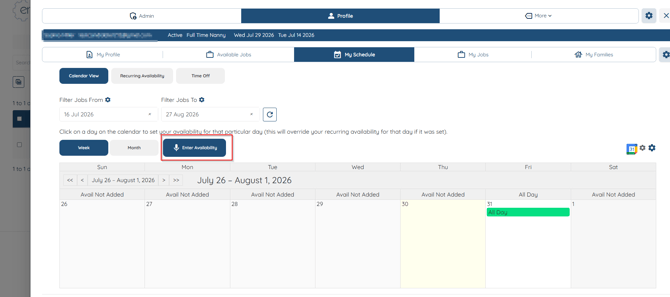
How to enter your availability by voice
Click Enter Availability to open the voice window. Click the microphone and speak your availability using clear dates and times. As you talk, your words appear in the Spoken Text box below. The window shows a few examples you can follow for phrasing:
“I am available on Friday, July 31 from 9:00 AM to 5:00 PM.”
“I am available all day on August 1 and August 2, and I have my own transportation.”
“I am available Monday to Friday from 9:00 AM to 5:00 PM, and all other days are unavailable.”
“I am available overnight on Friday, July 31 from 8:00 PM to 6:00 AM.”
When you finish speaking, read the Spoken Text and fix anything the microphone misheard. You can type directly in that box, so a small correction does not mean starting over. Once the text looks right, click Preview.
Enginehire reads your text and lays out each date and time block it understood in a short table, with a Notes column for extra details you mentioned, such as transportation. Check the preview against what you meant. If a date or time is off, click Edit, adjust the Spoken Text, and preview again. When everything looks correct, click Save Availability. Your calendar fills in the days you set and a “Schedule updated” message confirms it saved.
Tips for the best results
Name the specific day and date, and give a start and end time for each block you want to set. You can cover several days in a single recording, and only the dates you actually mention are added, so your other days stay exactly as they were. Because speech and automatic reading are not always perfect, always glance at the preview before saving. That review step is there to catch anything that came through slightly off, and it takes only a moment.
Setting your availability another way
Prefer to set your days on the calendar, or need availability that repeats every week? See For Candidates: Enter in Schedule Availability for the calendar method, and the guide on setting overnight recurring availability. The voice option lives in the same My Availability section, so you can switch between them anytime.