![enginehire logo thin dark 1.0.png]](https://learn.enginehire.io/hs-fs/hubfs/enginehire%20logo%20thin%20dark%201.0.png?height=40&name=enginehire%20logo%20thin%20dark%201.0.png)
Let’s get started 🚀
Enable the Notification in the AI Templates
Enable the notification in the AI template to allow email notifications when a user cannot be reached after the maximum number of retry attempts.
For demonstration purposes, this article uses AI Phone Call Templates as an example. You can enable the same setting in AI SMS Templates by following a similar process.
Step 1: Log in to your agent dashboard and click More > AI Phone Call Templates as shown in the screenshot below.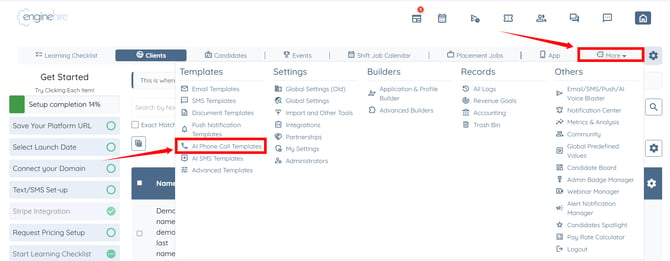
Step 2: Open the template in which you want to enable email notifications for unreachable users.
If you have not created an AI Phone Call Template yet, refer to the Set Up AI Voice Workflow Agent article.
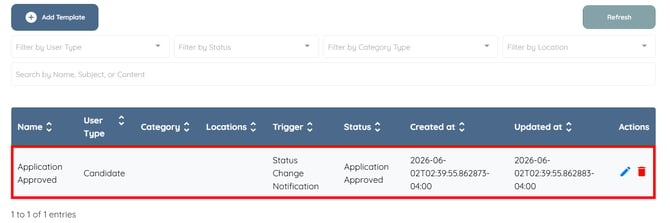
Step 3: Check the Send email notification when user cannot be reached after max retries checkbox.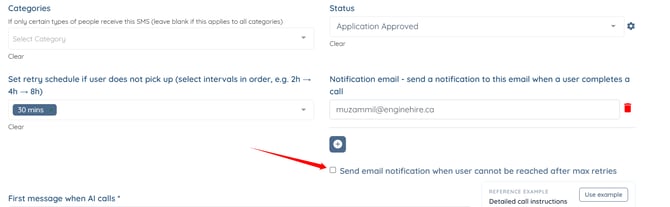
Step 4: Click the Update button.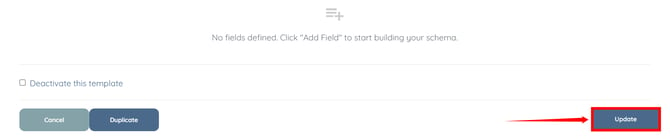
Enable the Notification in Global Settings
Enable the notification in the global settings to allow email notifications when a user cannot be reached after the maximum number of retry attempts.
Step 1: On your agent dashboard, click More > Global Settings as shown in the screenshot below.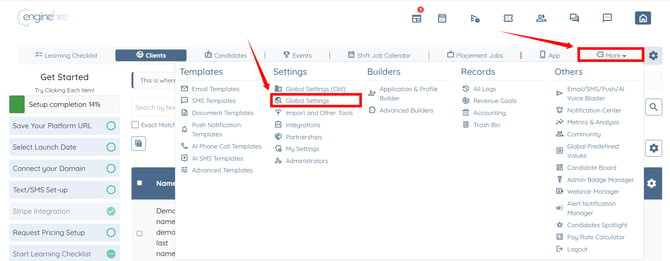
Step 2: Click the Clients tab from the available tabs.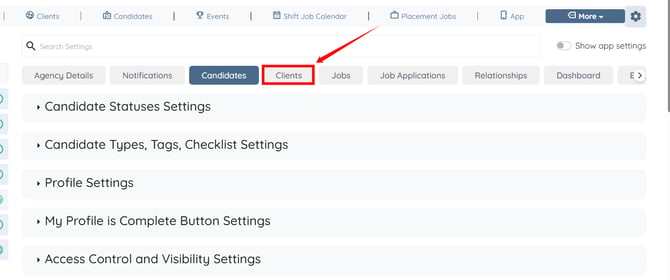
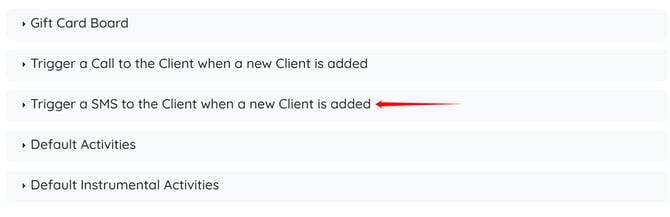
Step 3: Click the Trigger a Call to the Client when a new Client is added option to expand and view its details.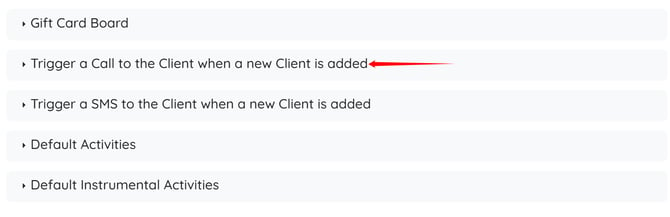
Step 4: Scroll down to the bottom, and check the Send email notification when client cannot be reached after max retries checkbox.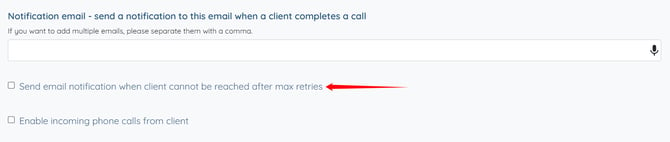
The settings will be saved automatically.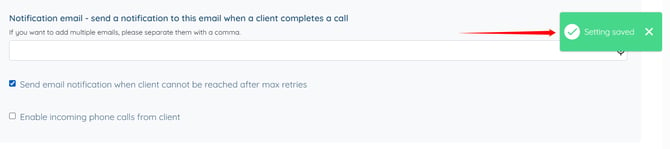
You can enable the same setting in the Trigger a SMS to the Client when a new Client is added option by following the same steps.