![enginehire logo thin dark 1.0.png]](https://learn.enginehire.io/hs-fs/hubfs/enginehire%20logo%20thin%20dark%201.0.png?height=40&name=enginehire%20logo%20thin%20dark%201.0.png)
Let’s get started 🚀
Step 1: Log in to your agent dashboard and click More > Global Settings as shown in the screenshot below.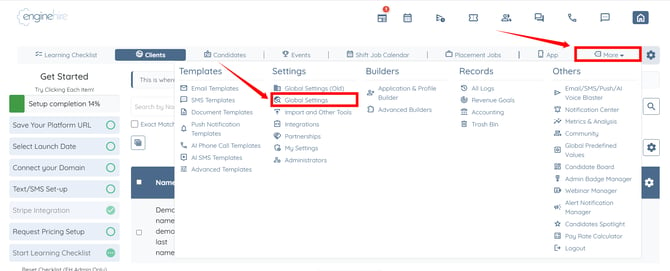
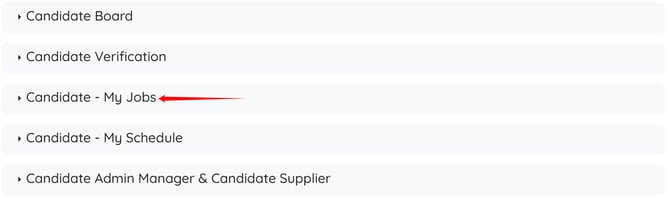
Step 2: Click the Candidate - My Jobs option to expand and view its details.
Step 3: Locate and check the Get candidate location when they clock in and out of jobs checkbox.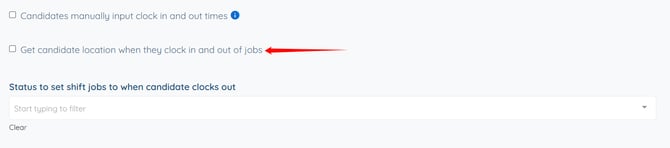
The settings will be saved automatically.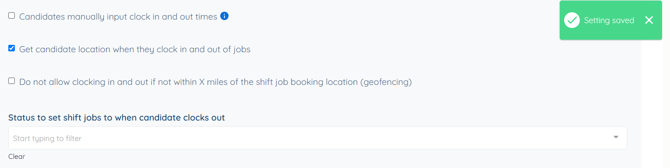
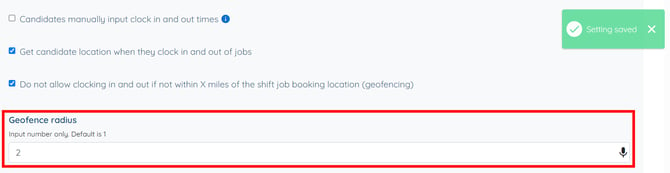
Step 4: You can also enable the Do not allow clocking in and out if not within X miles of the shift job booking location (geofencing) checkbox to prevent candidates from clocking in or out unless they are within the specified distance of the shift job location. 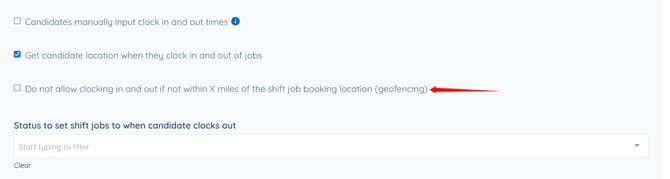
Step 5: Enter the geofence radius to specify the maximum distance from the shift job location within which candidates are allowed to clock in and out.