![enginehire logo thin dark 1.0.png]](https://learn.enginehire.io/hs-fs/hubfs/enginehire%20logo%20thin%20dark%201.0.png?height=40&name=enginehire%20logo%20thin%20dark%201.0.png)
Let’s get started 🚀
Step 1: Log in to your agent dashboard and click More > Application & Profile Builder, as shown in the screenshot below.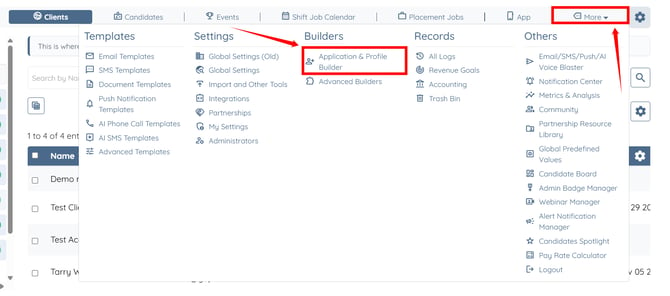
Step 2: Click the Filter by type box to open the dropdown list.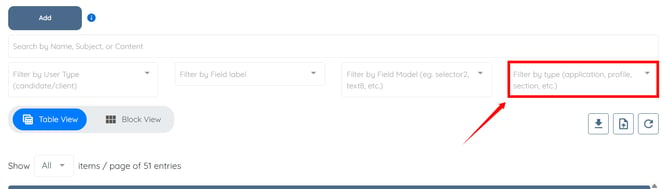
Step 3: Select the Reference Check option from the dropdown list.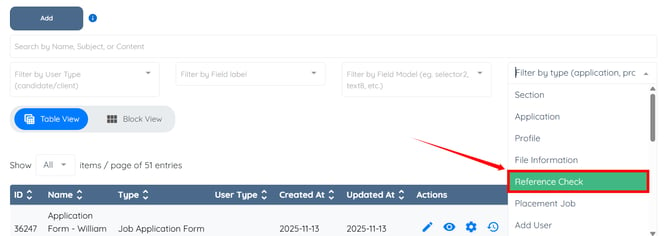
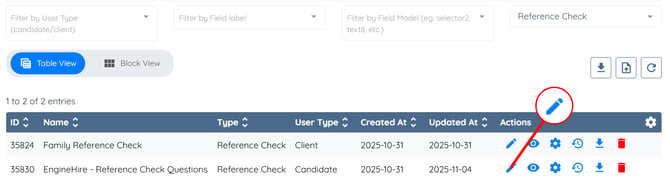
Step 4: Click the pencil icon under the Actions column next to the Reference Check builder for the Candidate user type.
Step 5: Scroll to the bottom and click the Add Field button to add a new question.
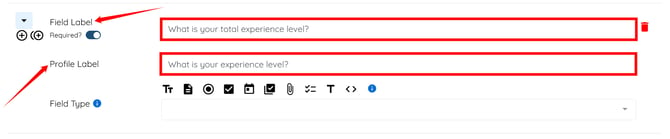
Step 6: Enter the Field Label and Profile Label for the question.
Field Label is an internal label for the Admins to organize their field.
Profile Label is user facing and is what appears in the form.
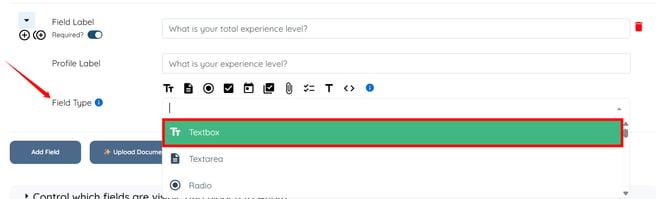
Step 7: Select the required Field Type for the question.
To learn more about the available field types and how they appear in the form, refer to the All Field Types Explained article.
Step 8: To remove a question, click the trash icon next to the question you want to delete. 
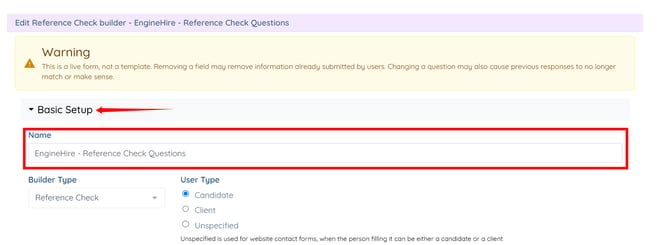
Step 9: To update the name of the form, click the Basic Setup option to expand it, then update the form name as required.
Step 10: After making all the required changes, click the Save button. 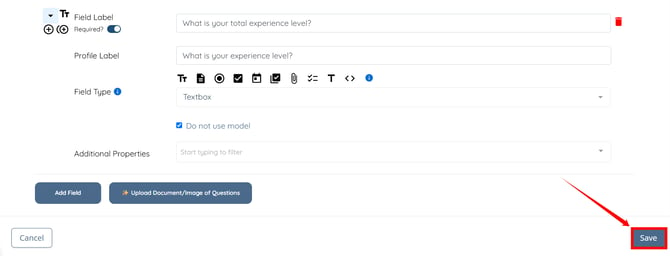
To update the information in the header of your reference check form, refer to the Customize Reference Check Form Instructions article.