![enginehire logo thin dark 1.0.png]](https://learn.enginehire.io/hs-fs/hubfs/enginehire%20logo%20thin%20dark%201.0.png?height=40&name=enginehire%20logo%20thin%20dark%201.0.png)
For demonstration purposes, this article uses candidates as an example; however, the same steps apply to clients.
Let’s get started 🚀
Manage Fields in Section
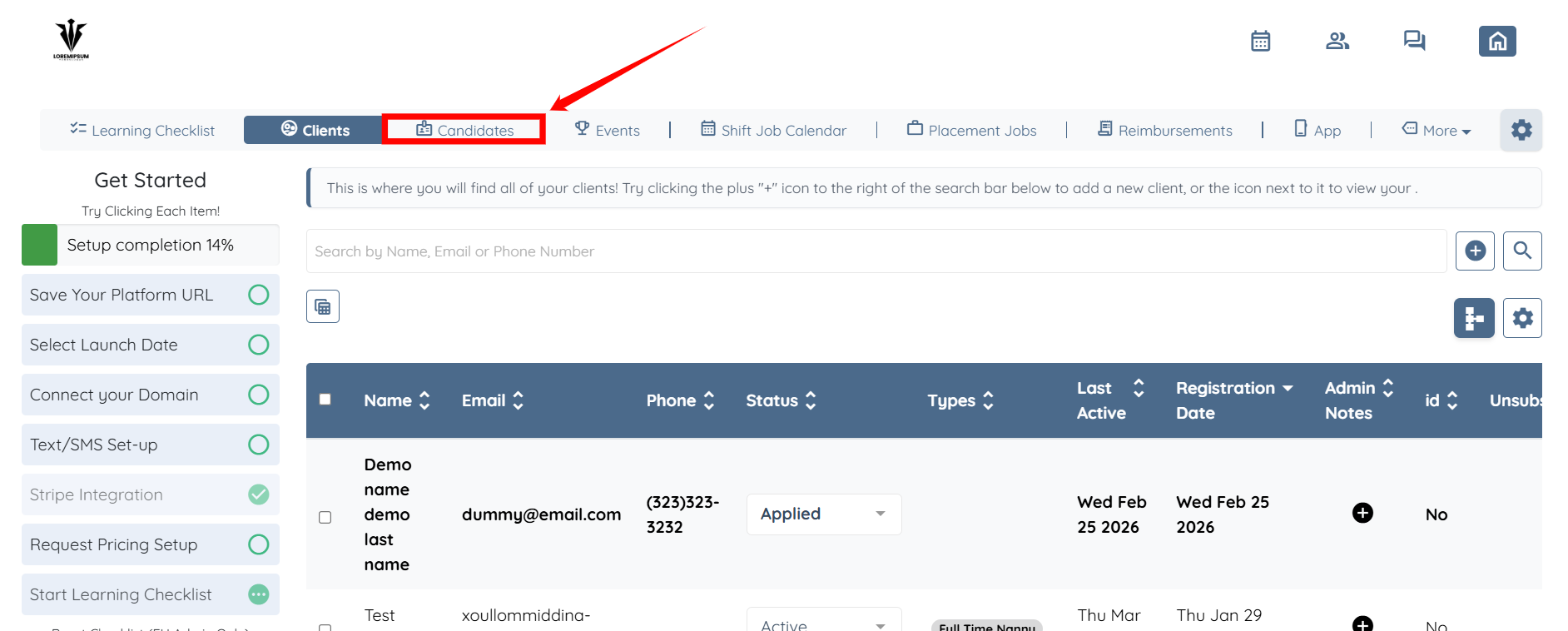
Step 1: Log in to your agent dashboard and click Candidates in the navigation bar.
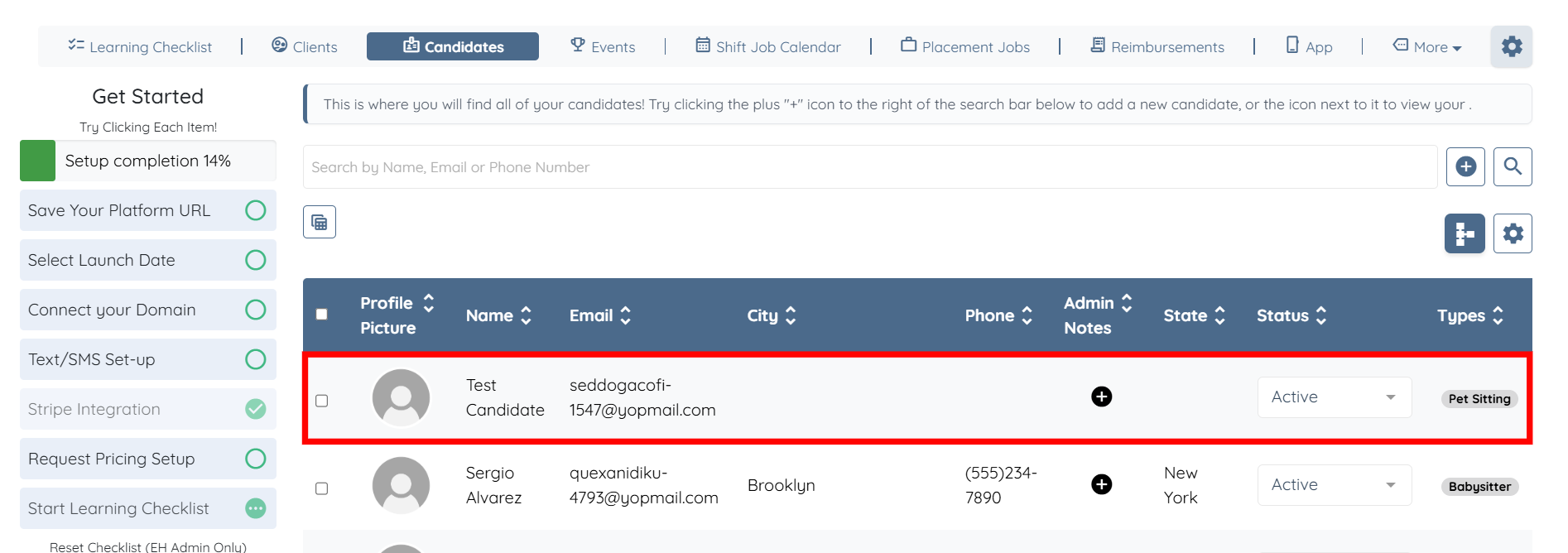
Step 2: Click any candidate from the list.
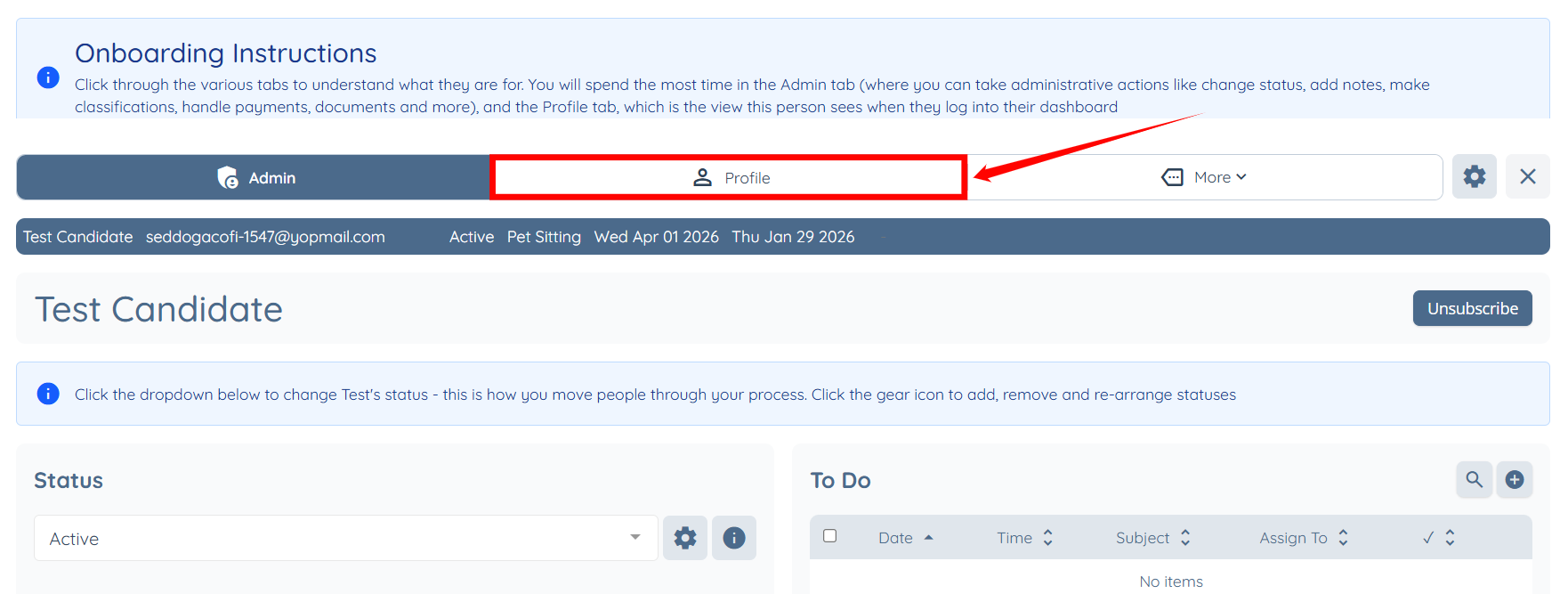
Step 3: Click the Profile tab to go to the candidate profile.
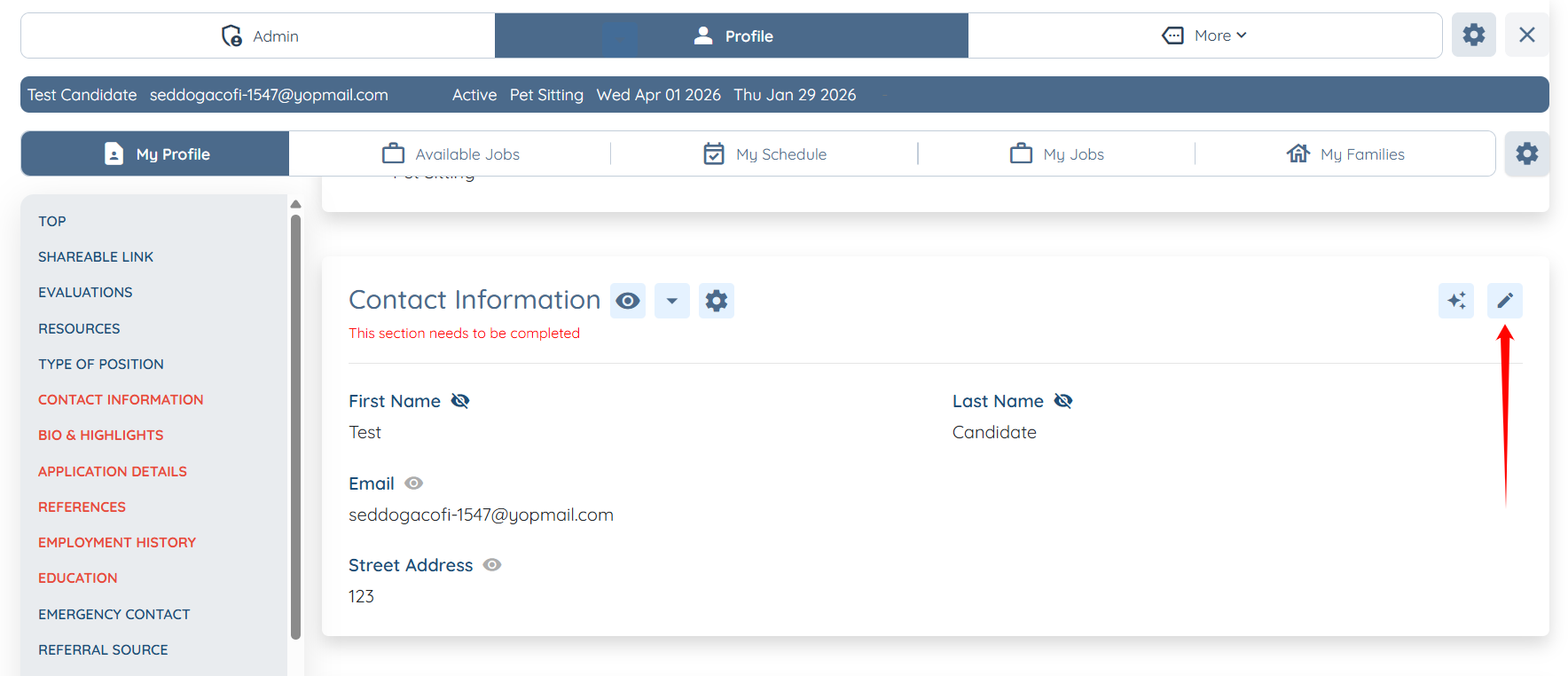
Step 4: Click the pencil icon next to any section name.
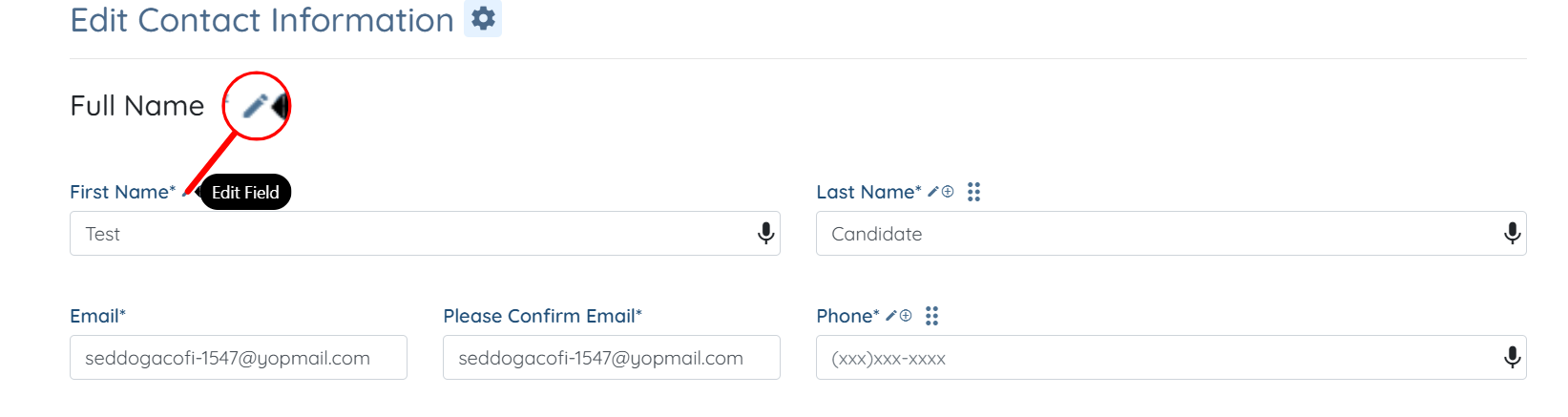
Step 5: Click on the pencil icon next to any field to edit it.
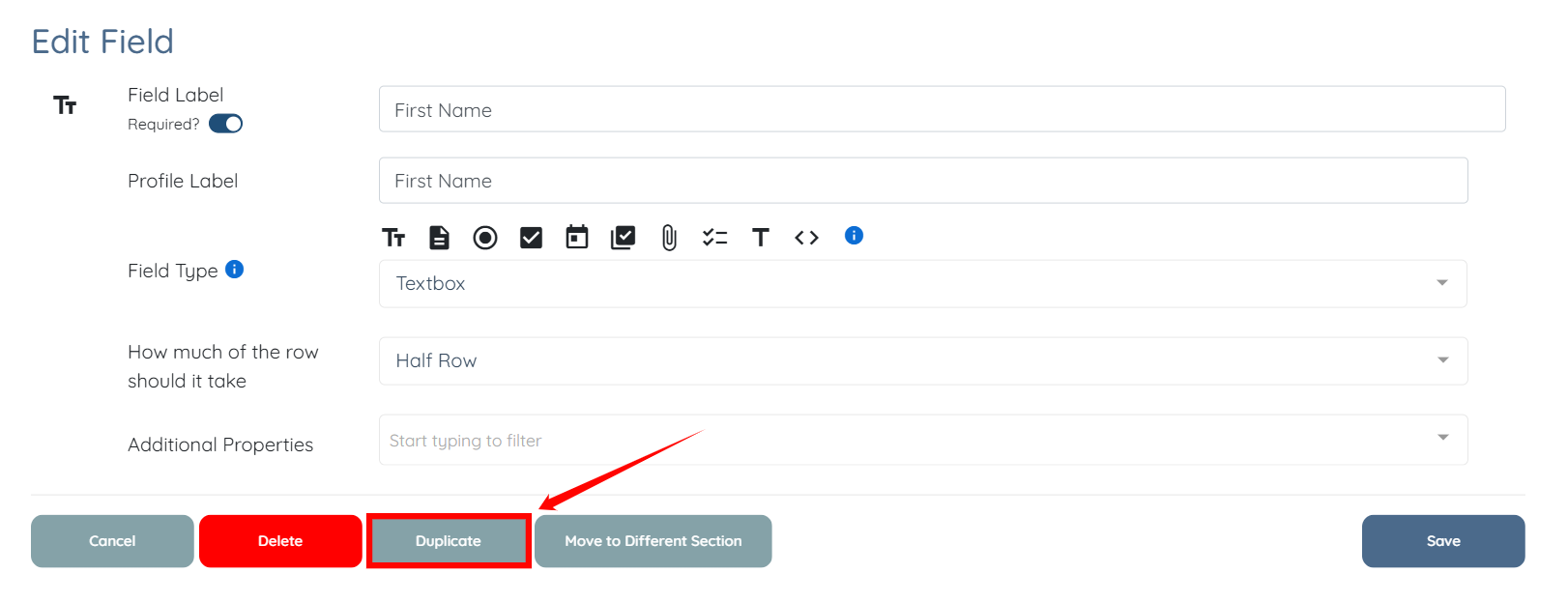
Step 6: Edit the field as required, and you can also duplicate the field as needed by clicking the Duplicate button.
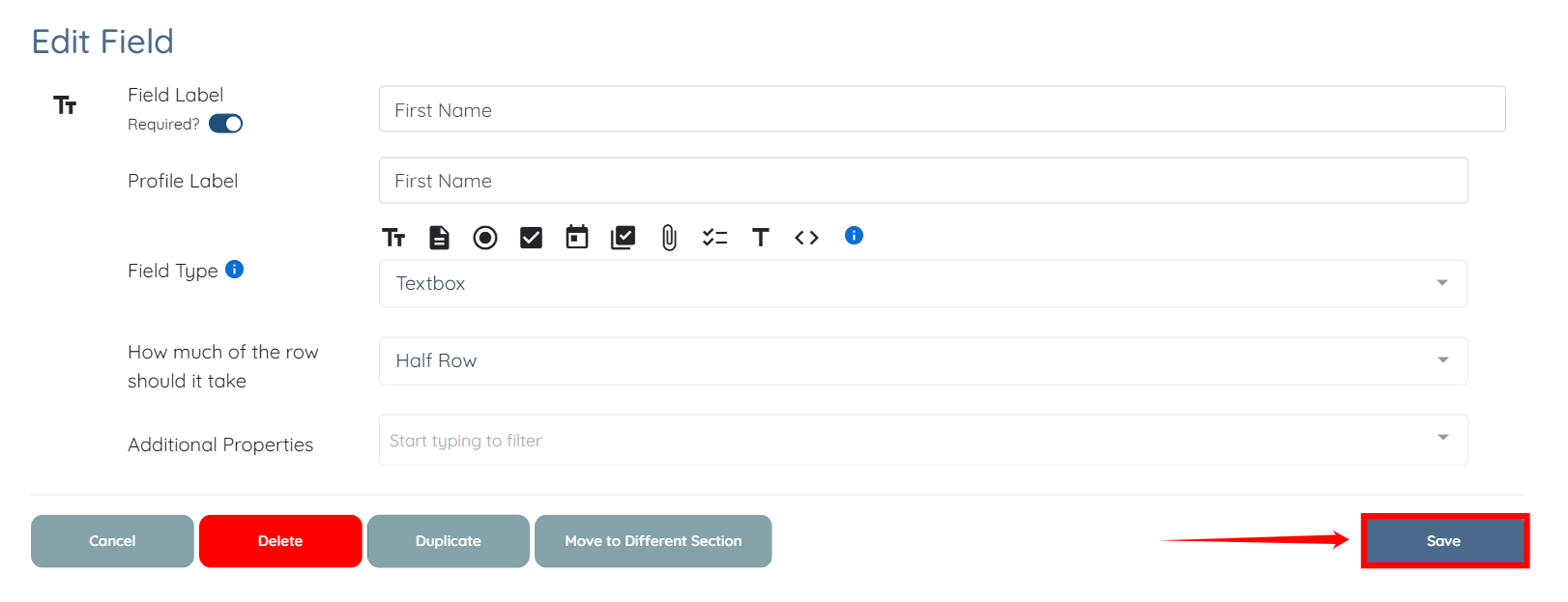
Step 7: Click the Save button after making the required edits to apply those changes.
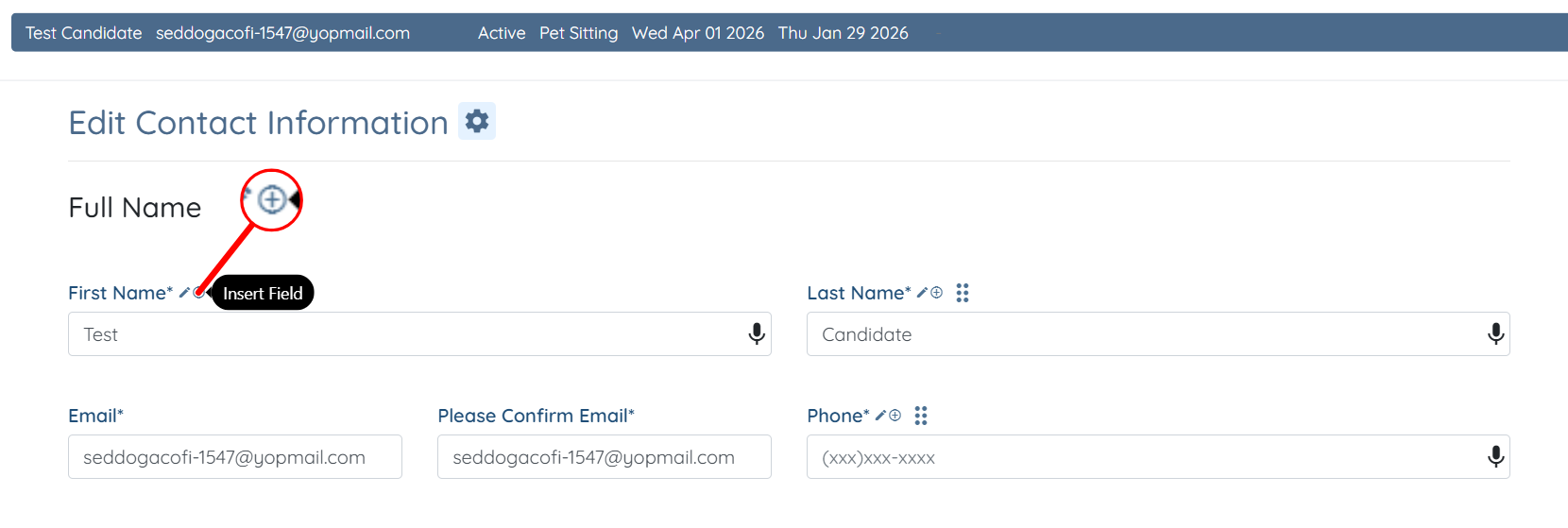
Step 8: You can also click the “+” icon next to any field to insert a new field as needed.
Access the Section and Edit Layout
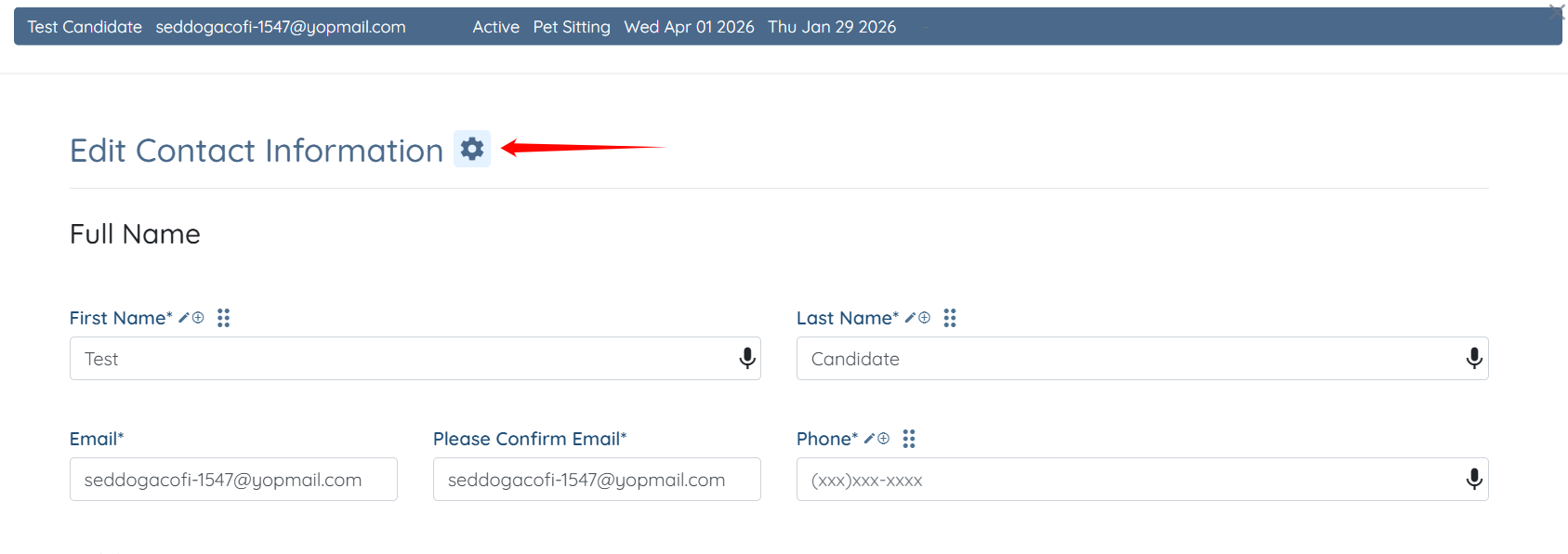
Step 1: Click the Gear icon as shown in the screenshot below.
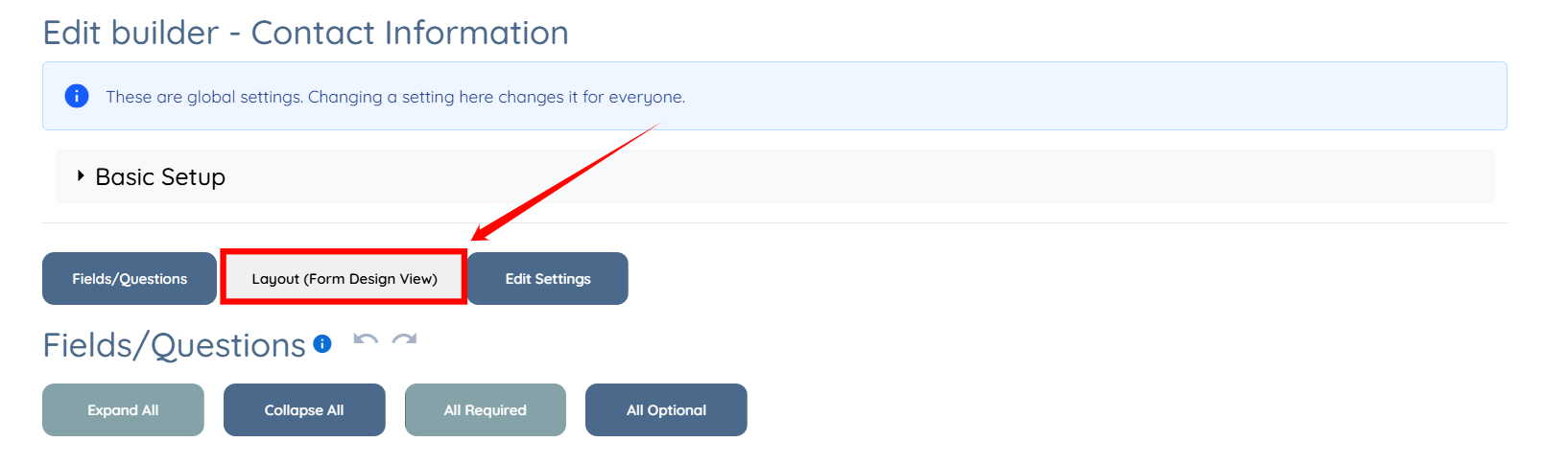
Step 2: Click the Layout (Form Design View) button.
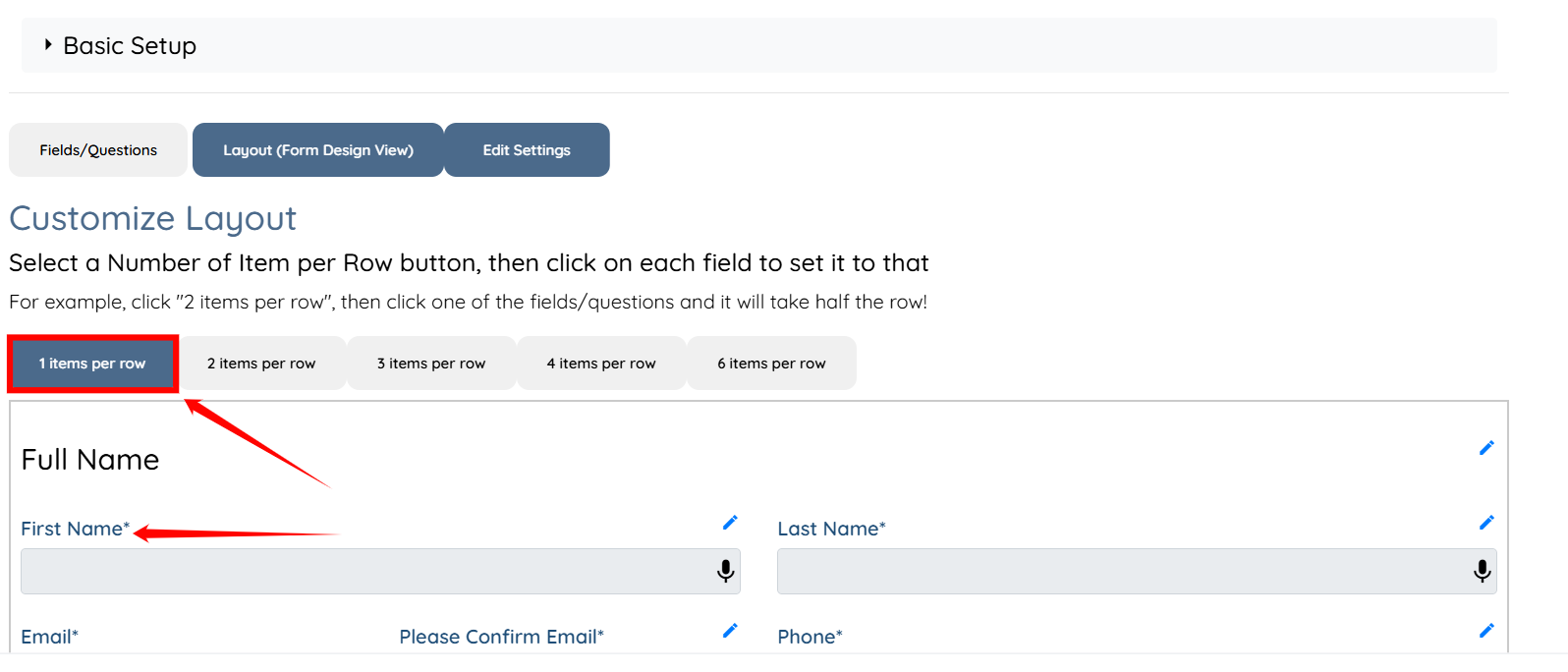
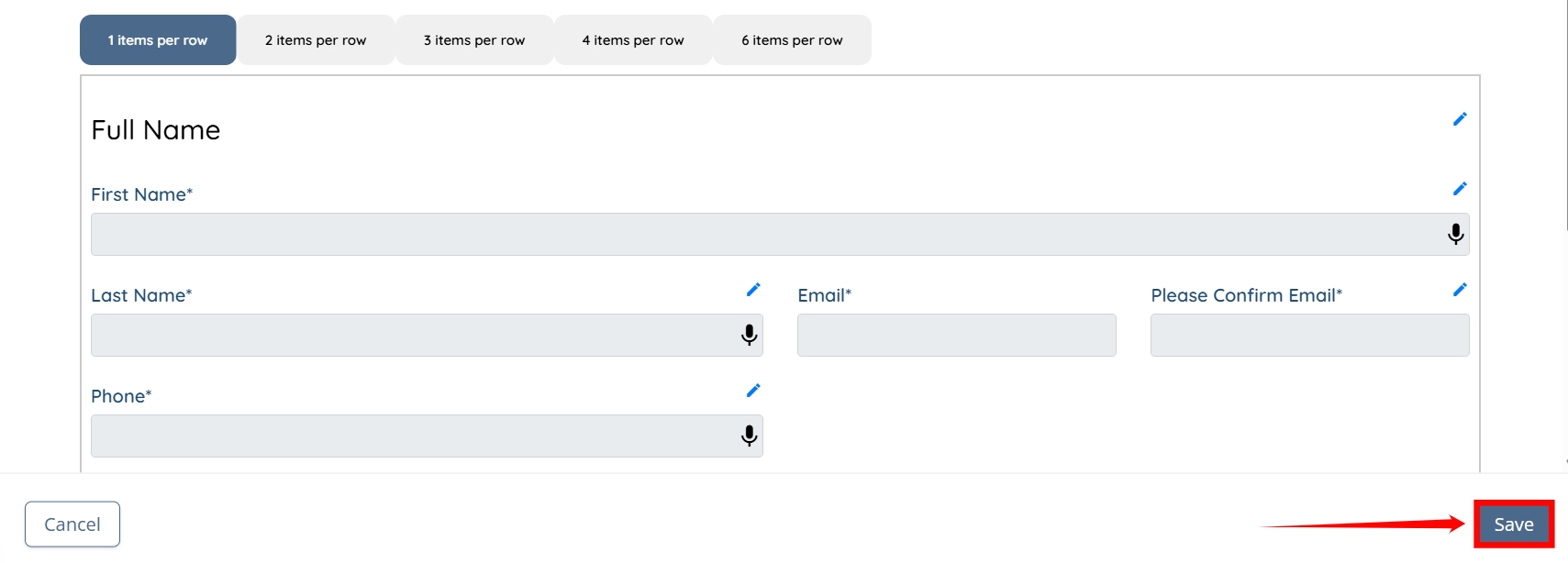
Step 3: Select the number of items per row button, then click each field to apply that setting.
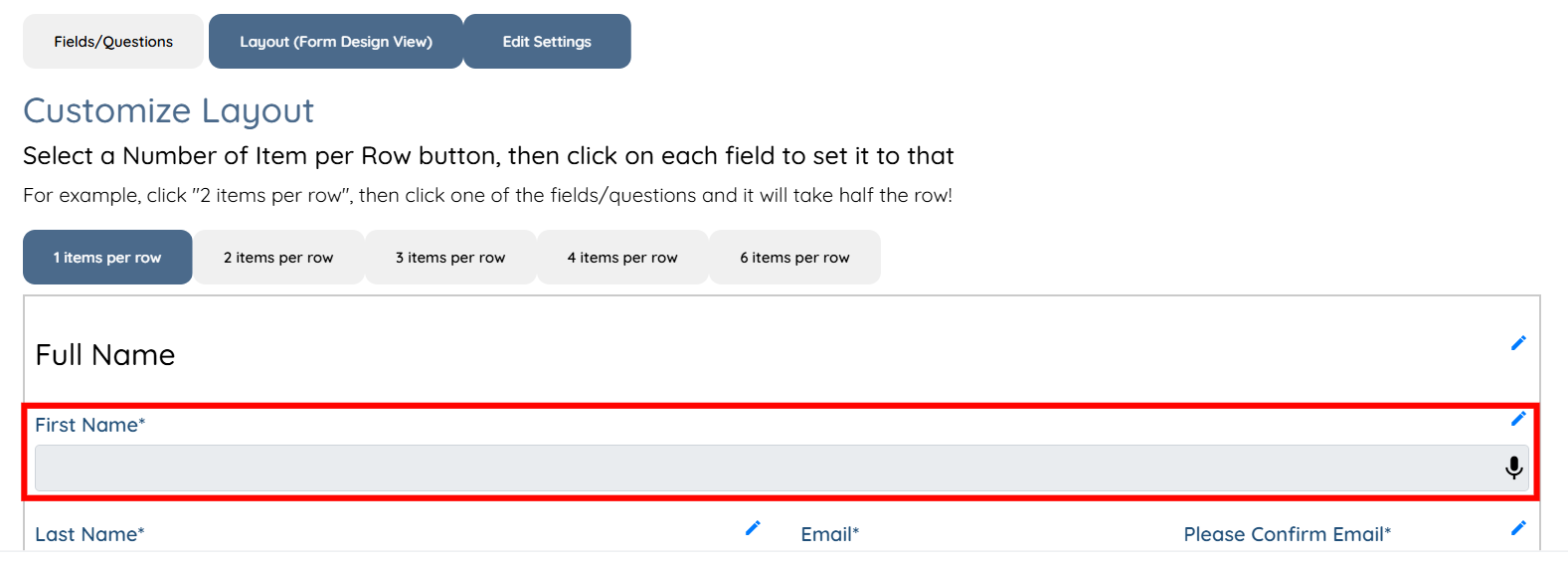
For example, click the “1 item per row” button, then click a field or question to make it occupy the full row.
The selected field will be updated to full one row.
Step 4: After making all the required changes, click the Save button to proceed.
PLEASE NOTE THAT WHEN YOU MAKE AN EDIT TO AN UNDERLYING SECTION OR FIELD FROM ONE PROFILE, IT WILL CHANGE FOR ALL PROFILES, NOT JUST THE ONE YOU ARE VIEWING!
You can edit the actual information in a question/field person by person, of course, but editing the actual question changes it globally!