![enginehire logo thin dark 1.0.png]](https://learn.enginehire.io/hs-fs/hubfs/enginehire%20logo%20thin%20dark%201.0.png?height=40&name=enginehire%20logo%20thin%20dark%201.0.png)
Let’s get started 🚀
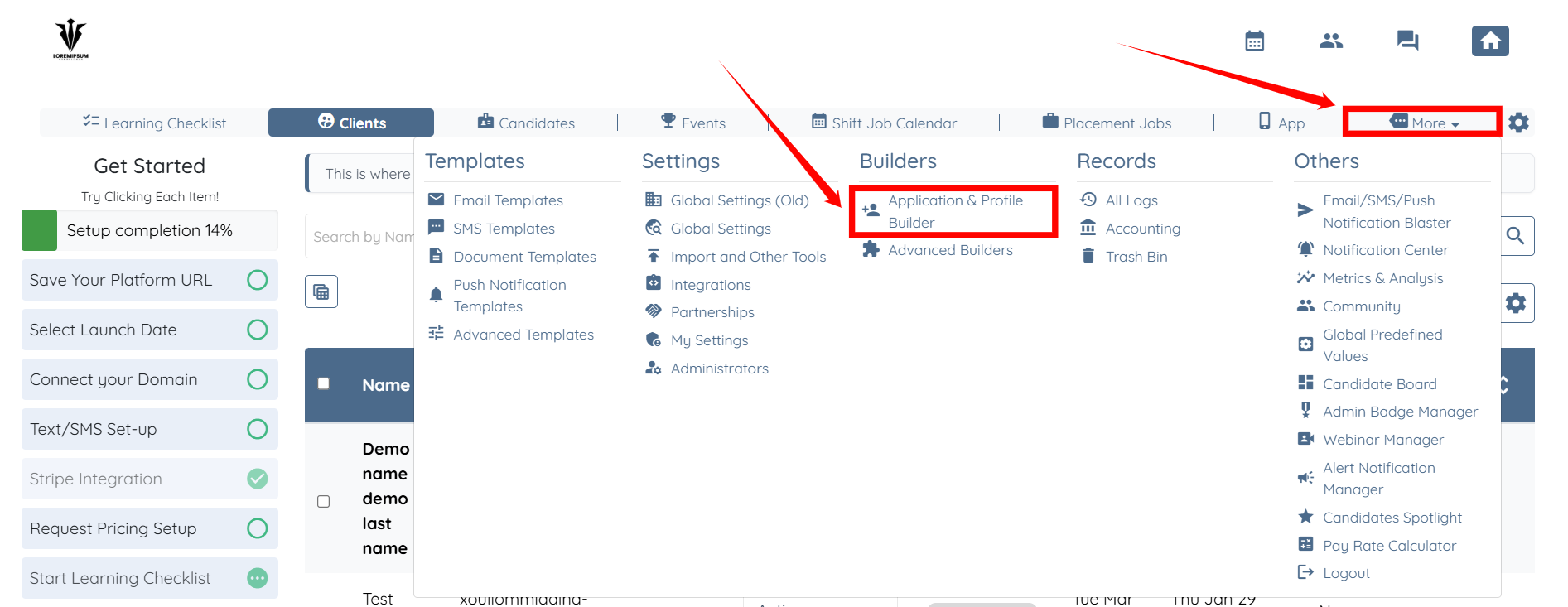
Step 1: Log in to your agent dashboard and click More > Application & Profile Builder as shown in the screenshot below.
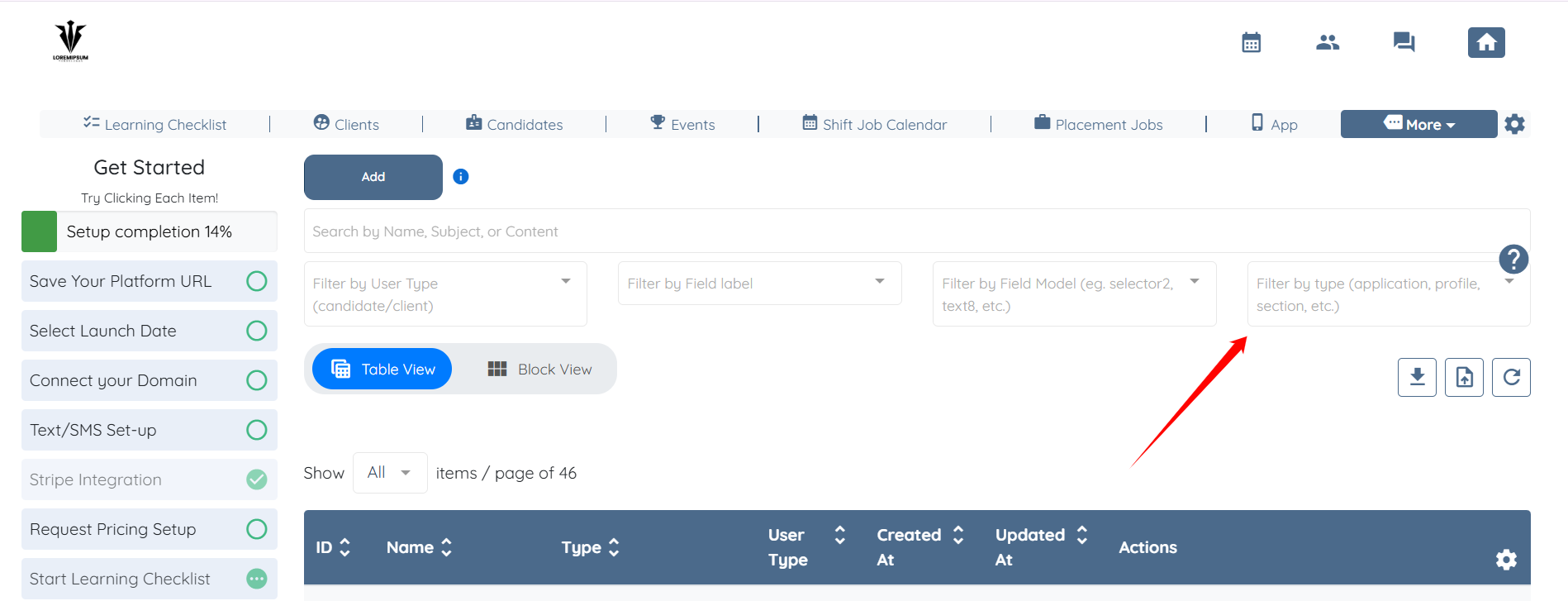
Step 2: Click the Filter by type (application, profile, section, etc.) box to open the dropdown list.
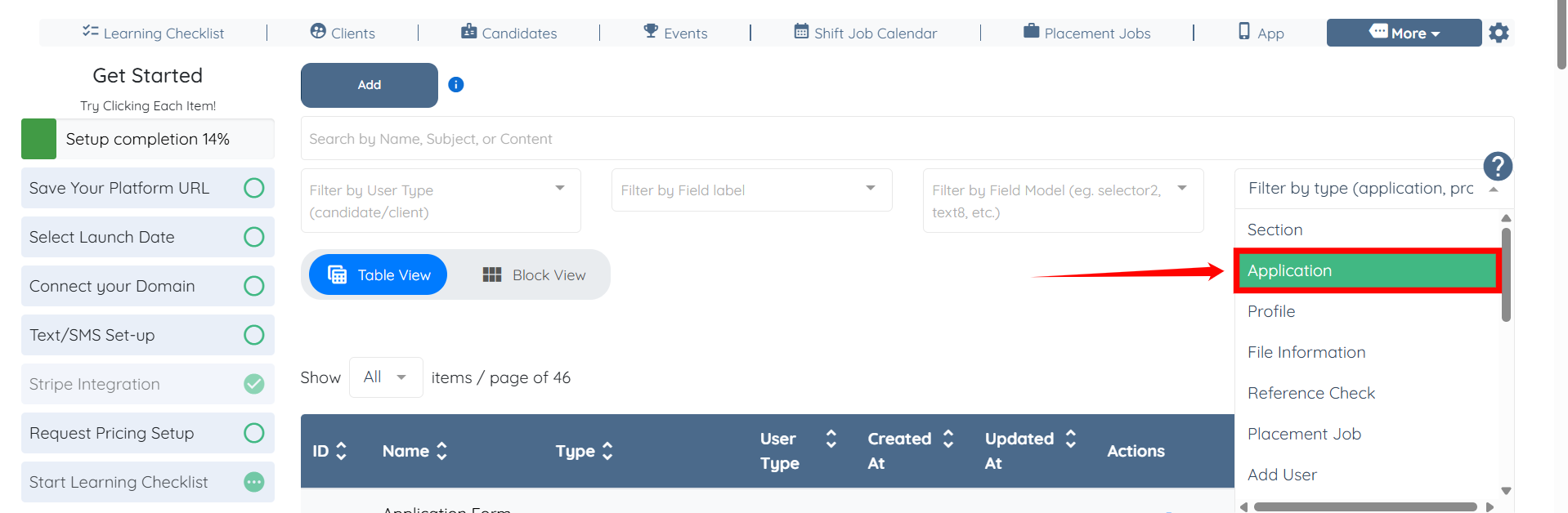
Step 3: Select the Application option to display only application forms.
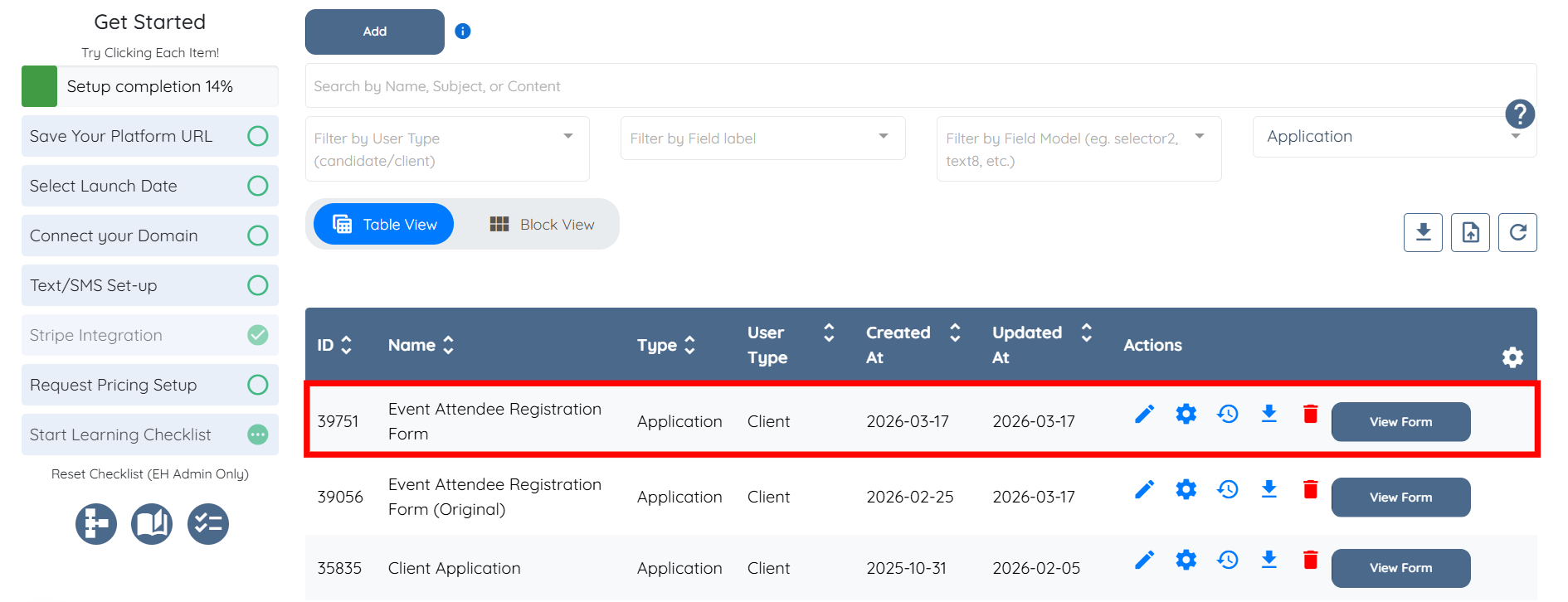
Step 4: Click the Download backup copy icon for the application form you want to duplicate.
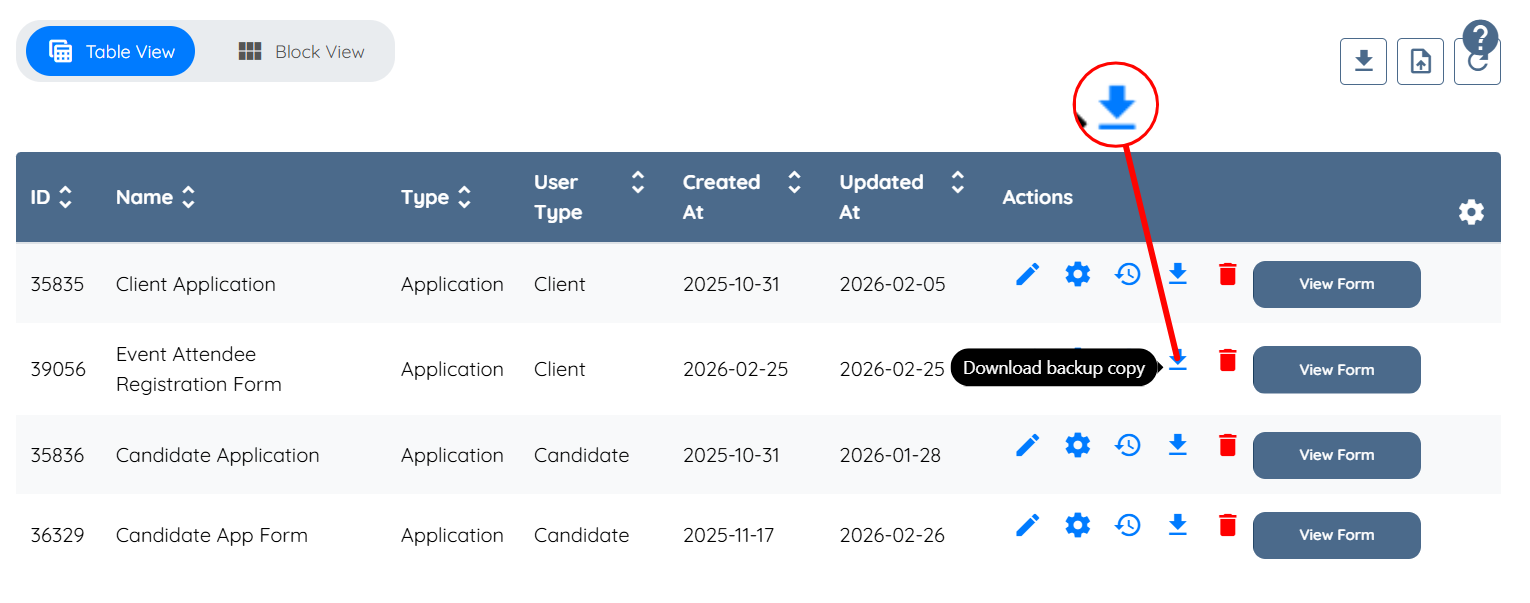
Steps 5–7 are optional and help you rename the original form to easily differentiate it from the duplicated version.
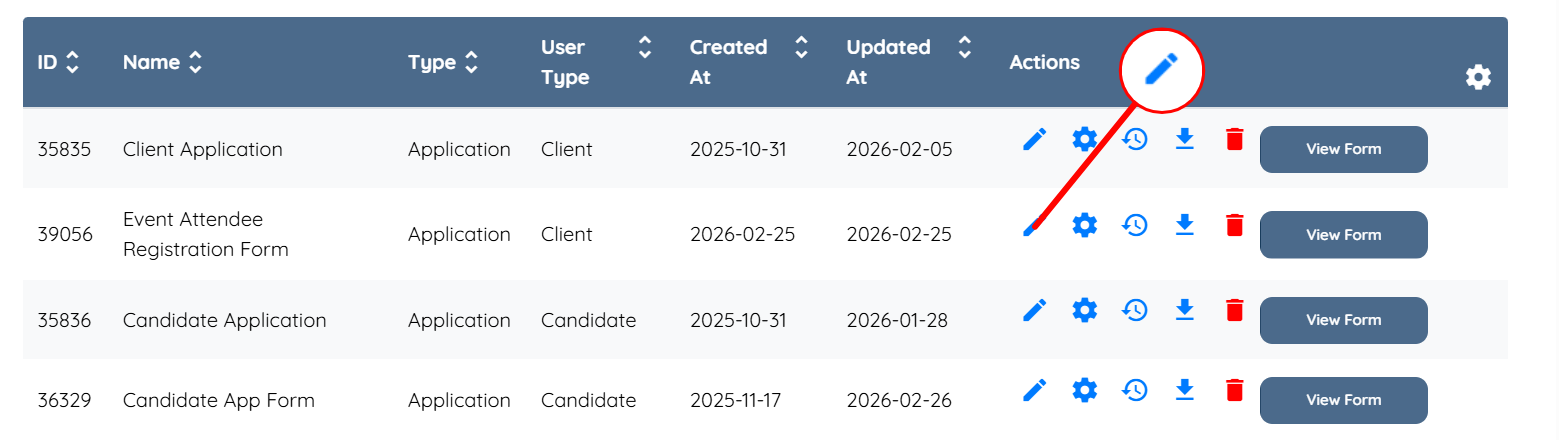
Step 5: Click the pencil icon for the application form.
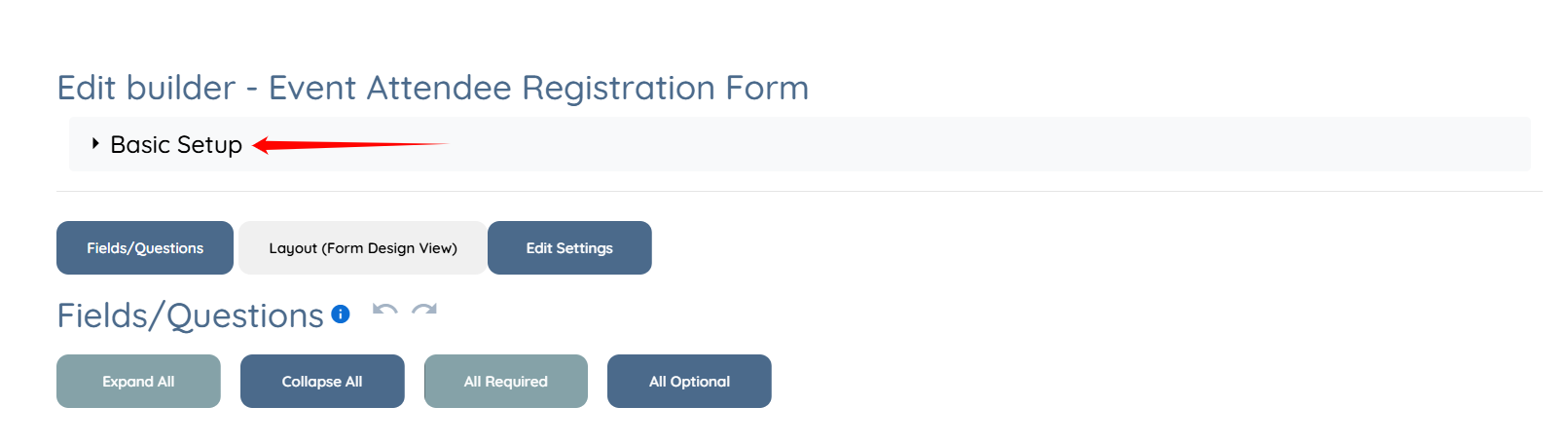
Step 6: Click the Basic Setup option to expand the details.
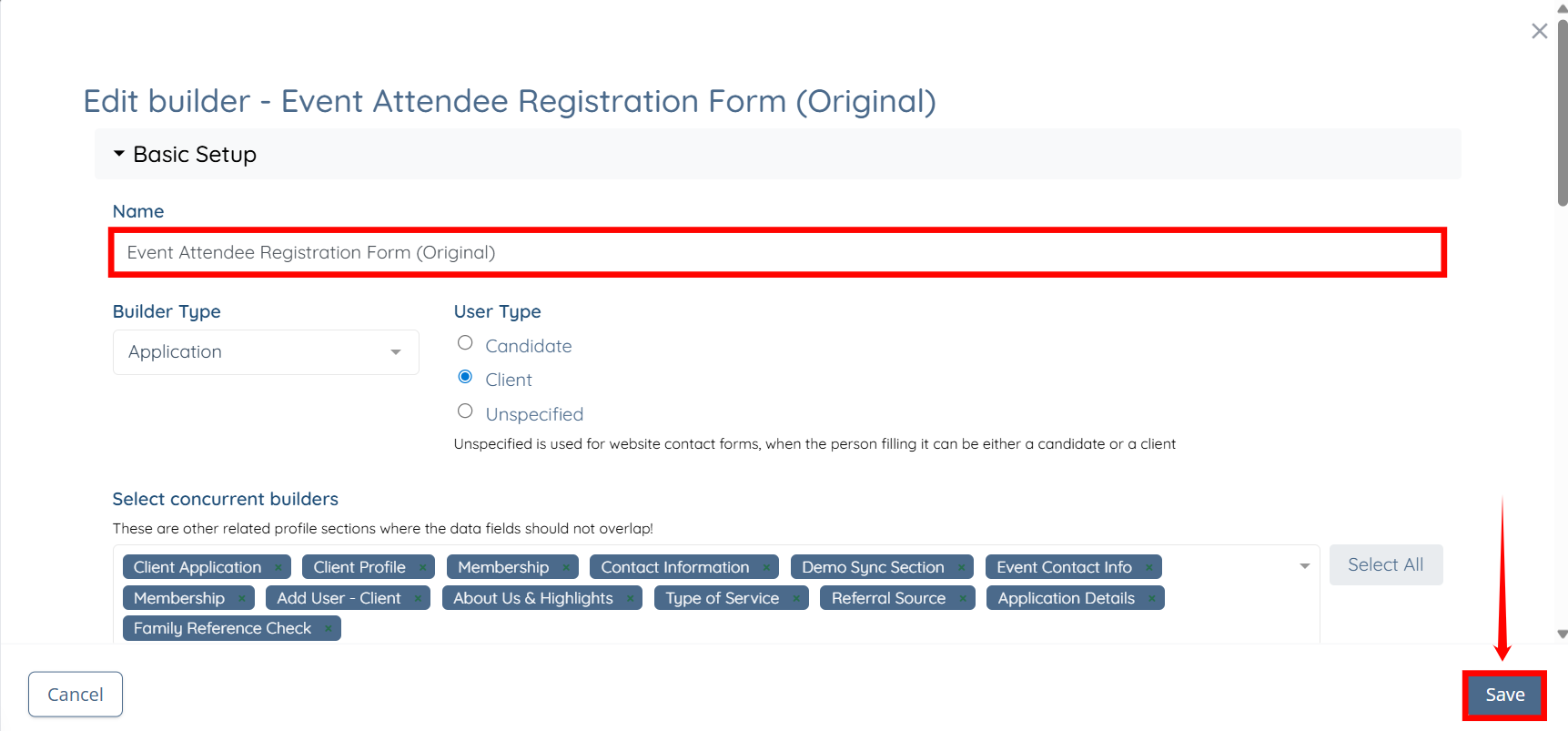
Step 7: Rename the Application Form to distinguish it from the duplicate, then click the Save button to confirm the changes.
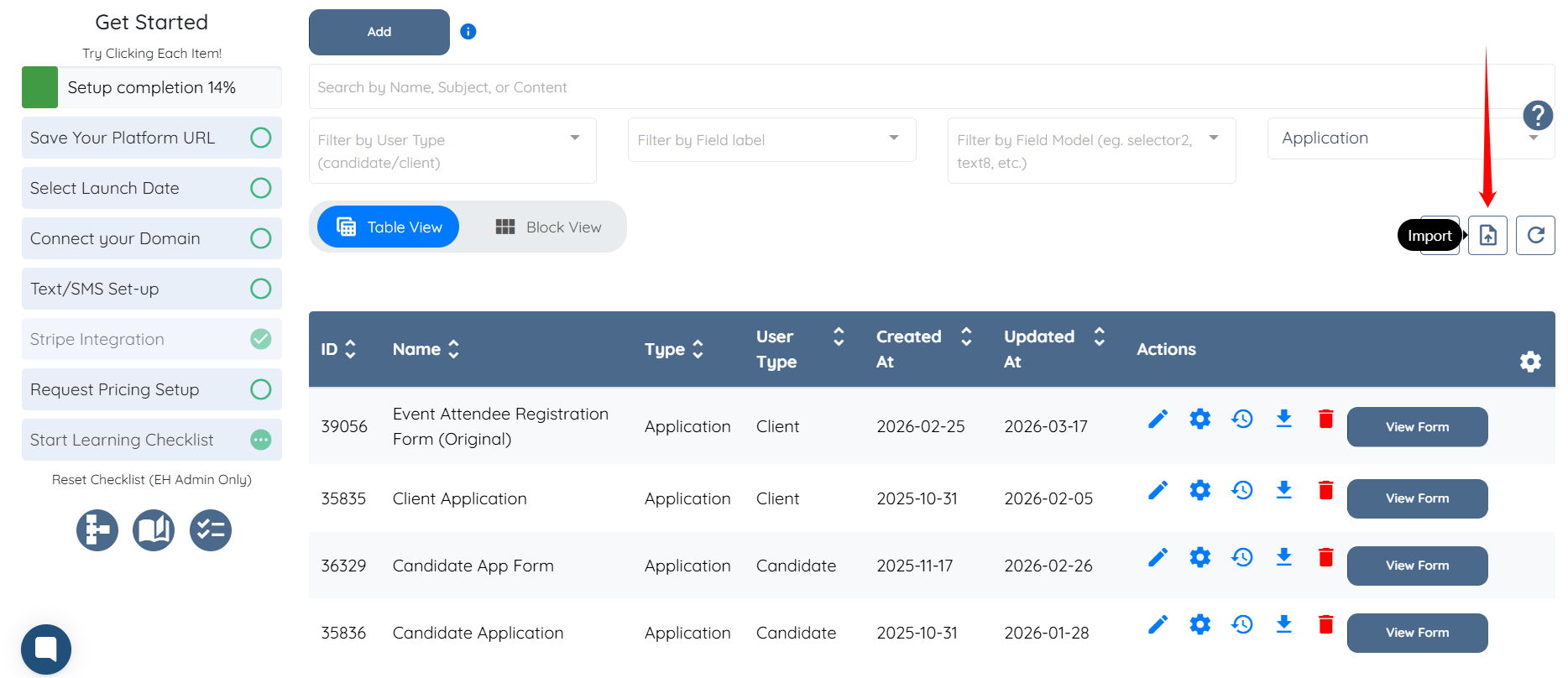
Step 8: Click the Import button, as shown in the screenshot below.
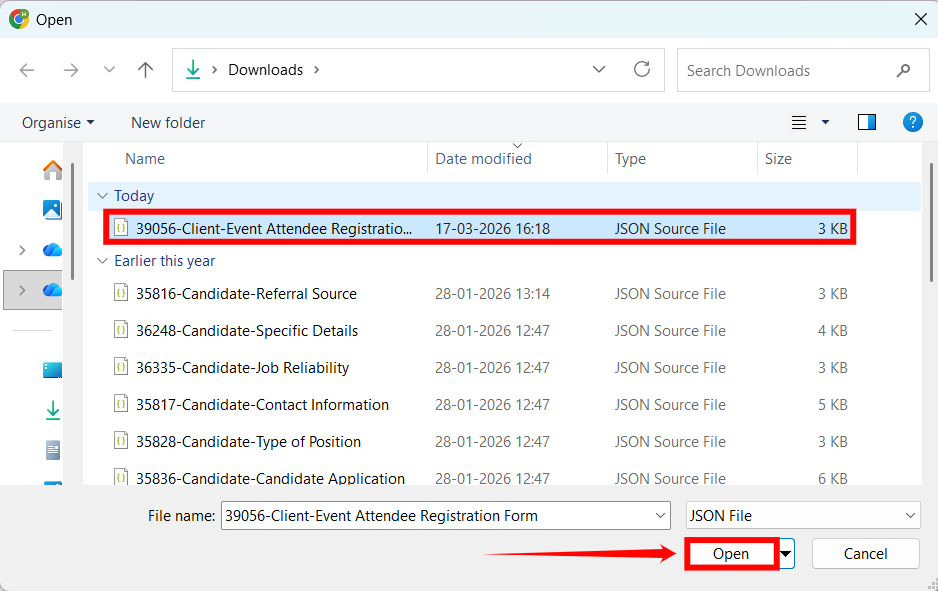
Step 9: Select the downloaded backup copy, then click the Open button to proceed.
The application form will be duplicated successfully and will appear as a new form in the list.