![enginehire logo thin dark 1.0.png]](https://learn.enginehire.io/hs-fs/hubfs/enginehire%20logo%20thin%20dark%201.0.png?height=40&name=enginehire%20logo%20thin%20dark%201.0.png)
When you set up a document for a client to sign, you have control over when they can sign it, whether they can change it first, and how many people need to sign. You can hold a document as a draft so it can't be signed before it's ready, let a client edit the document before signing, and set up a document that more than one signer needs to complete. These controls live in your document templates and on each client's document, so you can decide the right setup once and reuse it.
Holding a document as a draft so it can't be signed early
Two things work together here: a template setting and an action on the document itself.
In the template editor, open Advanced Settings and go to Permissions & Access.
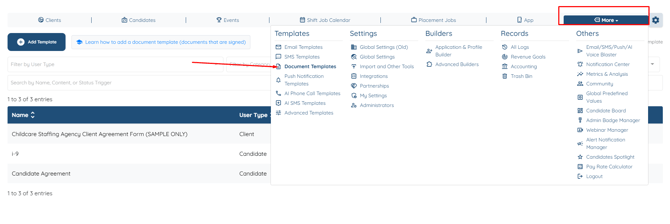
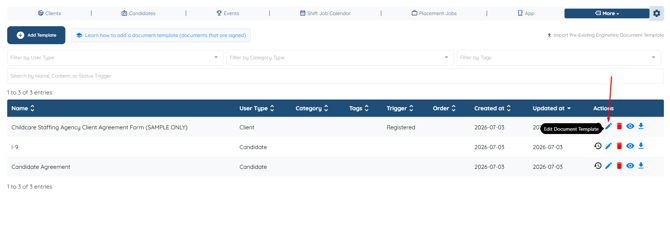
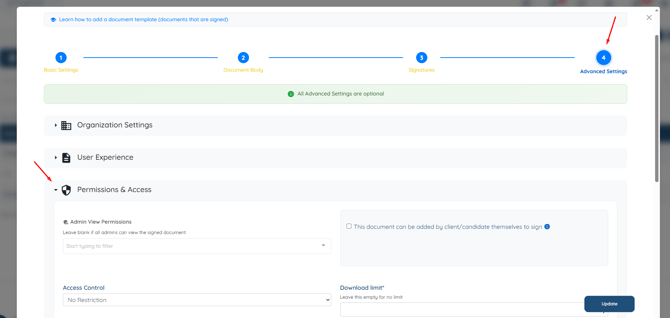
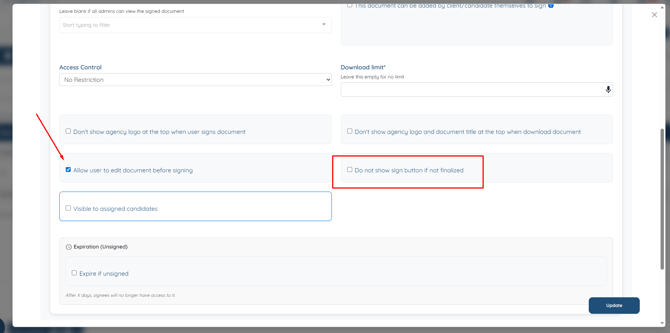
Turn on Do not show sign button if not finalized. With this on, the client won't see a Sign button on the document until you finalize it, so no one can sign while you're still working on it.
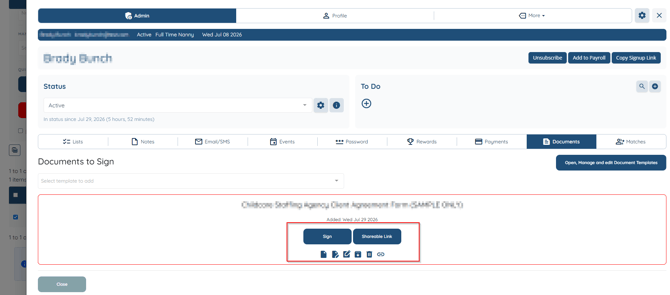
On the client's profile, under Documents to Sign, you can choose Mark as Draft for any document you aren't ready to send for signature. The document then shows a (Draft) label, and on your side the Sign button is replaced with View. When the document is ready, finalize it so the Sign button becomes available to the client again.
Letting a client edit a document before they sign
In the same Permissions & Access settings, turn on Allow user to edit document before signing. The client can then open the document from their dashboard, adjust the content, and submit it, and they'll see a "Document is updated" confirmation. This is useful when a client needs to fill in or correct details before they sign.
For a client to see and edit a document while it's still a draft, the agency setting Show draft signable documents to clients/candidates needs to be on. You'll find it in your agency context settings under Documents.
Keep in mind that editing a draft doesn't send you a notification. Notifications go out when a document is signed, not when a client makes an edit, so it's worth checking a document's status directly if you're waiting on changes.
Setting up a document with more than one signer
Some documents need more than one signature, for example an agreement that both parents sign. A single document can carry more than one signer, so each person signs the same document instead of you sending separate copies. On the client's side each signer gets their own space to sign, where they draw a signature and type their name to confirm, and every signature is captured on that one document. Once everyone has signed, the finished document can be downloaded as a PDF. The signer fields themselves are set up in the Signatures step when you create or edit the document template.
A quick recap of where each control lives
The edit and sign settings ("Allow user to edit document before signing" and "Do not show sign button if not finalized") are set on the template, under Advanced Settings. Marking a document as a draft and finalizing it happen on the individual client's document, under Documents to Sign. And whether draft documents show to clients and candidates at all is controlled once for your whole agency, in your agency context settings.