![enginehire logo thin dark 1.0.png]](https://learn.enginehire.io/hs-fs/hubfs/enginehire%20logo%20thin%20dark%201.0.png?height=40&name=enginehire%20logo%20thin%20dark%201.0.png)
Let’s get started 🚀
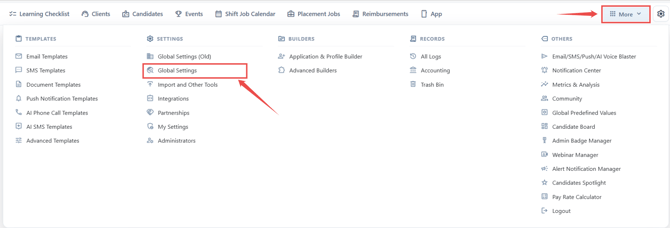
Step 1: From the dashboard, select More → Global Settings.
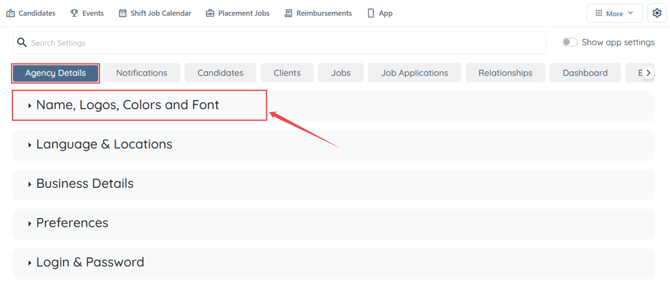
Step 2: Go to Agency Settings, then select the Name, Logos, Colors and Font dropdown menu.
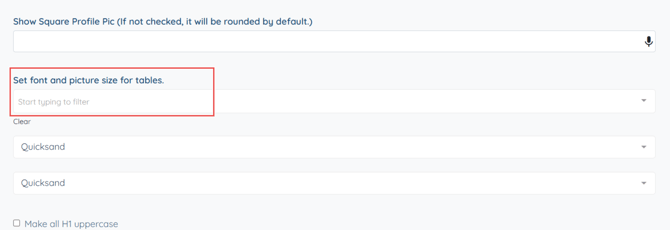
Step 3: Scroll down to locate the Set font and picture size for the tables option.
Step 4: You can select from three options: Small, Normal, or Large. Choose the desired configuration size for table displays.

Step 5: The changes will automatically be saved.
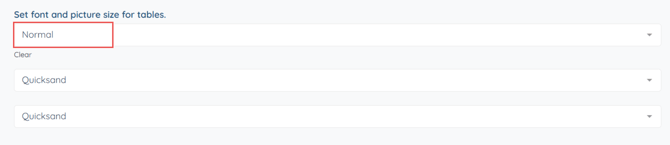
Note: Once you have made your selection, please remember to refresh the page to ensure the new configuration size is applied successfully.
You’re all set. Make the font size changes you need, and the dashboard display will update based on your selected settings.
