![enginehire logo thin dark 1.0.png]](https://learn.enginehire.io/hs-fs/hubfs/enginehire%20logo%20thin%20dark%201.0.png?height=40&name=enginehire%20logo%20thin%20dark%201.0.png)
Let’s get started 🚀
Step 1: Navigate to the To-Do Tasks page.
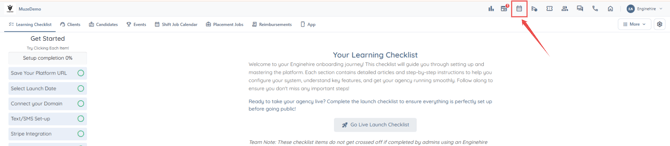
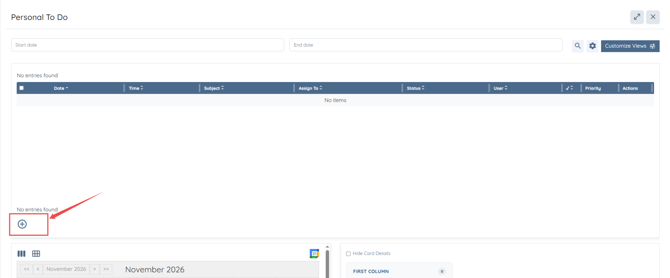
Step 2: Click on the Add(+) icon to create a task.
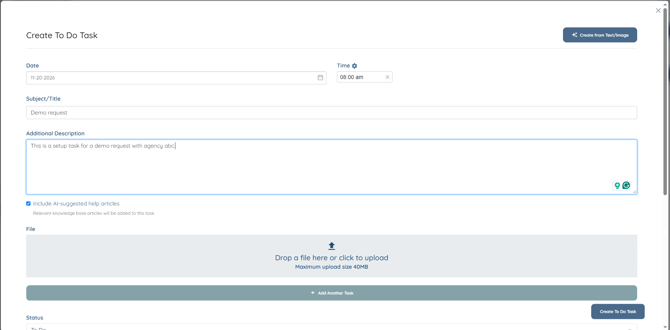
Step 3: Input all the relevant details.
Step 4: Scroll down to view the option to select the Status of the list item.
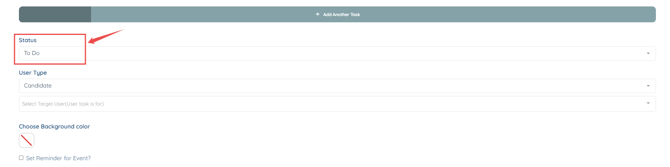
Step 5: We now have an option to select the User Type. As of now, I am selecting Candidate as a user type.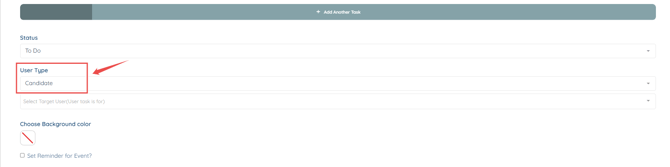
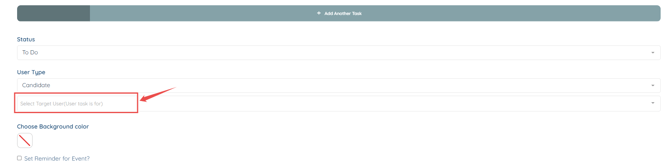
Step 6: You can also select a specific user by selecting it in the Select Target User.
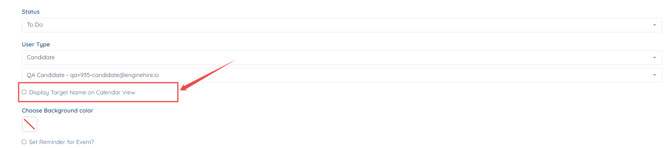
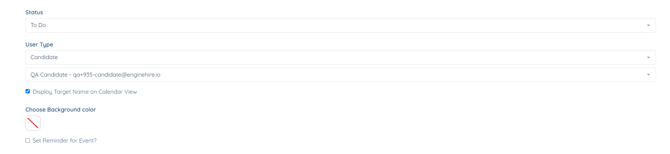
Step 7: Once you have selected a Target user, the system will show a checkbox to select if you wish to display the name of the Target user. In this example, I will select the option to display the name of the Target user in the calendar view.
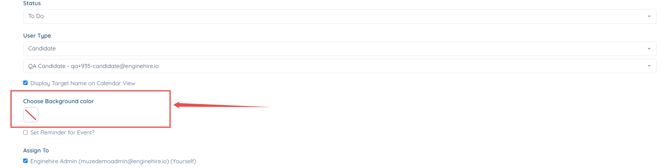
Step 8: Click on Choose Background color. You can also choose the background color of the list item.
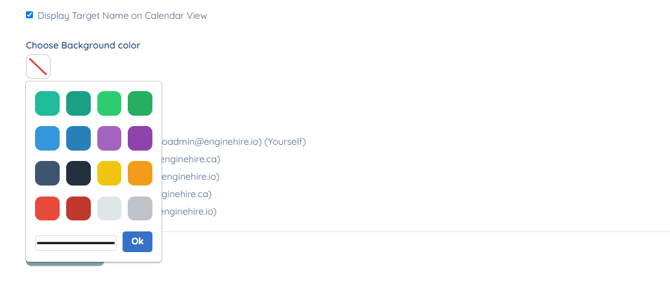
Step 9: A color palette will appear, allowing you to choose your desired color.
Step 10: Once you have input all the details, click on the Create To Do Task button to submit.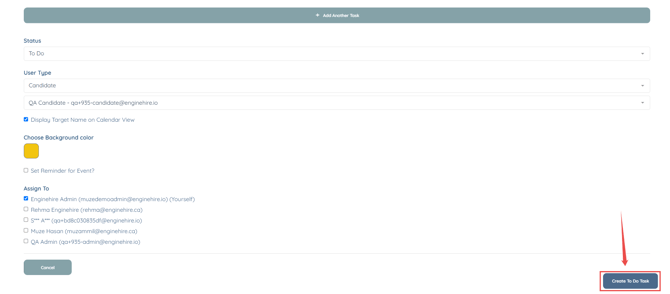
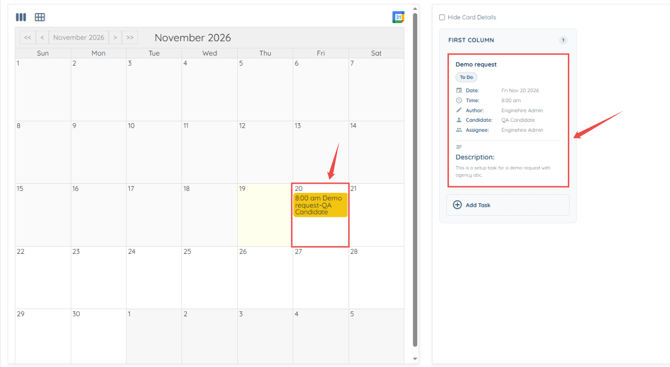
You are all set! After being added, the To-Do task will be displayed in your selected background color, alongside the client or candidate's name.

If you need any further assistance, feel free to contact our support team by clicking here: https://share.hsforms.com/1yIx2IRKyQQaVcMJW8kLbJg39wil