Skip to content
English
  • There are no suggestions because the search field is empty.

Customize Row Background and Text Color in the Email Template Designer

The Email Template Designer allows admins to customize individual rows by changing their background color and text color. This provides greater flexibility to create visually appealing and branded email templates.

 Let’s get started 🚀  

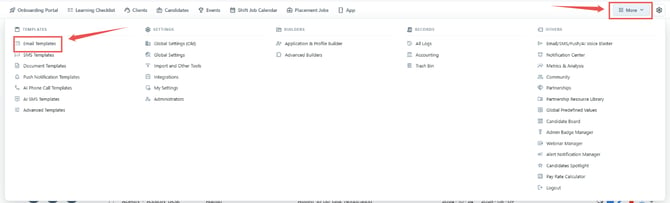
Step 1: Navigate to More and then Email Templates section.
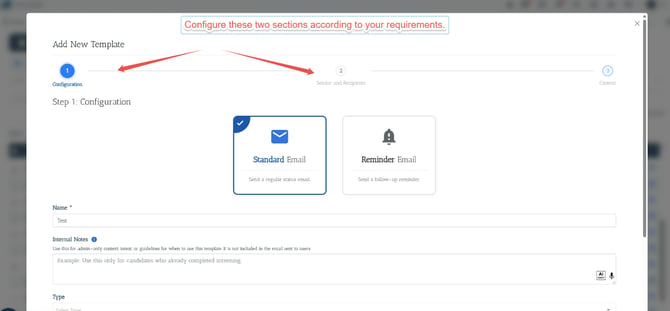
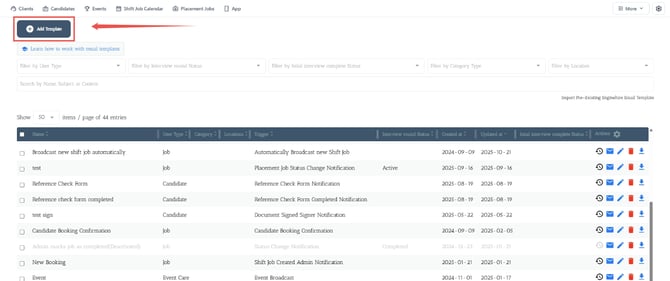
Step 2: Click on Add Template to create a new email template.


Step 3: Enter the template name and configure the required details.


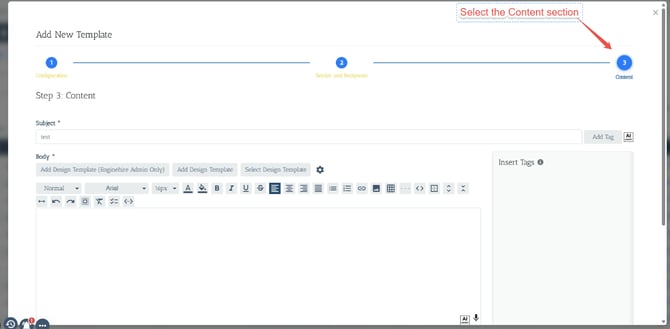
Step 4: Navigate to the Content section.


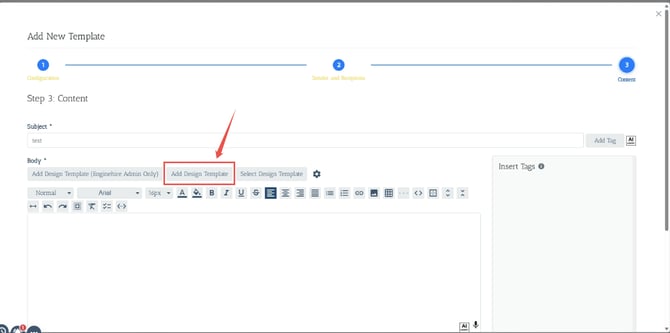
Step 5: Enter the email subject and click on Add Design Template.


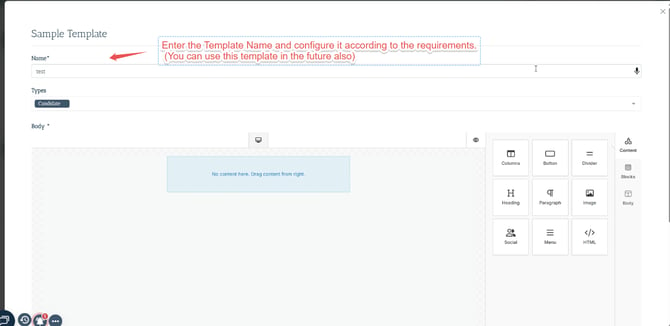
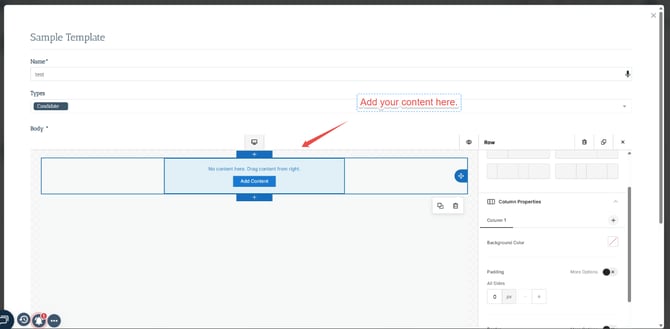
Step 6: Enter the template name in the designer. Add the required content to the template.


Step 7:  Select the row you want to customize.


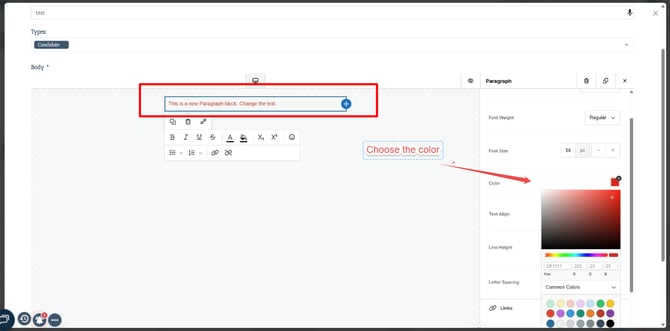
Step 8: To change the Text Color, select the required text and choose your preferred color from the color picker.


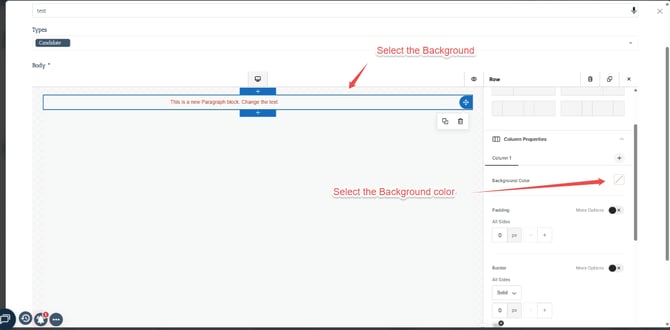
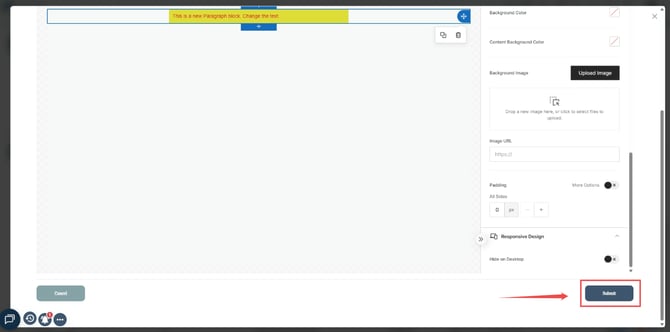
Step 8: To change the Background Color, select the row and navigate to the Row Properties section.


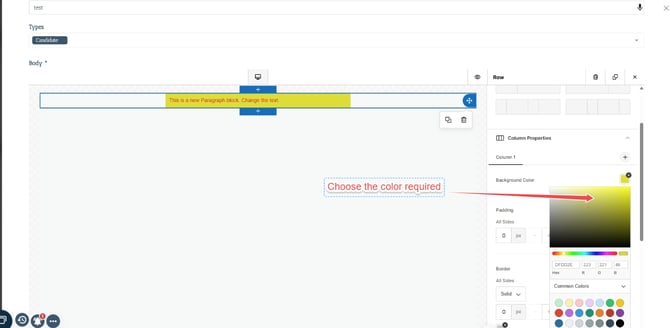
Step 9: Locate the Background Color option and click on the color picker.


Step 10: Once all customizations are completed, click on Save to save the email template.