![enginehire logo thin dark 1.0.png]](https://learn.enginehire.io/hs-fs/hubfs/enginehire%20logo%20thin%20dark%201.0.png?height=40&name=enginehire%20logo%20thin%20dark%201.0.png)
Let’s get started 🚀
Create Tracker Builder
Set up a custom tracker by defining the fields required to capture activity data.
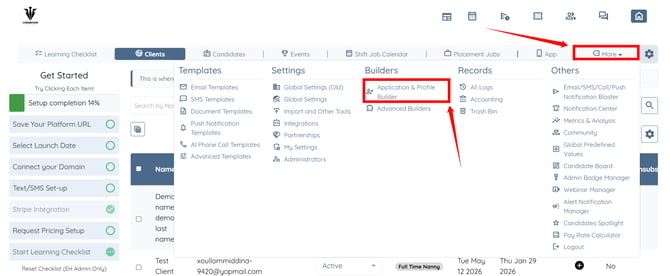
Step 1: Log in to your agent dashboard and click More > Application & Profile Builder, as shown in the screenshot below.
Step 2: Click the Add button to create a new tracker builder.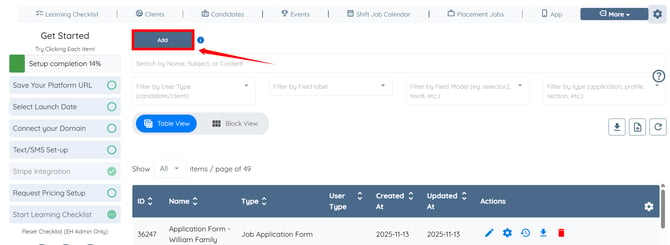
Step 3: Enter the name for your tracker builder.
For demonstration purposes, we will create a tracker to record meals eaten by a baby.
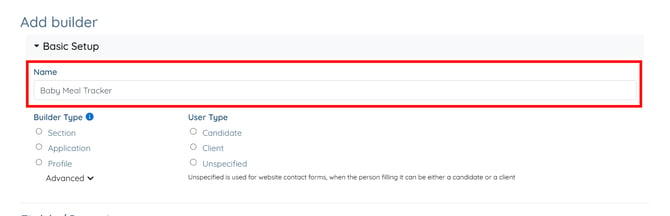
Step 4: Select Child Activity Log as the Builder Type and Unspecified as the User Type. 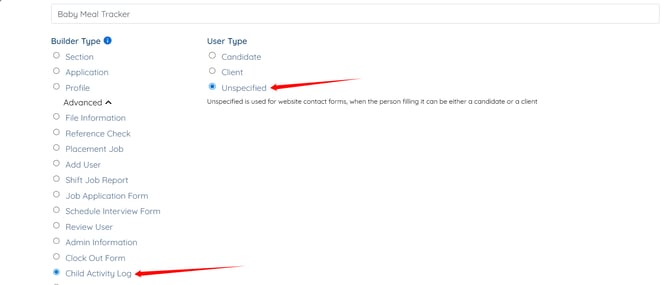
Step 5: Scroll down and click the Add Field button to add a new field.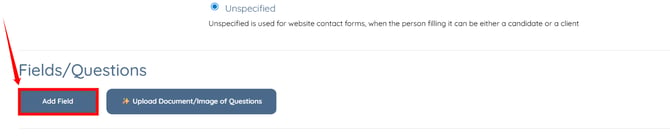
Step 6: Scroll down and enter the Field Label and Profile Label. 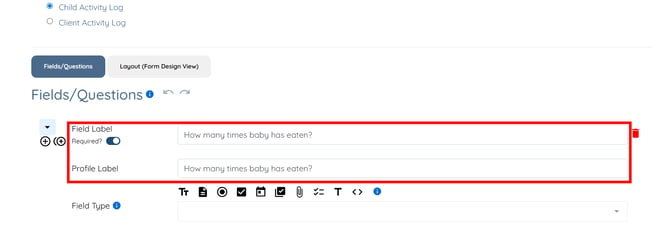
Step 7: Select Textbox from the dropdown list in the Field Type option.
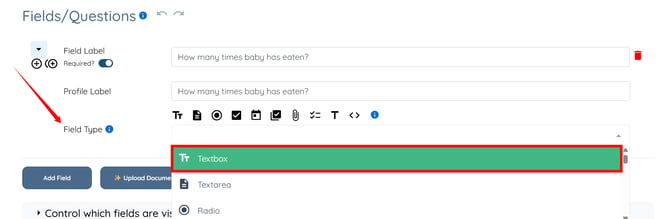
Step 8: Click the Save button to proceed.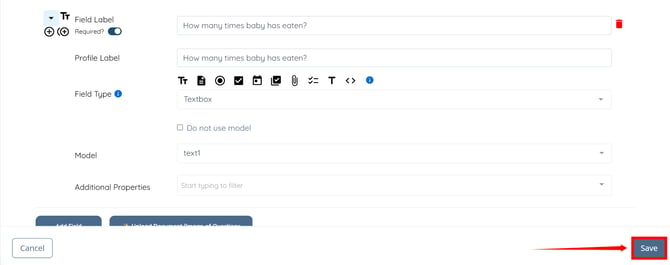
The custom tracker builder will be created successfully.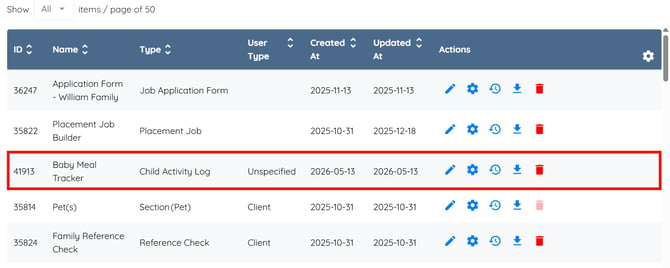
Configure the Tracker Builder
Adjust tracker settings and enable time tracking to record activities more effectively.
Step 1: Click the corresponding gear icon for your tracker builder to open the tracker builder settings.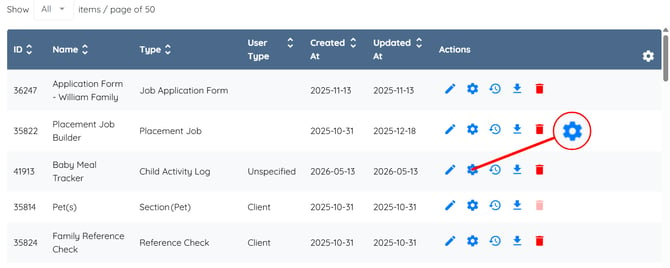
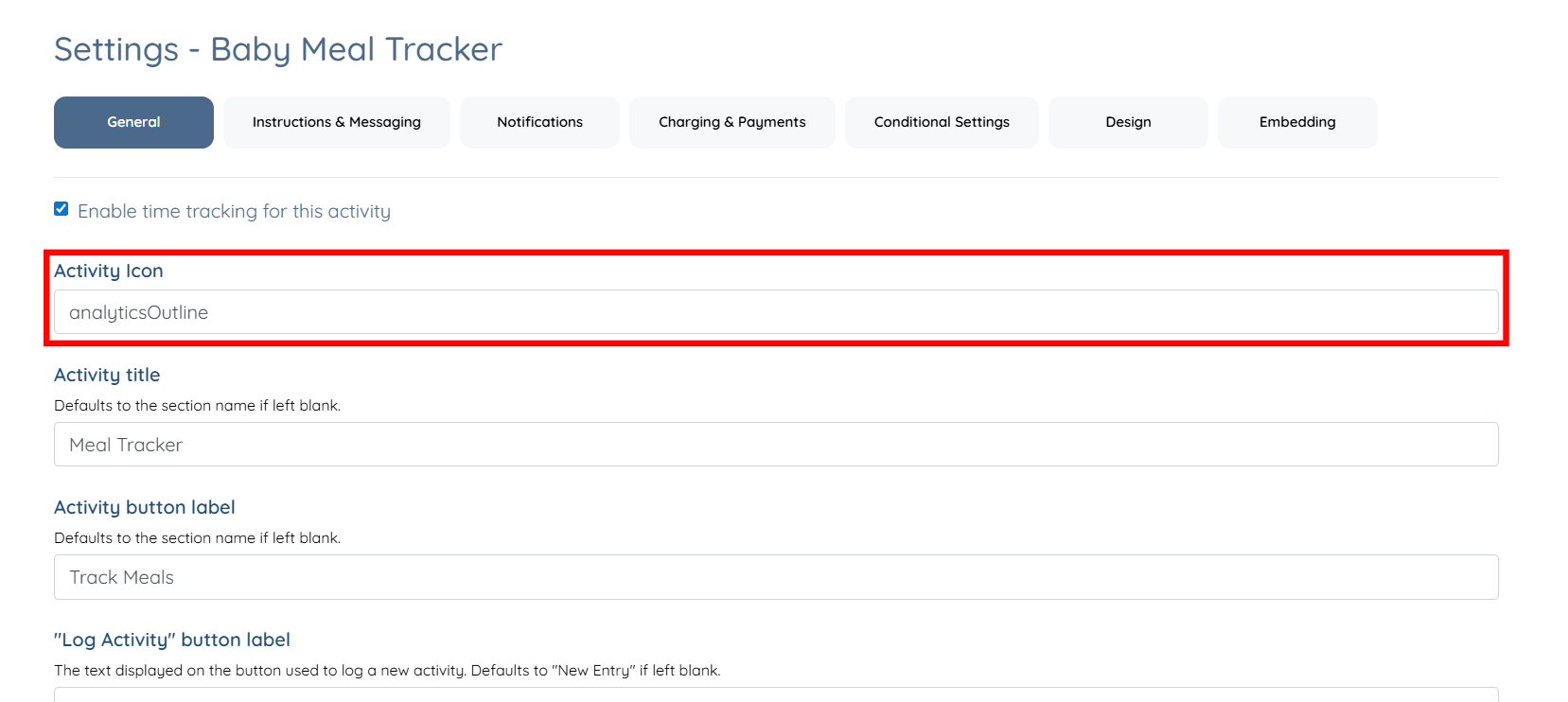
Step 2: Check the Enable time tracking for this activity checkbox.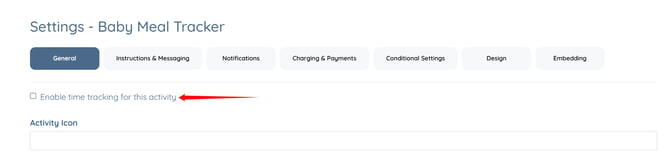
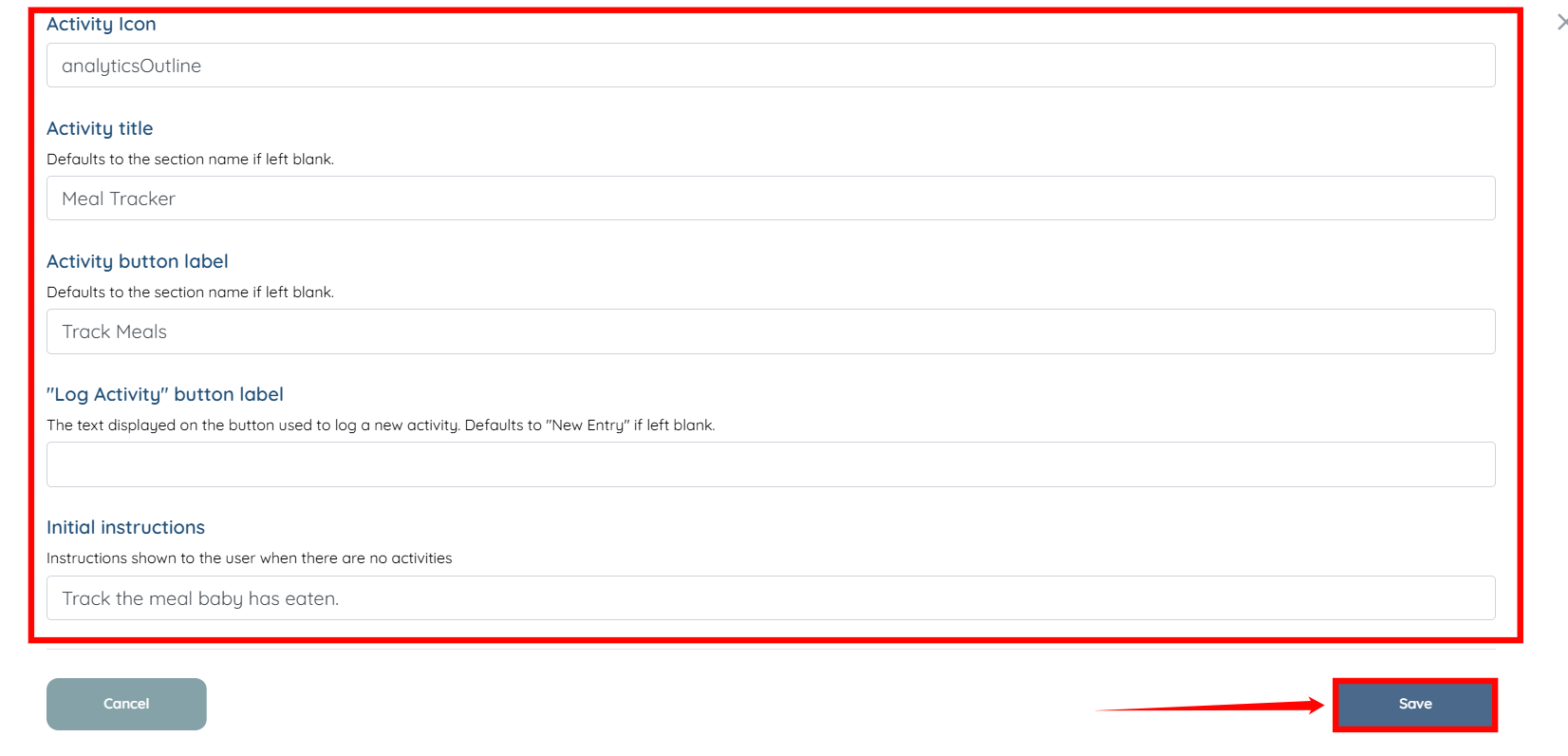
Step 3: Enter all the other required information, and then click the Save button to continue.
To add an icon to the tracker, enter the icon name in the Activity Icon field. Refer to the Add Icon to the Tracker section below for more details.
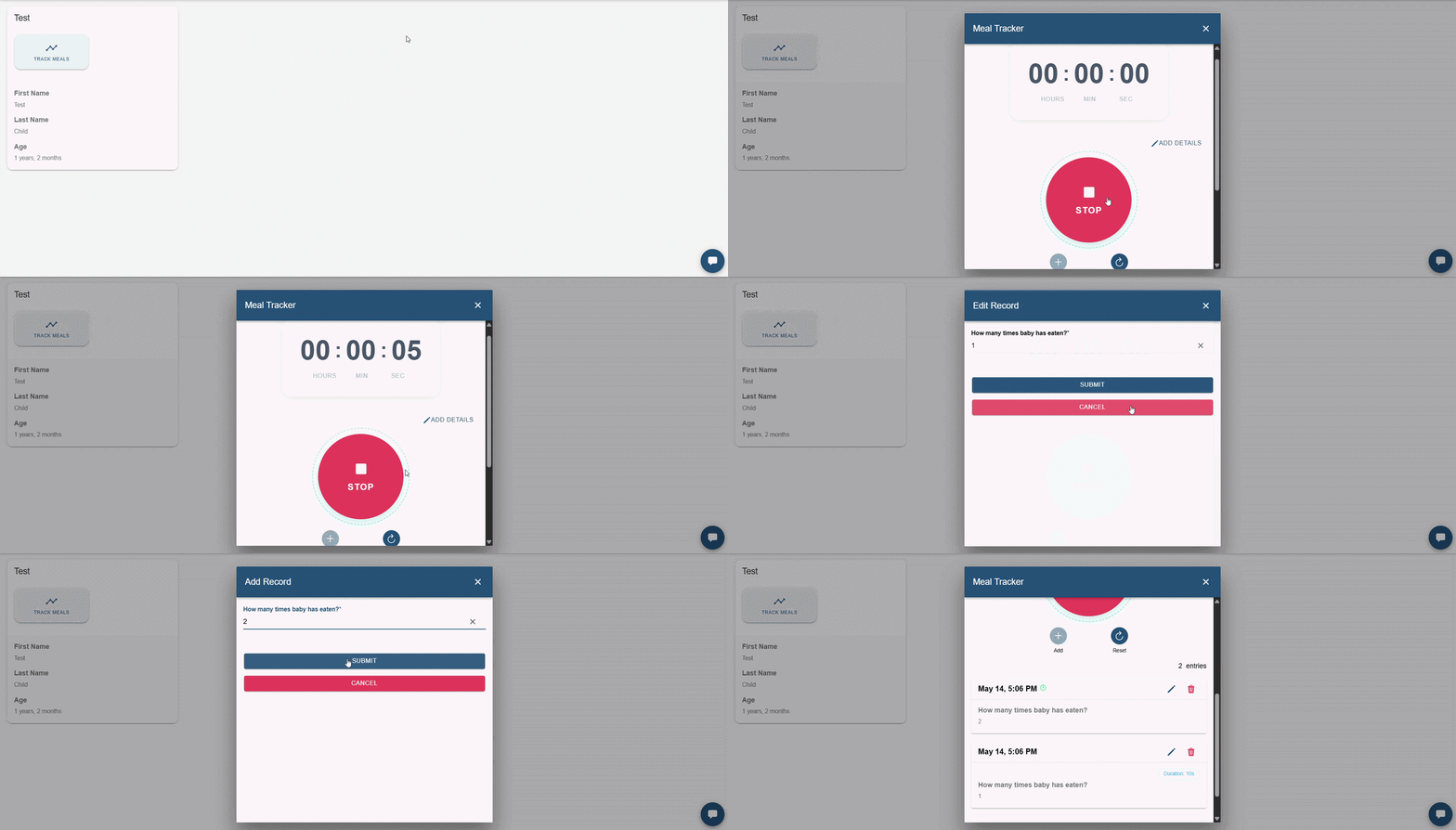
The user can now successfully track the meals the baby has eaten using the tracker.
Add Icon to the Tracker
Select and assign an icon to visually represent the tracker.
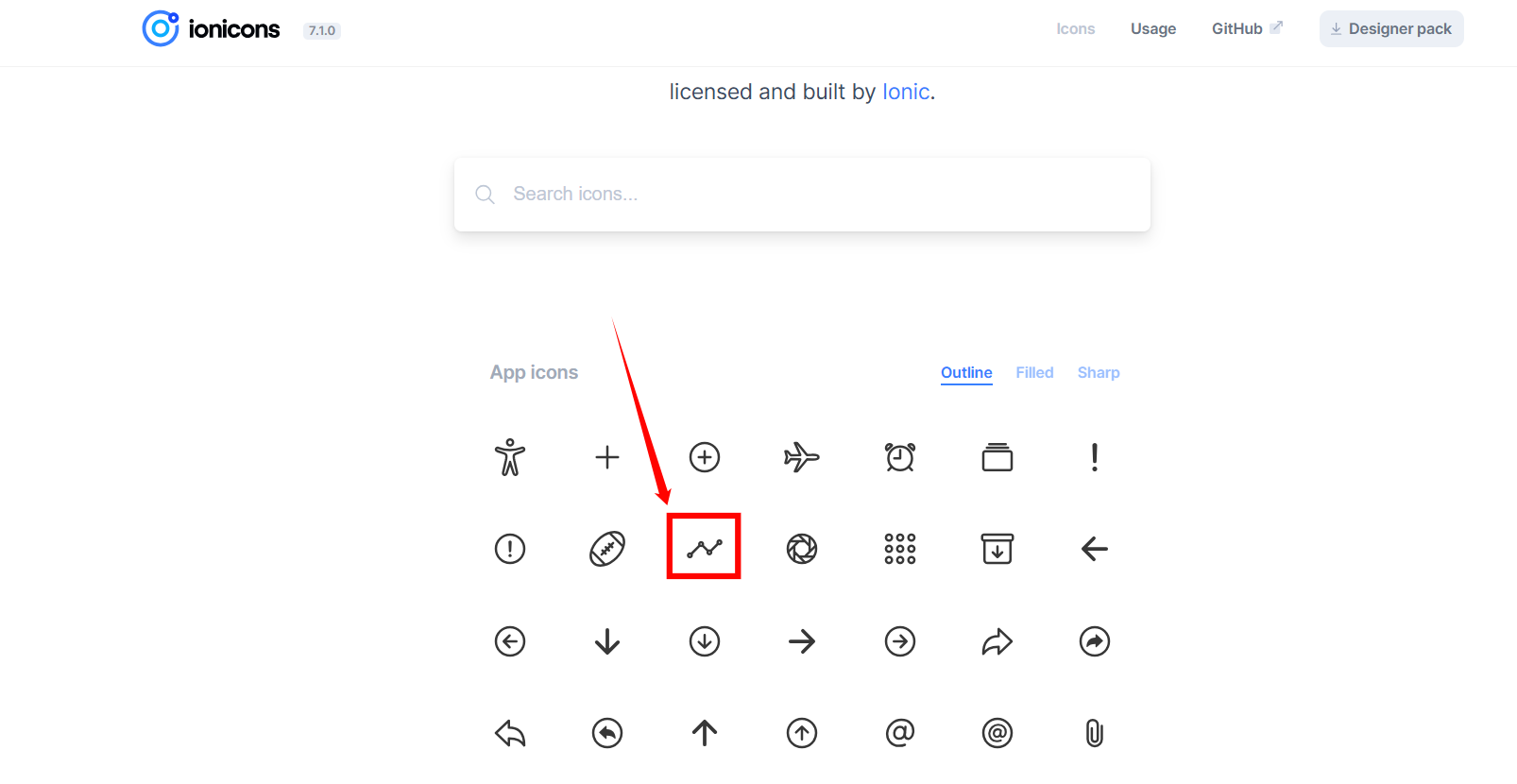
Step 1: Go to the Ionicons library at https://ionic.io/ionicons and select the icon you want to use.
Step 2: Copy the icon name from the WEB COMPONENT CODE.
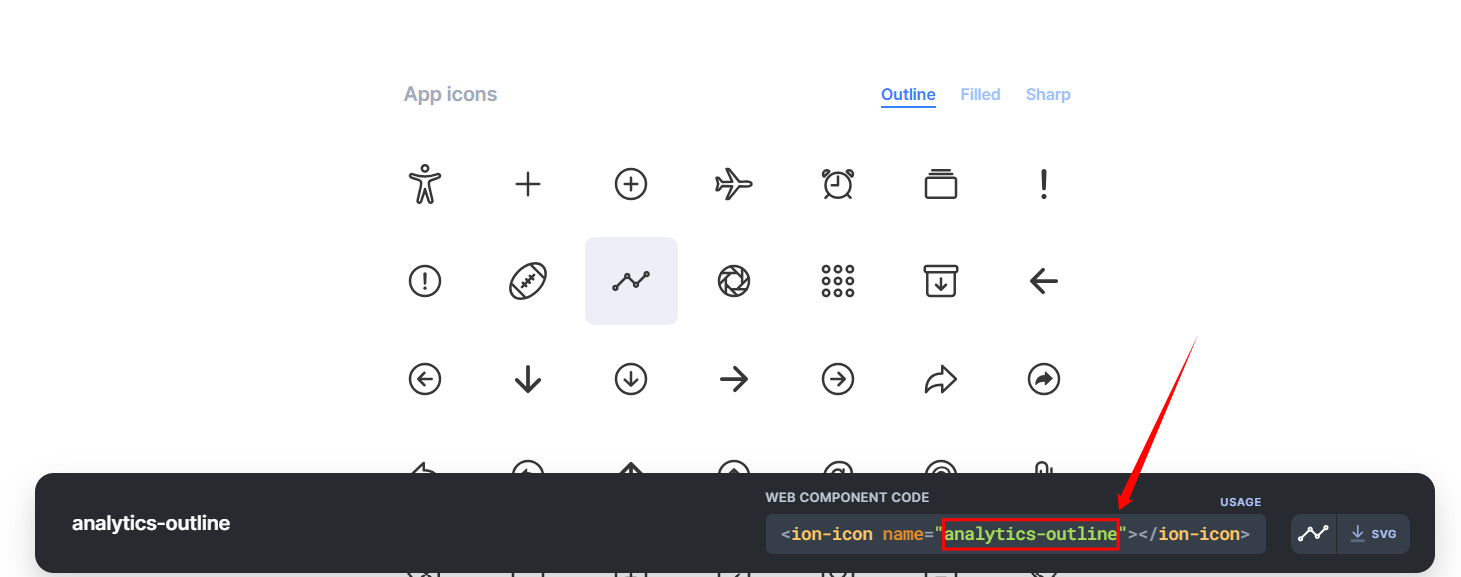
Step 3: Paste and convert it into camelCase in the Activity Icon field.