![enginehire logo thin dark 1.0.png]](https://learn.enginehire.io/hs-fs/hubfs/enginehire%20logo%20thin%20dark%201.0.png?height=40&name=enginehire%20logo%20thin%20dark%201.0.png)
Let’s get started 🚀
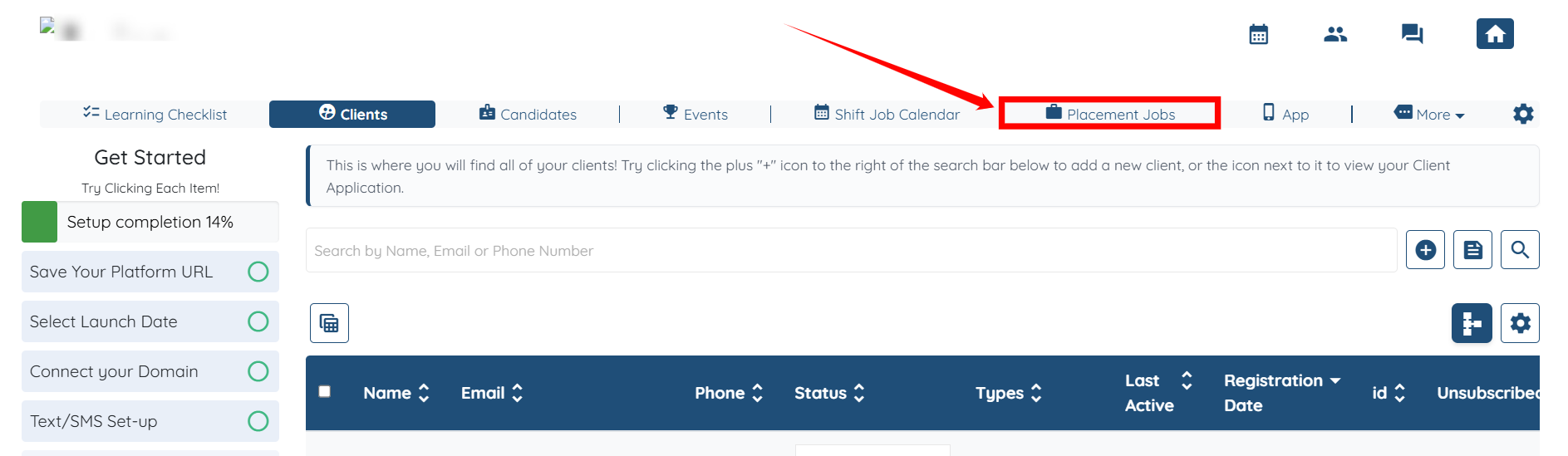
Step 1: Log in to your agent dashboard and click Placement Jobs in the top navigation bar.
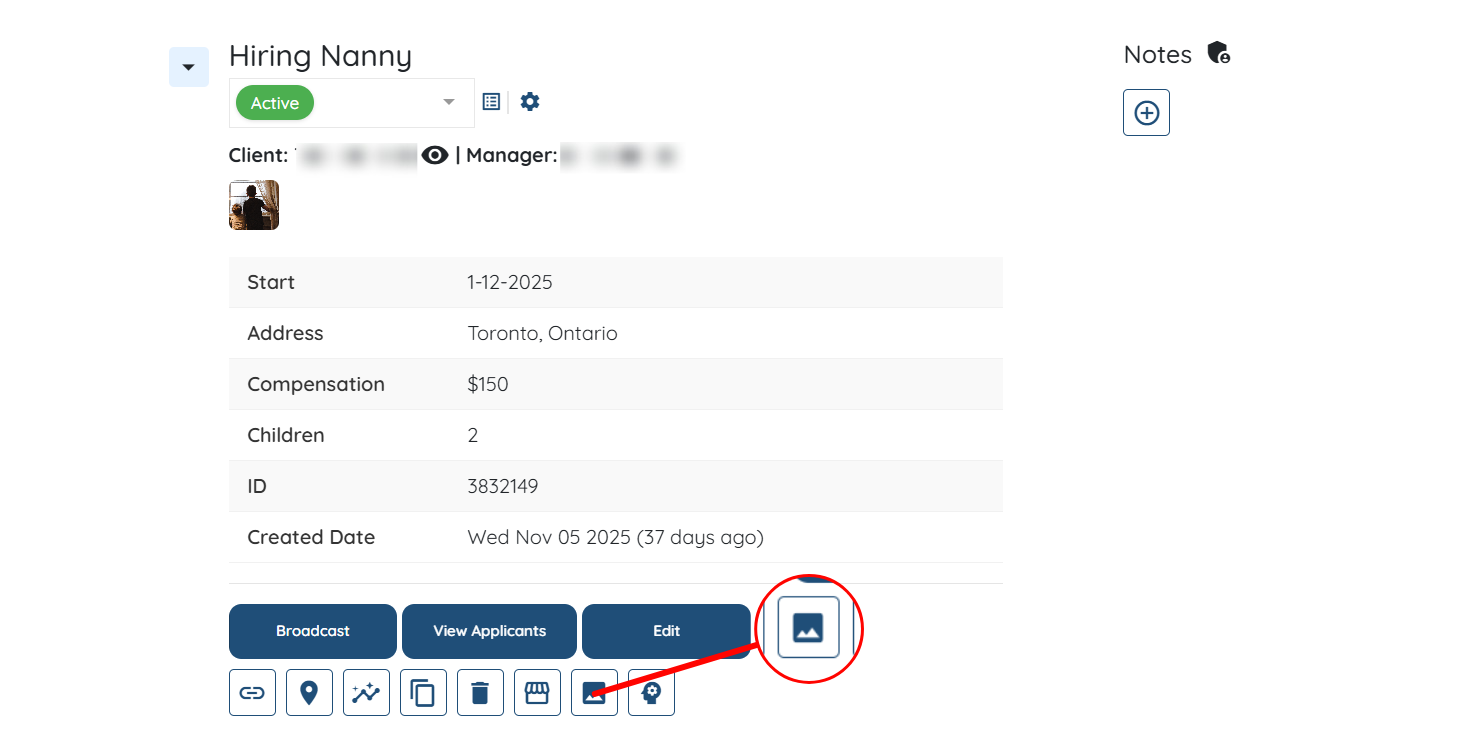
Step 2: Locate the placement job for which you want to create an Instagram post. Then, click the Image icon as shown in the screenshot below.
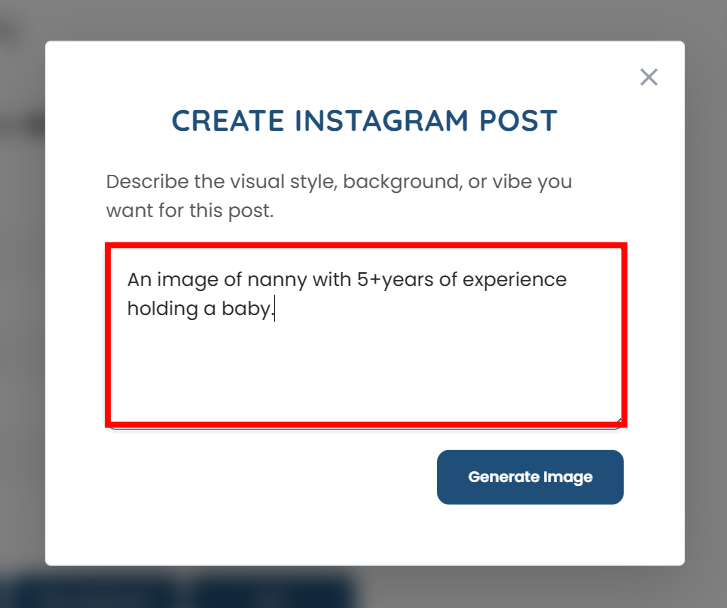
Step 3: Write the text that describes the style, background, or vibe you want for this post.
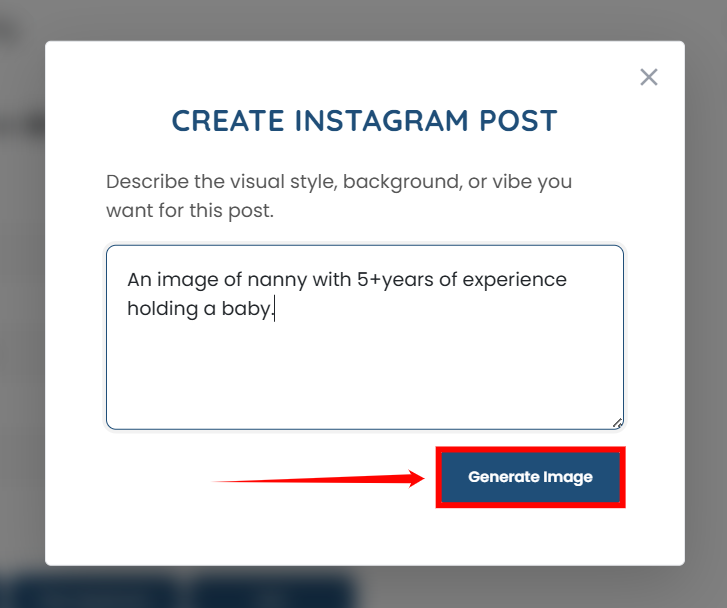
Step 4: Click the Generate Image button to begin generating the image.
Step 5: The image will generate successfully, and you can download it by clicking the Download Image button.
If you are not satisfied with the currently generated image, you can create a new one by clicking the Create New button.
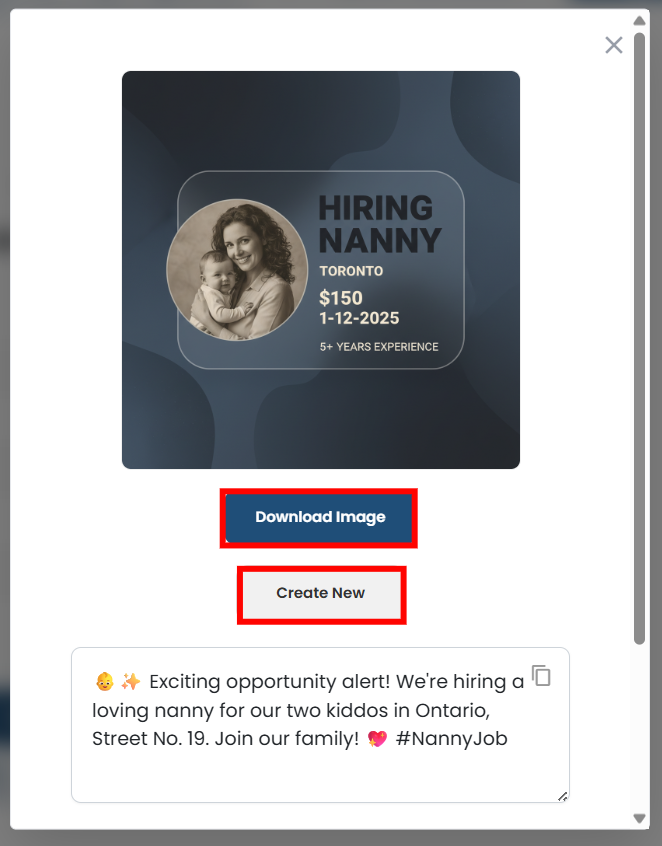
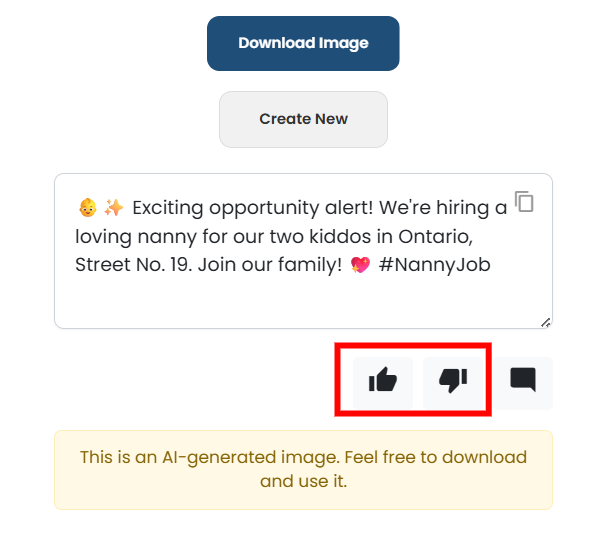
Step 6: You can also provide your feedback on the generated image by clicking the Like or Dislike button.
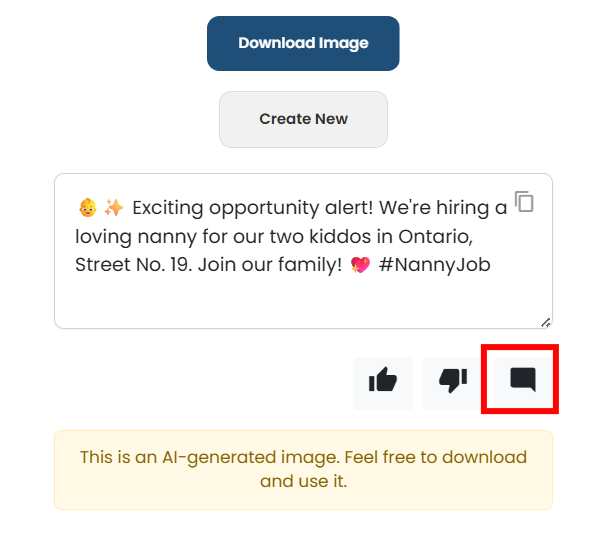
Step 7: Additionally, you can also add a comment by clicking the icon as shown in the screenshot below.
Step 8: After you add the comment, click the Submit button to proceed.
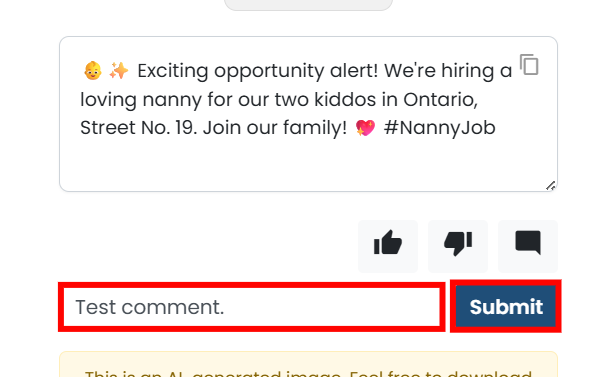
The Like, Dislike, and comment options help our team improve this feature. Any feedback you share is used only for development purposes and does not regenerate, reuse, or modify the generated image.