![enginehire logo thin dark 1.0.png]](https://learn.enginehire.io/hs-fs/hubfs/enginehire%20logo%20thin%20dark%201.0.png?height=40&name=enginehire%20logo%20thin%20dark%201.0.png)
Where to find Copy Week on the availability calendar
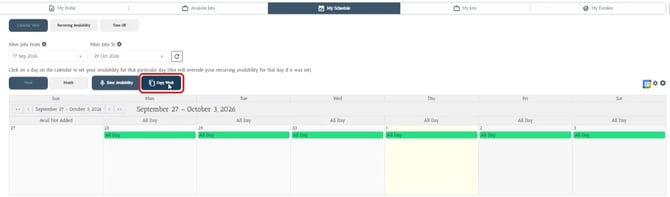
Copy Week sits just above the availability calendar, right next to the Enter Availability button. It only shows when the calendar is in Week view, so if you're looking at a full month, click Week first.
Candidates will find it in the same schedule calendar they use to click a day and set their availability, or to enter availability using voice.
Admins can open it from a candidate's profile. Open the candidate from your Caregivers list (your agency may call this list Candidates), click Profile, go to My Schedule, and make sure Calendar View is selected.
How to copy a week of availability
Step 1: Set up the week you want to copy. Use the arrows above the calendar to move to that week, and make sure each day you want to repeat has its availability entered. Copy Week copies what is already on the calendar, so finish the week first.
Step 2: With that week showing in Week view, click Copy Week.
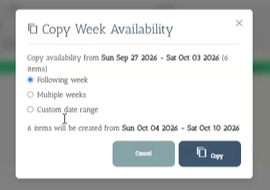
Step 3: In the Copy Week Availability window, check the line at the top. It shows the week you're copying from and how many availability entries (items) it holds, for example "Copy availability from Sun Sep 27 2026 - Sat Oct 03 2026 (6 items)." If that isn't the week you meant, click Cancel and move to the right week on the calendar.
Step 4: Choose where to copy the week. Following week is selected by default and copies into the very next week. Multiple weeks adds a Number of weeks field, and the week is copied into that many weeks in a row, starting with the following week. Custom date range lets you choose the dates to copy into instead of a number of weeks.
Whichever option you pick, the line just above the buttons tells you exactly what will happen before anything is saved, for example "18 items will be created from Sun Oct 11 2026 - Sat Oct 31 2026." Read it to make sure the dates are right.
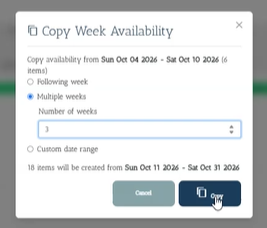
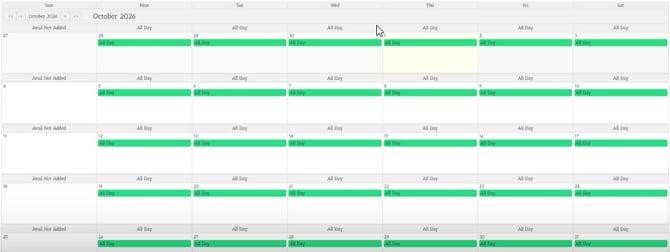
Step 5: Click Copy. A Schedule updated message confirms the copy. The calendar stays on the week you copied from, so to see the new entries, click the forward arrow or switch to Month view.
What gets copied
Each availability entry in the week you copy from is created again on the same weekday in each new week. Weeks on the calendar run from Sunday to Saturday. Only days that have availability are copied. In the example above, Monday through Saturday each have an All Day entry and Sunday has none, so the week holds 6 items. Copying it into the following week creates 6 new entries, copying it into 3 weeks creates 18, and no Sunday entries are created in any of the new weeks.
Tips for copying availability
After copying, switch to Month view and look over the new weeks. If one day in a copied week needs to be different, such as a day off or shorter hours, click that day on the calendar and change it. This only affects that day, and the rest of the copied weeks stay as they are.
Copy Week creates entries for specific dates, so the copied weeks have a clear end. If your availability is the same every week with no end date, set it under Recurring Availability instead, and use Copy Week for stretches of weeks that follow a pattern.
If this doesn't answer your question, you can always contact us by clicking here.