![enginehire logo thin dark 1.0.png]](https://learn.enginehire.io/hs-fs/hubfs/enginehire%20logo%20thin%20dark%201.0.png?height=40&name=enginehire%20logo%20thin%20dark%201.0.png)
Let’s get started 🚀
Step 1: Log in to your agent dashboard and click More > Application & Profile Builder, as shown in the screenshot below.

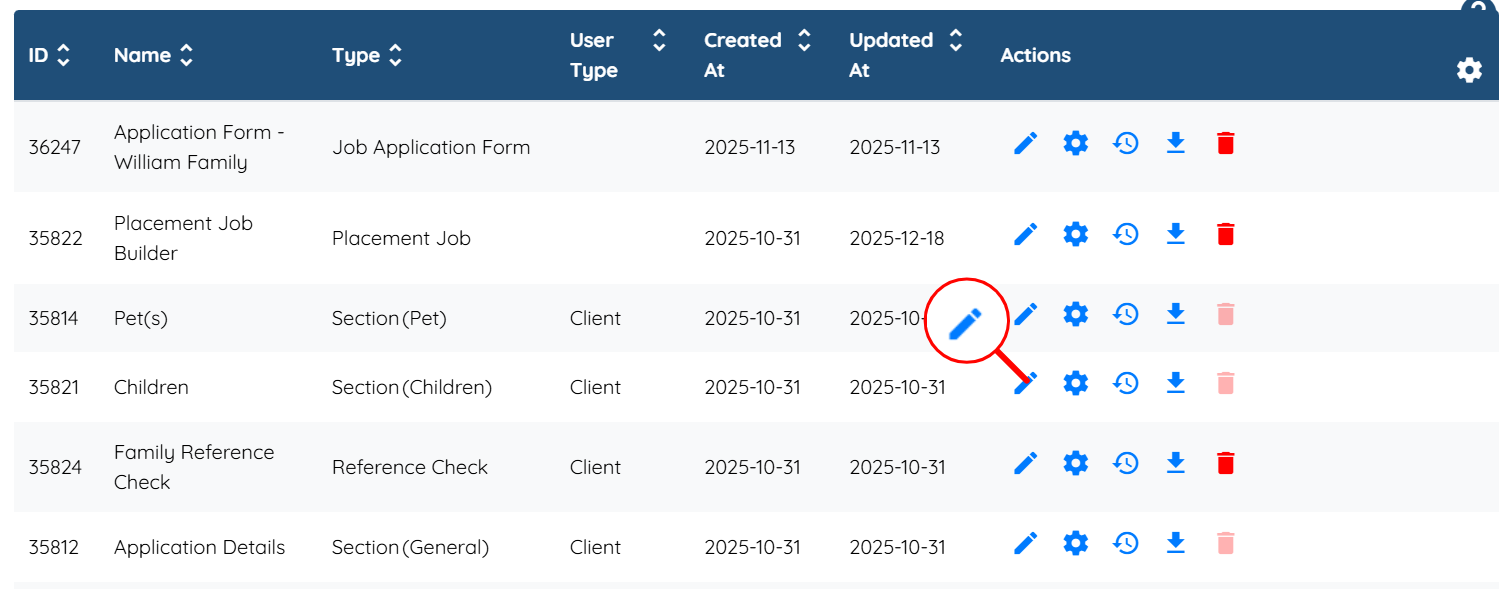
Step 2: Locate the section whose visibility you want to control, and then click the corresponding pencil icon to open that section.
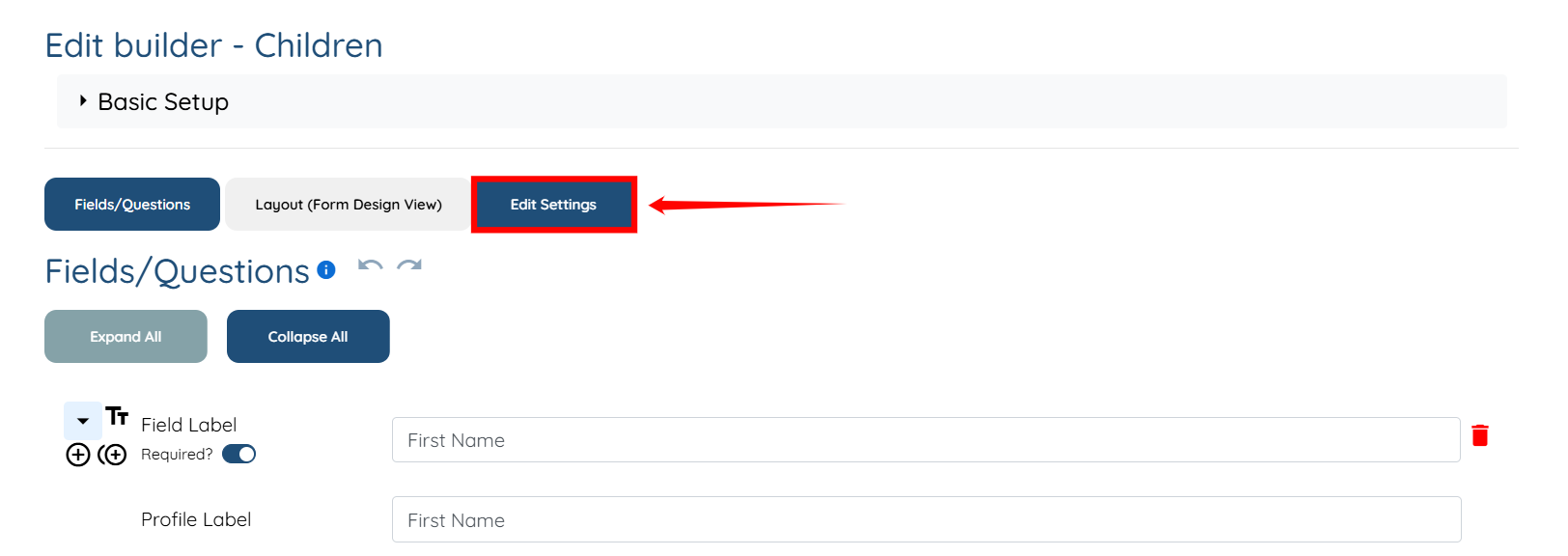
Step 3: Click the Edit Settings button.
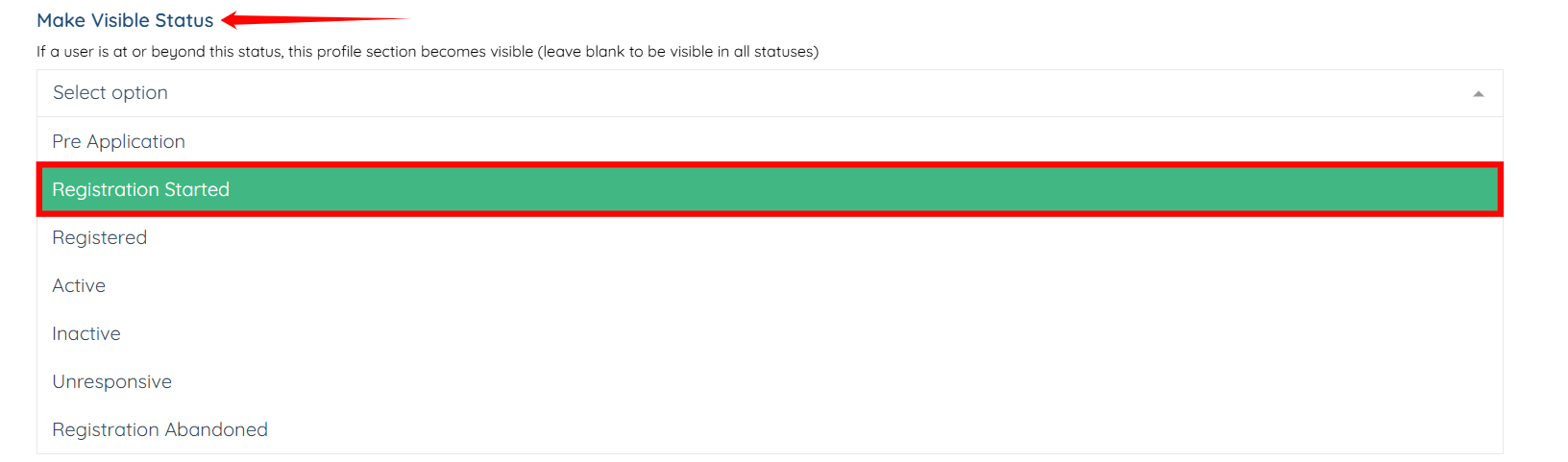
Step 4: Under the “Make Visible Status” field, you can select the status at which the section becomes visible.
When a user reaches or exceeds the selected status, the section becomes visible.
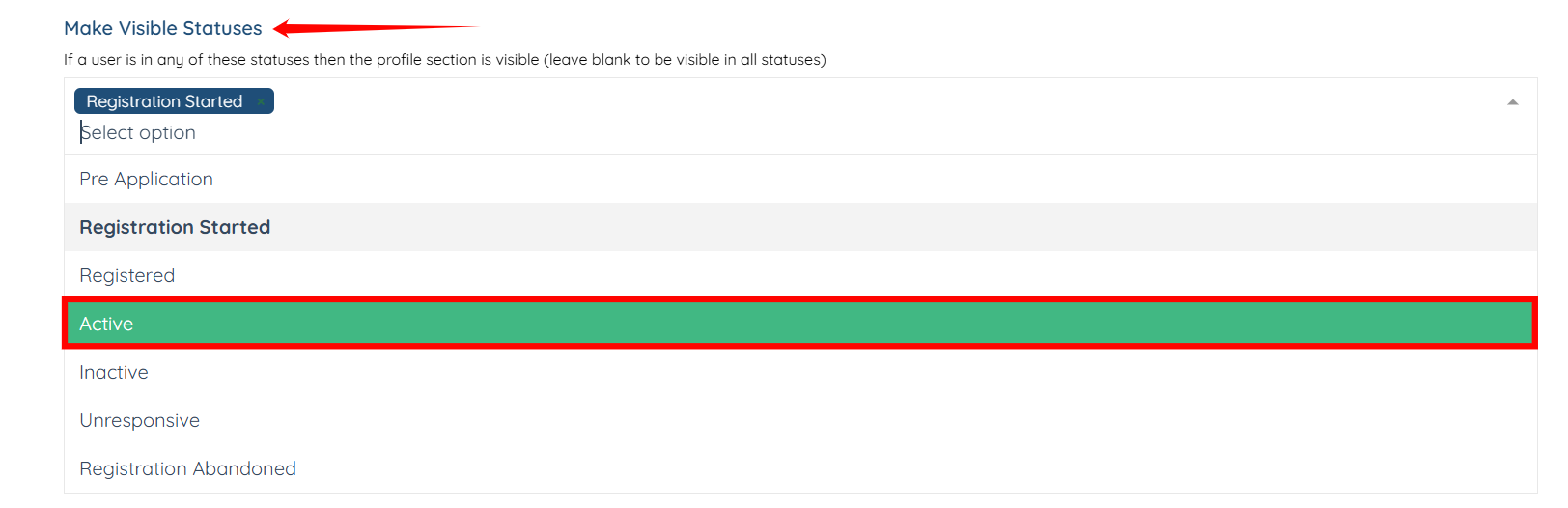
Step 5: Under the “Make Visible Statuses” field, select the statuses for which the profile section should be visible.
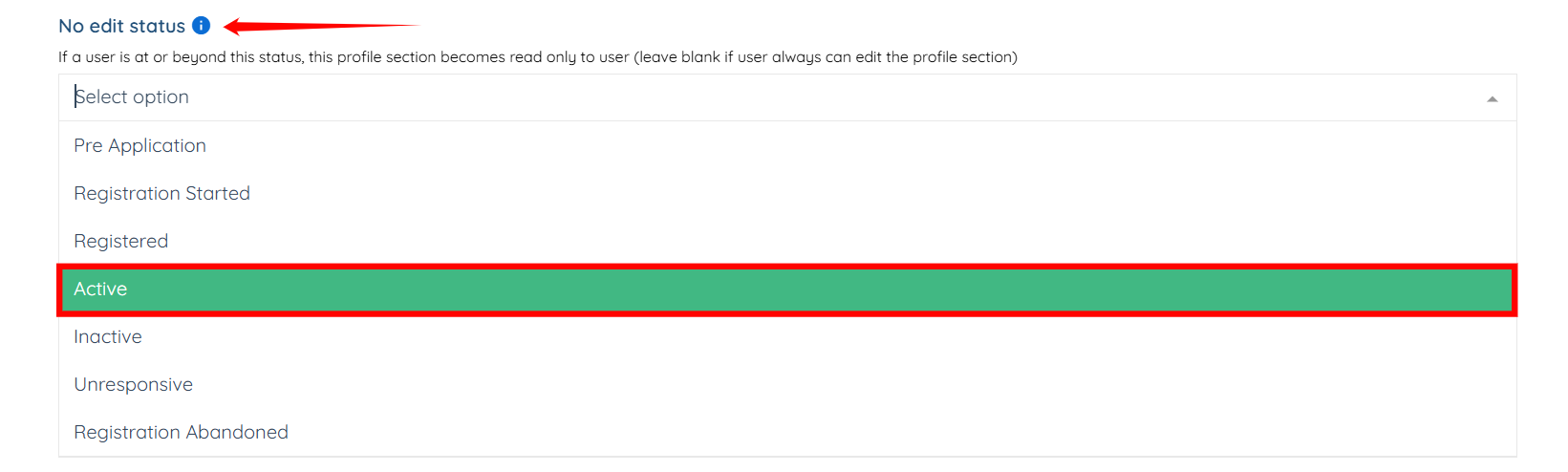
Step 6: Under the “No edit status” field, you can select the status at which the section should become read-only for the user.
When a user reaches or exceeds the selected status, the section becomes read-only for the user.
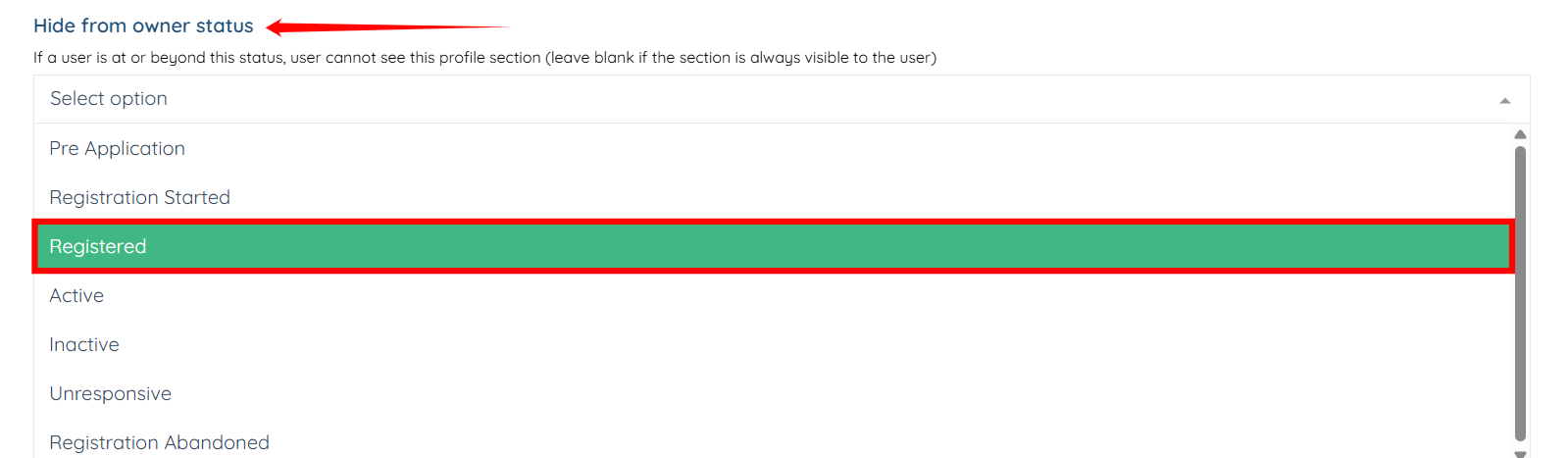
Step 7: Under the “Hide from owner status” field, you can select the status at which the section becomes hidden.
When a user reaches or exceeds the selected status, the section becomes hidden.
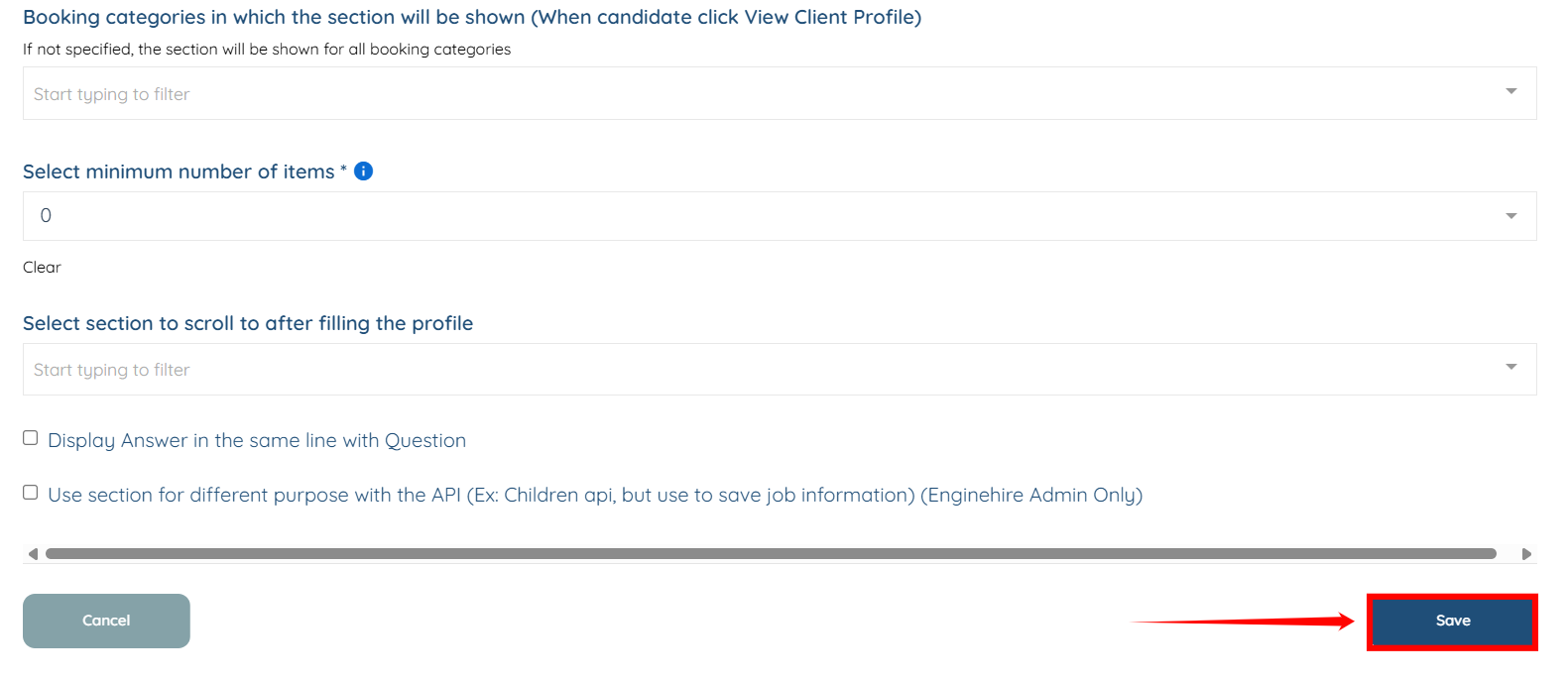
Step 8: Click the Save button to confirm the changes.