![enginehire logo thin dark 1.0.png]](https://learn.enginehire.io/hs-fs/hubfs/enginehire%20logo%20thin%20dark%201.0.png?height=40&name=enginehire%20logo%20thin%20dark%201.0.png)
Let’s get started 🚀
Configure WellSky Client Data Sync Mapping
Configure how Needs Caregiver to Drive and CareFinder Match Criteria values from WellSky are mapped to Enginehire client types and client tags when client records are synchronized.
Step 1: Log in to your agent dashboard, and click More > Global Settings as shown in the screenshot below.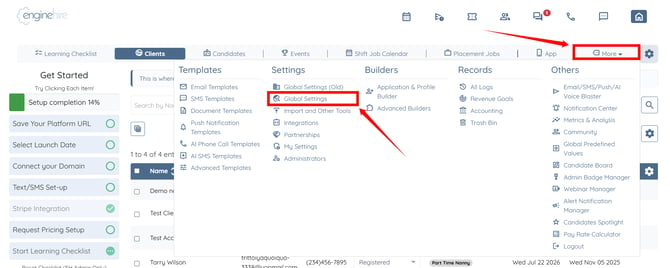
Step 2: Scroll tabs to the left and click the Backup Care Assistant tab.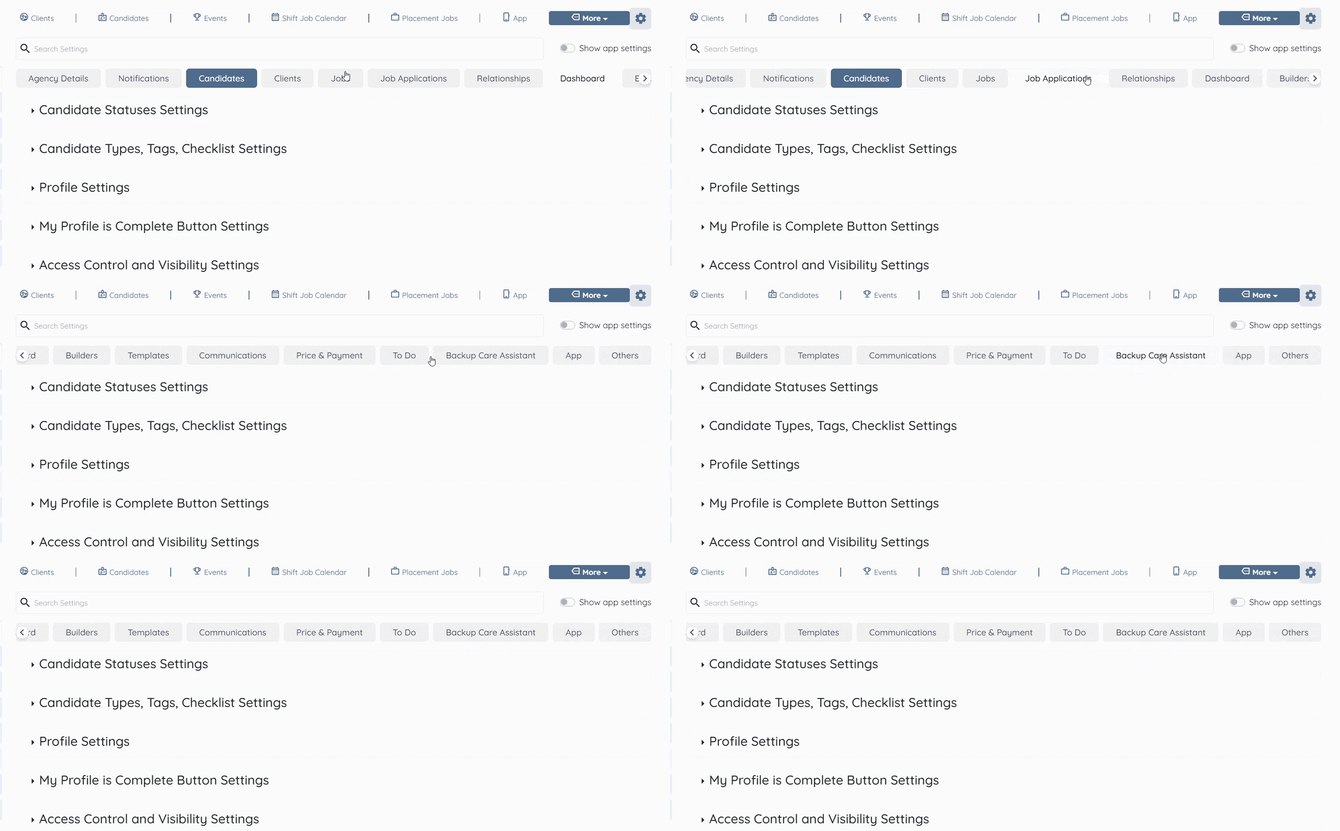
Step 3: Click the Accounts option to expand and view its details.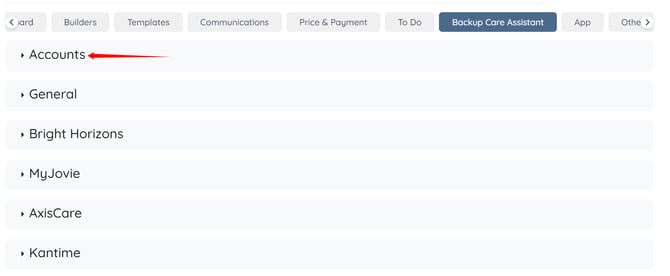
Step 4: Click the pencil icon under the Actions column next to the WellSky account. 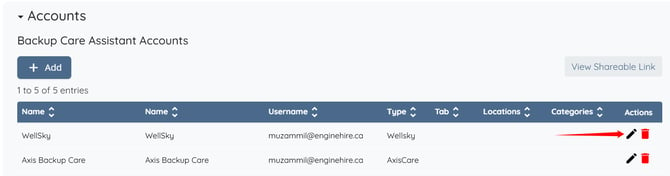
Step 5: Click the Client Data Sync Settings option to expand it.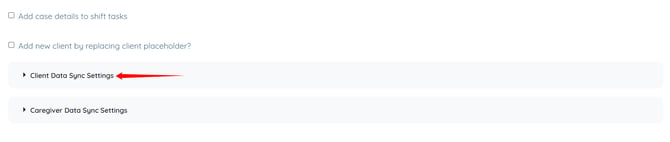
Step 6: Select the client type you want to map in the Client type mapping with Needs Caregiver to Drive in Wellsky field and then select the client tag you want to map in the Client tag mapping with Needs Caregiver to Drive in Wellsky field.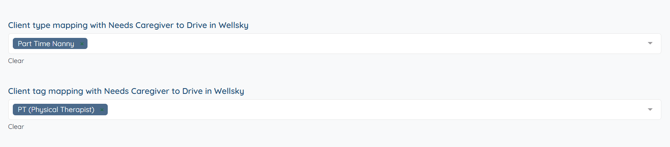
Step 7: In the Client type mapping with Match Criteria in WellSky field, select the Enginehire client type and then enter the corresponding Match Criteria value from WellSky. 
Step 8: In the Client tag mapping with Match Criteria in WellSky field, select the Enginehire client tag and then enter the corresponding Match Criteria value from WellSky. 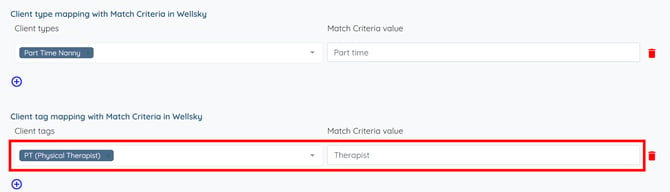
Step 9: Scroll to the bottom and click the Submit button.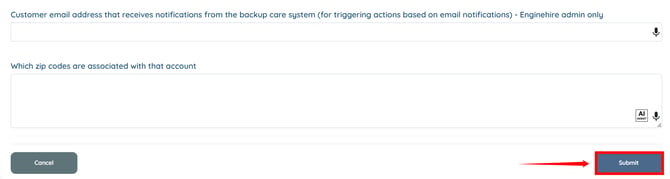
Configure Task Storage Mapping
Select the Enginehire model where tasks synchronized from WellSky shift jobs should be stored. Use a model that is not used elsewhere to avoid conflicts.
Step 1: Click the WellSky option to expand and view its details.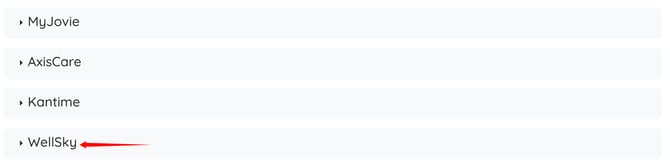
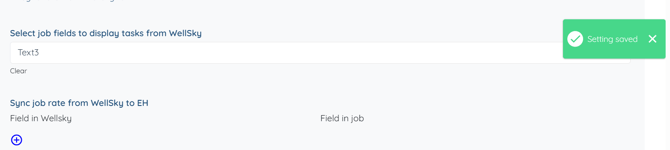
Step 2: Click the box under the Select job fields to display tasks from WellSky field to open the drop down list.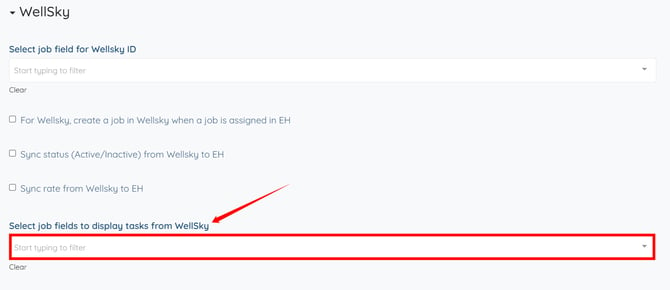
Step 3: Select the model where tasks synchronized from WellSky shift jobs should be stored.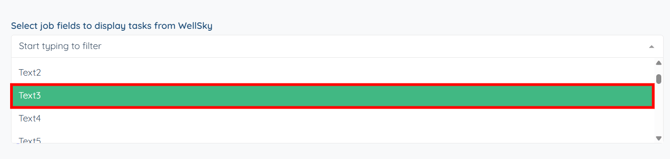
The settings will be saved automatically.