![enginehire logo thin dark 1.0.png]](https://learn.enginehire.io/hs-fs/hubfs/enginehire%20logo%20thin%20dark%201.0.png?height=40&name=enginehire%20logo%20thin%20dark%201.0.png)
For demonstration purposes, this article uses Clients as an example. However, you can follow the same steps to configure automated status reasons for Candidates as well.
Let’s get started 🚀
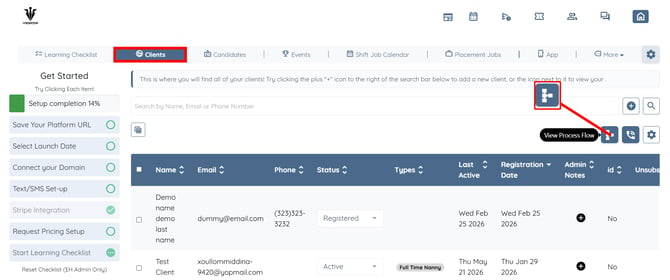
Step 1: Log in to your agent dashboard and click the View Process Flow button under the Clients as shown in the screenshot below.
Step 2: In the process flow, click the pencil icon next to the email template for which you want to configure an automatic status reason. 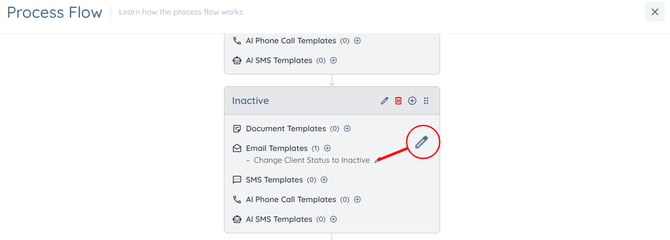
Step 3: Select the time interval to automatically send the email.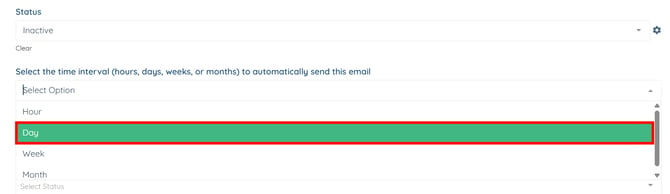
Step 4: Enter the number of days after which the email should be sent if the user remains in the current status. 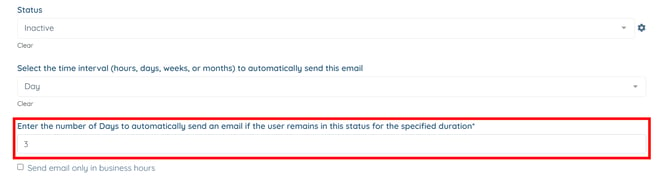
Step 5: Select the status to update to after sending the email.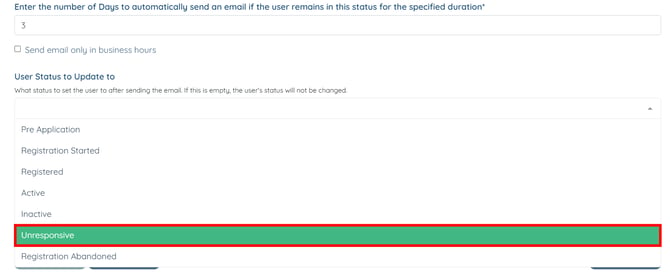
Step 6: Select the reason that will be recorded when the automation changes the user’s status.
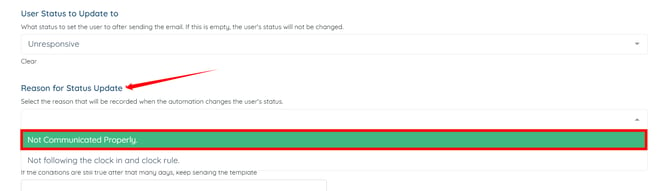
The reasons for the status selected in Step 5 will only appear if reason codes have been configured for that status. To learn how to configure status reasons, refer to the How to Document Reasons for a Status Change article.
Step 7: Click the Update button.
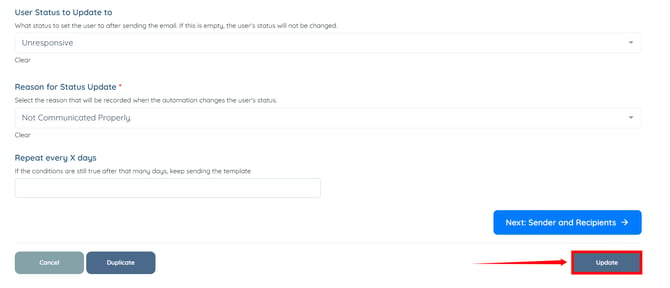
The automated status change will apply the selected reason automatically whenever the user's status is updated through the configured email automation.