![enginehire logo thin dark 1.0.png]](https://learn.enginehire.io/hs-fs/hubfs/enginehire%20logo%20thin%20dark%201.0.png?height=40&name=enginehire%20logo%20thin%20dark%201.0.png)
Profile sections in Enginehire, including Special Dates, can be limited so they only appear for clients or candidates in specific statuses. This is useful when you want a section to be available to certain members but hidden from others.
The most common reason special dates show for one group of clients but not another is that the Special Dates section's visibility is limited to a list of statuses, and the missing group's status is not on that list. If your agency offers more than one membership tier and the section is only set to appear for one of them, clients on the other tier will not see their special dates, even though everything else about their profile is set up correctly.
Where to find the visibility settings for a profile section
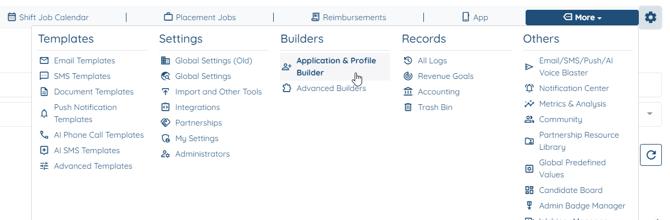
Click More in the top navigation, then under Builders select Application & Profile Builder.
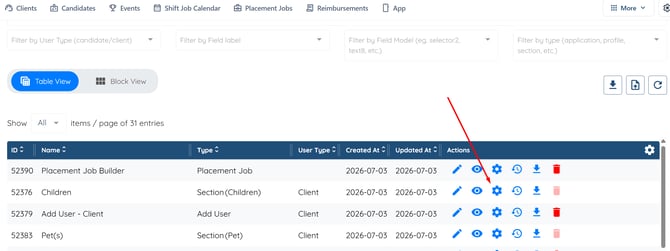
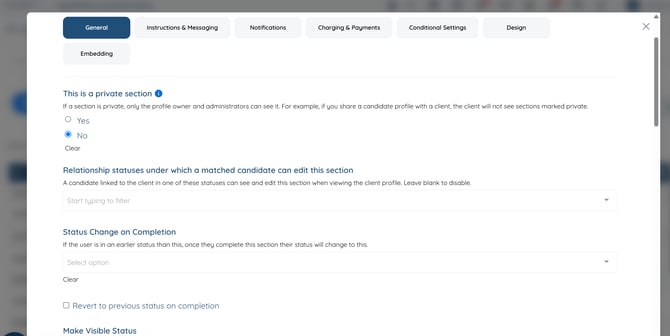
 Find the Special Dates section in the list and click the gear Edit settings icon in the Actions column on that row. This opens the section’s settings window, where the visibility fields described below are located.
The Make Visible Statuses setting
Every profile section has a Make Visible Statuses setting. If a user is in any of the statuses selected here, the section is visible to them. If the field is left blank, the section is visible in all statuses.
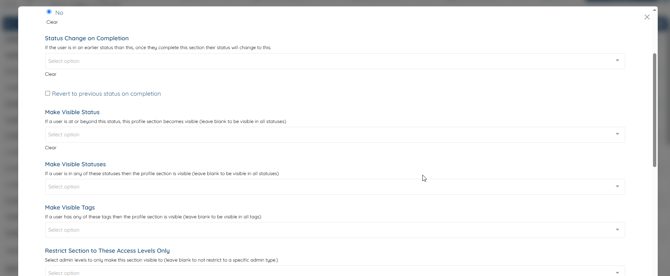
The statuses in this dropdown are your agency's own configured statuses, so the options match whatever status names you use. If you want the section to appear for more than one status, every status that should see it needs to be added individually. Adding one membership status does not automatically include the others.
Take care not to confuse this field with Make Visible Status (singular), which sits just above it. That setting makes the section visible when a user is at or beyond a single status in your status order, rather than for a specific list of statuses. For controlling which membership tiers see a section, Make Visible Statuses (the plural "any of these statuses" field) is almost always the one you want. There is also a Make Visible Tags field, which shows the section to users who have any of the selected tags. Leaving any of these fields blank means that field does not restrict visibility.
How to fix special dates that are missing for a status
Go to More > Application & Profile Builder and click the gear Edit settings icon on the Special Dates row.
In the settings window, scroll to Make Visible Statuses and check which statuses are currently selected. Add the status that should be able to see the section, then save. Clients in the newly added status will see their special dates going forward. If you want the section to be available to everyone regardless of status, clear the field entirely instead of adding every status one by one.
Example
An agency has two client membership statuses: Date Night Membership and Unlimited Membership. Their Special Dates section was set to be visible only for Date Night Membership, so clients on that tier saw their special dates as expected. Clients moved to Unlimited Membership could not see their special dates until Unlimited Membership was added to the Make Visible Statuses list for that section.
If this doesn't answer your question, you can always contact us by clicking here.