![enginehire logo thin dark 1.0.png]](https://learn.enginehire.io/hs-fs/hubfs/enginehire%20logo%20thin%20dark%201.0.png?height=40&name=enginehire%20logo%20thin%20dark%201.0.png)
Let's get started 🚀
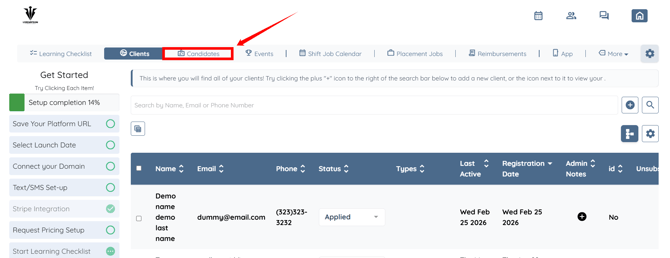
Step 1: Log in to your agent dashboard and click Candidates in the navigation bar.
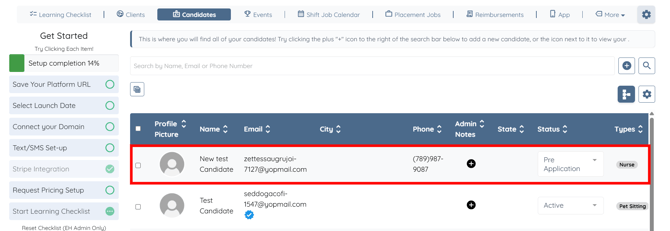
Step 2: Click any candidate in the list.
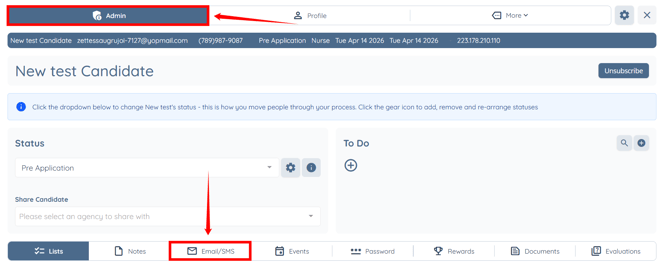
Step 3: Under the Admin tab, click the Email/SMS tab.
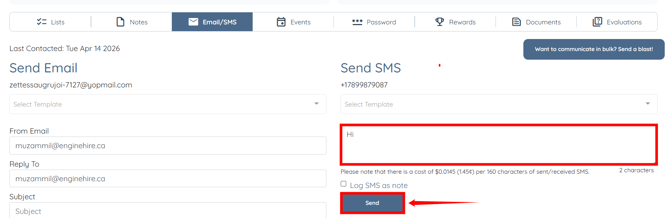
Step 4: Enter your message under the Send SMS heading, then click the Send button to proceed.
Step 5: A popup will appear indicating that a phone number must be set up before sending SMS messages. Click the Click here to submit a request link in the popup.
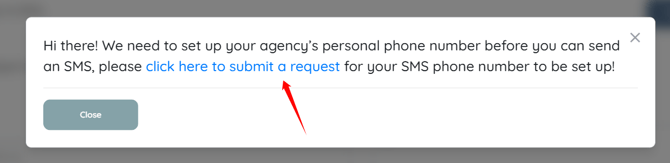
You will be redirected to the text messaging sms information page.
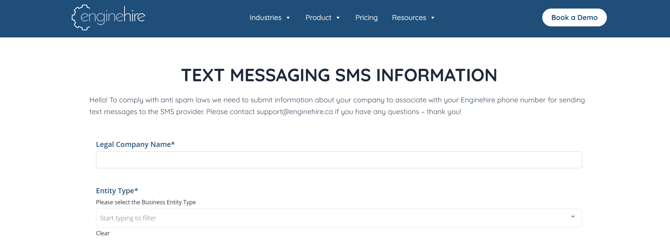
Step 6: Enter all the required information and then click the Submit button to proceed.
Your request will be submitted to EngineHire support to set up a phone number for your agency.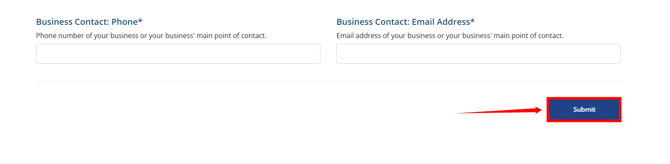
You will also see this popup when you click the Submit a Request to Set Up SMS button in More > Global Settings.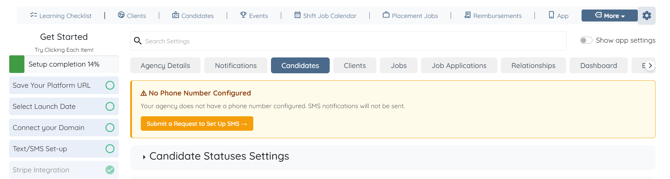
You will see this button here only if you select the SMS option in the Method to Notify field.
To select this option, go to Global Settings > Candidates > Candidate - My Jobs > Method to Notify.