![enginehire logo thin dark 1.0.png]](https://learn.enginehire.io/hs-fs/hubfs/enginehire%20logo%20thin%20dark%201.0.png?height=40&name=enginehire%20logo%20thin%20dark%201.0.png)
Let’s get started 🚀
Step 1: Log in to your agent dashboard and click More > Global Settings as shown in the screenshot below.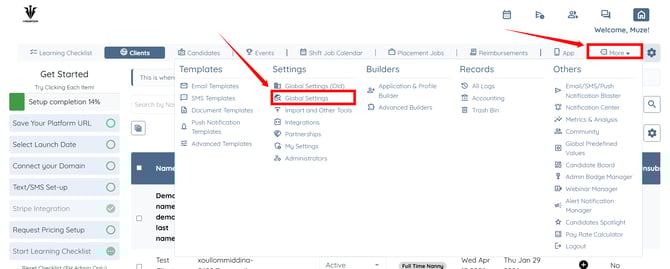
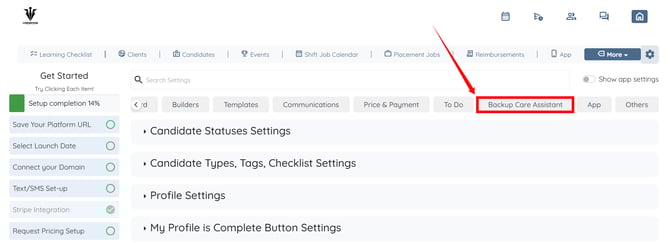
Step 2: Scroll tabs to the left and click the Backup Care Assistant tab.
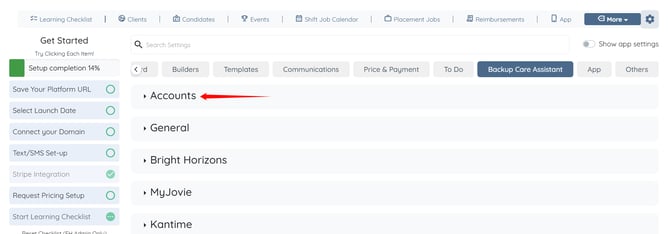
Step 3: Click the Accounts option to expand its details.
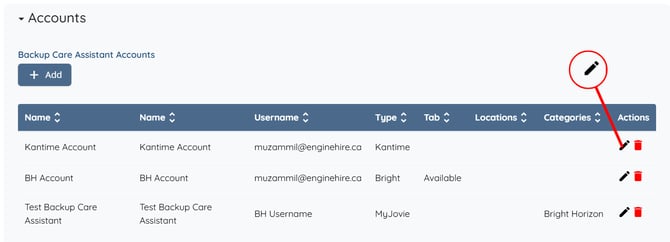
Step 4: Click the pencil icon corresponding to your KanTime Account to open the settings.
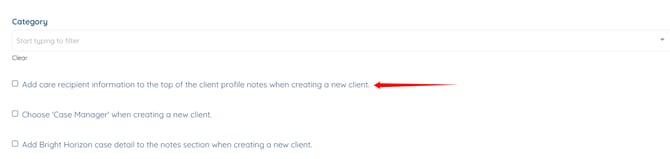
Step 5: Scroll down and check the Add care recipient information to the top of the client profile notes when creating a new client checkbox to display care recipient information at the top of the client profile in KanTime.
Step 6: Enter the prefix you want to display before the care recipient information.

Step 7: Check the Choose 'Case Manager' when creating a new client. checkbox to assign a case manager during client creation.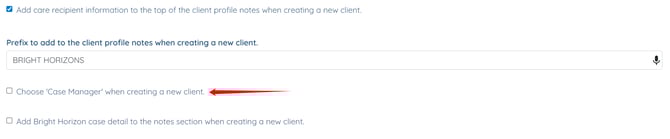
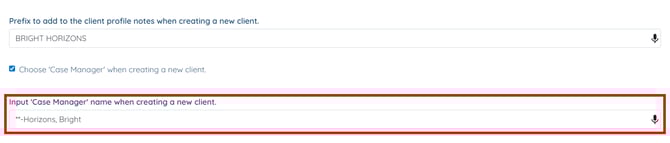
Step 8: Enter the name of the case manager you want to assign.
The case manager name must match exactly with the name in the KanTime platform.
Step 9: Check the Add Bright Horizon case detail to the notes section when creating a new client. checkbox to include case details in the client notes.

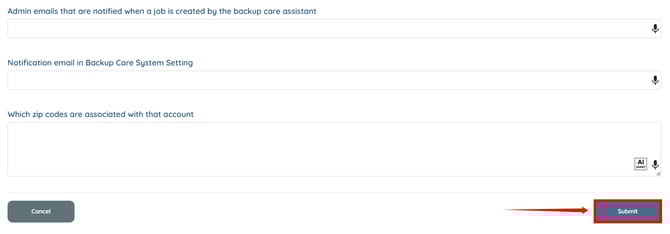
Step 10: Scroll down and click the Submit button to save your changes.