![enginehire logo thin dark 1.0.png]](https://learn.enginehire.io/hs-fs/hubfs/enginehire%20logo%20thin%20dark%201.0.png?height=40&name=enginehire%20logo%20thin%20dark%201.0.png)
The fee and wage names used in this article (such as Hourly, BUCA, or 3 Kids (BH)) are examples only. Your My Jovie account may use different rate names. Enter the exact fee and wage names configured in your My Jovie system. The values entered here must match your My Jovie rate names exactly for the mapping to work correctly.
Let’s get started 🚀
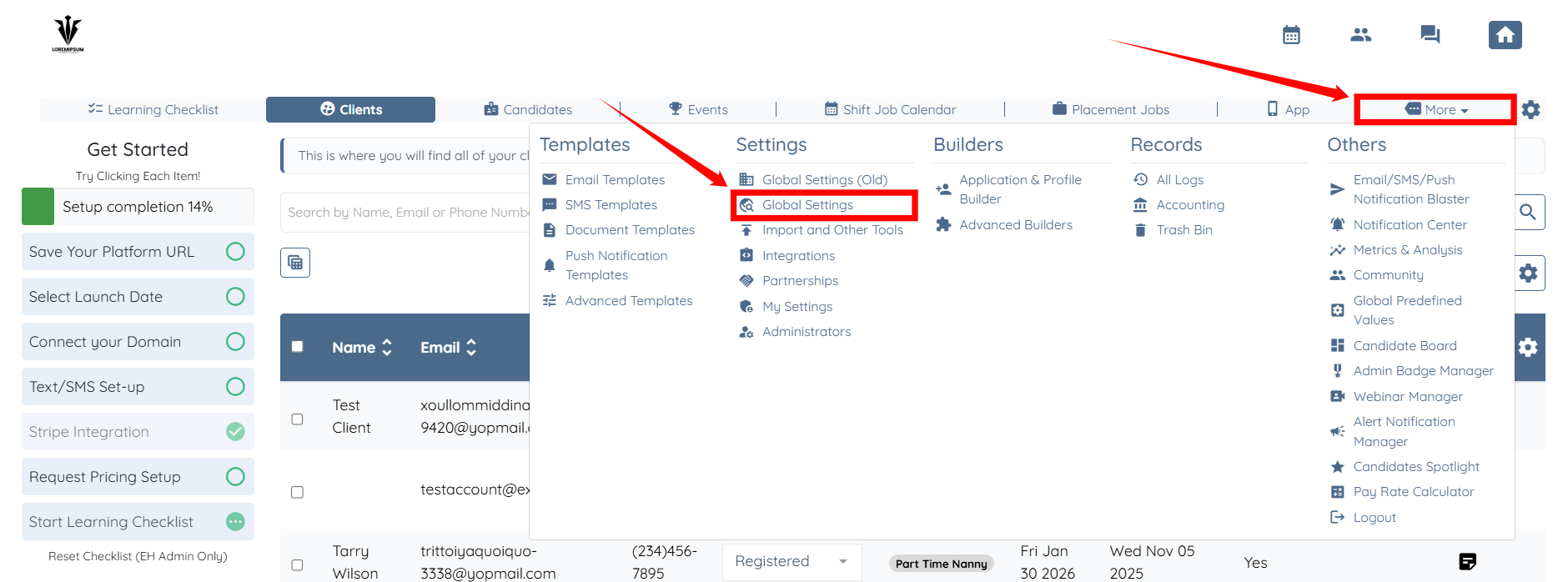
Step 1: From your agent dashboard, click More and then select Global Settings, as shown in the screenshot below.
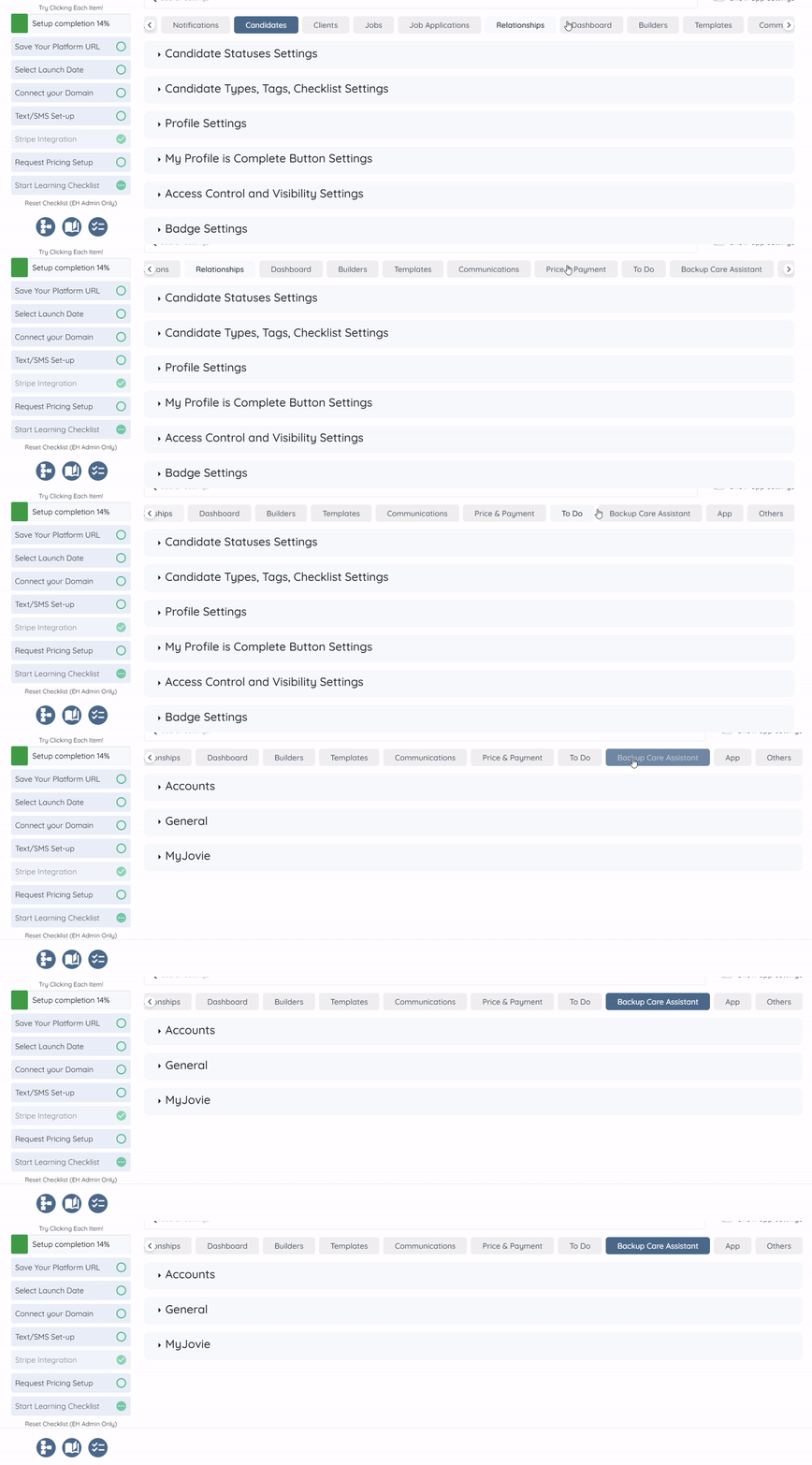
Step 2: Scroll the tabs to the left, and then click the Backup Care Assistant tab.
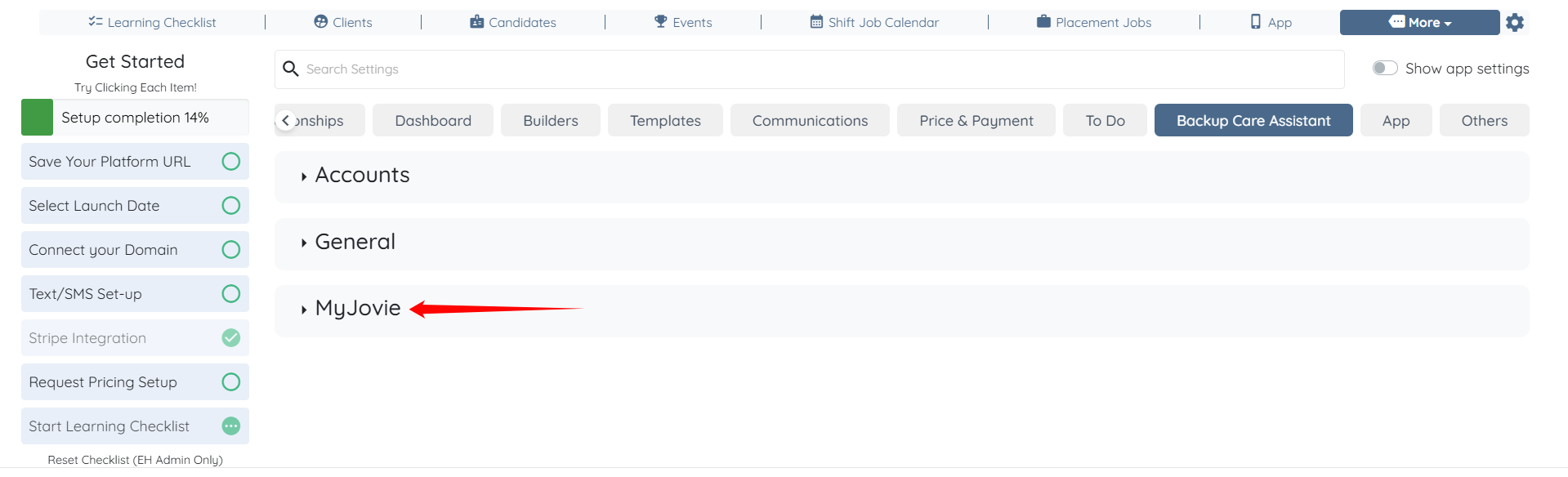
Step 3: Click the MyJovie option to expand it and view its details.
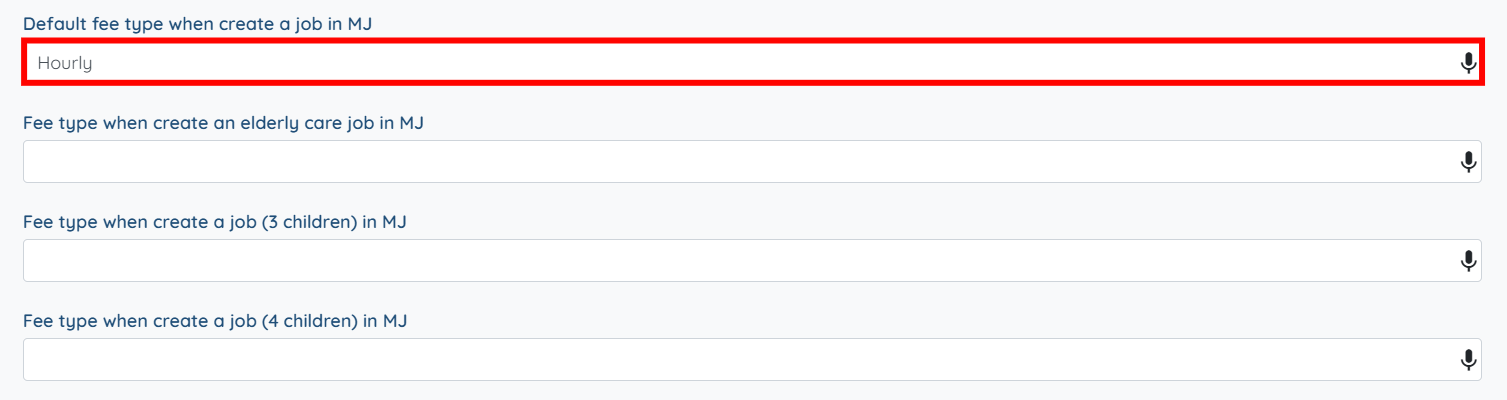
Step 4: Scroll down to the Default fee type when create a job in MJ option, and enter the fee type used in your My Jovie account (for example, Hourly). The system automatically saves these settings.
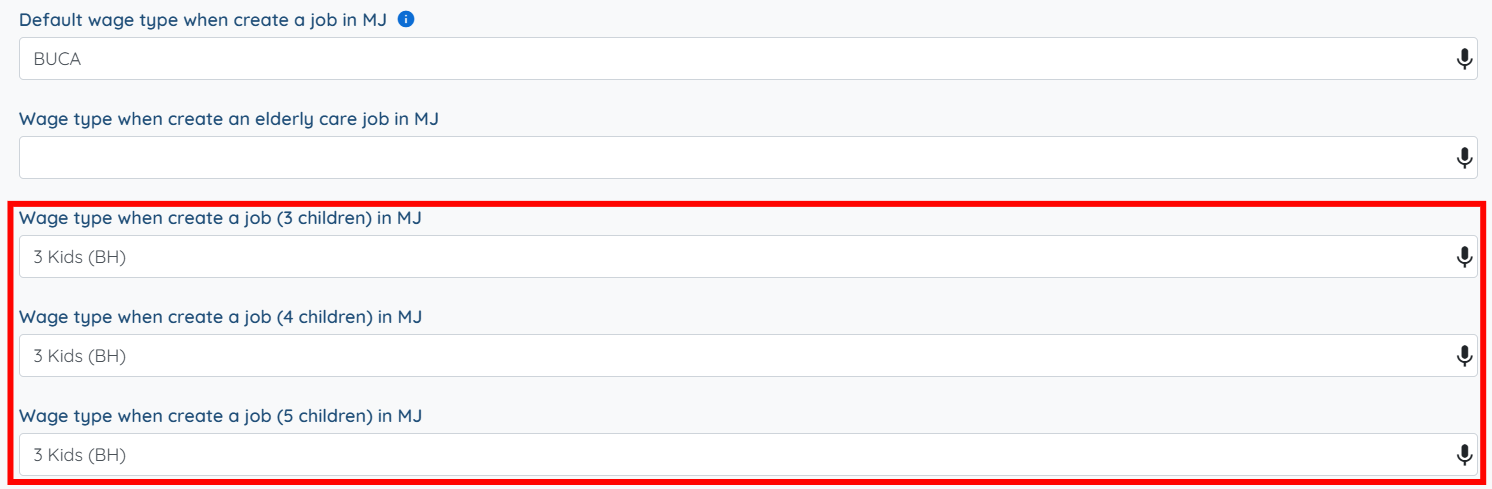
Step 5: Then, for the Default wage type when create a job in MJ option, and enter the wage type used in your My Jovie account (for example, BUCA). The system automatically saves these settings.
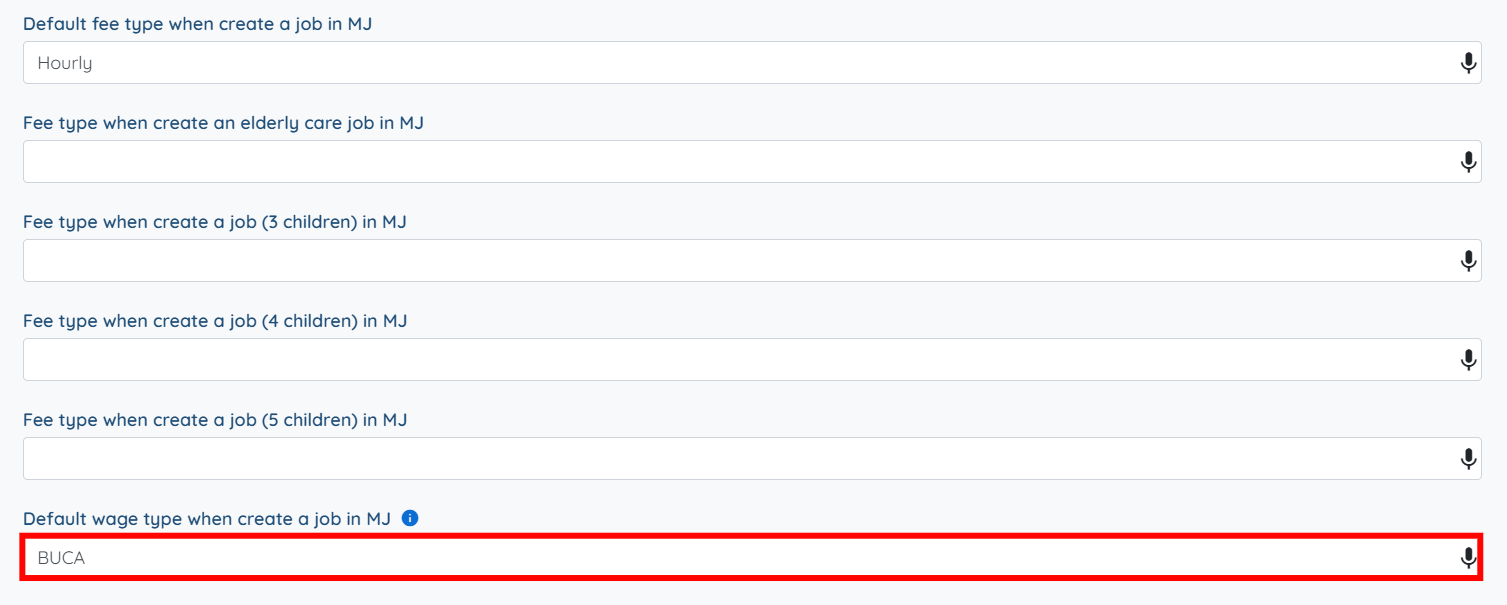
Step 6: If your My Jovie account uses different wage types based on the number of children, enter the appropriate wage names in
- Wage type when create a job (3 children) in MJ
- Wage type when create a job (4 children) in MJ
- Wage type when create a job (5 children) in MJ
The system automatically saves these settings.