![enginehire logo thin dark 1.0.png]](https://learn.enginehire.io/hs-fs/hubfs/enginehire%20logo%20thin%20dark%201.0.png?height=40&name=enginehire%20logo%20thin%20dark%201.0.png)
Let’s get started🚀
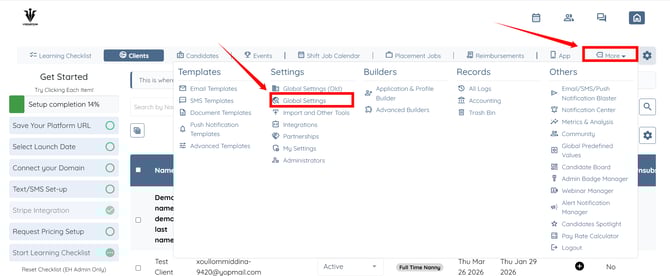
Step 1: Log in to your agent dashboard and click More > Global Settings, as shown in the screenshot below.
Step 2: Scroll the tabs to the left, then click the Backup Care Assistant tab.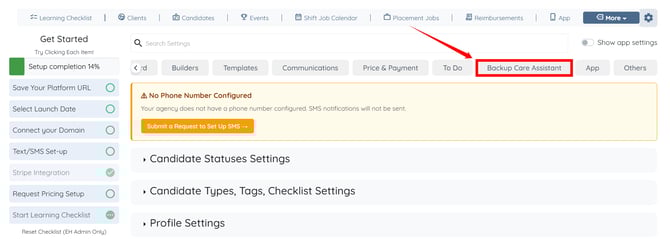
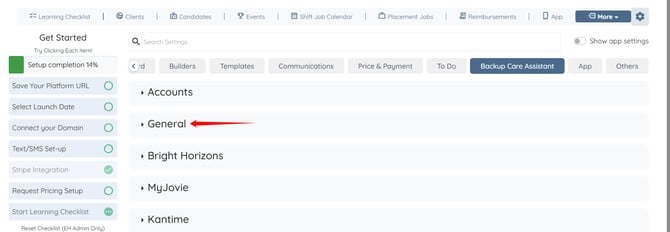
Step 3: Click the General option to expand its details.
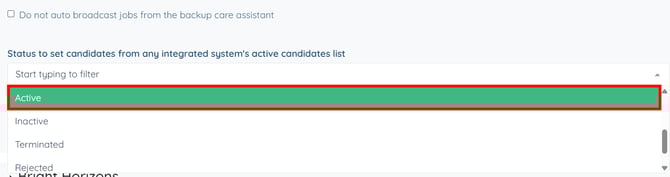
Step 4: Scroll down to the Status to set candidates from any integrated system's active candidates list setting and click the box just below it to open the dropdown list.
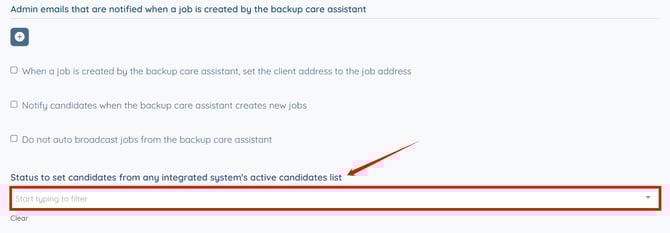
Step 5: Select the status you want to assign to all active candidates synced from the integrated system.
For demonstration purposes, we are selecting the Active status from the dropdown list.
All active candidates from the integrated system will be assigned the selected status in EngineHire. This acts as the default status unless overridden by other conditions.
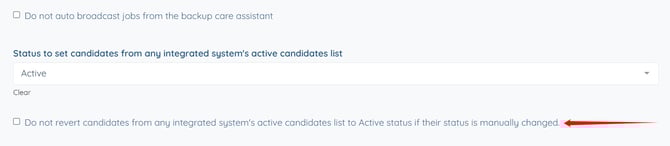
Step 6: To allow manual status changes without being overwritten during sync, enable the Do not revert candidates from any integrated system's active candidates list to Active status if their status is manually changed checkbox.
The settings will be saved automatically.
How This Setting Works
If this setting is ENABLED:
- You can manually change a candidate’s status in EngineHire.
- The system will not overwrite your changes during future syncs.
- EngineHire and the integrated system can have different statuses.
If this setting is DISABLED:
- Every time the sync runs, the system will reset the candidate’s status to the configured value.
- The status will always match the value selected in Step 5.
Manual changes will be overwritten automatically.
Pre-Orientation and Suspended Flags
Pre-Orientation and Suspended flag values are only applicable when using the MyJovie integration. When syncing candidates from MyJovie, these flags are evaluated along with the active candidate list.
If a candidate is active in MyJovie and the Pre-Orientation flag is set to “Yes”, the candidate’s status will automatically be set to Pre-Orientation in EngineHire.
Similarly, if the Suspended flag is set to “Yes”, the candidate’s status will be set to Suspended, regardless of the default status configuration.