![enginehire logo thin dark 1.0.png]](https://learn.enginehire.io/hs-fs/hubfs/enginehire%20logo%20thin%20dark%201.0.png?height=40&name=enginehire%20logo%20thin%20dark%201.0.png)
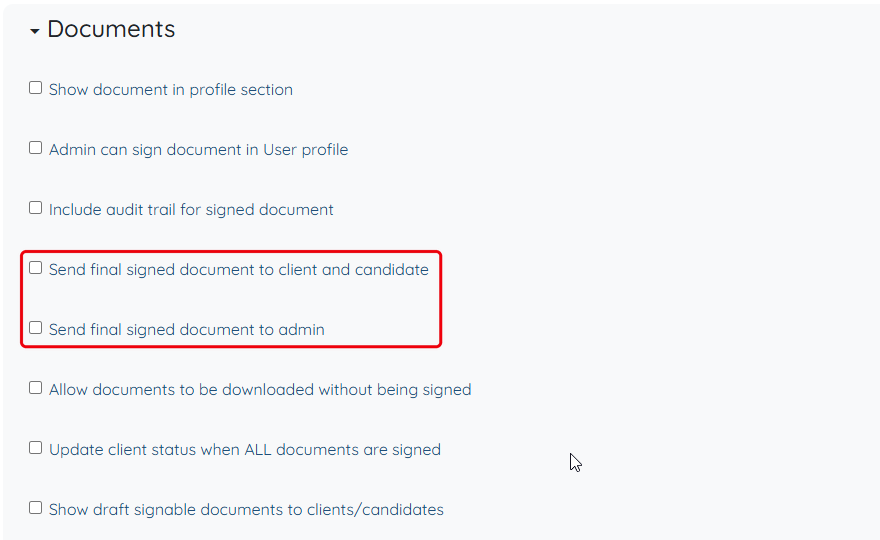
When Send final signed document to client and candidate or Send final signed document to admin is turned on, Enginehire sends a copy of each document once it's signed. The Select Document Templates to Send Copies After Signing setting lets you limit those copies to the document templates you choose. For example, you can send copies of a signed authorization form without sending a copy of every other document your clients sign.
Clients and candidates each have their own document settings, so you can choose different templates for each.
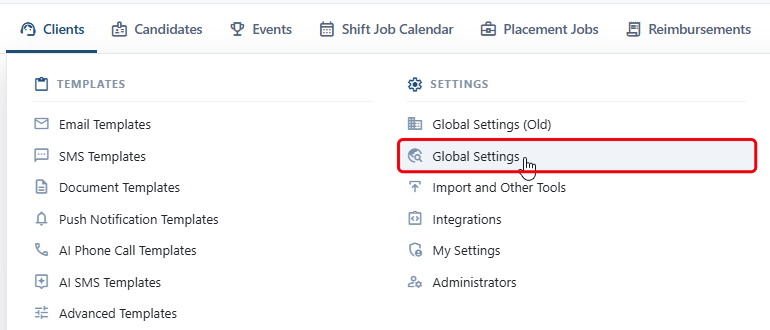
Open the document settings in Global Settings
Click More in the top navigation bar, then click Global Settings in the Settings column. Make sure you choose Global Settings, not Global Settings (Old) just above it.
Click the Clients tab to set this up for clients, or the Candidates tab to set it up for candidates.
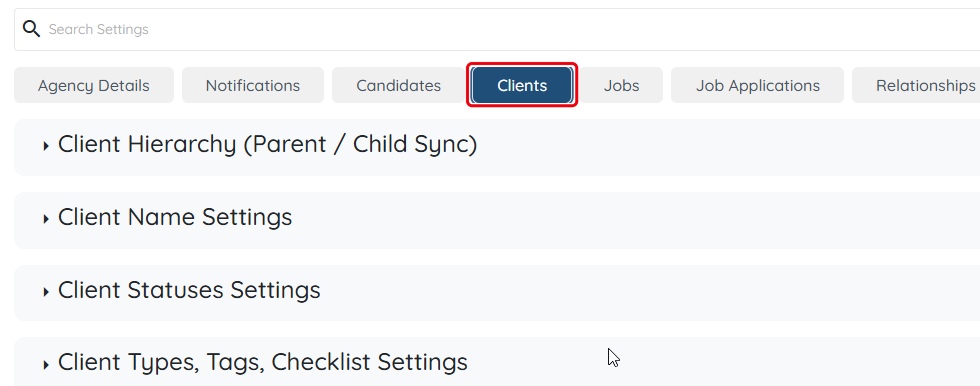
Scroll down and expand the Documents section.
Turn on copies of signed documents
In the Documents section, select Send final signed document to client and candidate to send copies to clients and candidates, select Send final signed document to admin to send copies to your admins, or select both.
Choose which document templates send copies
In the same Documents section, click the Select Document Templates to Send Copies After Signing field and select each document template whose signed documents should be sent as copies. You can select as many templates as you need. To remove every selection, click Clear under the field.
If you leave this field empty, a copy is sent for every signed document.
The Clients and Candidates tabs keep separate lists. To limit copies for both, repeat these steps on the other tab.
Related signed document notifications
To email a specific address whenever a document from a particular template is signed, see Configure Email Notifications for Signed Documents. To send signers an email with a link to view or download their signed document, see Send Signed Document Notifications with Download Links.